

Passenger profiles
Use this to save your agency's regular travelers, so their details are pre-filled when agents book for them. You can also find, edit and delete saved profiles here.
Before you start, check that:
- You have at least one identification document for the traveler: a Passport or a National ID.
Step 1: Open Passenger Profiles
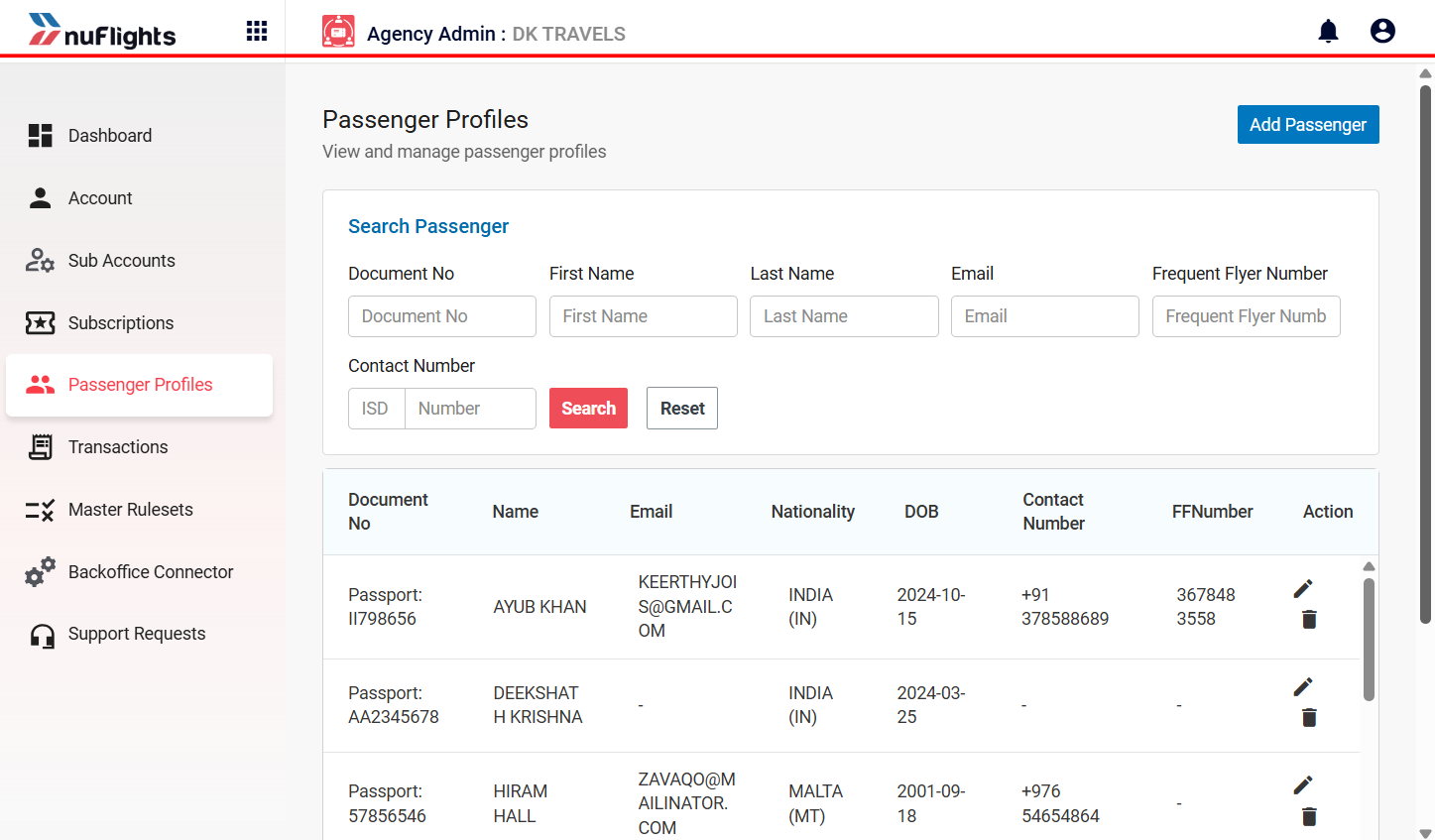
Log in to the NF application and go to Agency Admin > Account > Passenger Profiles.
Step 2: Enter the passenger info
- Click Add Passenger at the top right.
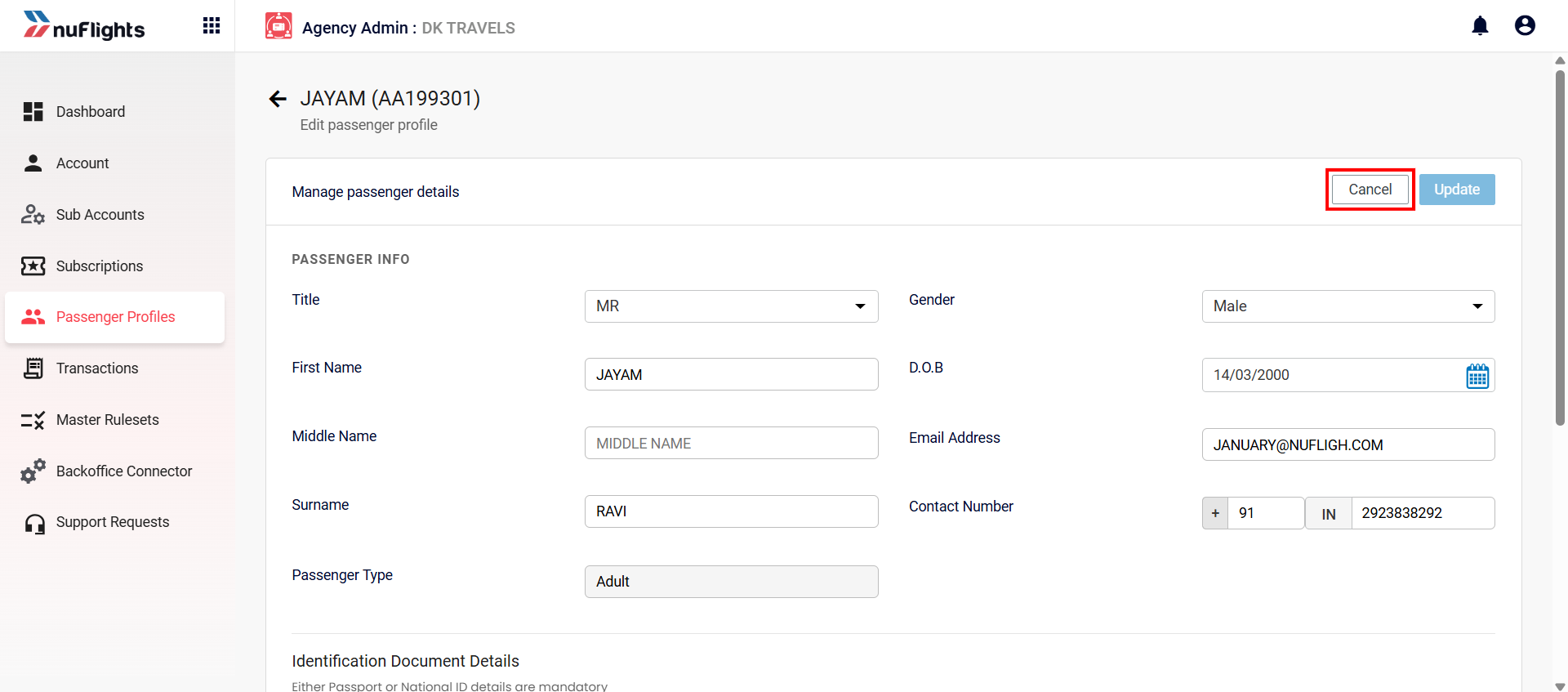
- Fill in the Passenger Info:
- Title and Gender
- First Name, Middle Name and Surname
- Date of Birth (D.O.B) and Email Address
- Contact Number, including the country code
Step 3: Add an identification document
Add at least one document: Passport or National ID. Enter the document number, nationality and expiry date.
You can't save a profile without an ID document. NuFlights needs at least one valid identification document on each passenger profile, because airline bookings depend on it. If both the Passport and National ID fields are empty, you'll see a validation error.
Step 4: Save the profile
- Optional: enter the Frequent Flyer Number, if the traveler has one.
- Click Save (or Update if you're editing a profile).
Add a profile from a booking
You can also save a passenger's details while making a booking. See Saving Passenger Details.
View and edit a profile
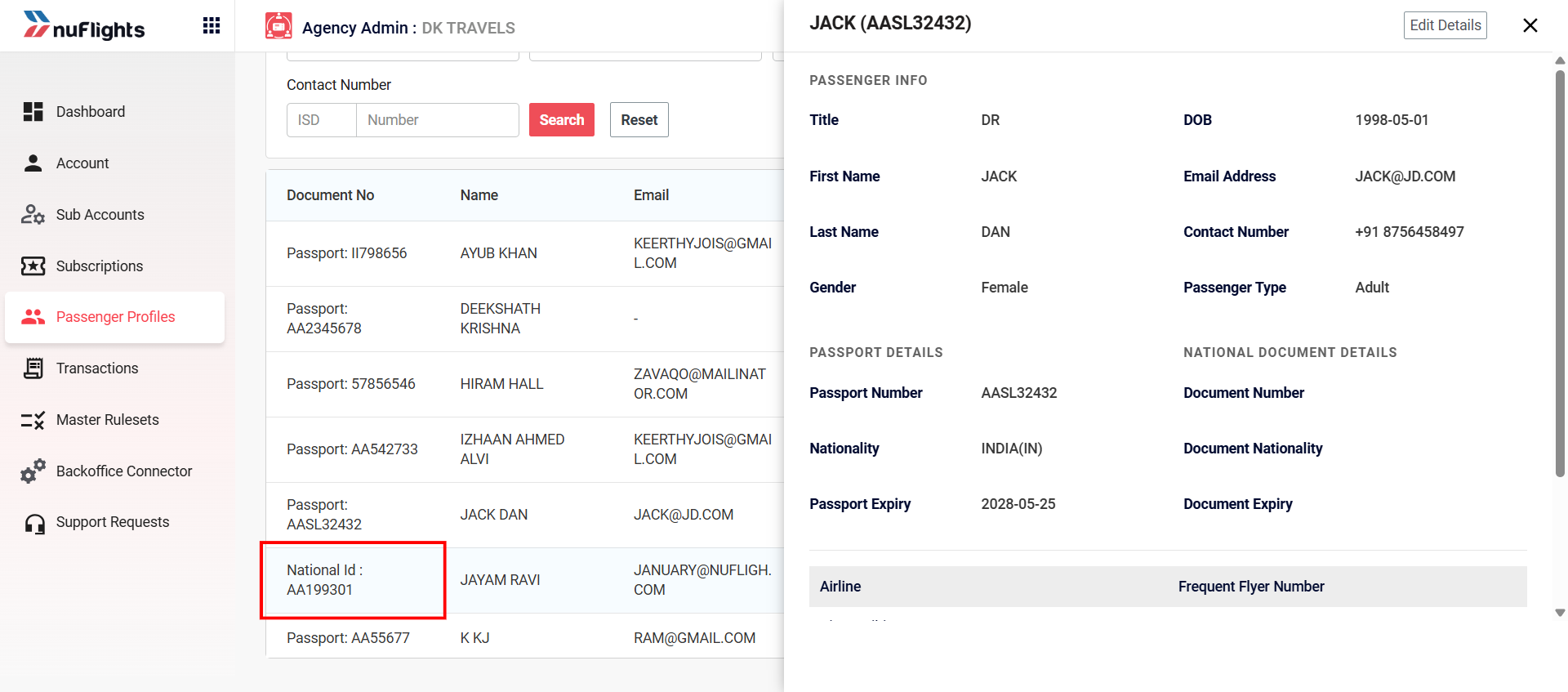
- Find the passenger in the list.
- Click the passenger's name or document number. The Passenger Info sidebar opens with a summary of their details.
- Click Edit Details to make changes.
- Click Update to save, or Cancel to discard your changes.
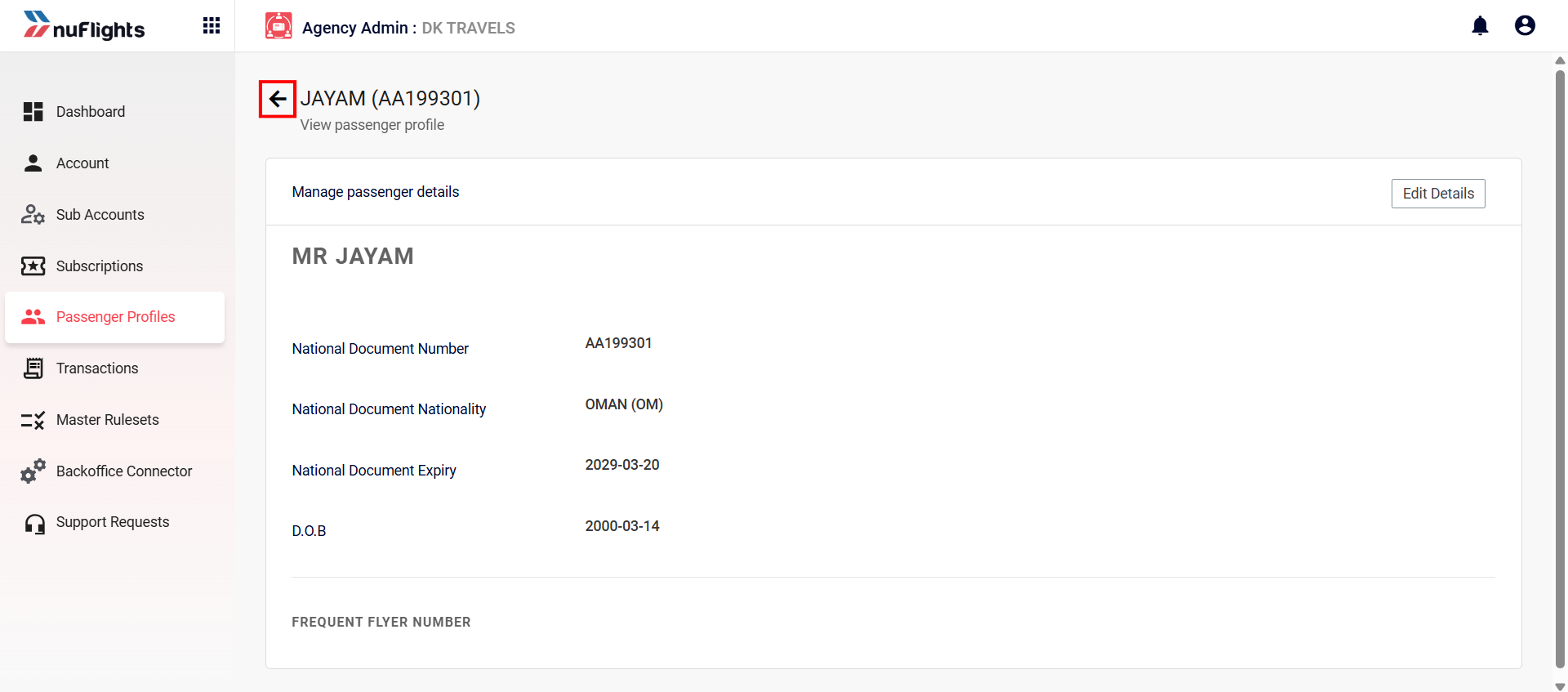
While you're updating a profile, you can go back to the main list at any time with the Back arrow icon next to the passenger's name.
Delete a profile
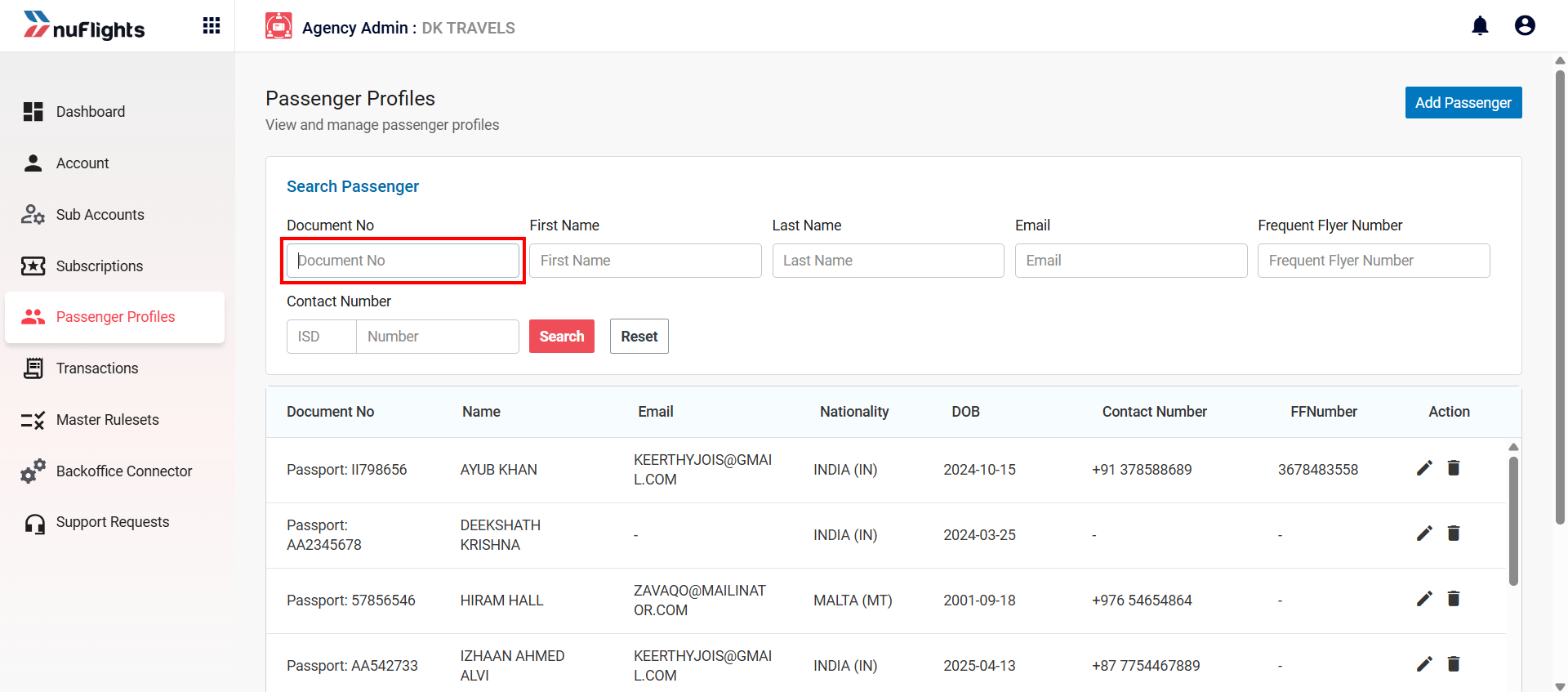
If you no longer need a profile, click the Delete (trash can) icon in the Action column of the passenger list.
Search for a profile
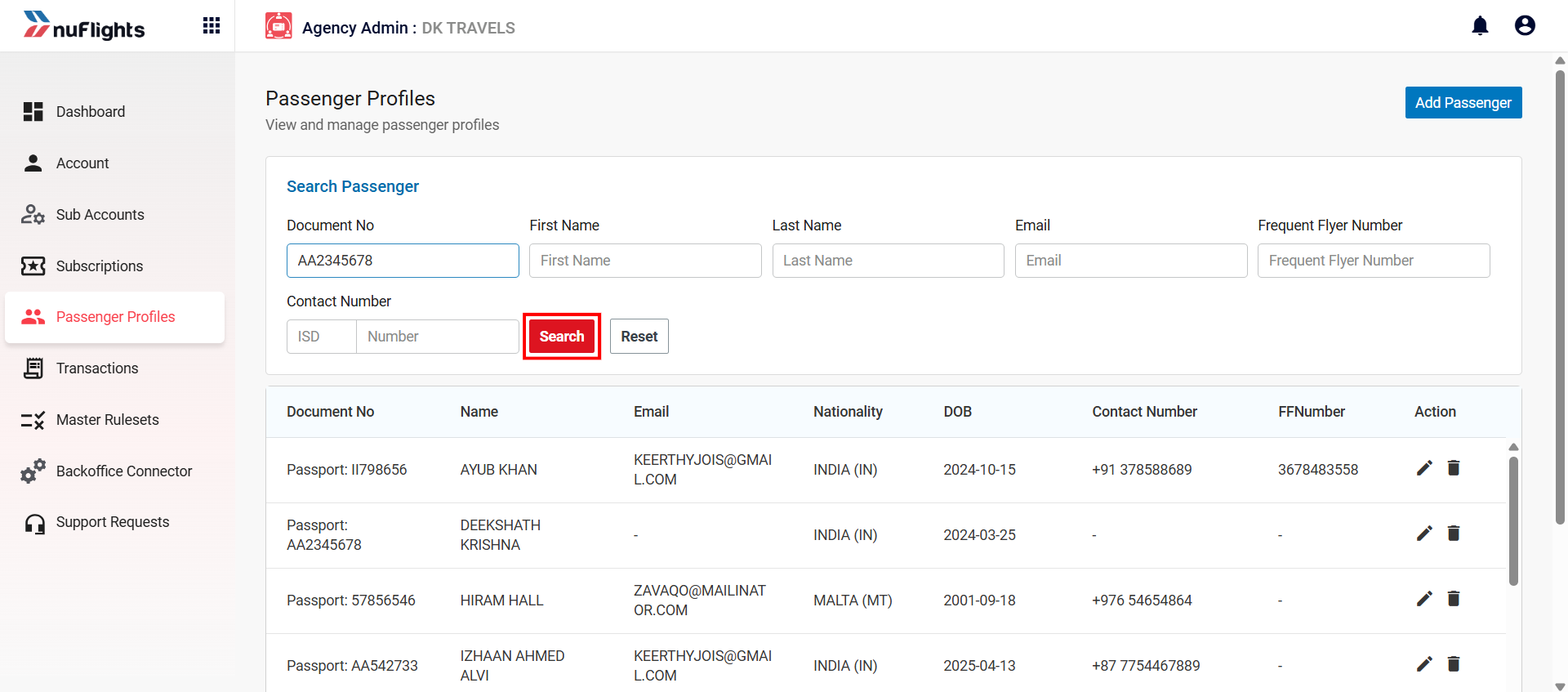
If your agency has many passengers, use the search filters to find a profile quickly:
- Document No: search by Passport or National ID number.
- First Name / Last Name: search by the traveler's name.
- Email: search by the registered email address.
Related guides