

Sub-accounts
Use this to set up a partnership between a main (parent) agency and a sub-agency: the sub-agency requests a subscription, then the main agency adds the sub-account, shares subscriptions with it and sets its Credit Control limit.
Request a partnership (sub-agency)
The sub-agency starts the process by requesting a subscription from the main agency it wants to partner with.
-
Log in to your Agency Admin portal and open Subscriptions. This page shows your current airline subscriptions and any pending requests.
-
Click Request a subscription. The partnership request pop-up opens.
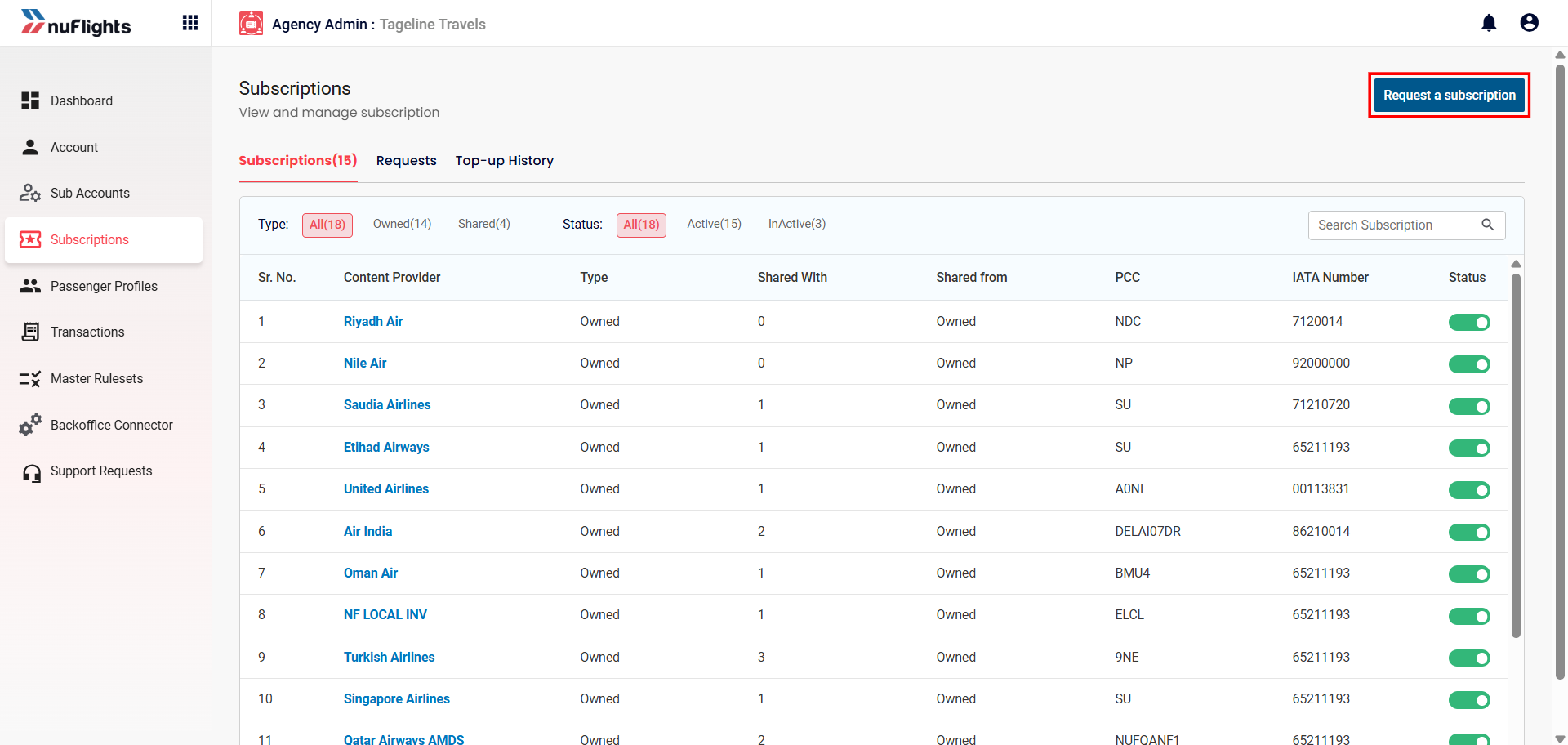
Click Request a subscription. -
Fill in the request details:
- Main Agency Contact Name: the name of the person you're sending the request to.
- Main Agency Contact Email: the recipient's email address.
- Your Note (Optional): anything else about the request. For example: "I would like to request the EK subscription." (Replace EK with any airline or subscription name.)
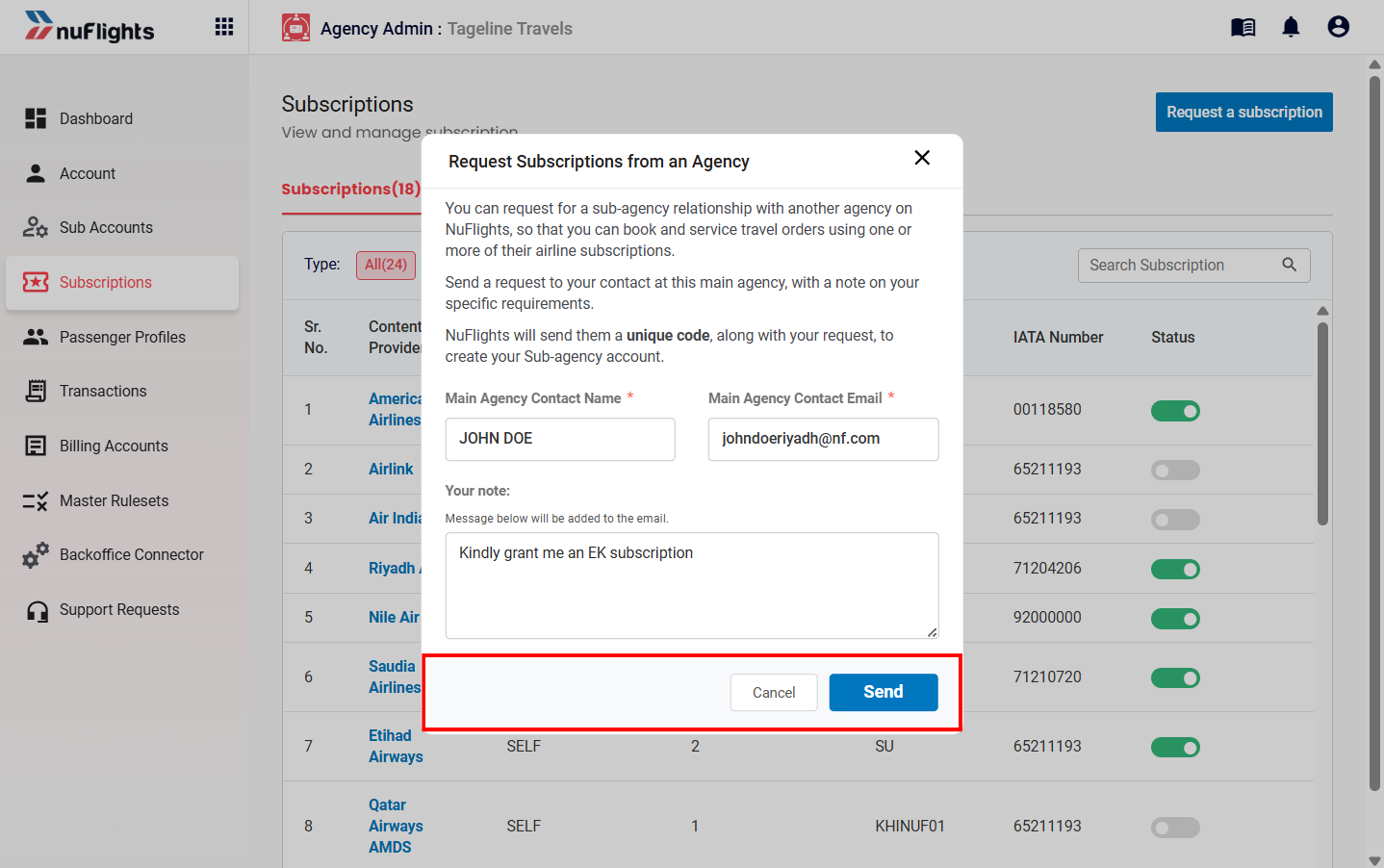
The request form, filled in with contact name, email and note. -
Click Send. A confirmation pop-up shows a unique generated request code.
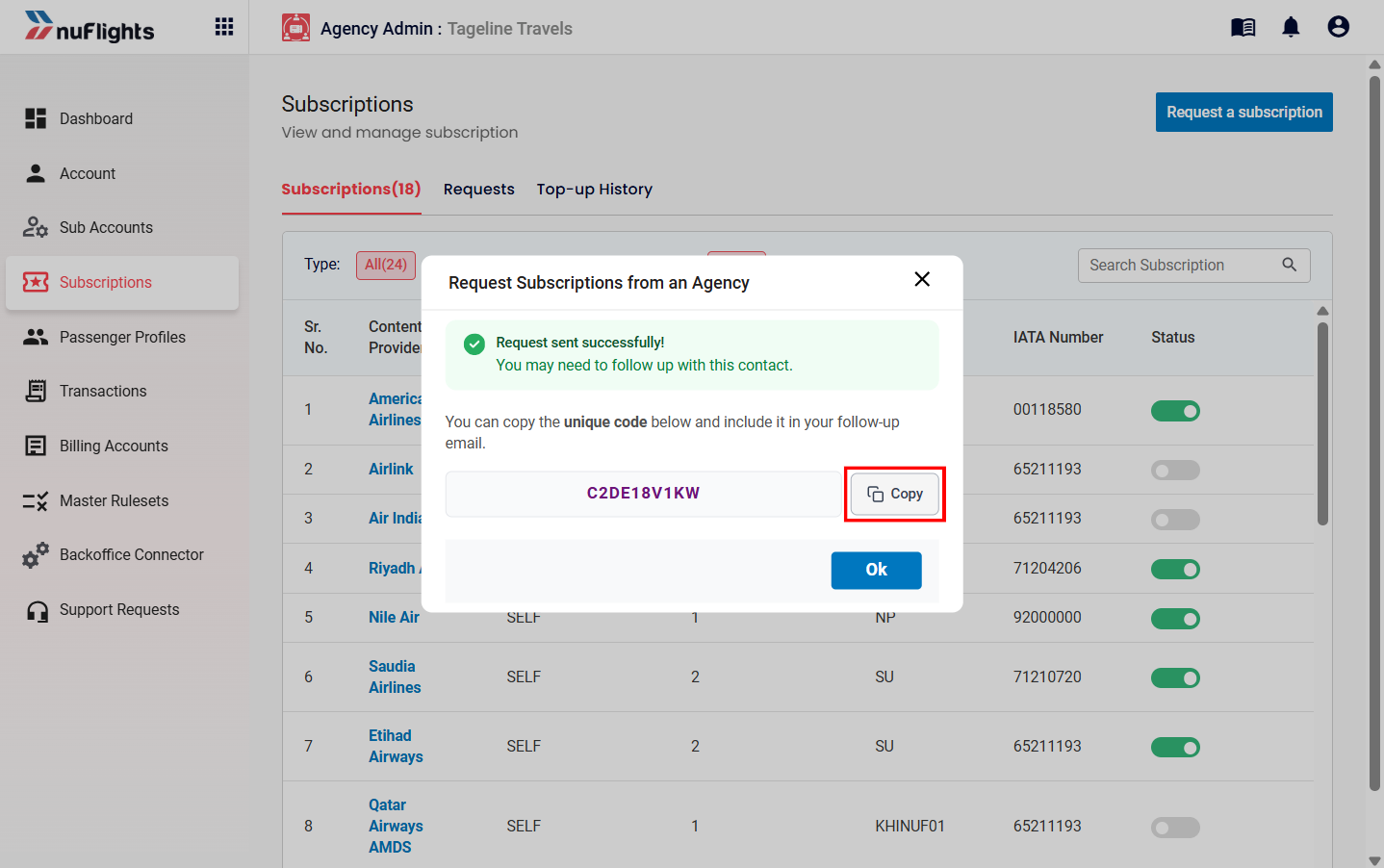
The confirmation pop-up with your request code. -
Optional: to let the main agency know about the request directly, copy the generated code and share it with them through your internal communication channels.
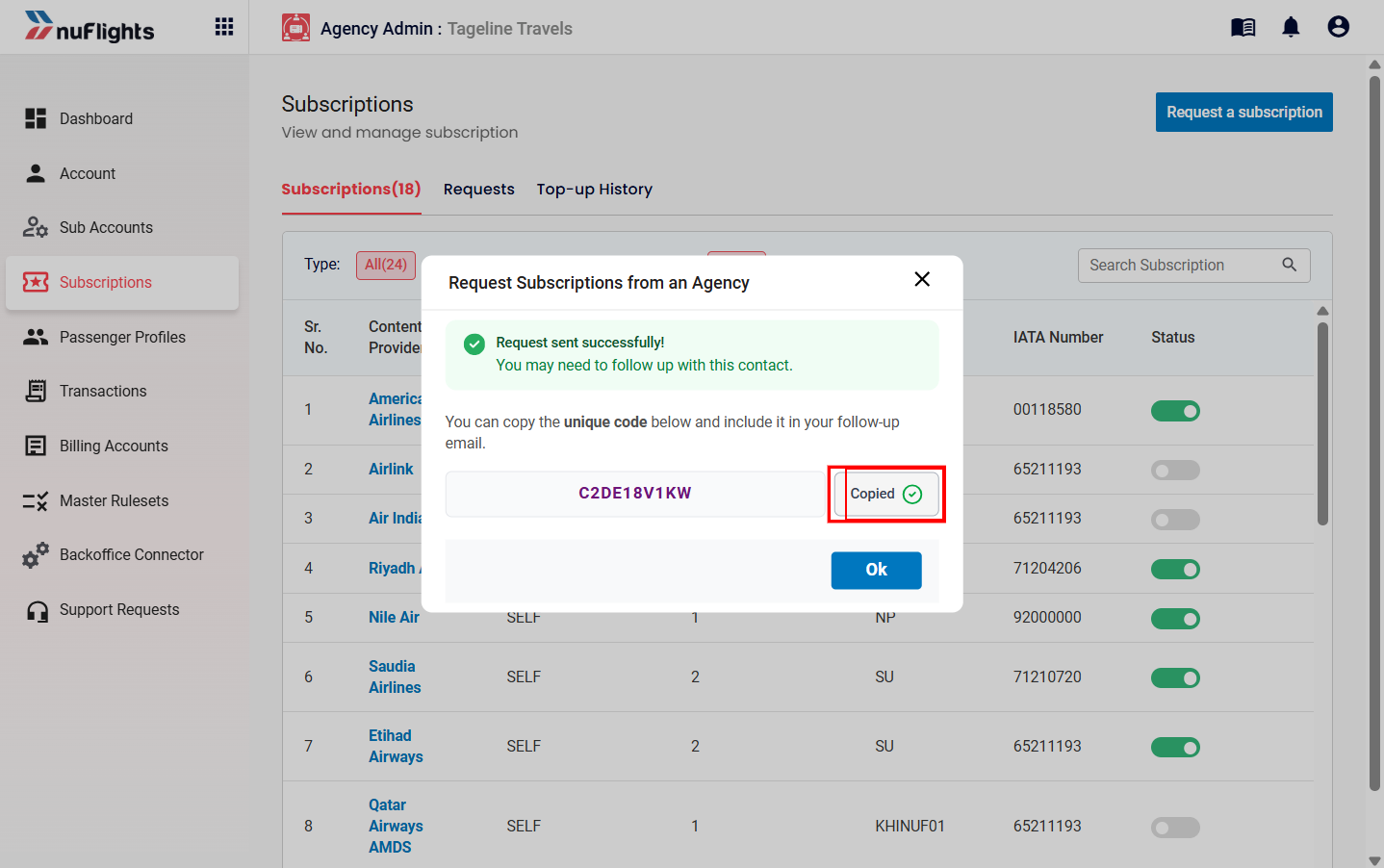
Copy the request code to share it. -
Click OK to close the pop-up. The request is complete.
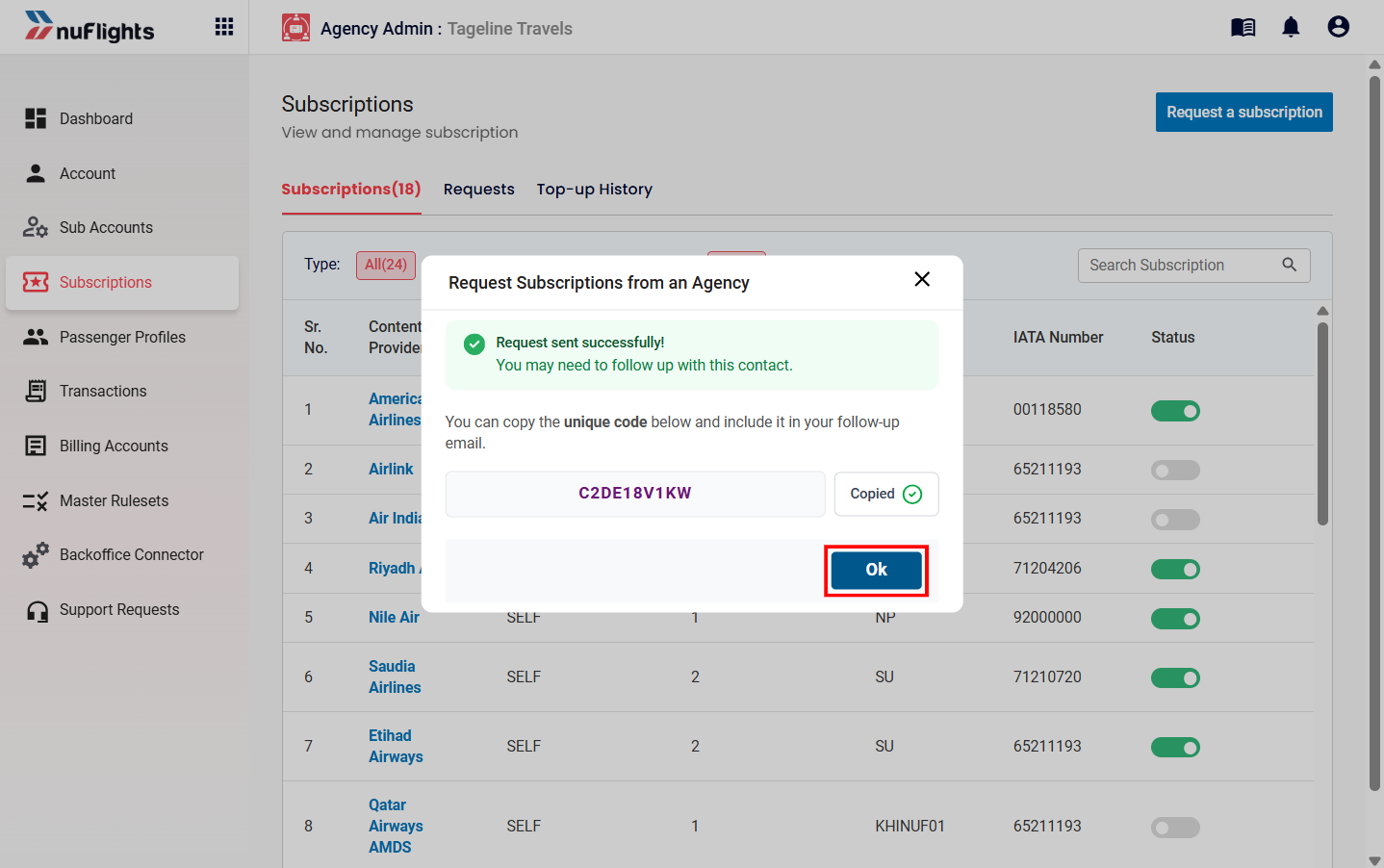
Click OK to finish. -
Track the status of your request (for example, Pending, Approved, Rejected) on the Requested tab. Each entry shows the Request ID, Date and Main Agency.
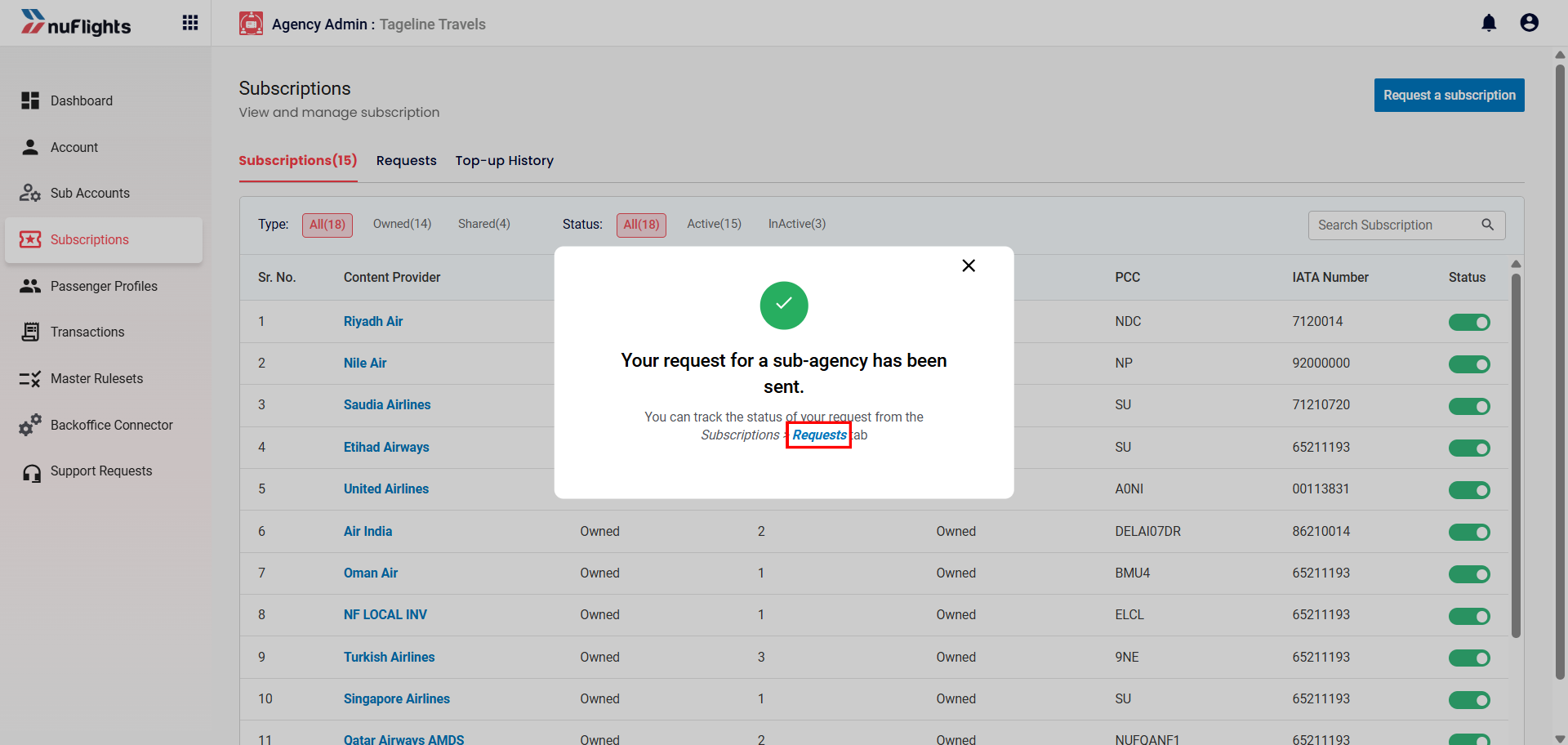
Once sent, you can track the request from the Subscriptions page. 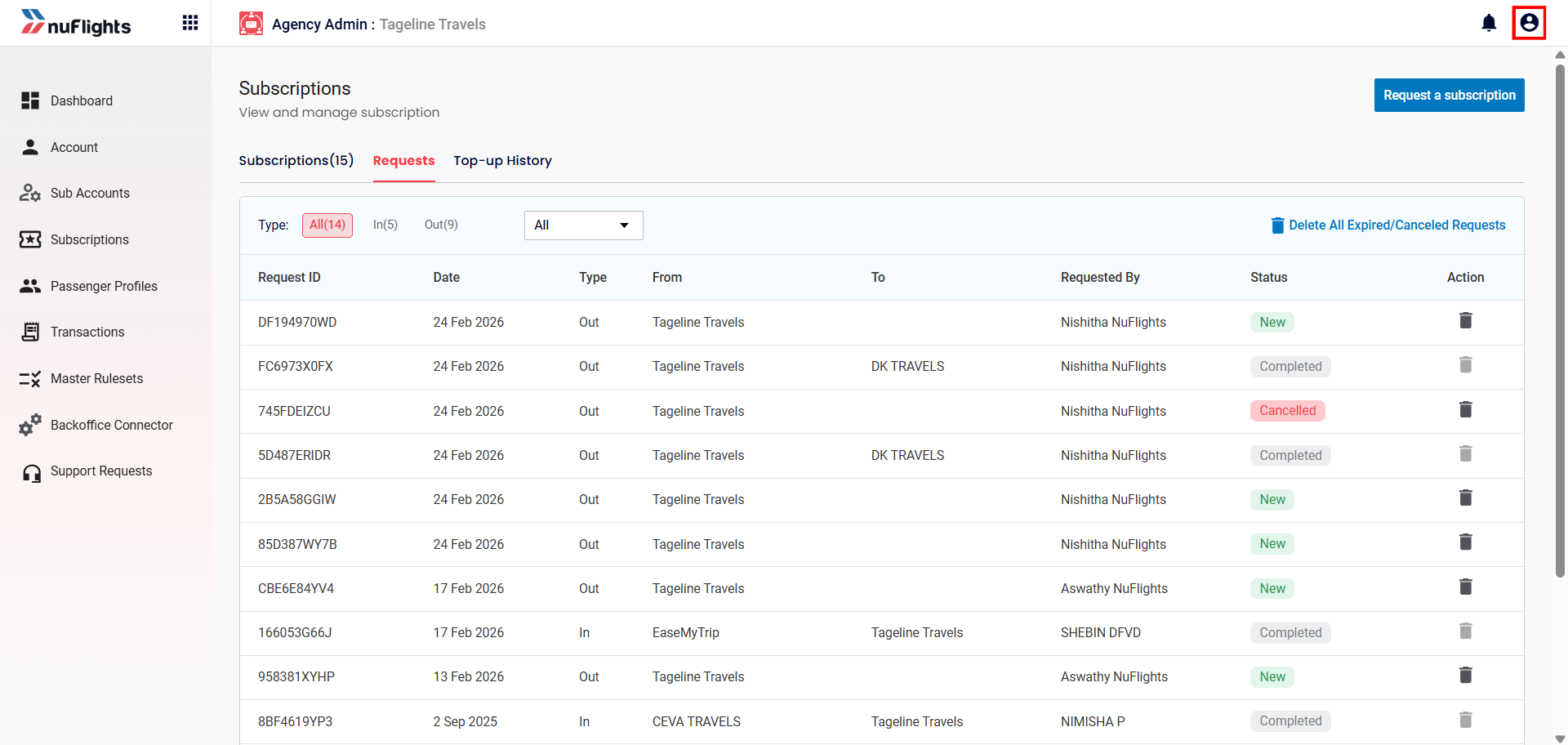
The Requests tab on the Subscriptions page.
Link and set up the sub-account (main agency)
The main agency receives the request code by email. Follow these steps to link the sub-account, share subscriptions and set it up.
Step 1: Open Sub Accounts
Log in to the Main Agency Portal, go to Agency Admin and open Sub Accounts from the left menu.
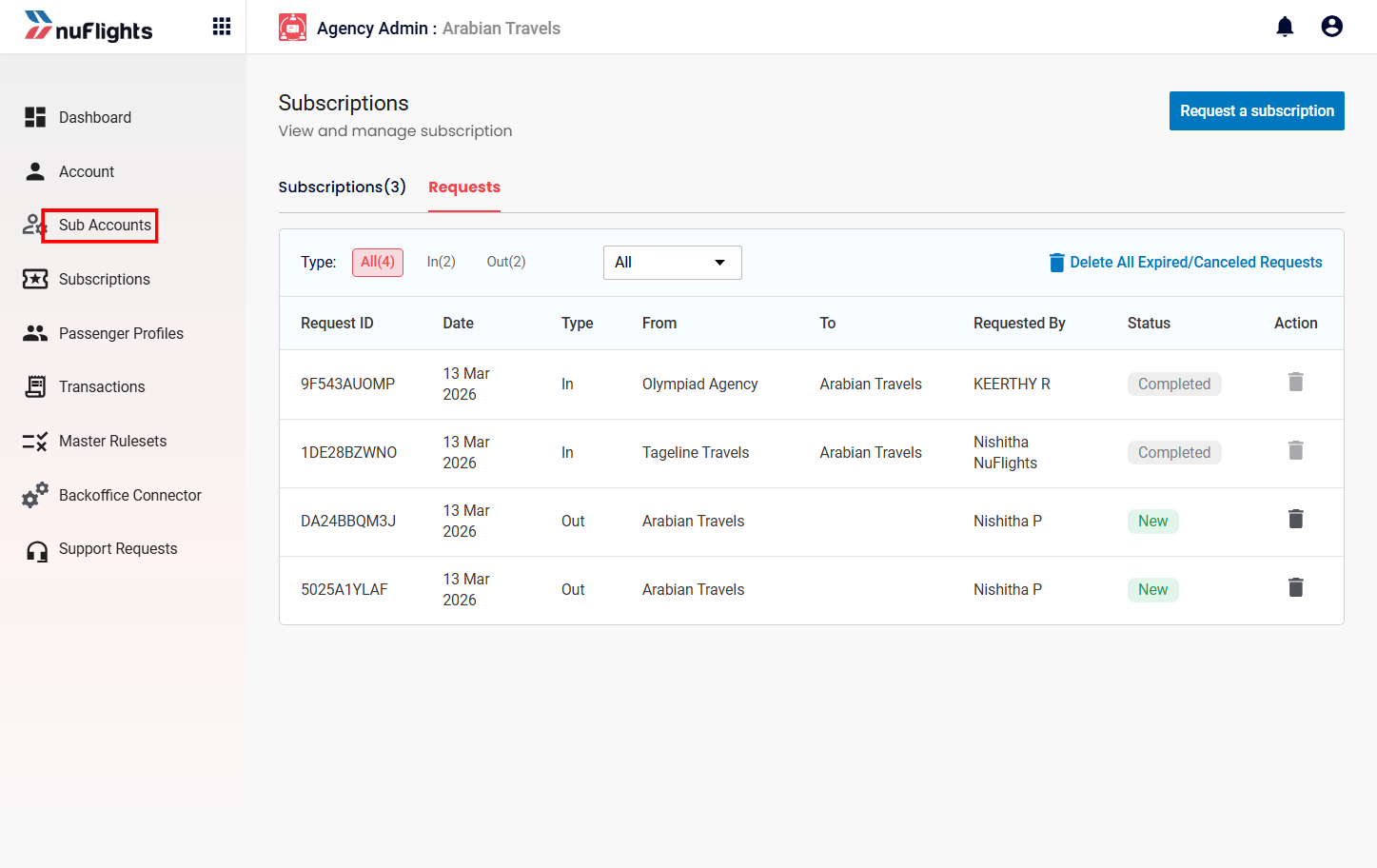
Step 2: Click Add Sub Account
On the Sub Accounts page, click Add Sub Account.
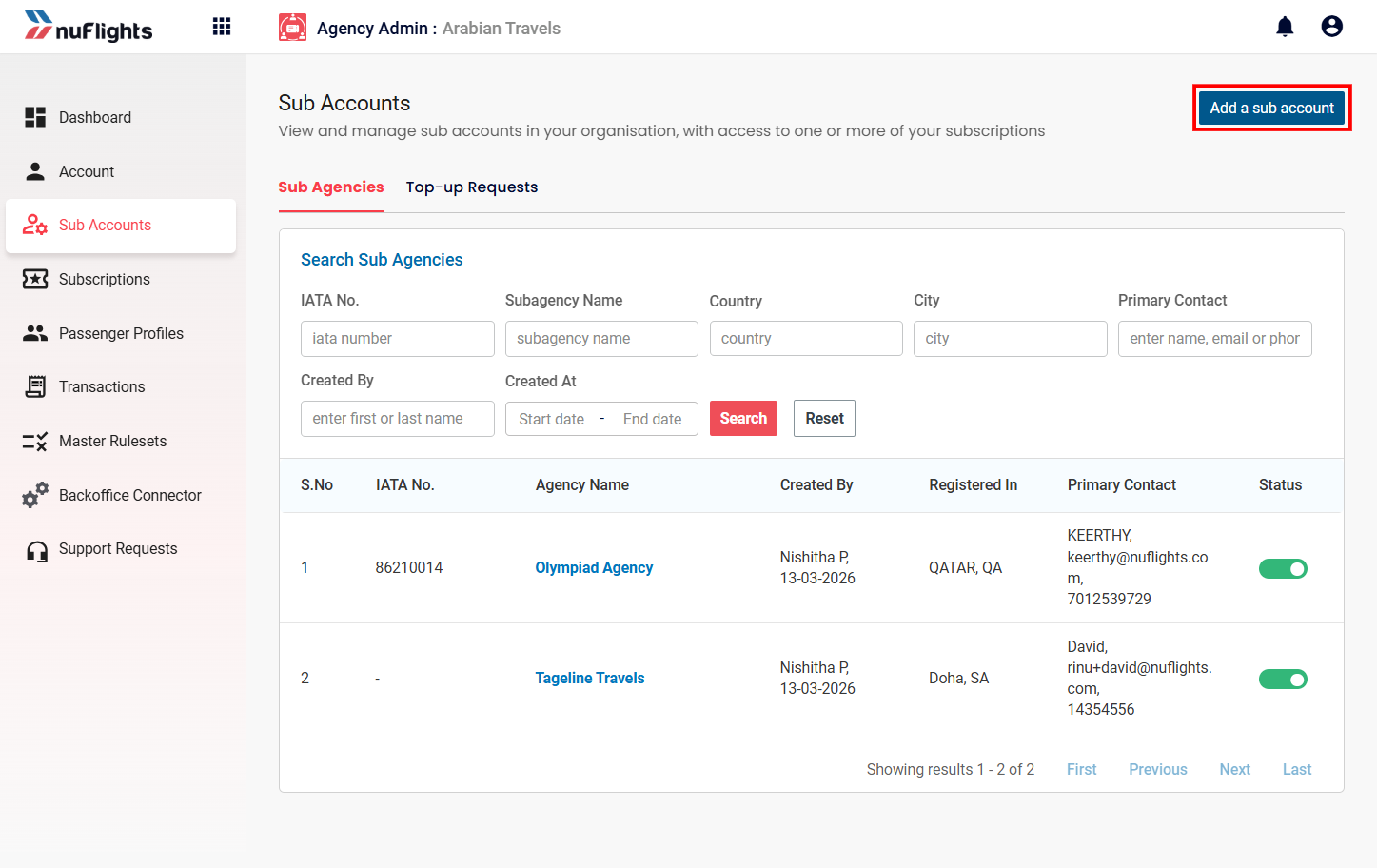
Step 3: Enter the request code
- Paste the Request code the sub-agency sent you by email.
- Click Continue.
The system validates the agency details and shows the agency name for confirmation.
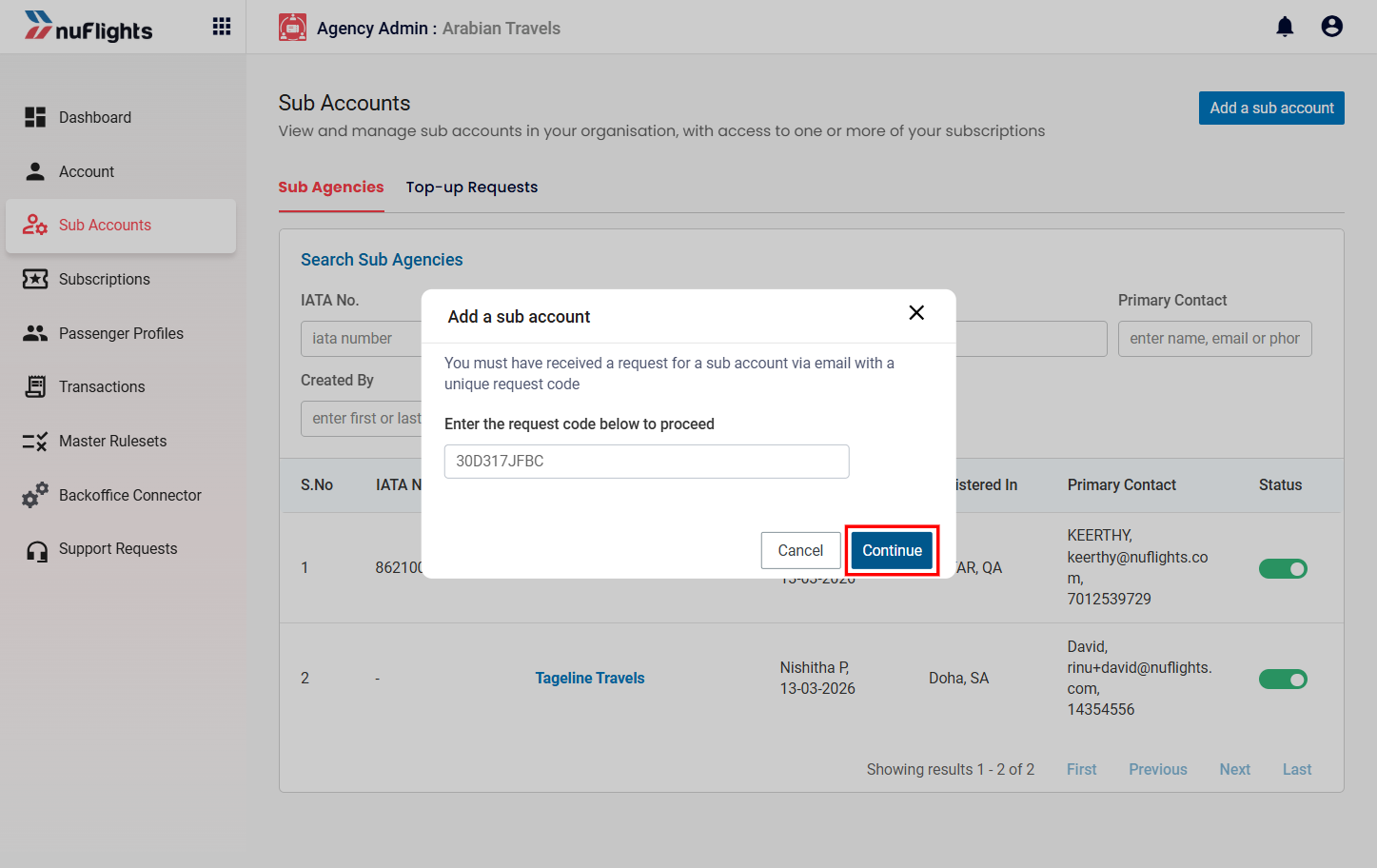
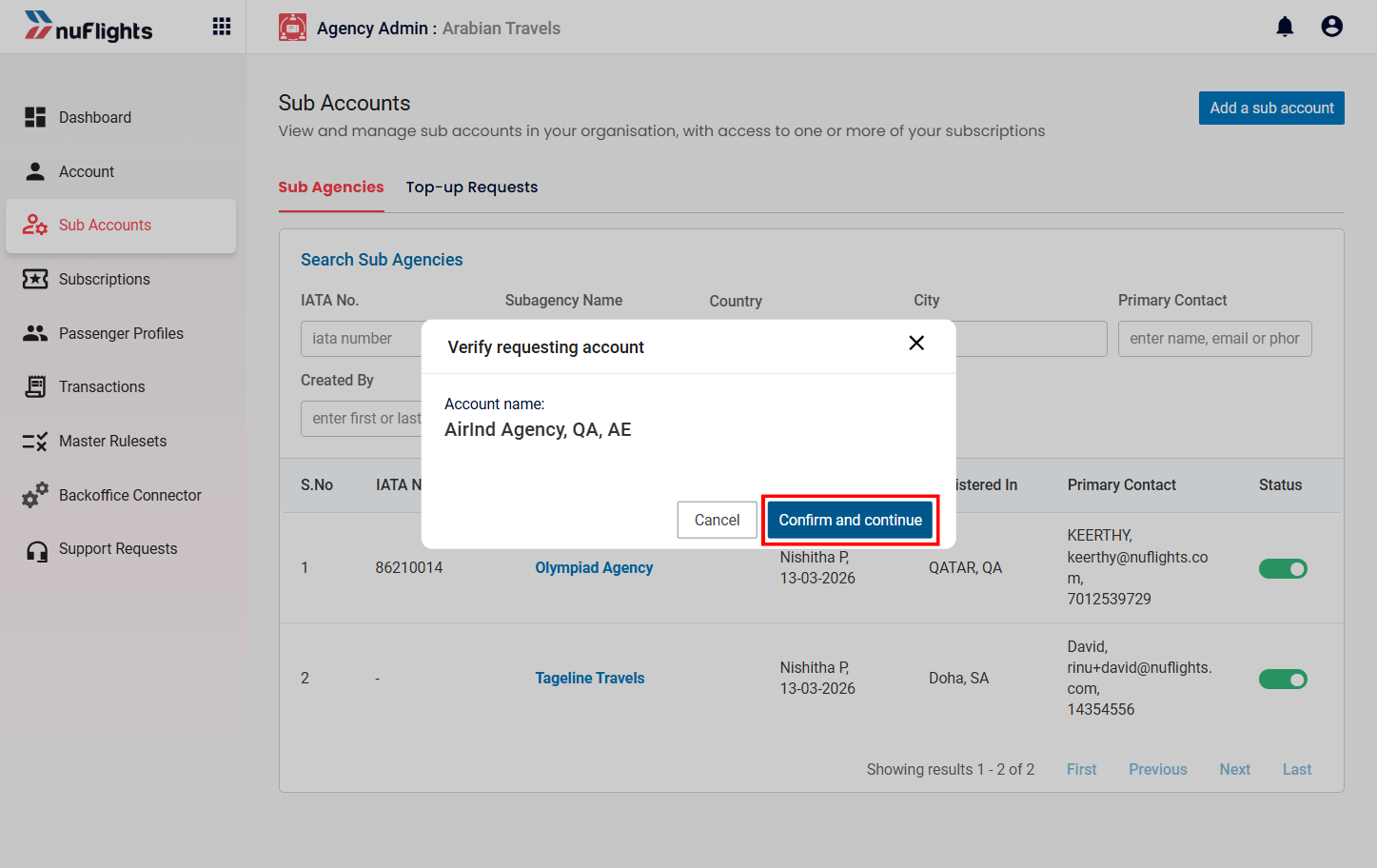
Step 4: Verify the requesting account
Check the account name shown, then click Confirm and continue.
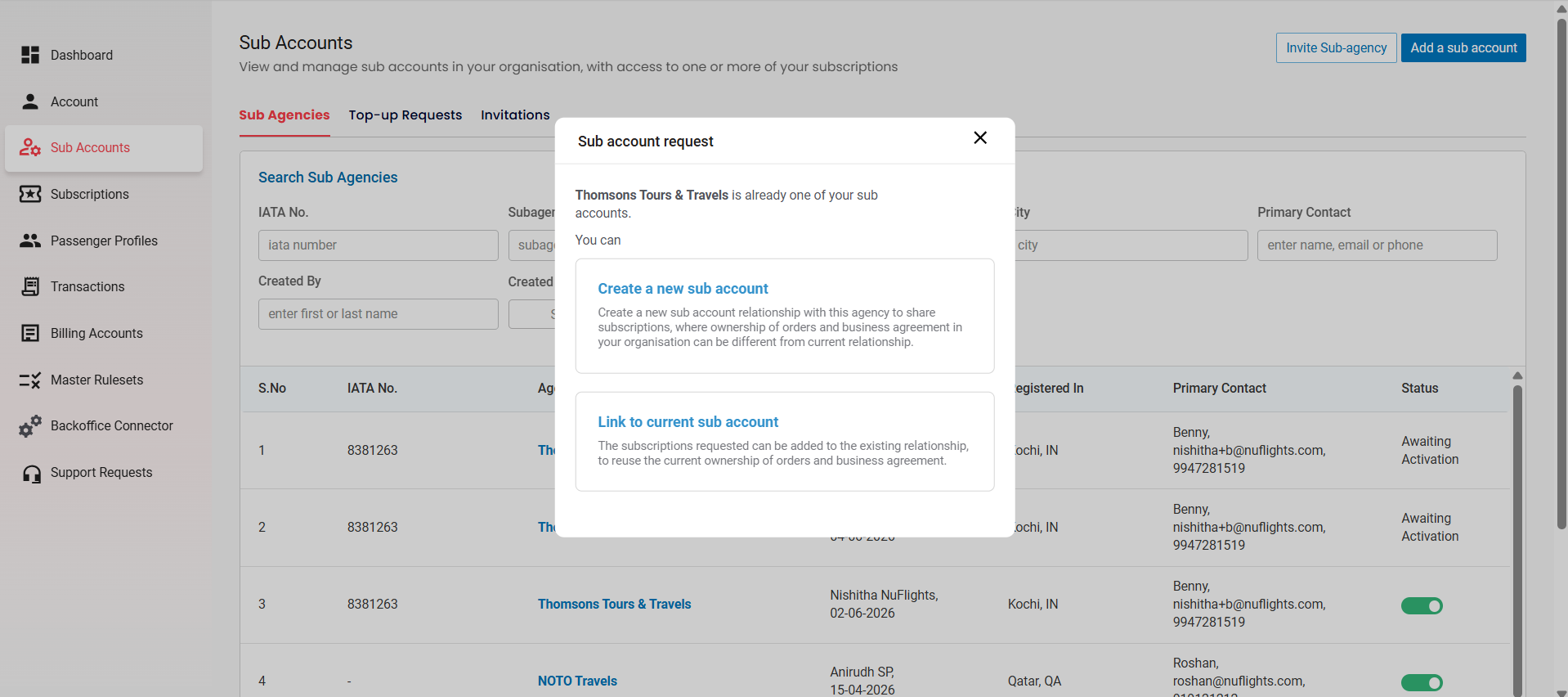
Step 5: Choose a new or existing sub-account
If the agency already exists as a sub account, a Sub account request pop-up appears with two options:
| Option | What it does | Choose it when |
|---|---|---|
| Create a new sub account | Creates a separate sub account relationship with the same agency. Lets you share subscriptions under a new relationship, and keep ownership of orders and business agreements separate. | You need a new relationship. |
| Link to current sub account | Reuses an existing sub account relationship. The requested subscriptions are added to the relationship you pick, and its existing ownership and agreement settings continue. | You want to use a relationship you already have. |
Step 6: Name the new relationship or pick an existing one
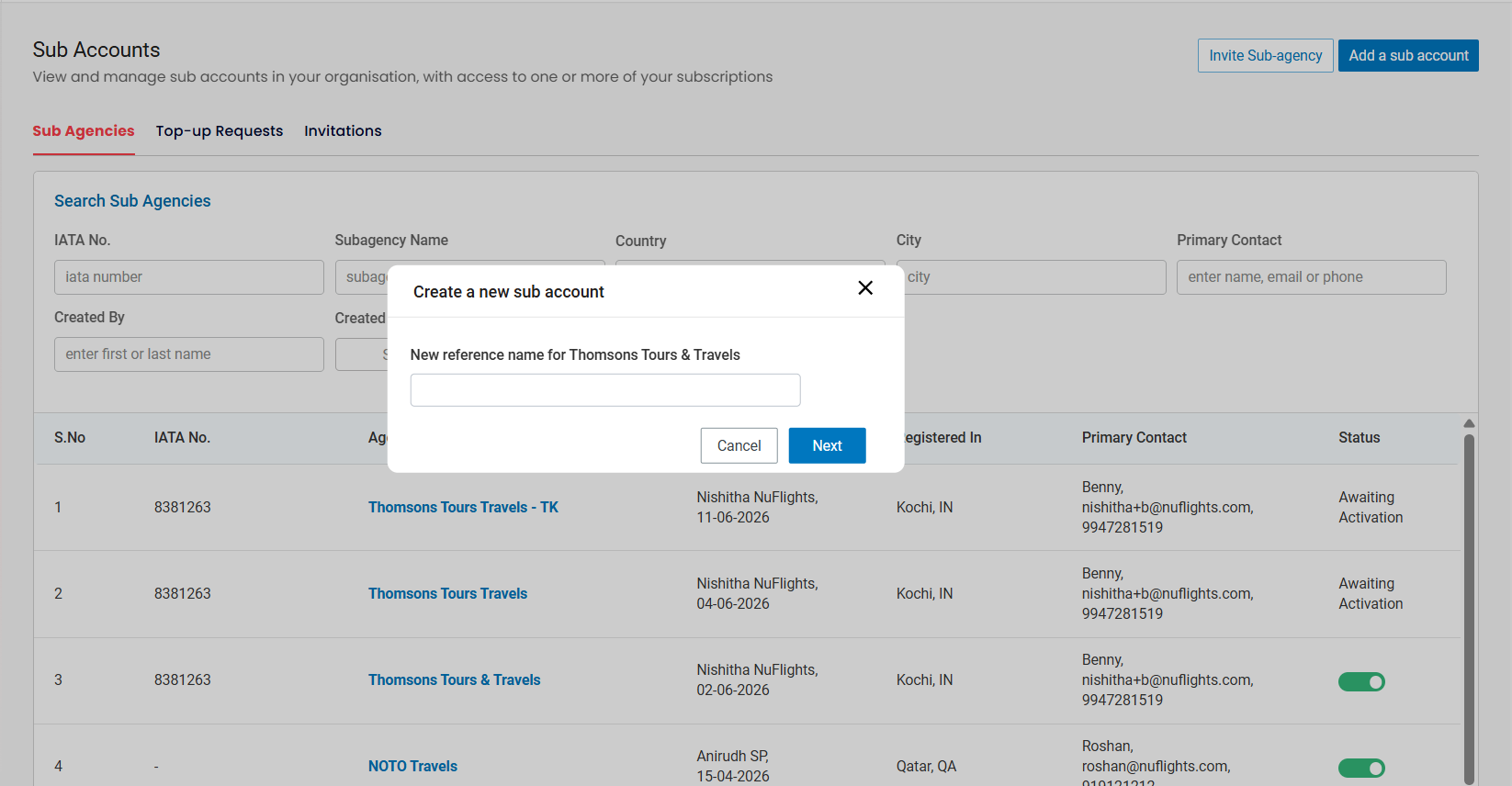
If you chose Create a new sub account:
- Enter a Reference Name for the new sub account relationship (for example, Thomsons Tours & Travels - TK).
- Click Next.
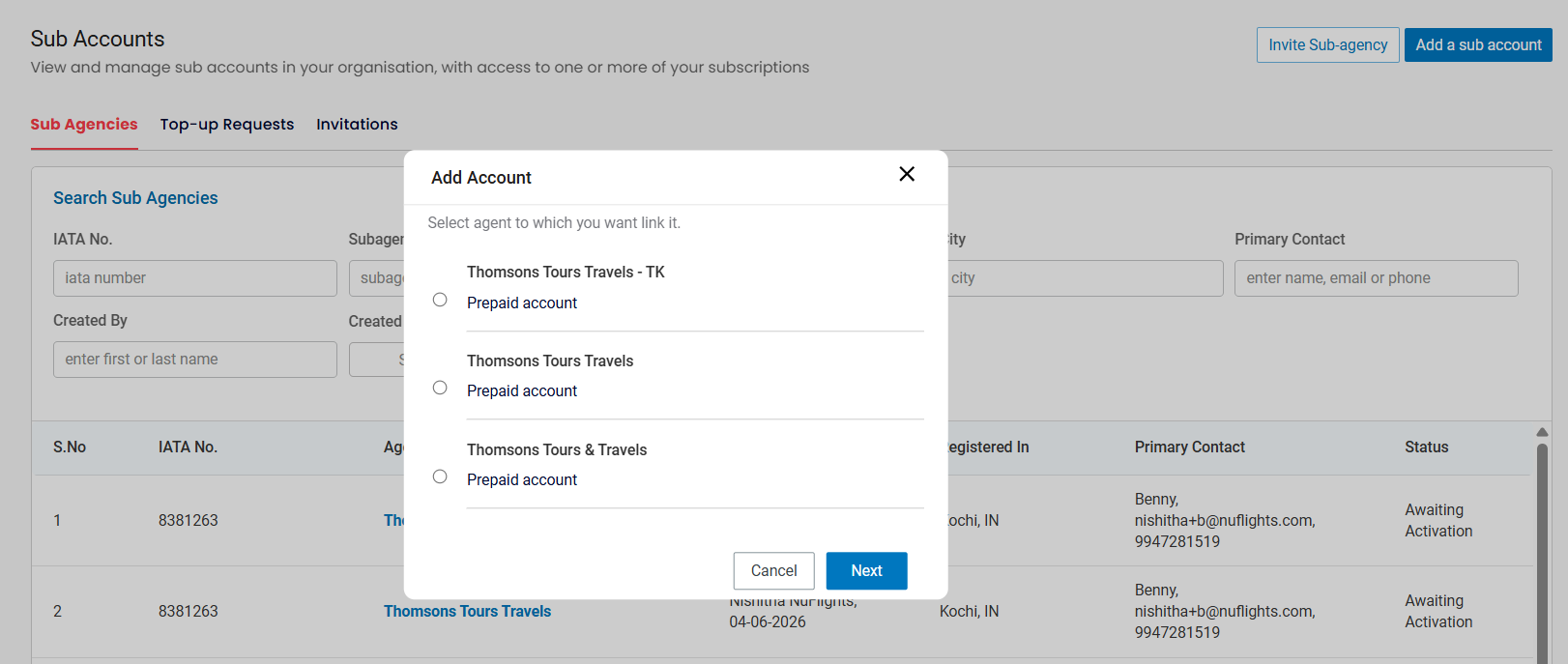
If you chose Link to current sub account: an Add Account pop-up lists the existing sub account relationships, each with its account name and account type (for example, Thomsons Tours Travels - TK → Prepaid account, Thomsons Tours Travels → Prepaid account).
- Select the relationship to link the subscription to.
- Click Next.
Step 7: Select the subscriptions to share
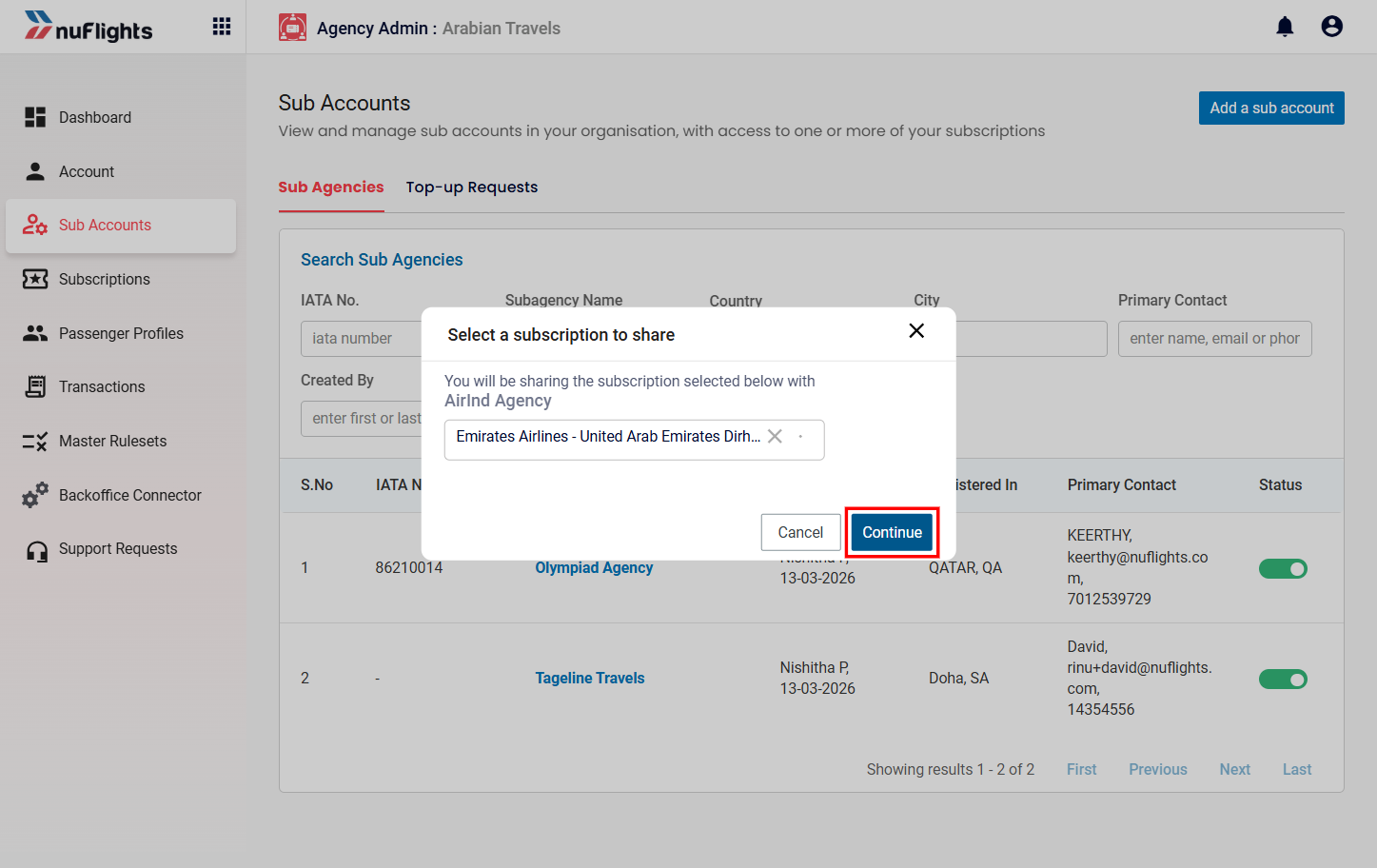
The Select Subscription to Share screen opens.
- Choose one or more subscriptions to share.
- Review the selected subscriptions.
- Click Submit / Continue.
If you created a new sub account, a new sub account relationship is created and the selected subscriptions are shared. If you linked to an existing one, the subscriptions are added to that relationship.
Step 8: Confirm the subscription selection
After selecting the subscription, click Continue.
When the subscription is shared, a confirmation message appears.
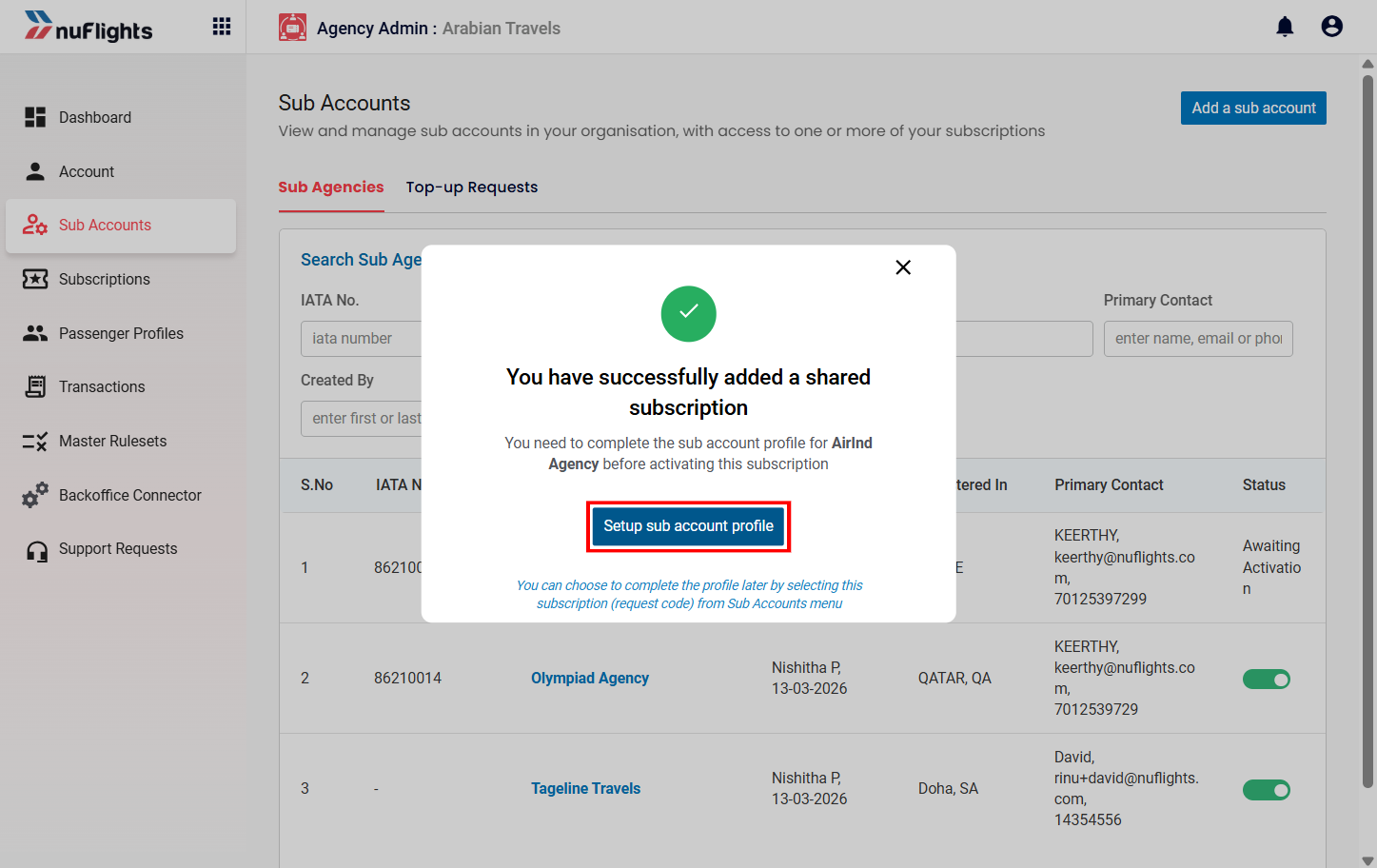
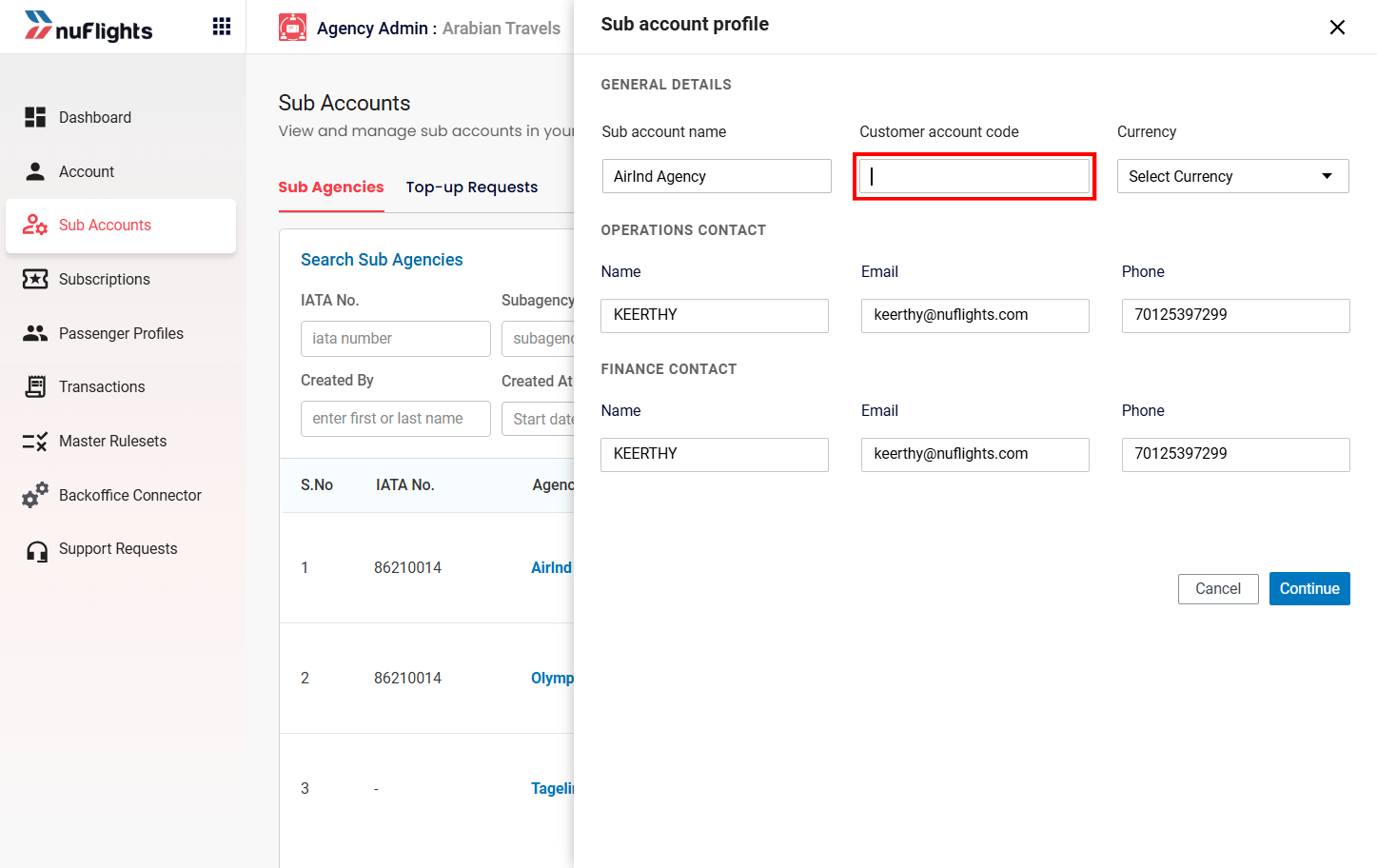
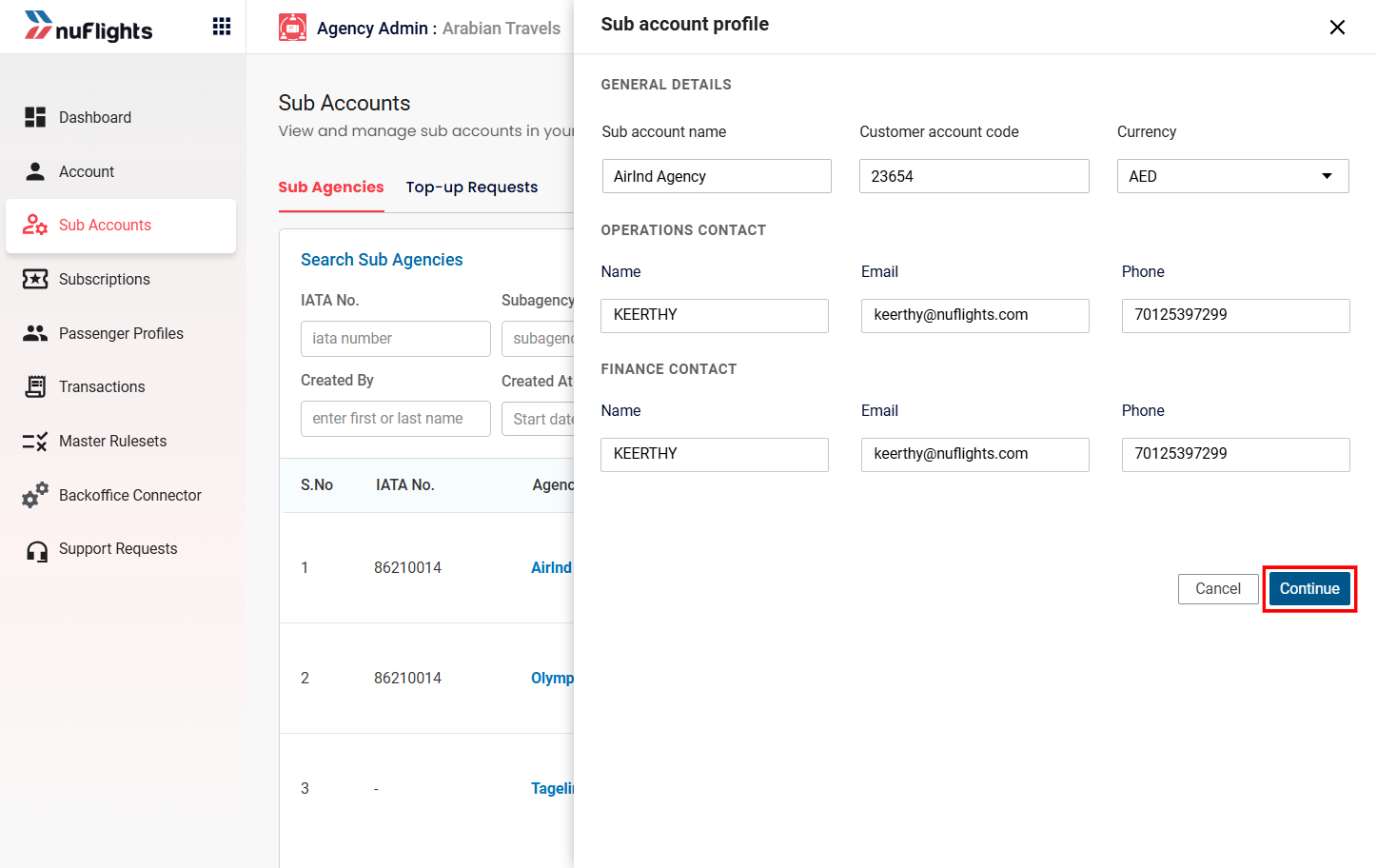
Step 9: Fill in the sub-account profile
The Sub Account Profile page opens.
- Enter the sub-agency's general details:
- Customer account code
- Contact details
- Currency code
- Click Continue to save the profile.
Step 10: Set credit limits
Define the sub-agency's credit limits and financial parameters. For how to set limits and manage risk, see Credit Control & Financial Management.
Edit a sub-account
You can update contact details, change order owners, or switch a sub-account between Active and Inactive at any time. Click the sub-account's name in the list to open it.
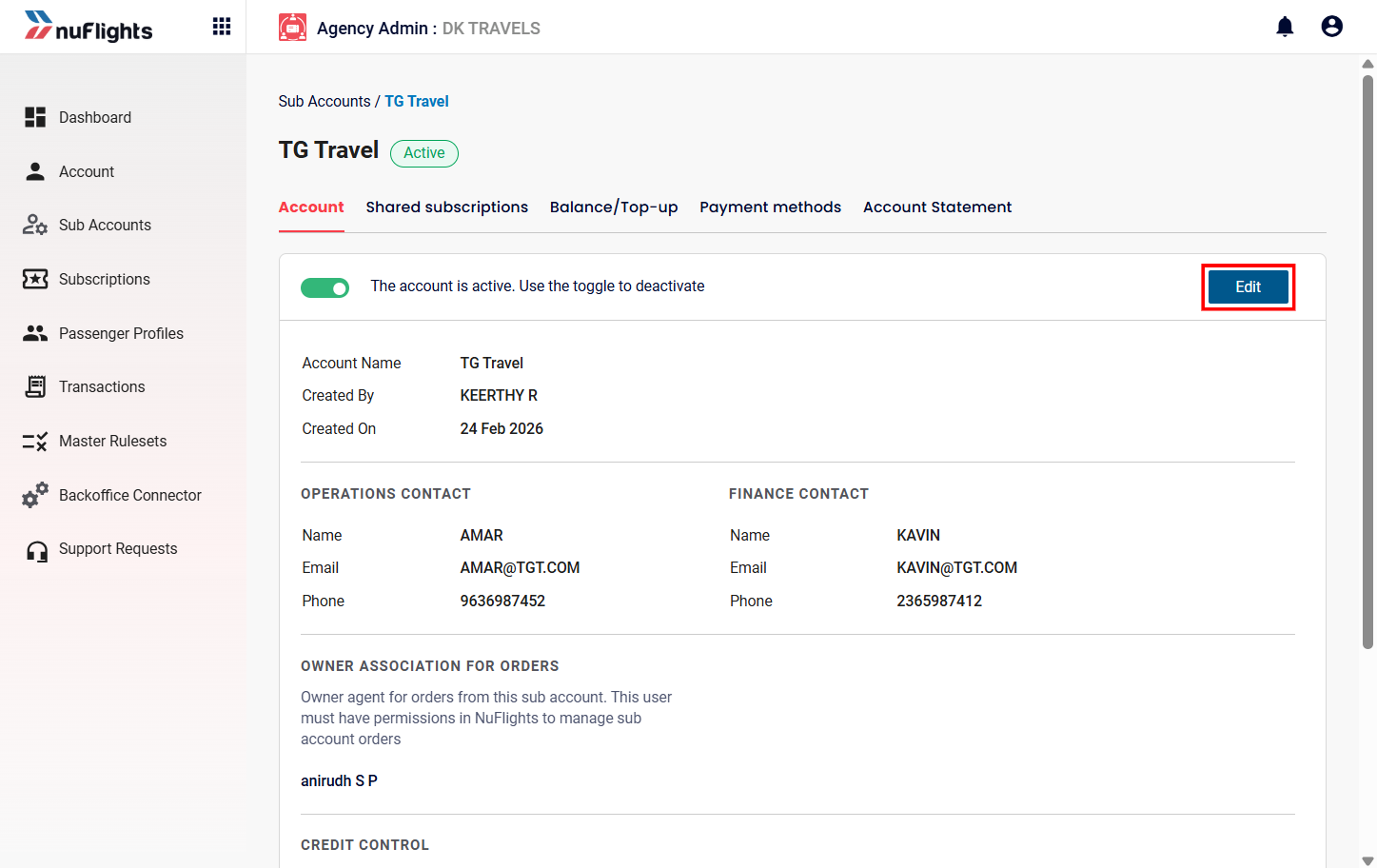
Sub-account tabs
When you open a sub-agency, you'll see these tabs:
- Account: the general profile and configuration details of the sub-agency.
- Shared Subscriptions: the airline subscriptions shared with the sub-agency.
The financial tabs (Balance / Top-up, Payment Methods and Account Statement) are covered in Credit Control & Financial Management.
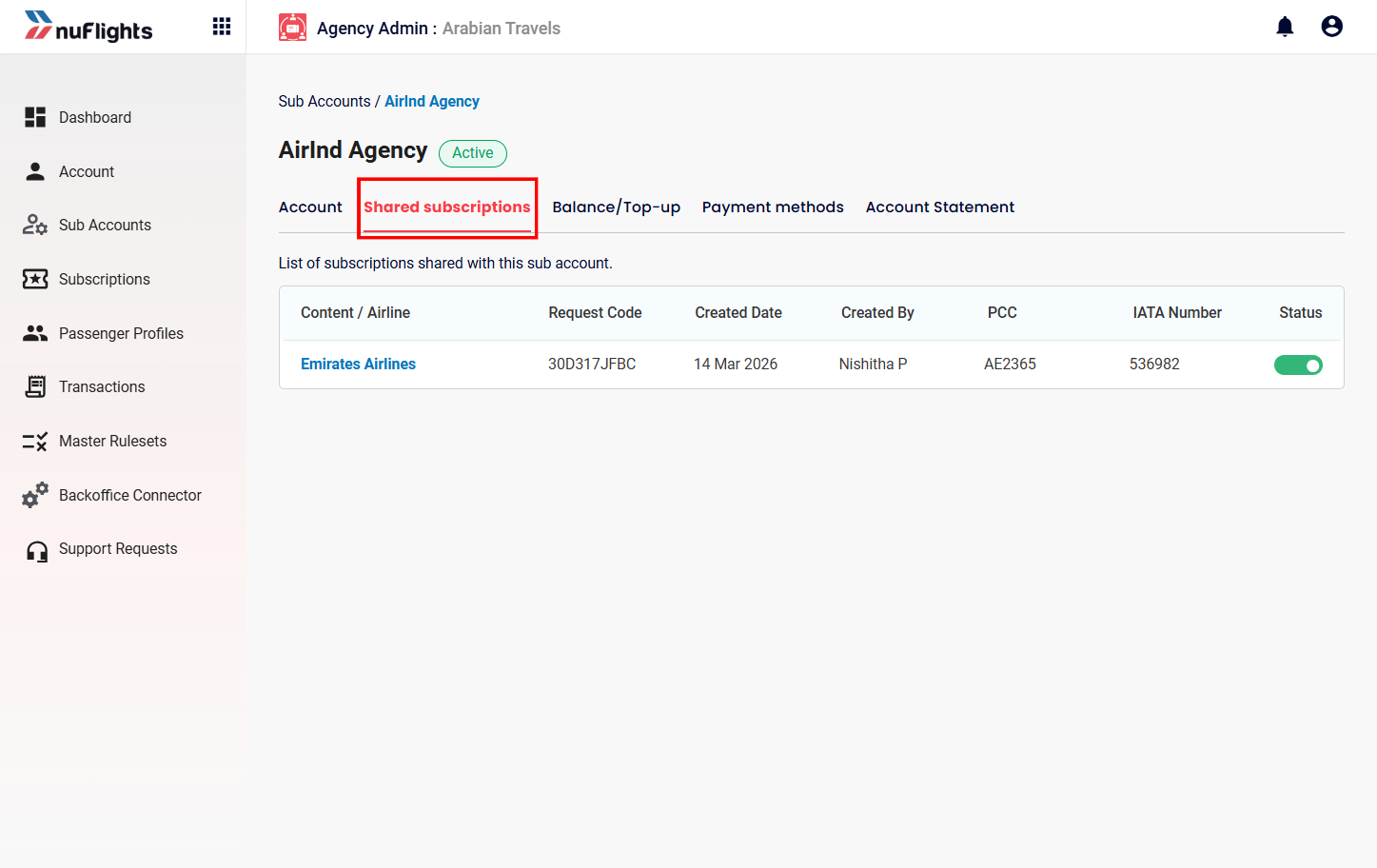
To see shared subscriptions, go to Sub Accounts → (the sub-agency, for example AirInd Agency) → Shared Subscriptions. The table shows:
| Field | What it shows |
|---|---|
| Content / Airline | The airline whose subscription is shared. |
| Request Code | The subscription request reference. |
| Created Date | When the subscription was shared. |
| Created By | The admin who shared the subscription. |
| PCC | Pseudo City Code used for airline access. |
| IATA Number | The agency's IATA number. |
| Status | Whether the subscription is active or inactive. |
Top-ups and financial management
Sub-agencies can request credit top-ups and check their financial standing in the portal. For requesting top-ups, tracking their status and auditing transactions, see Credit Control & Financial Management.
Book flights as a sub-agency
Once the partnership is active and credit is allocated, sub-agencies can search and book flights in the Travel Workbench. For flight search, fare selection, quoting and completing bookings, see the Travel Workbench documentation.
Related guides