
Credit control
Use this to set a sub-agency's credit limit, to request a credit top-up from a parent agency, and to check a sub-agency's balance, payment methods and account statement.
Set the credit limit and owner
A parent agency sets these when it adds a sub-agency account. See Sub-accounts.
- Enter the Credit Limit for the sub-agency.
- Select the Owner responsible for managing the sub-agency account. The owner monitors the orders placed by the sub-agency.
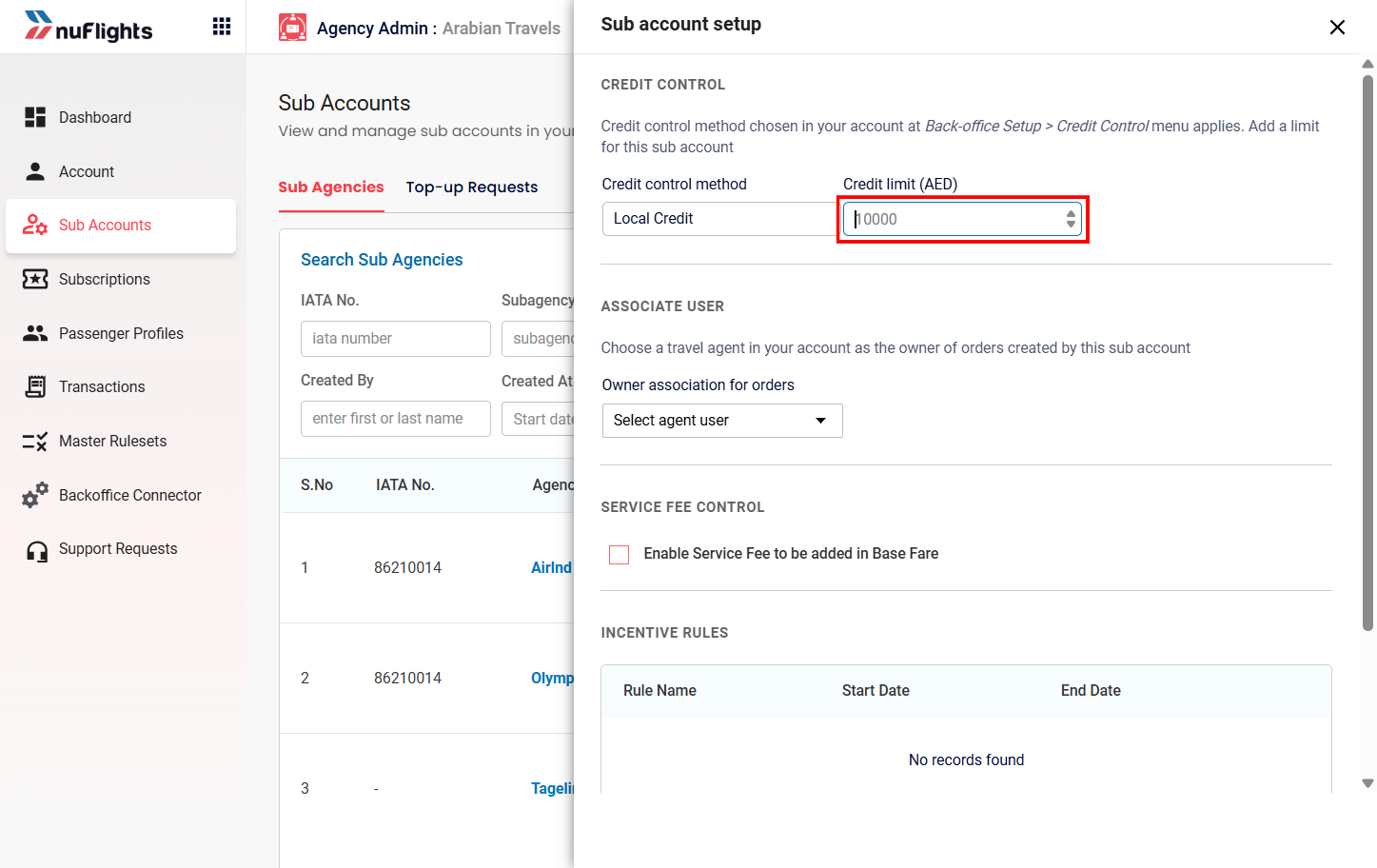
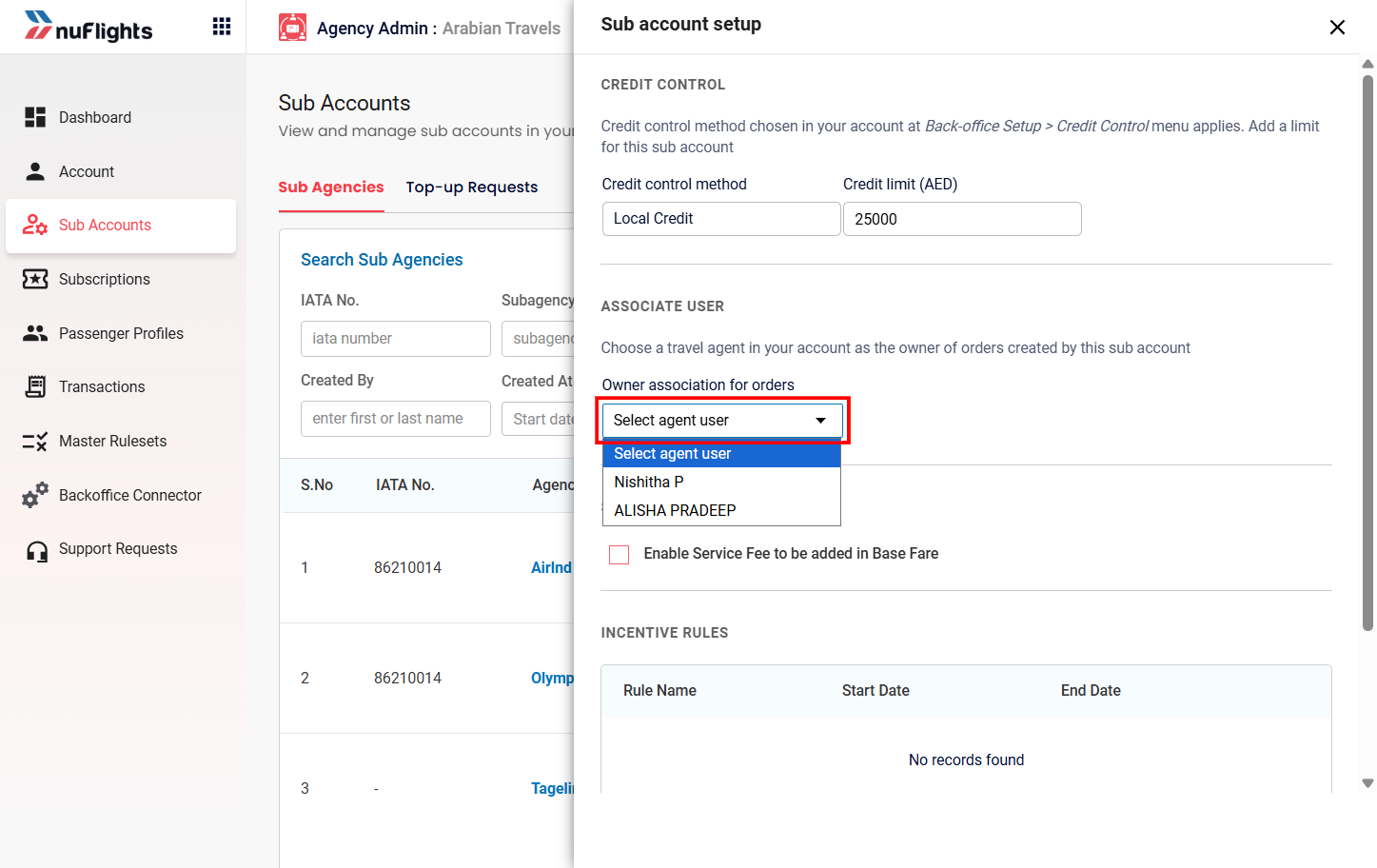
Sub-agencies can view their limit but not change it. Sub-agency administrators can see their allocated credit limit and current balance, but can't modify them. All limit changes must be requested from the Parent Agency.
Request a credit top-up
Use this when your sub-agency needs more credit balance to keep booking. You request the top-up from your parent agency in the NuFlights Agency Admin Portal.
Step 1: Open Subscriptions
- Log in to the NuFlights Agency Admin Portal.
- In the left menu, click Subscriptions.
The Subscriptions page opens with these tabs:
- Subscriptions
- Requests
- Top-up History
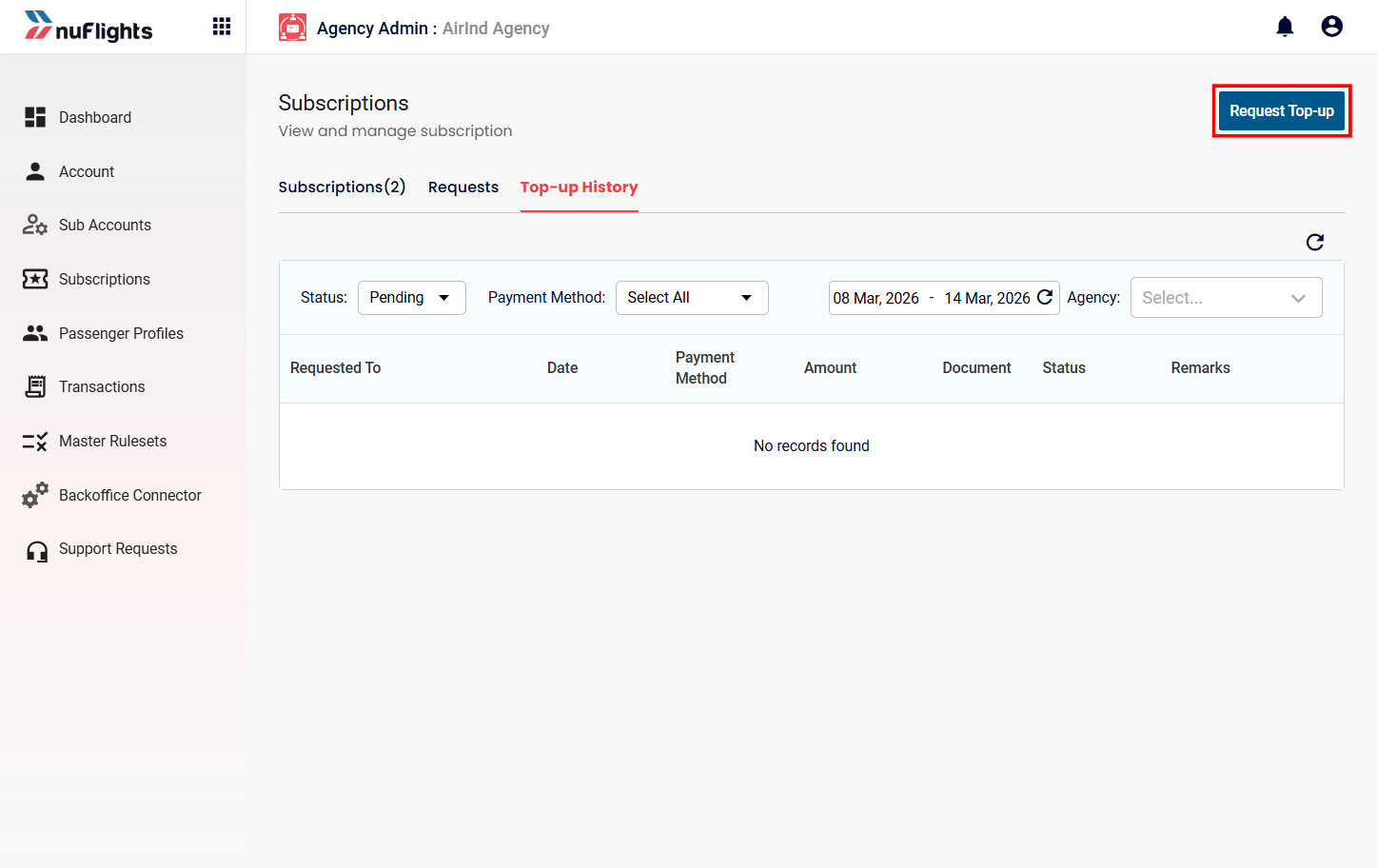
Step 2: Open the credit request form
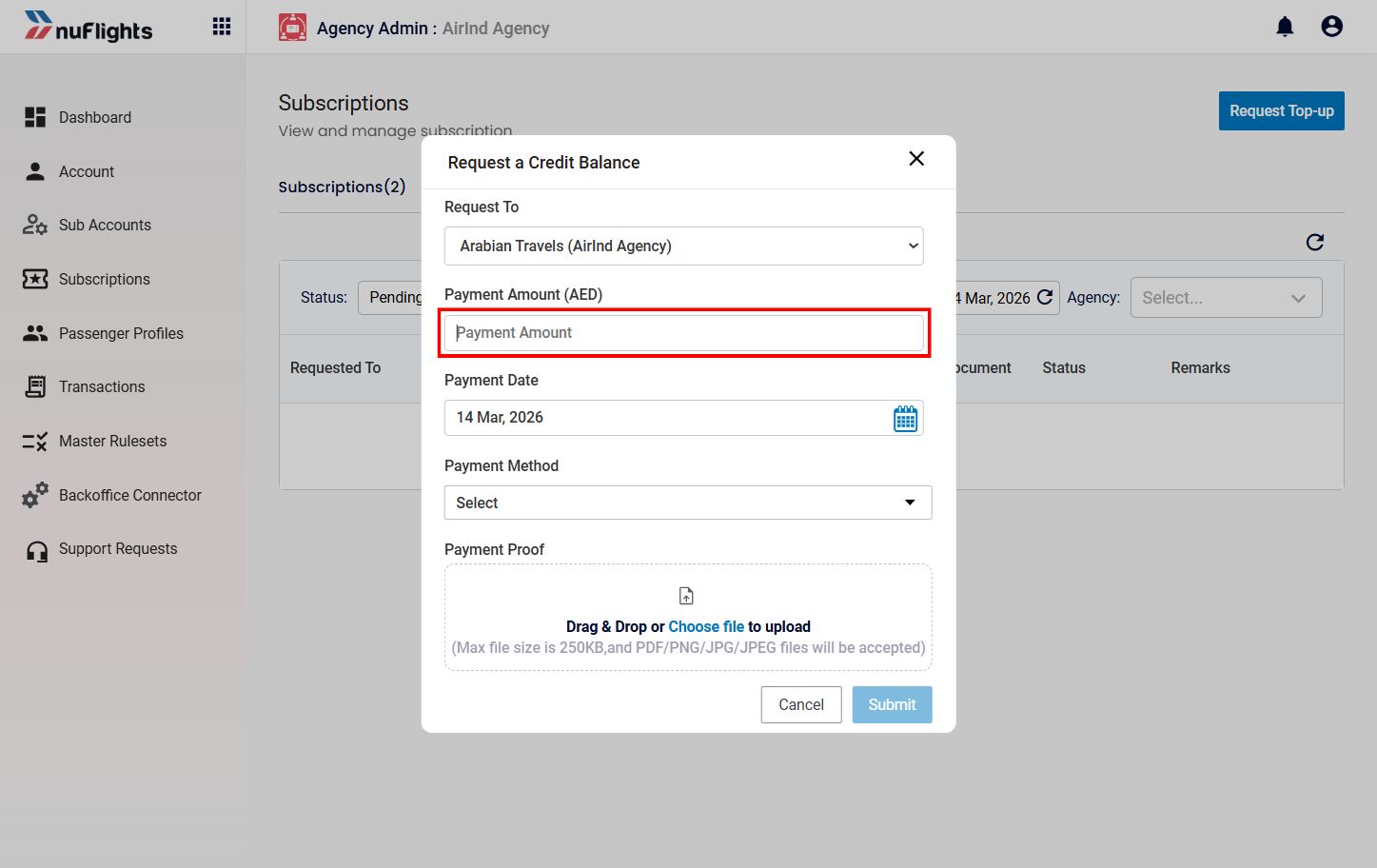
Go to Request Top-Up. The Request a Credit Balance form opens.
Step 3: Choose the agency and the amount
- In Request To, select the parent agency you're asking for credit. The request is sent to this agency for approval.
- In Payment Amount, enter the amount you want to top up, for example 18000 AED. This is the credit added to your account once the request is approved.
Step 4: Add the payment details
- In Payment Date, pick the date the payment was made or started from the calendar (for example, 14 Mar 2026).
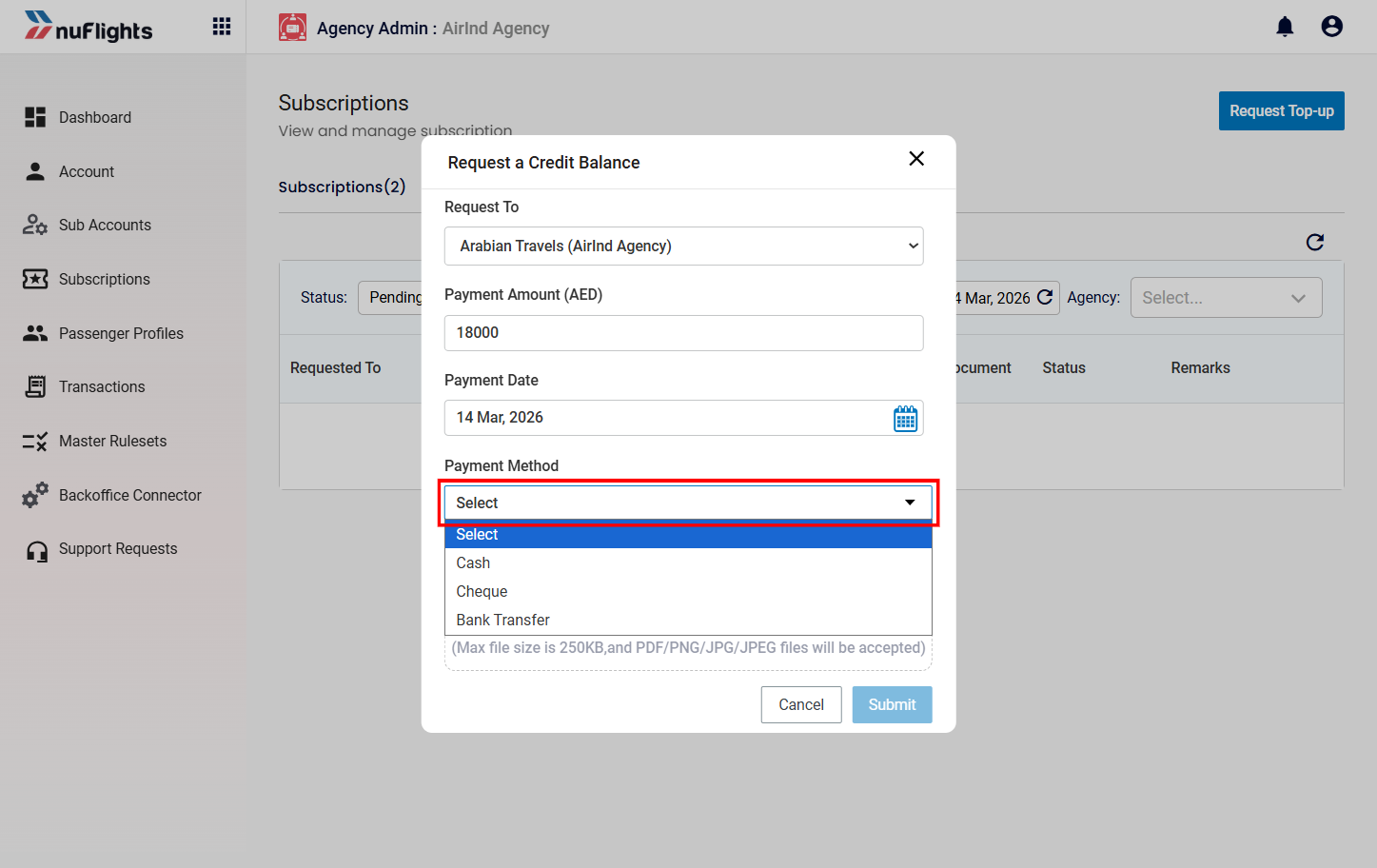
- In Payment Method, select how you paid, for example Cash, Cheque or Bank Transfer.
Step 5: Upload the payment proof
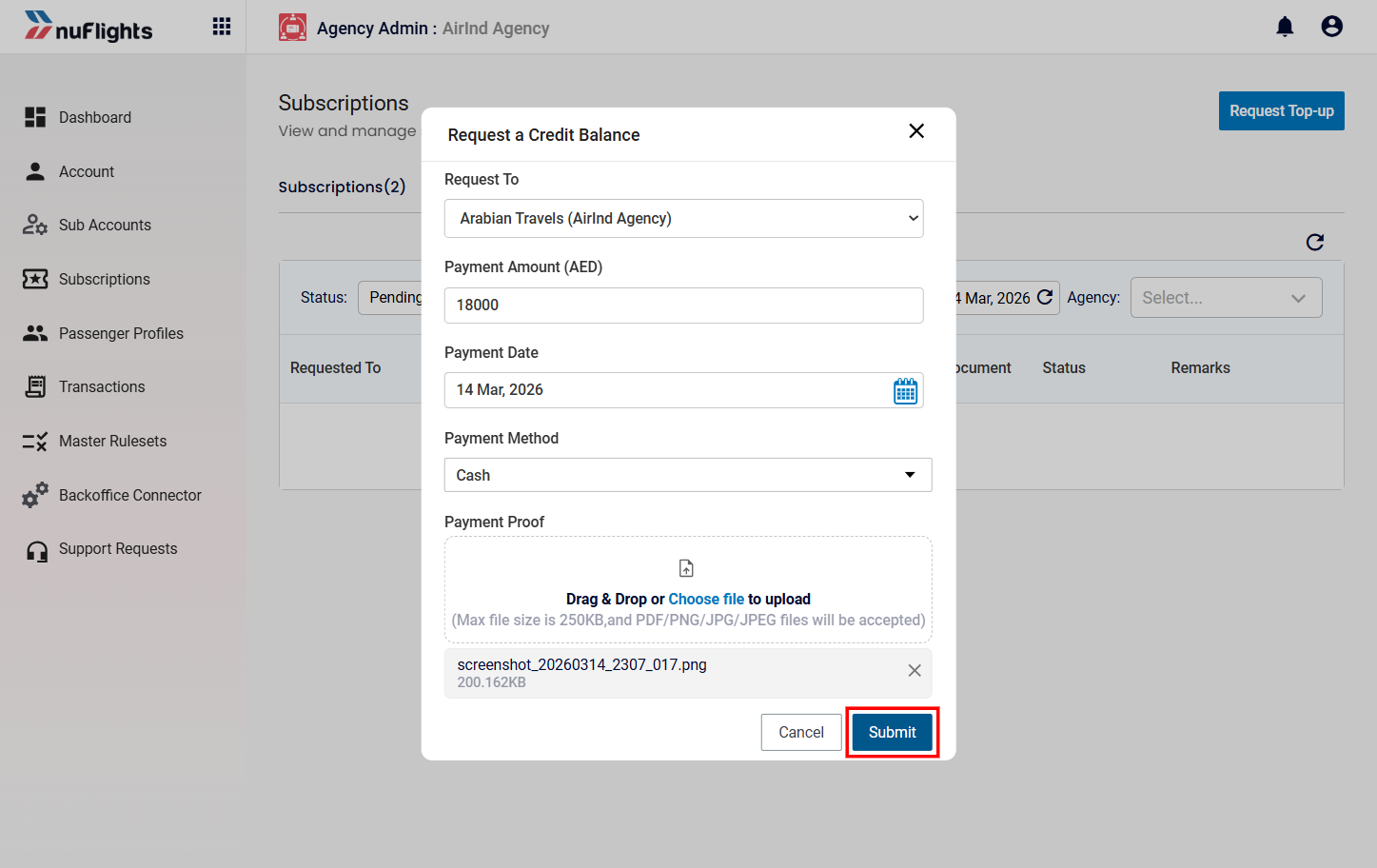
In the Payment Proof section, drag and drop the supporting document, or click Choose File. For example: a bank transfer receipt, a payment confirmation screenshot or a deposit slip.
- Accepted files: PDF, PNG, JPG / JPEG.
- Maximum file size: 250 KB.
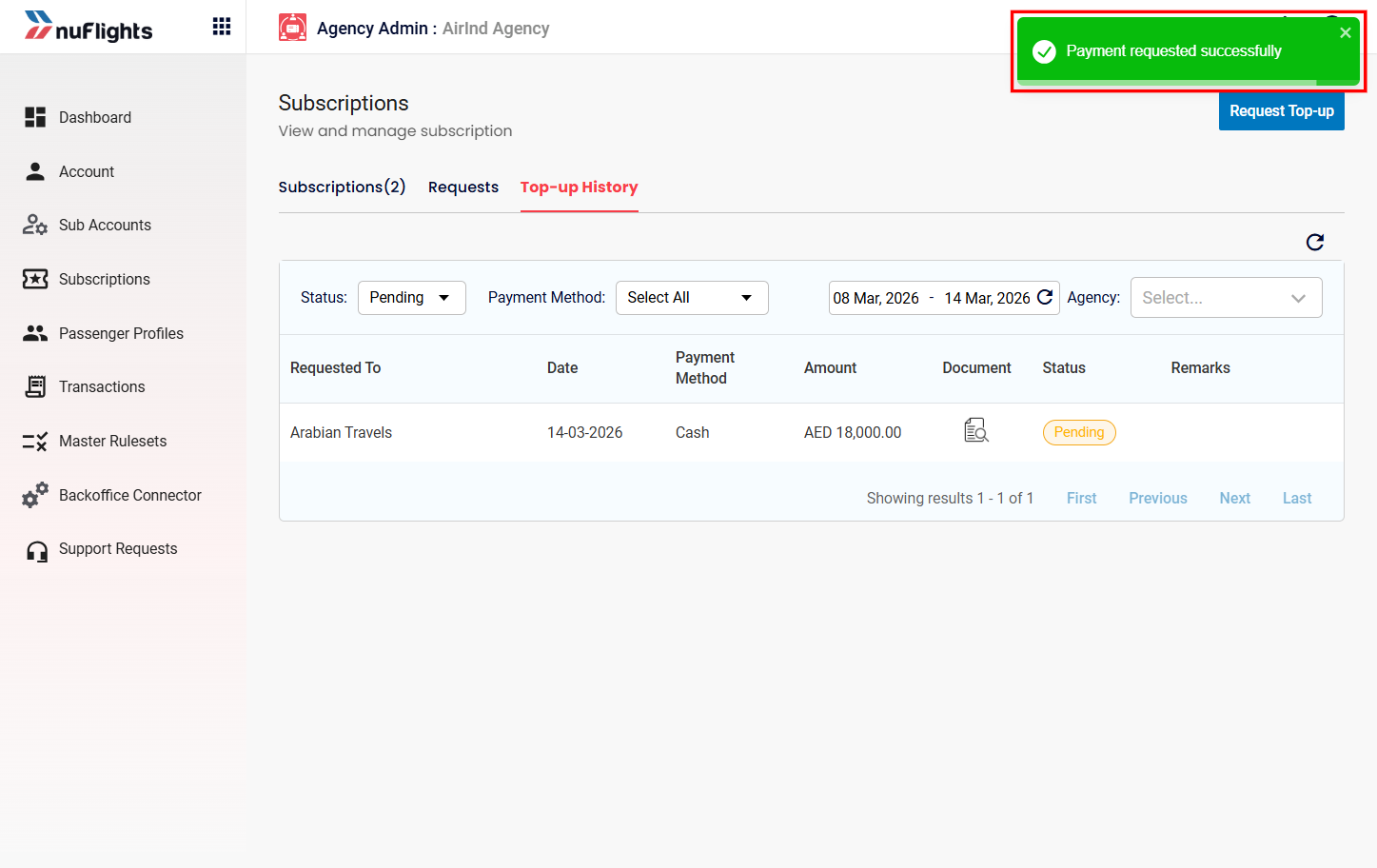
The request is sent to the agency in Request To for approval.
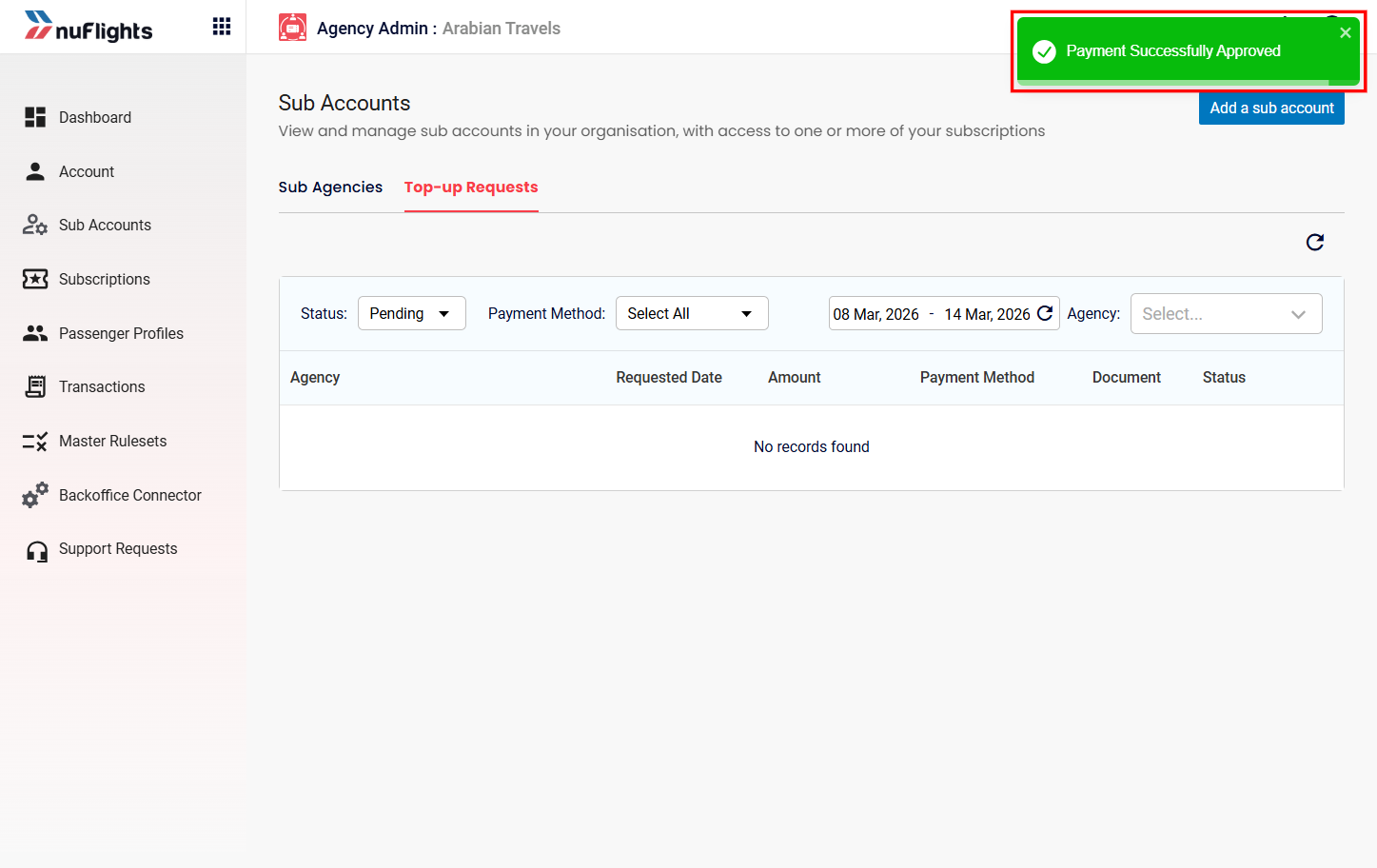
Step 6: Check the request status
When the parent agency approves the request, the credit is added to your account.
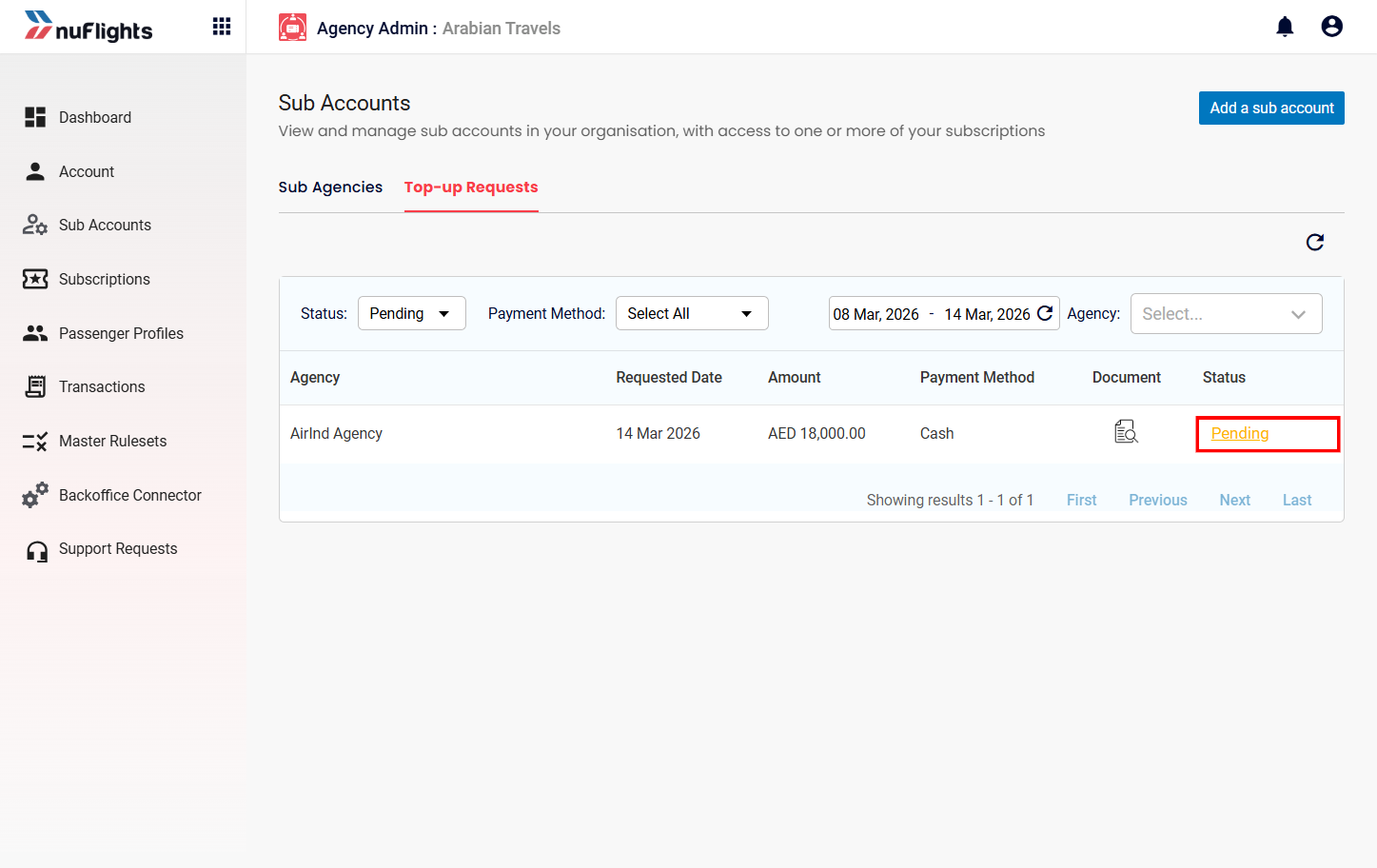
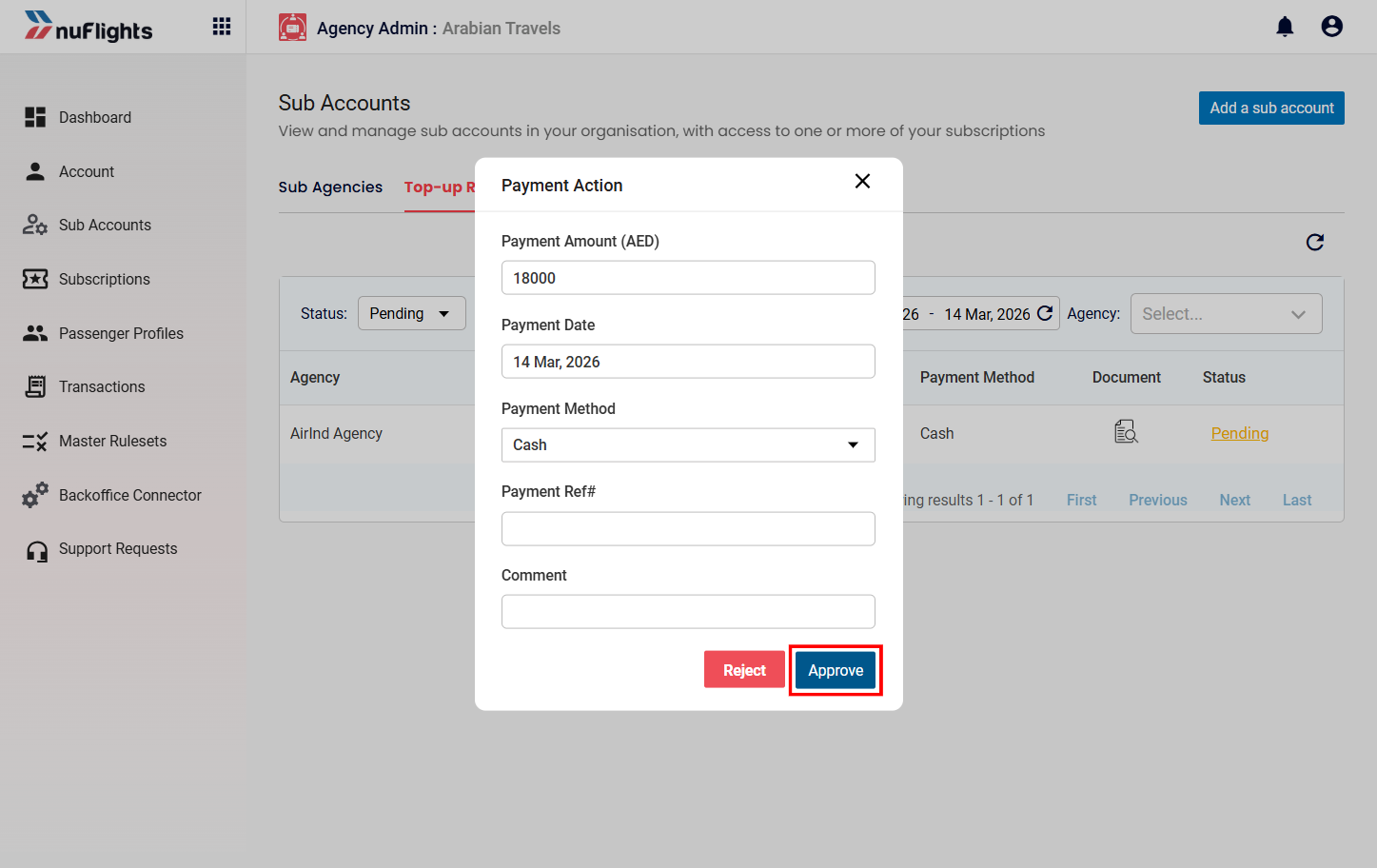
A top-up request can have these statuses:
| Status | Description |
|---|---|
| Approved | The parent agency has approved the request and added the credit to the account. |
| Rejected | The request was rejected, possibly because of invalid payment proof or incorrect details. |
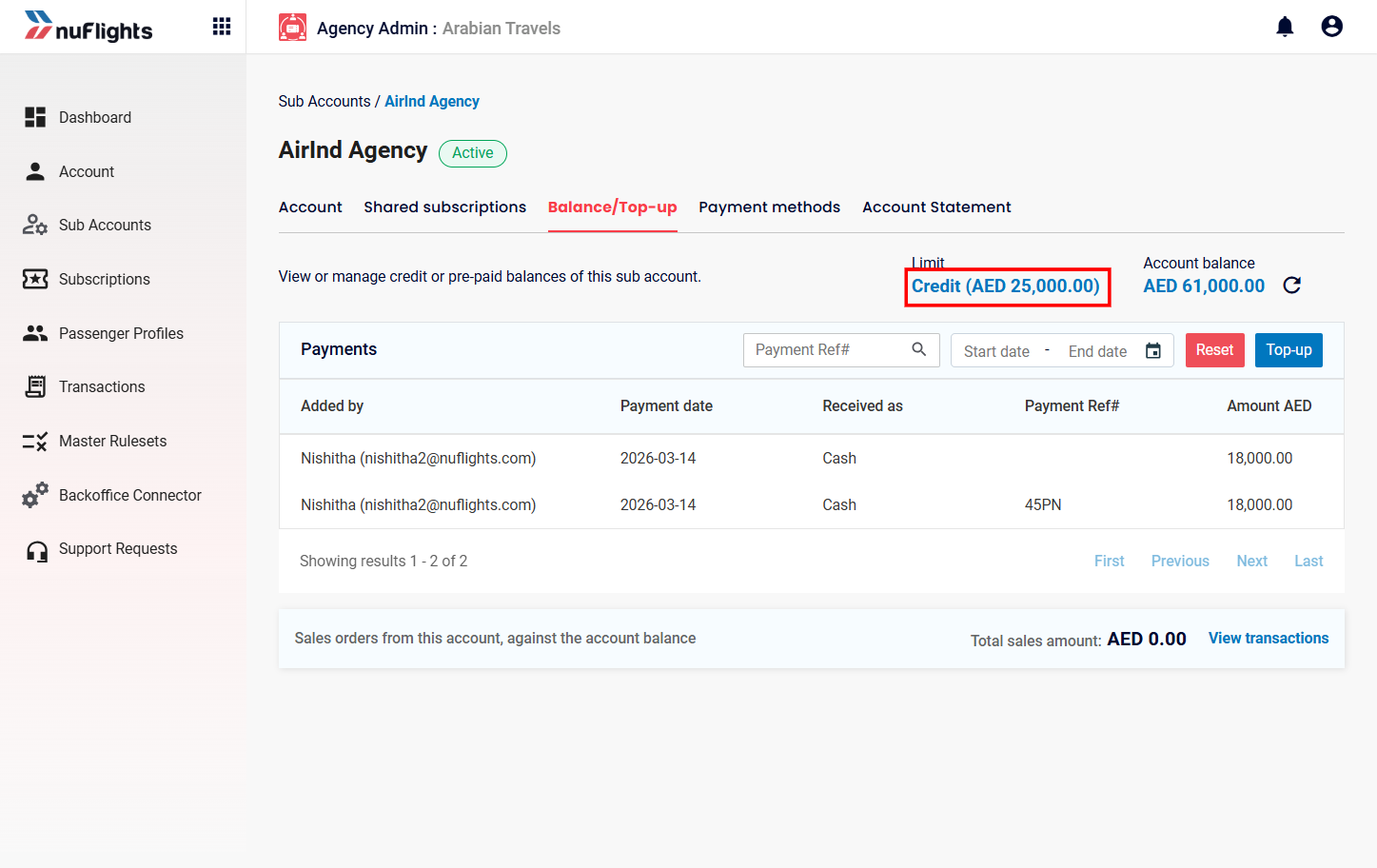
Balance / Top-up page
This page manages the sub-agency's credit balance.
Navigation: Sub Accounts → AirInd Agency → Balance / Top-up
It shows the credit limit and the current account balance:
- Credit Limit: the most credit the sub-agency can use for bookings (for example, AED 25,000.00).
- Account Balance: the credit currently available. It changes when bookings are made, refunds happen or an admin tops up the account (for example, AED 61,000.00).
Below that, the Payments table lists every top-up made for the sub-agency.
| Column | Explanation |
|---|---|
| Added By | Admin who added the balance |
| Payment Date | Date of the top-up |
| Received As | Payment method used |
| Payment Ref | Reference number |
| Amount | Amount added |
Top-up button
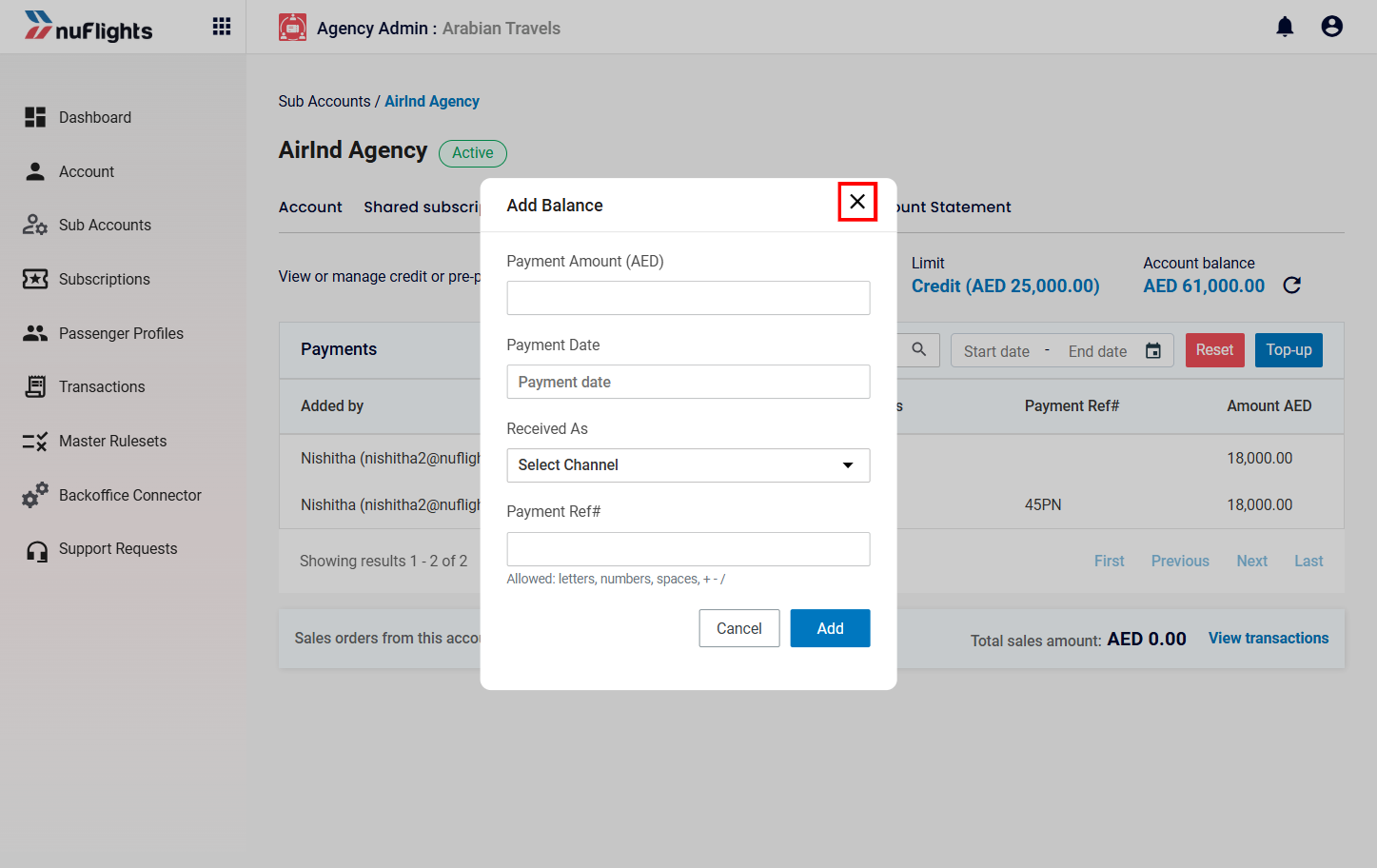
To add credit to the sub-agency account yourself, click the Top-up button on the right of the page. A form opens where you add the funds.
Payment Methods tab
The Payment Methods tab sets which payment methods the sub-agency can use.
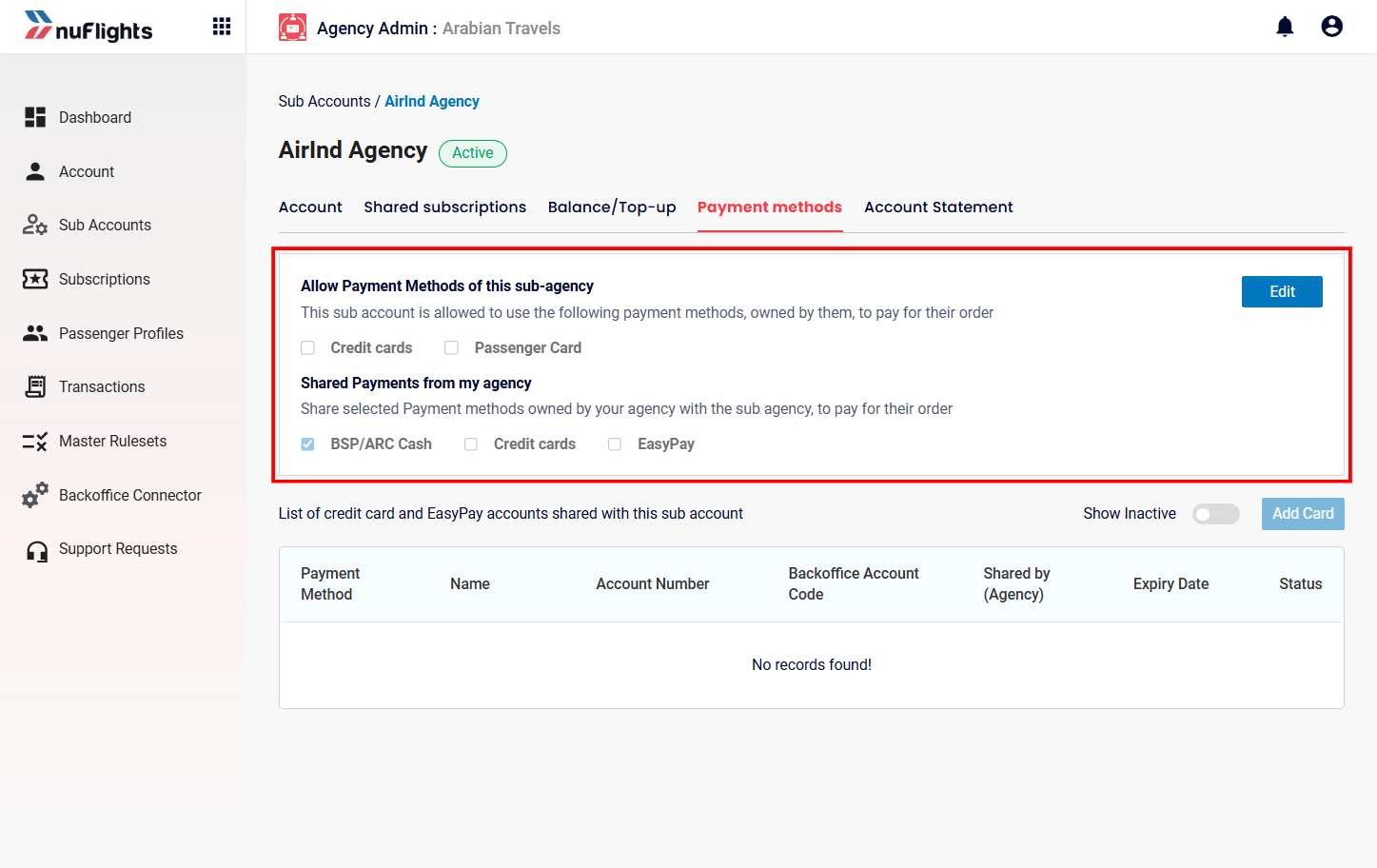
- Allow Payment Methods of this Sub-Agency: when on, the sub-agency can use its own configured payment methods (for example, Credit Cards, Passenger Card).
- Shared Payment Methods from Parent Agency: the parent agency can also share payment methods (for example, BSP/ARC Cash, Credit Cards, EasyPay) for the sub-agency to pay for bookings.
To add new card payment details, click Add Card.
Account Statement tab
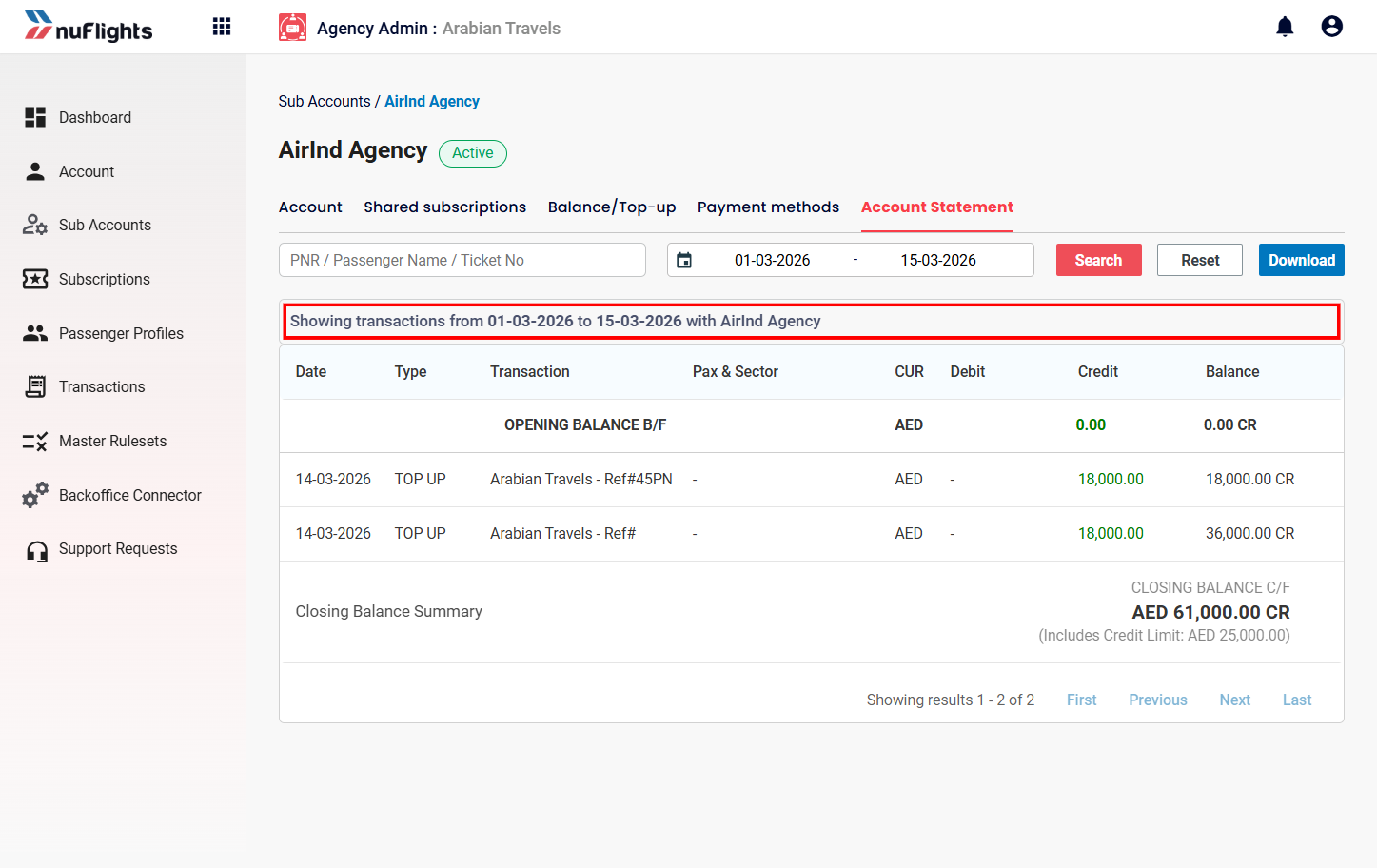
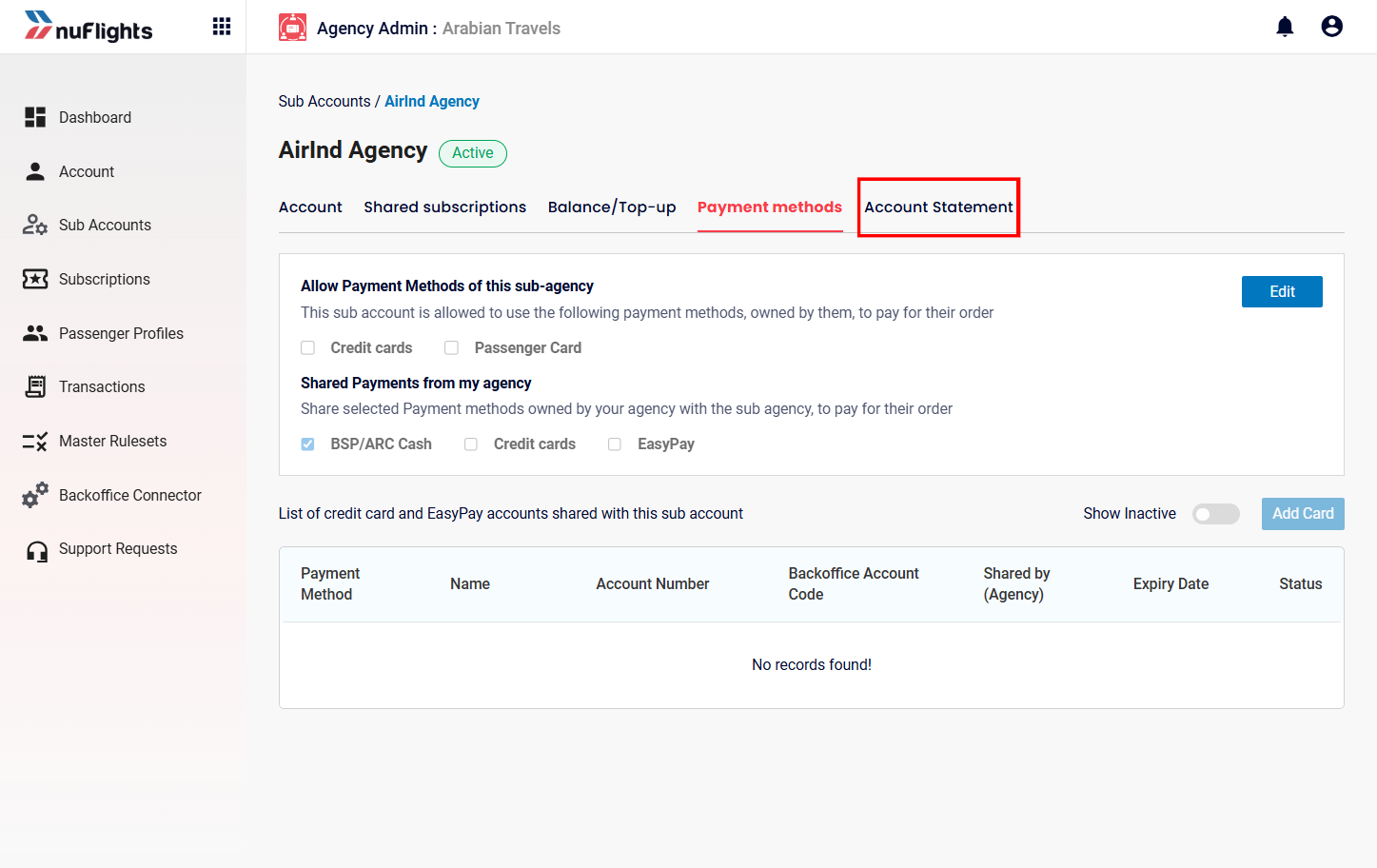
This tab shows the sub-agency's financial transaction history.
Navigation: Sub Accounts → AirInd Agency → Account Statement
You can filter by:
- PNR / Passenger Name / Ticket Number
- Date Range
Then click Search, Reset or Download. Download exports the statement for reporting.