

Invite a sub-agency
Use this to bring a partner agency into your network as a sub-agency, straight from the NuFlights platform. The sub-agency then works under your main agency account. Every newly registered agency is checked and approved by the Platform Admin team before it becomes active.
With invitations you can:
- Invite external agencies to join your network.
- Let invited agencies operate under your main agency account.
- Track invitation status and onboarding progress.
- Manage sub-agency relationships from one place.
- Make sure every newly onboarded agency is verified before activation.
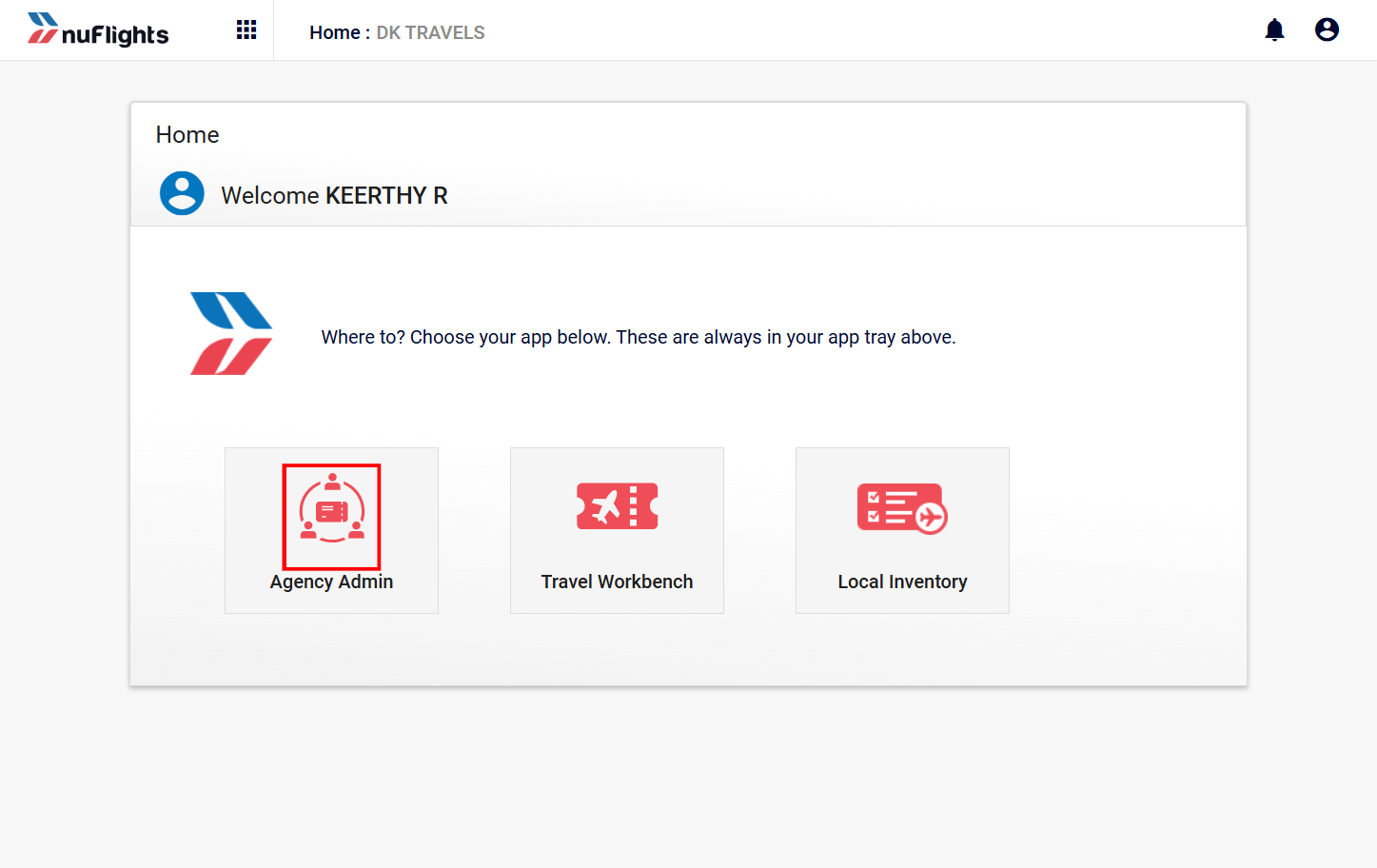
Step 1: Log in to Agency Admin
Log in to the NuFlights application with your credentials, then go to the Agency Admin dashboard.
Step 2: Open Sub-accounts
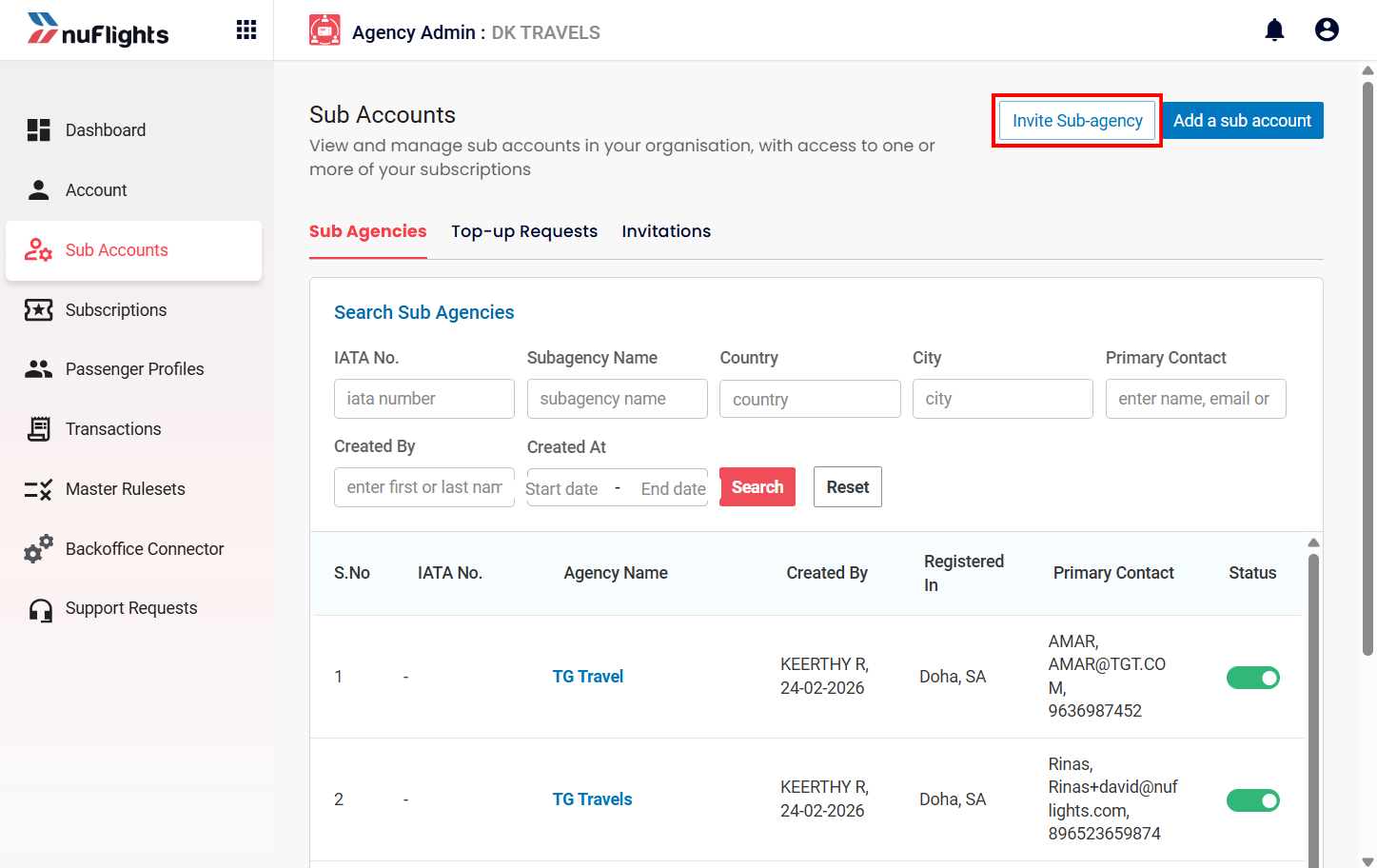
In the left menu, open Agency Admin and click Sub-accounts.
The full path is Agency Admin → Sub-accounts → Invite Sub-agency.
Step 3: Click Invite Sub-agency
On the Sub-accounts page, click Invite Sub-agency. The invitation form opens.
Step 4: Fill in the invitation form
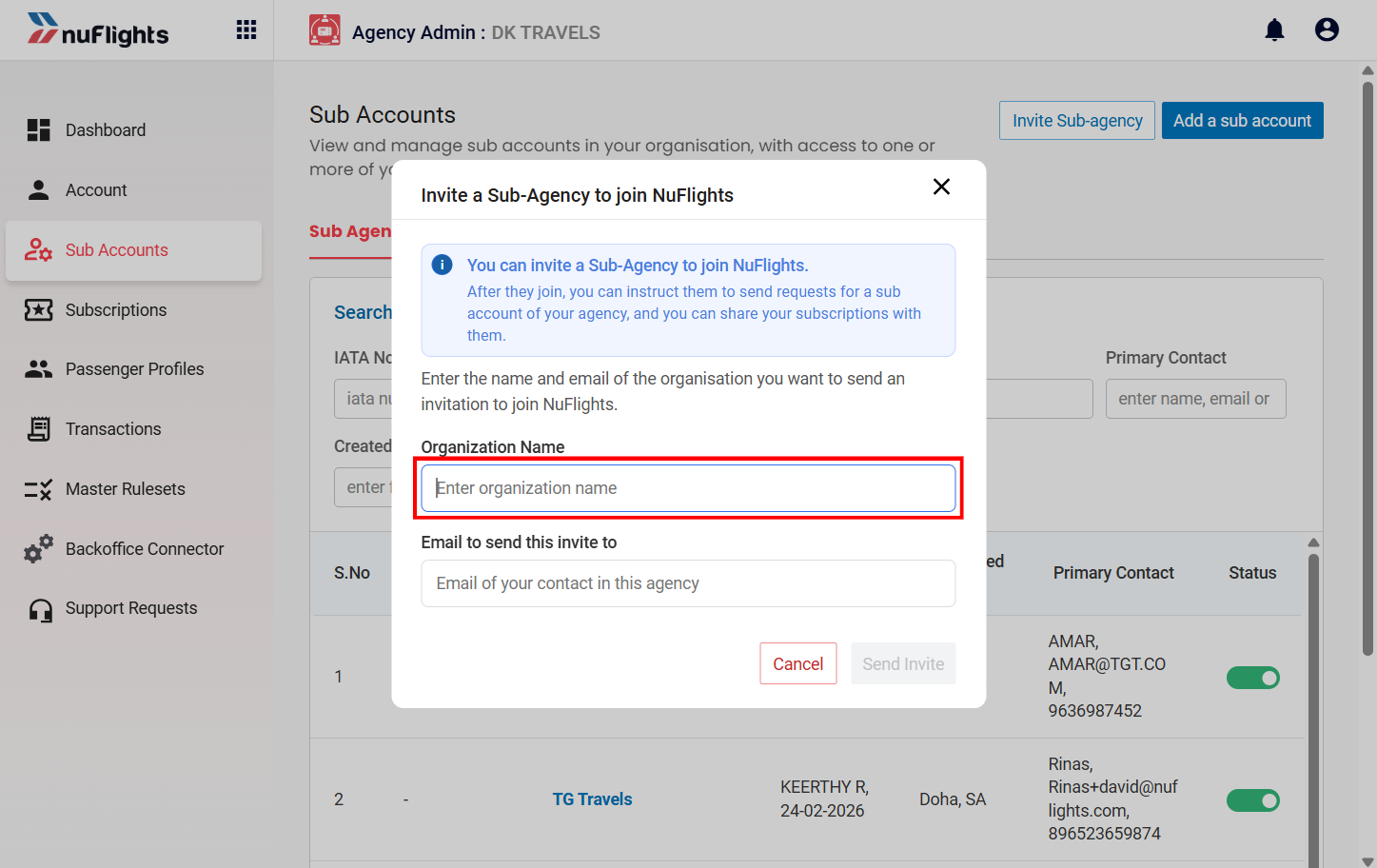
Complete the required fields:
| Field | What to enter |
|---|---|
| Organization Name | The official business name of the agency you're inviting. |
| Email ID | The main email address for communication and onboarding. |
Step 5: Submit the invitation
Click Submit. The system processes the request and shows a success message.
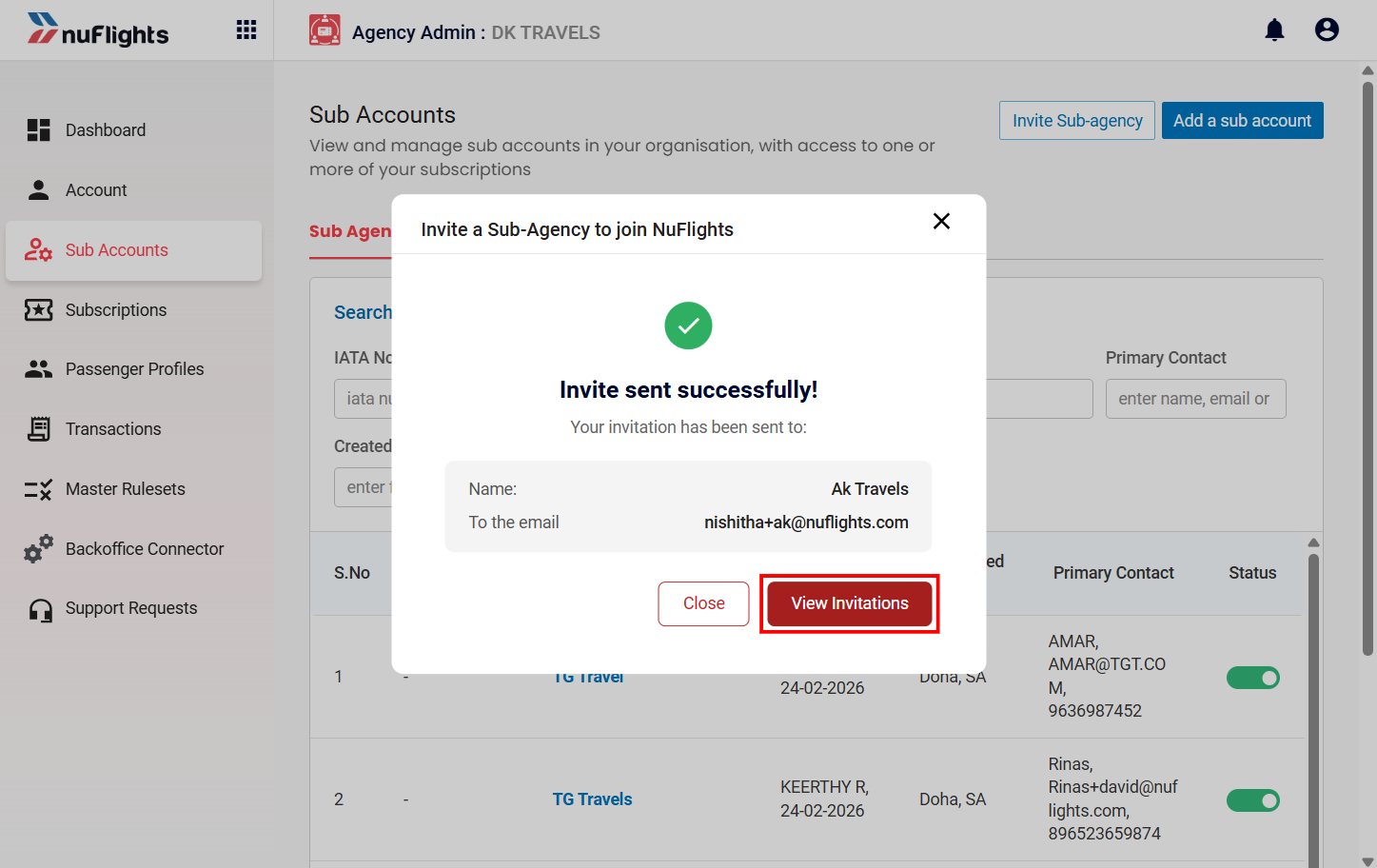
The invited agency gets an automatic email with:
- Information about your agency
- The invitation details
- Login and register buttons
- The next onboarding steps
Who does what
| Role | Responsibility |
|---|---|
| Agency Admin | Sends invitations to external agencies. |
| Invited Sub-agency | Accepts the invitation or completes registration. |
| Platform Admin | Reviews and approves or rejects newly registered agencies. |
What happens after you invite
What the invited agency does next depends on whether it already has a NuFlights account:
Scenario 1: Existing NuFlights account
An agency with an active NuFlights account doesn't register again. It accepts the invitation by logging in with its existing NuFlights credentials, then keeps using NuFlights as usual with no extra registration steps.
-
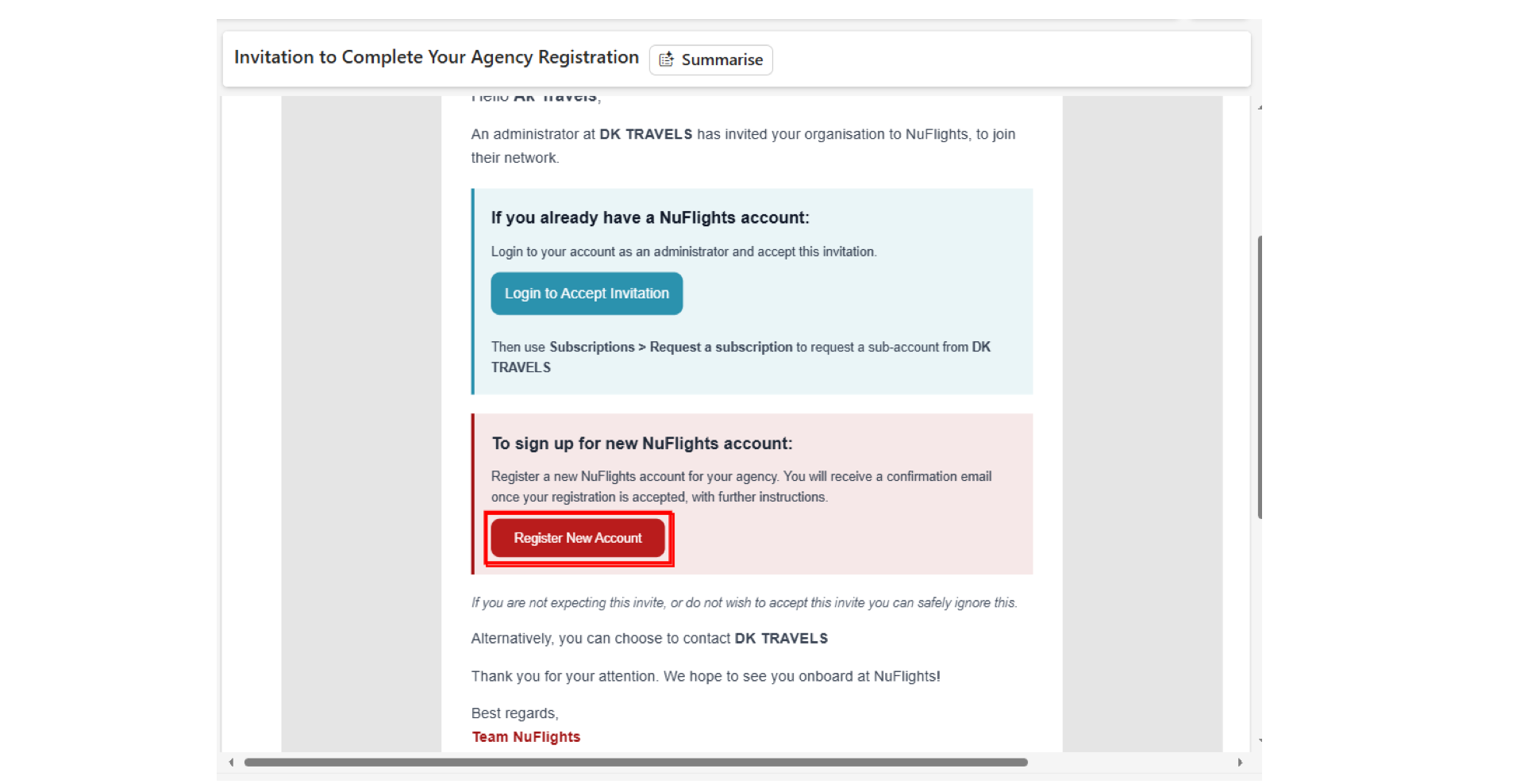
The agency opens the invitation email and is taken to the NuFlights login page.
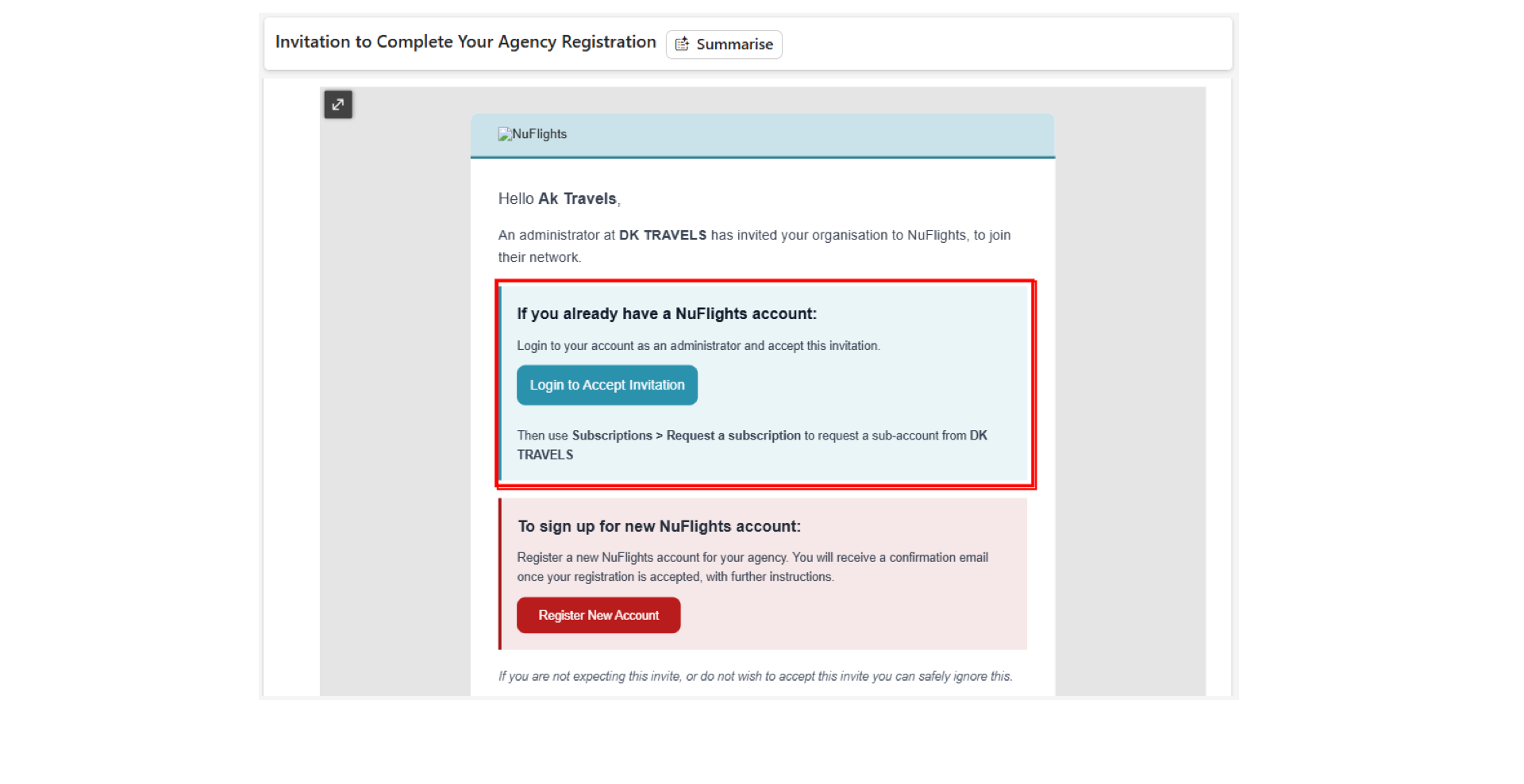
The invitation email for an existing NuFlights agency. -
The agency logs in with its existing account credentials.
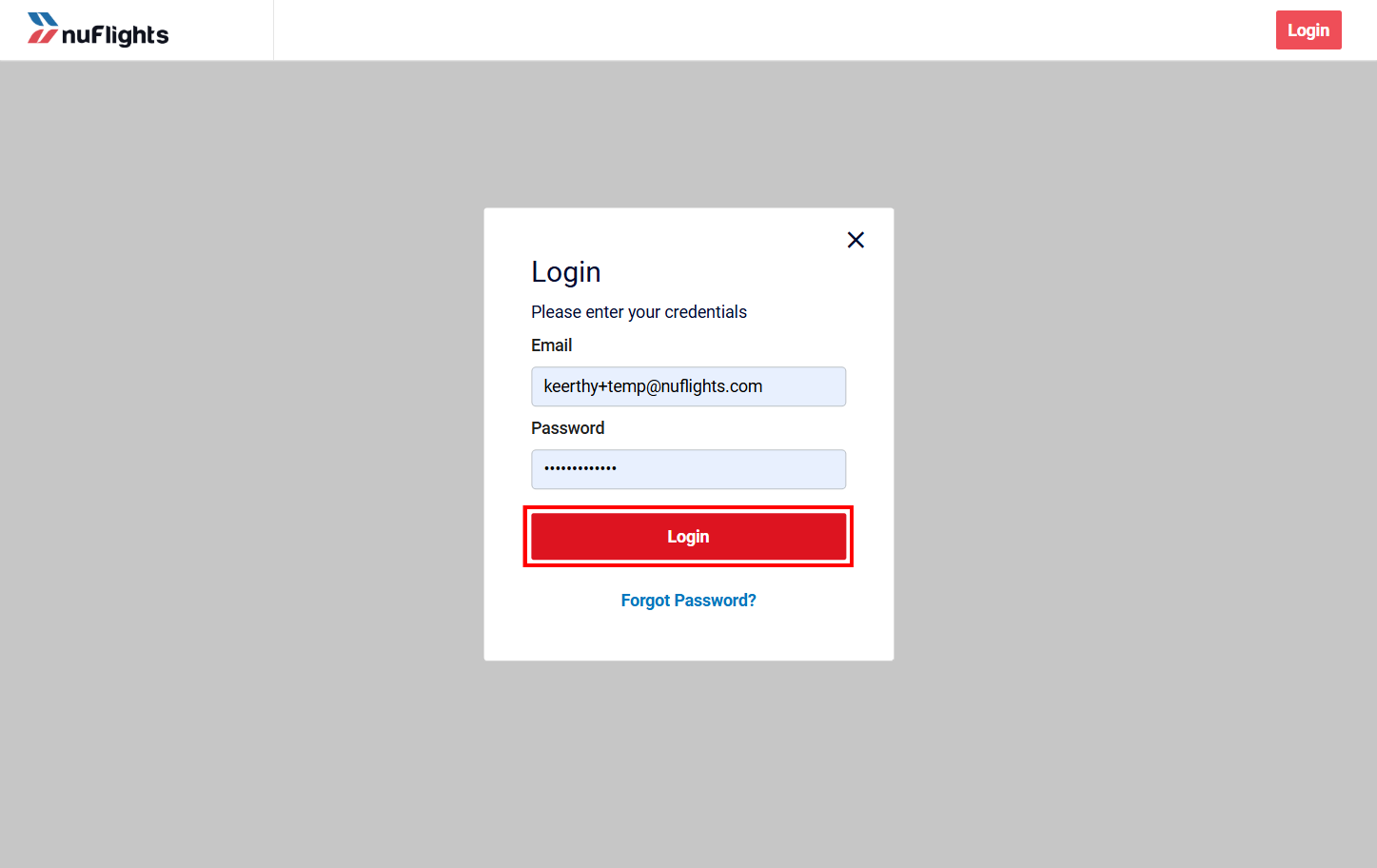
Log in with the existing NuFlights account. -
After logging in, the agency sees a message that the invitation was accepted.
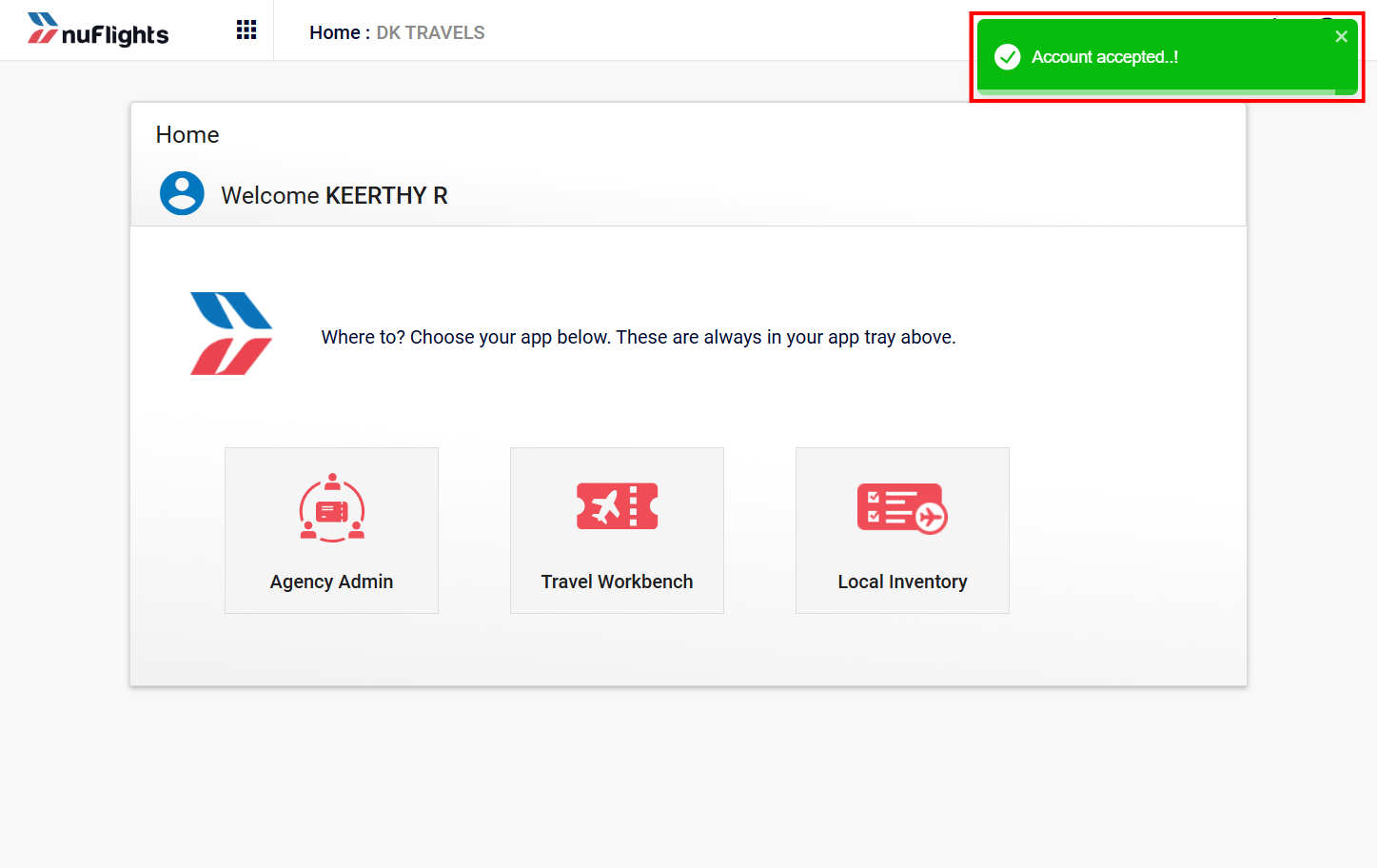
The invitation is accepted.
Once the invitation is accepted:
- The parent–sub-agency relationship is set up.
- The invited agency is linked under your agency.
- The sub-agency shows on your Sub-accounts page.
- The invitation status changes to Active. You can see it in Agency Admin → Sub-accounts → Invitations tab.
Scenario 2: New sub-agency registration
An agency without a NuFlights account must register before it can be activated.
-
The agency opens the invitation email and clicks Register new account.
Click Register new account in the email. -
The agency registration page opens. The agency completes all the mandatory details. See Registration form fields.
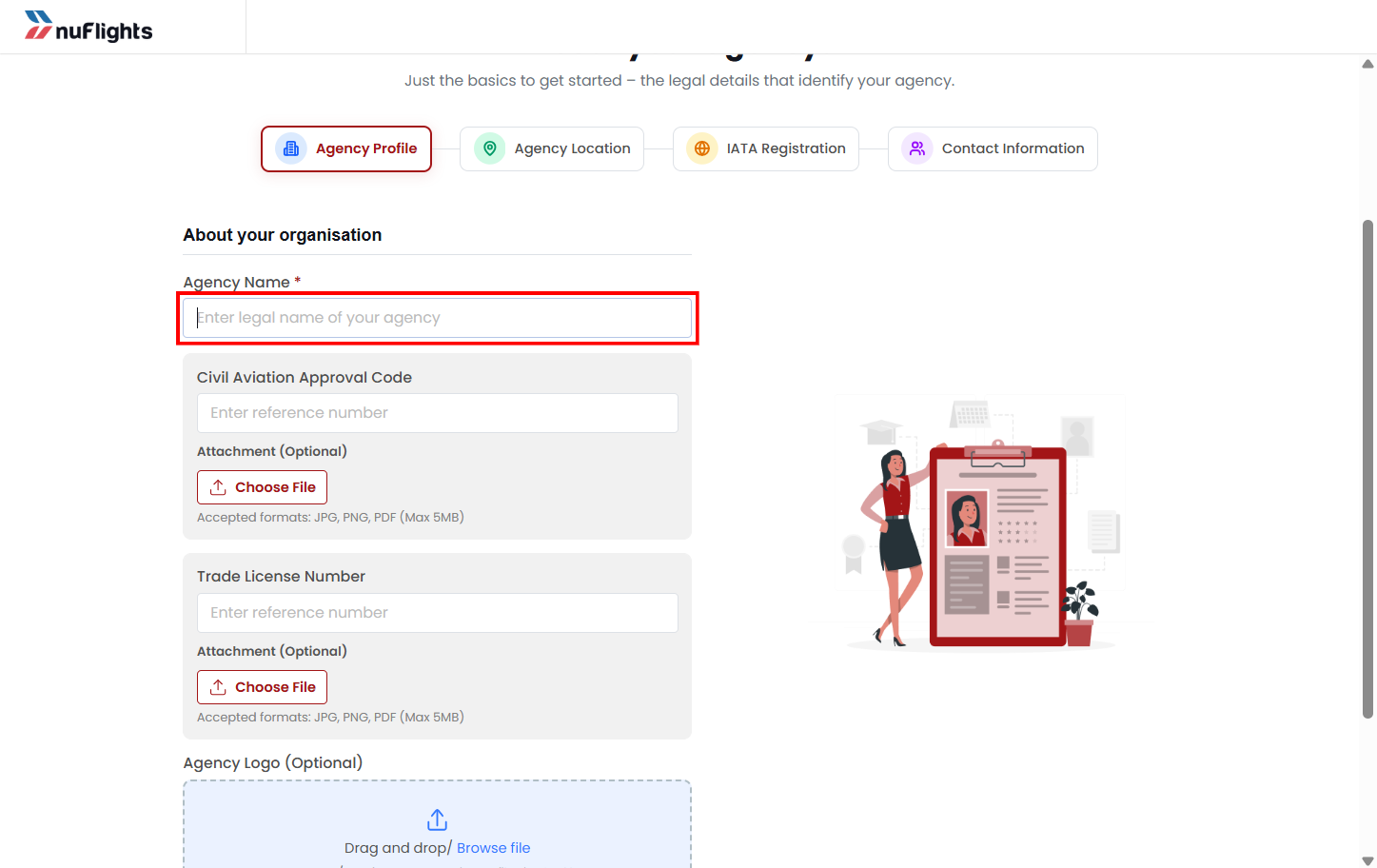
The agency registration page. -
The agency reviews all the details it entered.
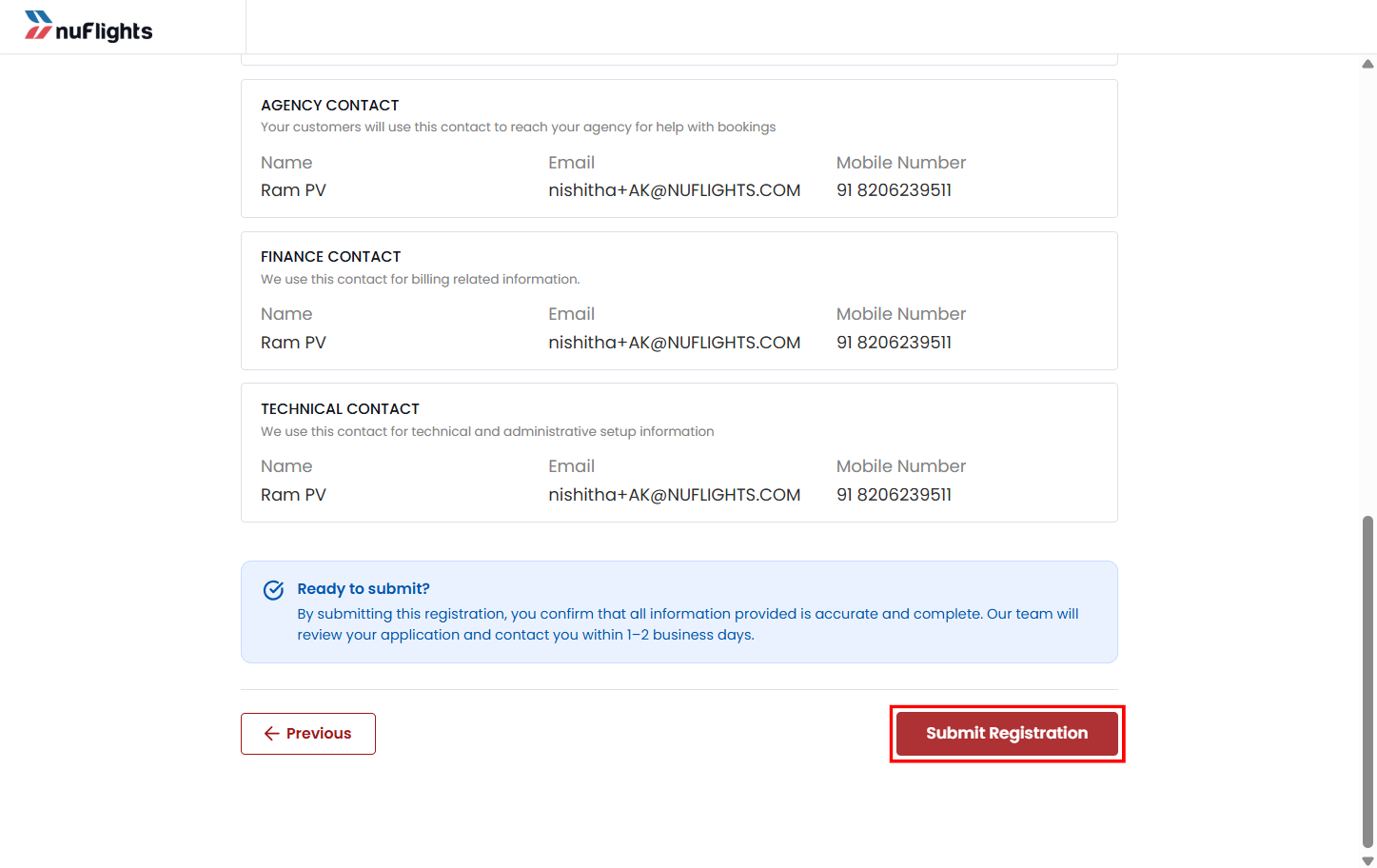
Review the details before submitting. -
The agency clicks Submit Registration. The registration request is created and sent automatically to the Platform Admin for verification.
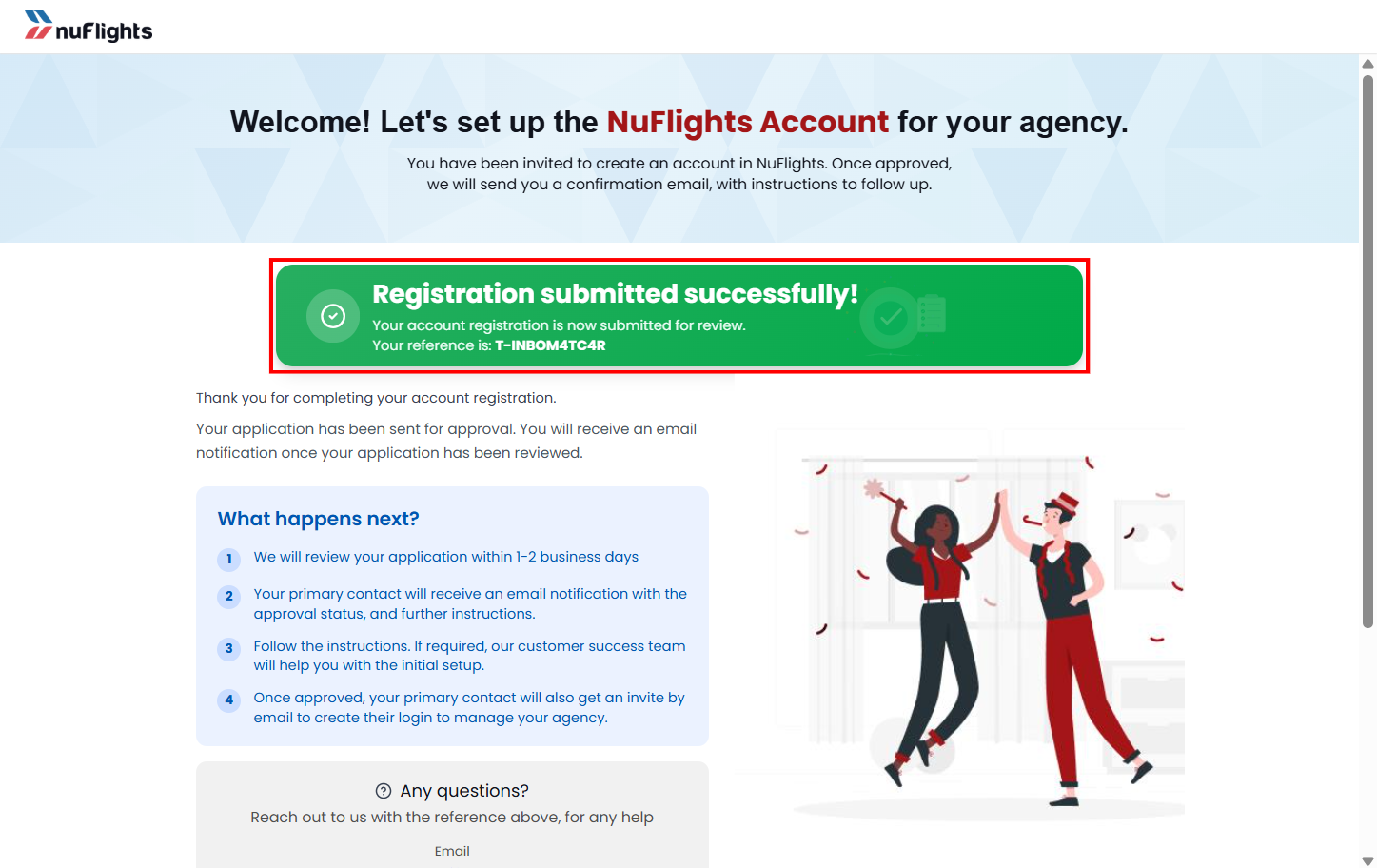
The registration is submitted for review.
Registration form fields
The registration form has 4 sections. The agency must complete all the required fields in each section.
Agency Profile
- Agency Name
- Civil Aviation code (optional)
- Trade License number (optional)
- Agency Logo
Document uploads may be checked for things like supported file formats and maximum file size.
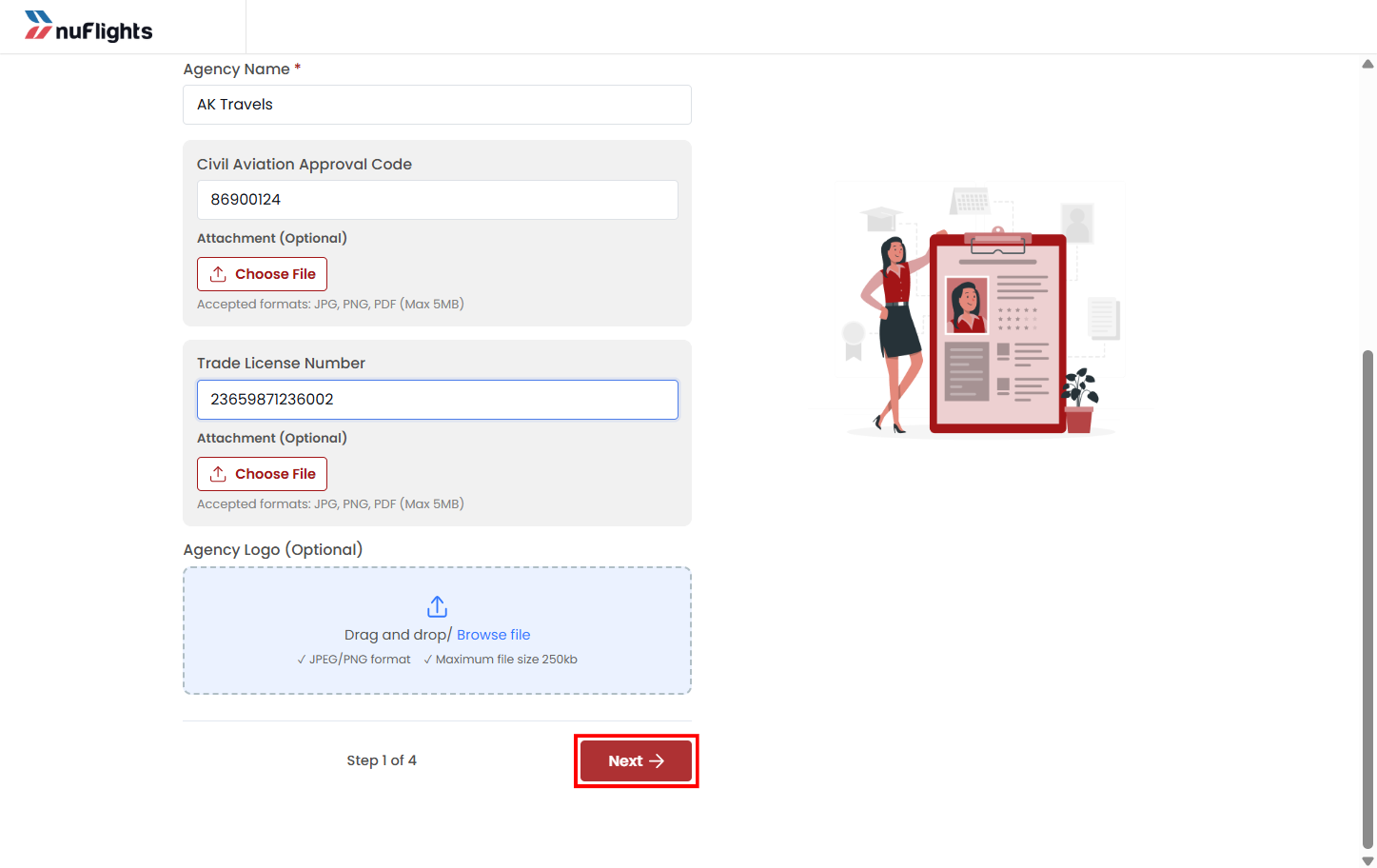
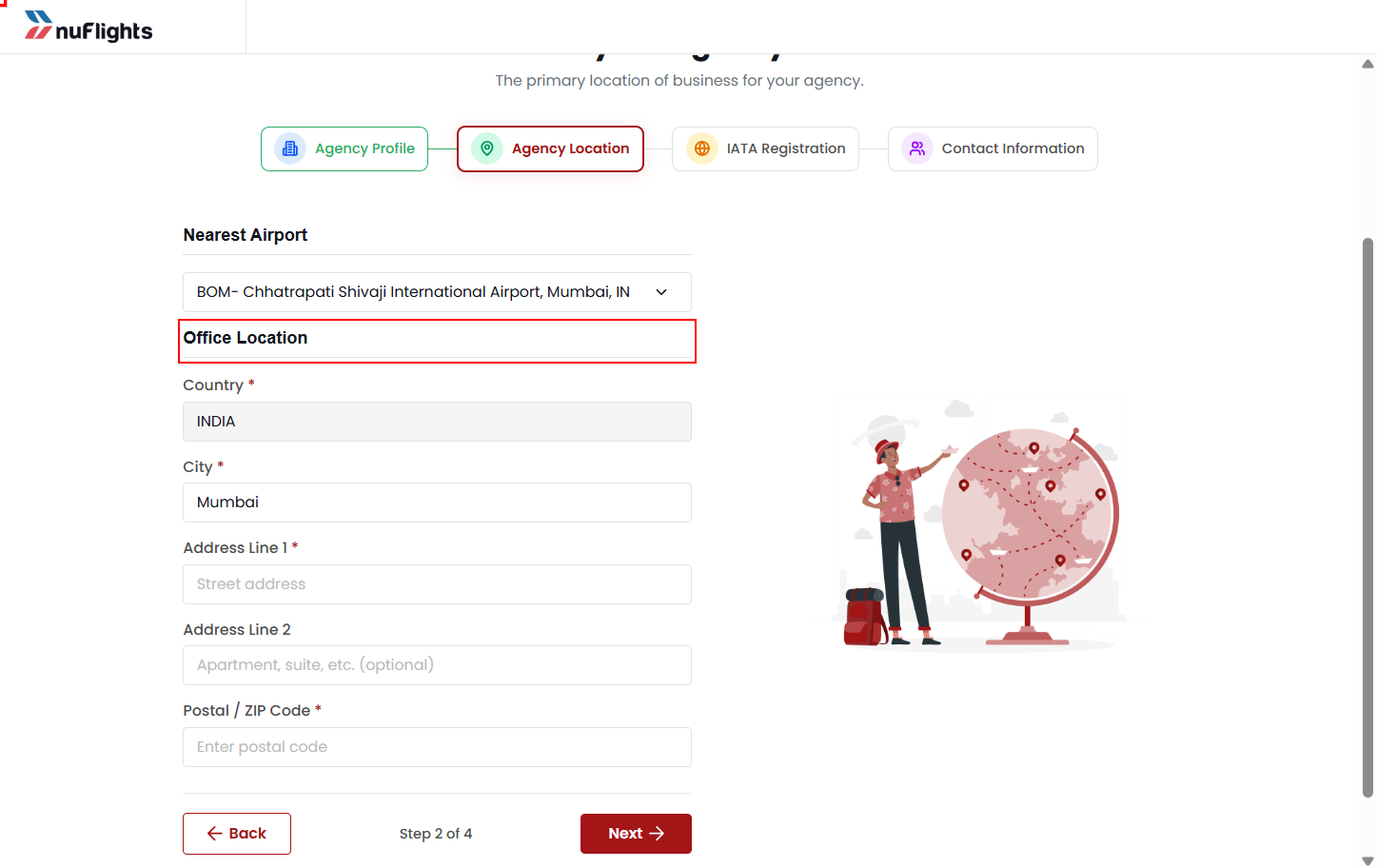
Agency Location
- Nearest Airport
- Agency Address
- City
- Country
- Postal Code
IATA Registration
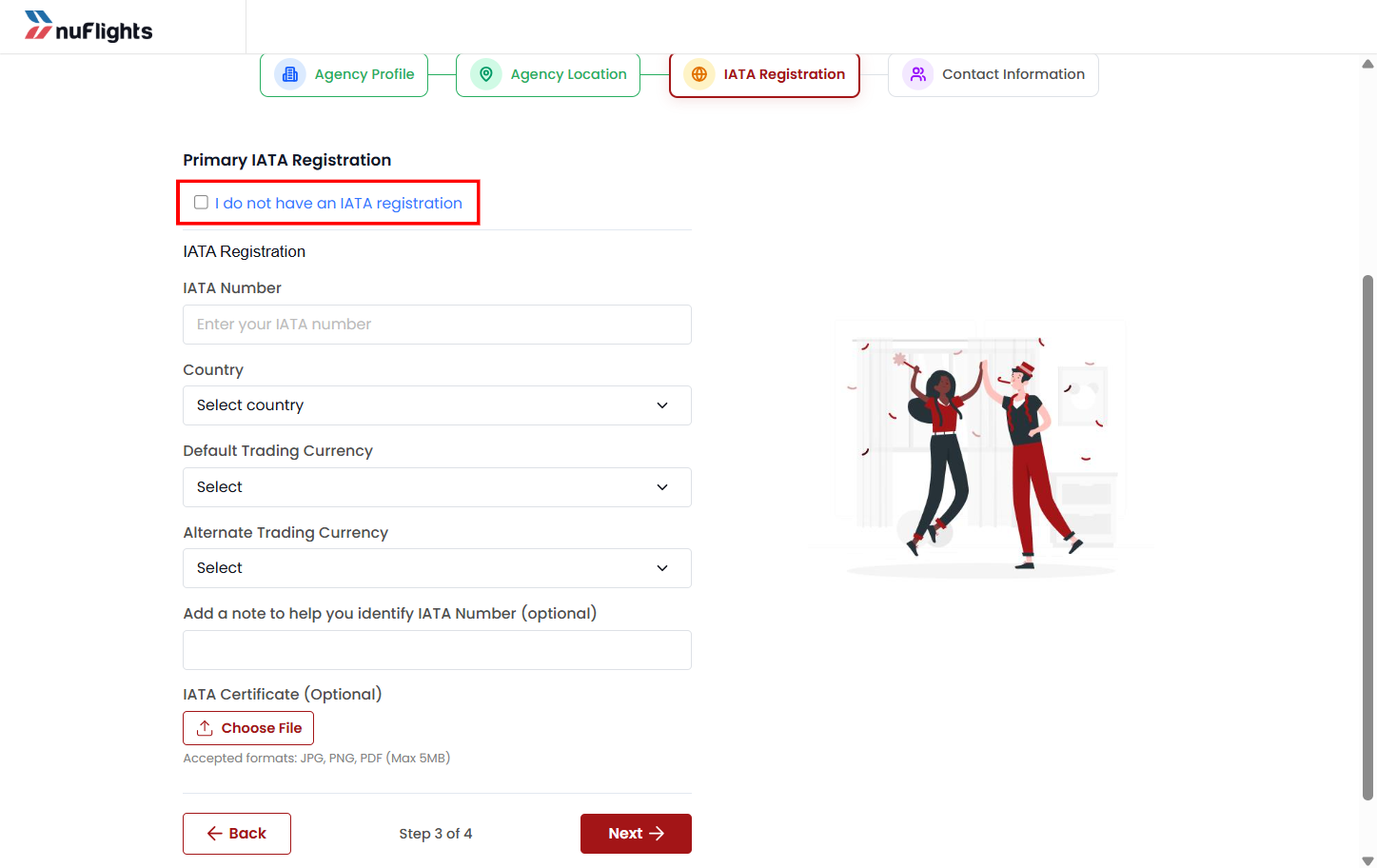
This section captures IATA accreditation details.
- IATA-registered agency: enter the IATA number, and give supporting information if needed.
- Non-IATA agency: select I don’t have an IATA number to continue without IATA details.
Contact Information
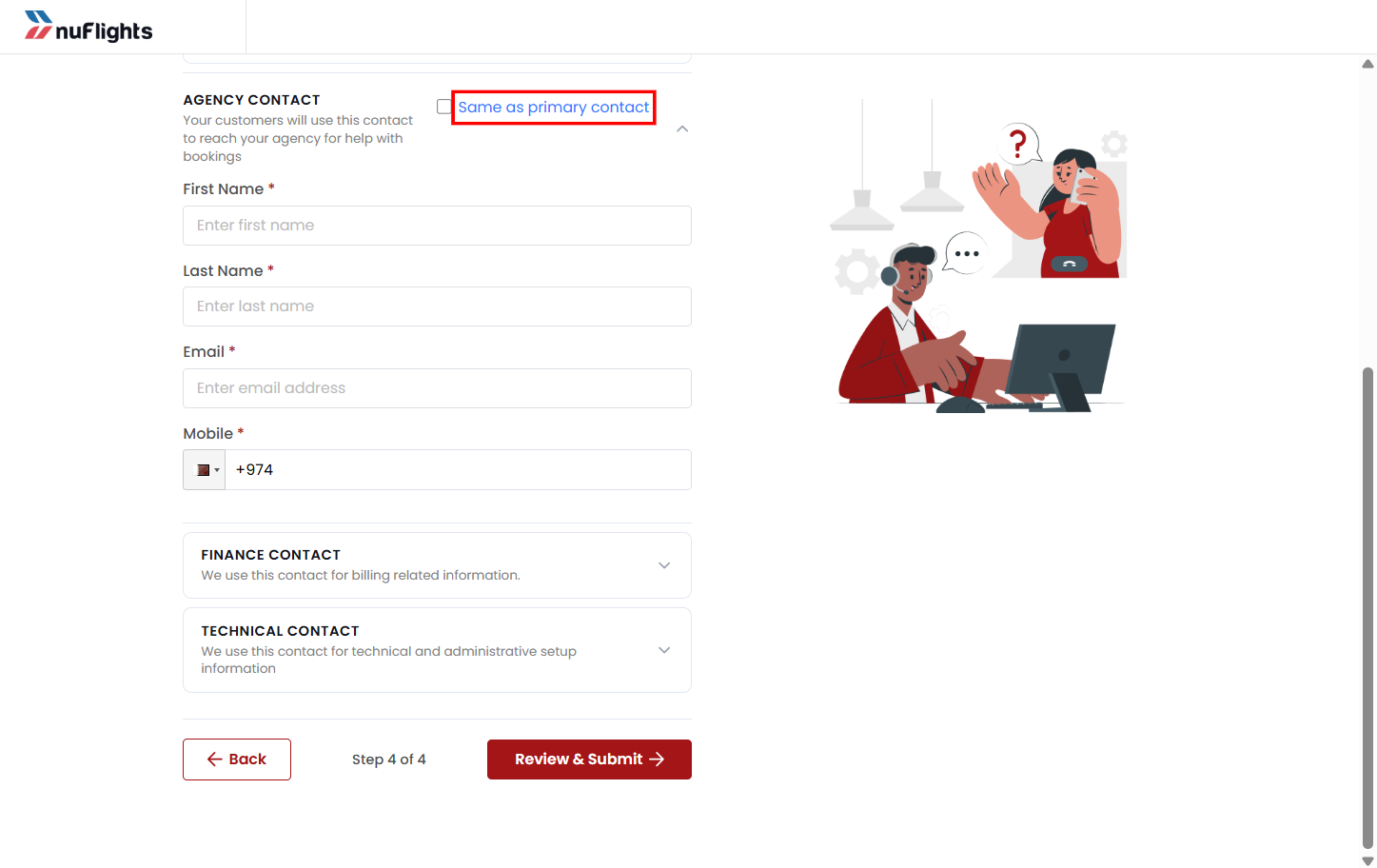
- Primary Contact
- Agency Contact
- Financial Contact
- Technical Contact
- Email Address
- Phone Number
If the other contacts are the same as the primary contact, select Same as Primary Contact to fill them in automatically.
Check the latest invitation status
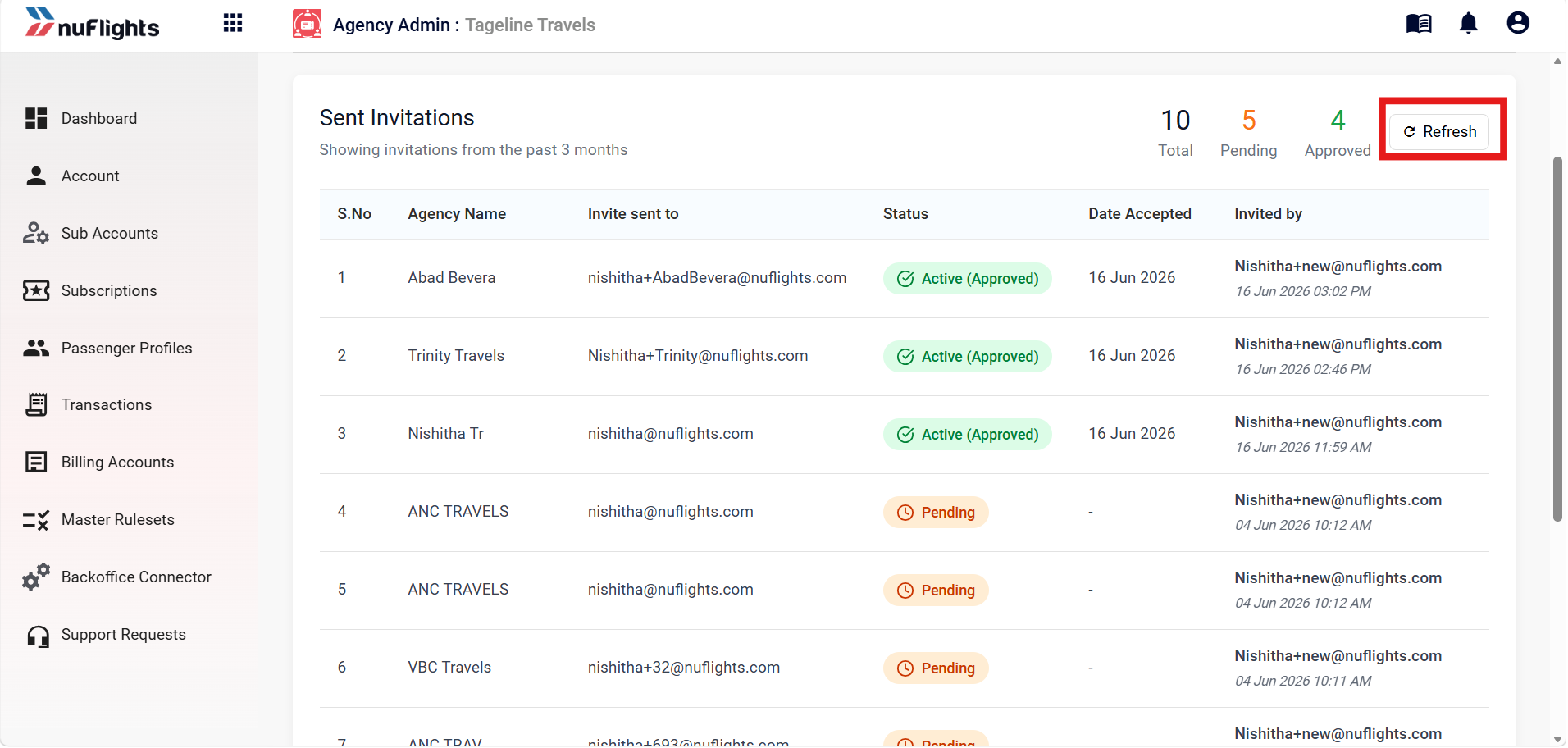
After the agency has registered, go back to the invitation list and click Refresh. The list updates with the latest registrations and statuses.
Click Refresh to see the newest status. Use the Refresh option after a registration is completed to load the most recent invitation status.
Platform Admin review
The Platform Admin reviews the agency's:
- Agency details
- Contact information
- Supporting legal documents
The agency isn't fully active during this review.
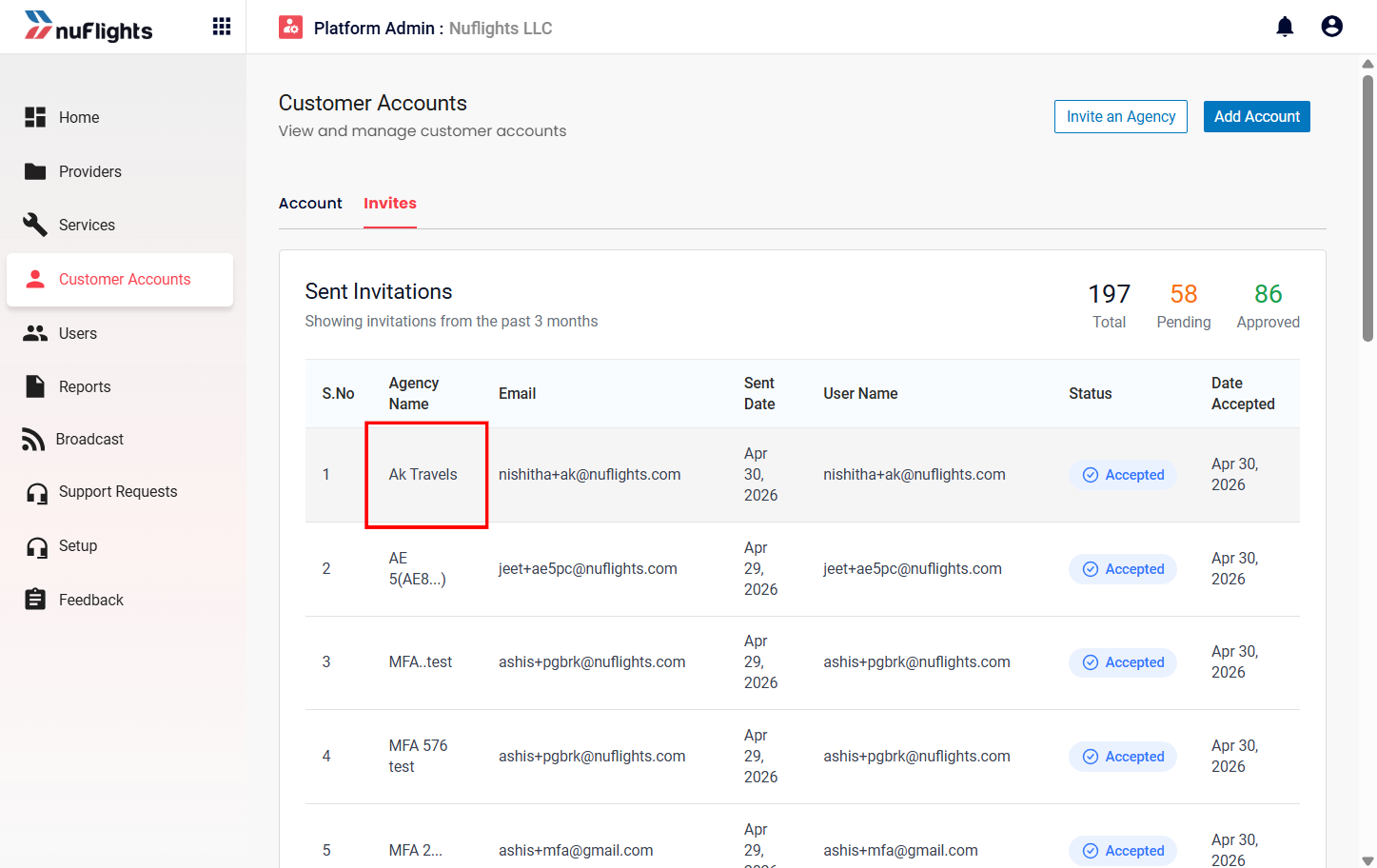
While the review is in progress, the invited agency shows on your Sub-accounts page with the status Pending Approval, so you can track its onboarding.
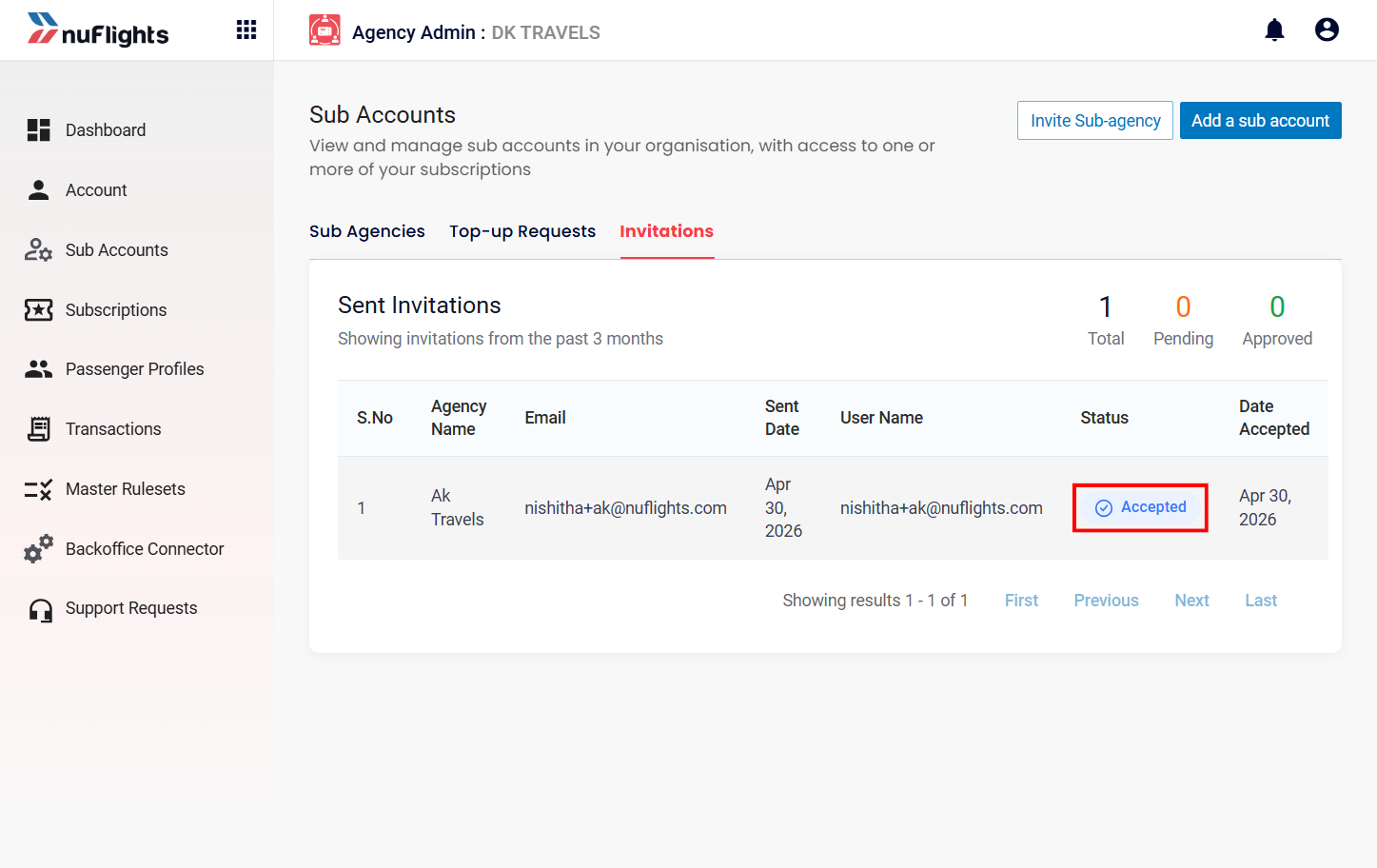
If the Platform Admin approves:
- The agency becomes active in NuFlights.
- The parent–sub-agency relationship is finalized.
- The agency can use the platform's features, based on its permissions.
- The status changes to Accepted.
If the Platform Admin rejects:
- The agency isn't activated.
- The email sent to the agency gives the reason for the rejection.
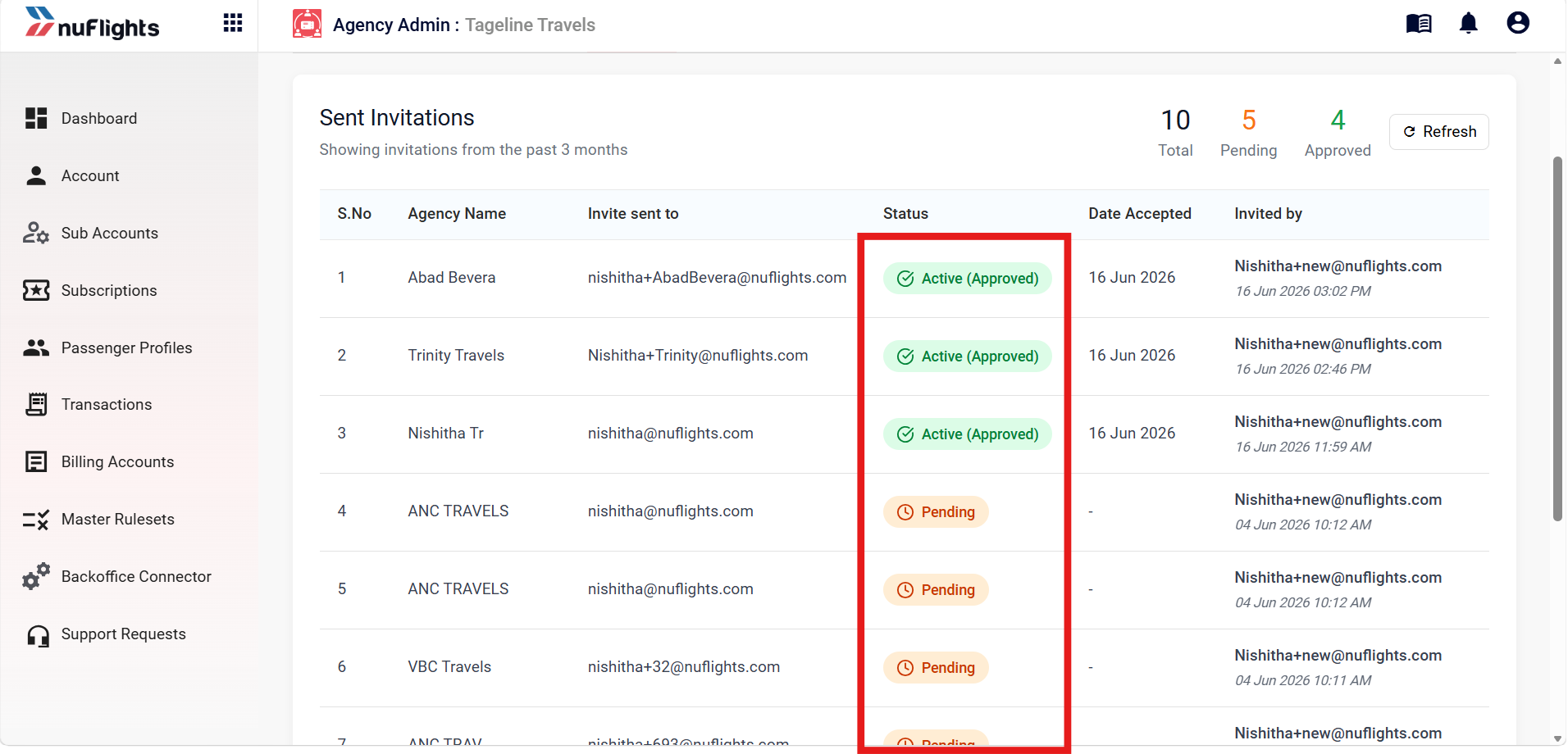
Invitation statuses
| Status | When you see it | Colour |
|---|---|---|
| Pending | The invitation is sent but the agency hasn't accepted it yet. | Amber |
| Accepted | The agency has completed registration and is waiting for Platform Admin approval. | Blue |
| Active (Approved) | A newly registered agency was approved by the Platform Admin. | Green |
| Active | An agency that was already registered accepted the invitation or login request. | Green |
| Rejected | A newly registered agency was rejected by the Platform Admin. | Red |
Automatic subscription request
Once a sub-agency's registration is approved, the sub-agency doesn't need to do anything. NuFlights requests the subscription for it:
- When the registration is approved, NuFlights automatically creates and sends a Subscription Request on behalf of the approved sub-agency to the selected main agency.
- The main agency receives an email with:
- The approved sub-agency's details
- The requested subscription information
- A unique generated Subscription Request Code
- The main agency opens the email and copies the request code.
- The main agency adds the request code in the application and approves subscription sharing. See Sub-accounts.
- Once the main agency approves, the requested subscription is shared and the approved sub-agency can use it.
In short: sub-agency registration approved → NuFlights automatically sends a subscription request → main agency receives the email → main agency copies the request code → main agency approves → subscription shared → sub-agency gets access.
Related guides