

Billing profiles
Use this to view and manage, in Agency Admin, the customer profiles used for ticket issuance and invoicing. Billing profiles are linked to your back-office system and track which customer or corporate account each ticket is billed to.
Only for agencies with a back-office connector. Billing Profiles is available if your back-office connector is Wave TRAACS, NuTRAACS or AIR File Export. Agencies without a back-office connector don't see the Billing Profiles section.
Open Billing Profiles
In the Agency Admin left menu, click Billing Profiles.
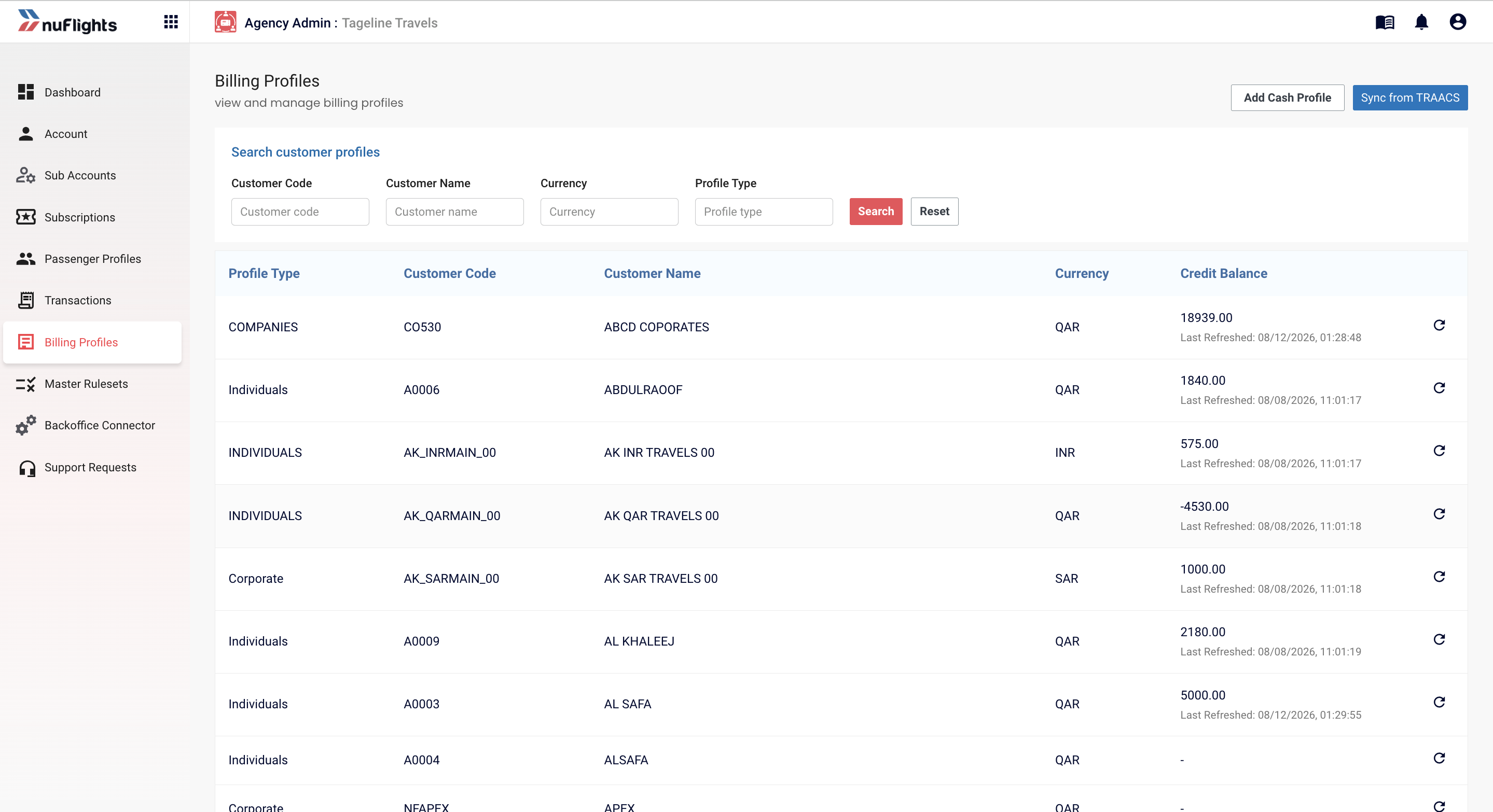
The page lists every customer profile available to your agency:
| Column | Description |
|---|---|
| Profile Type | The type of profile (for example, Companies, Individuals, Corporate, Cash Account) |
| Customer Code | The unique identifier for the customer in your back-office system |
| Customer Name | The name of the customer or corporate account |
| Currency | The currency of the profile |
| Credit Balance | The customer's available credit, fetched from TRAACS. Shows the amount and when it was last refreshed |
To find a profile quickly, use the search filters at the top: Customer Code, Customer Name, Currency and Profile Type.
Check a customer's credit balance
Click the refresh icon (↻) next to the profile. NuFlights queries your TRAACS system and updates the Credit Balance column with the current balance and time.
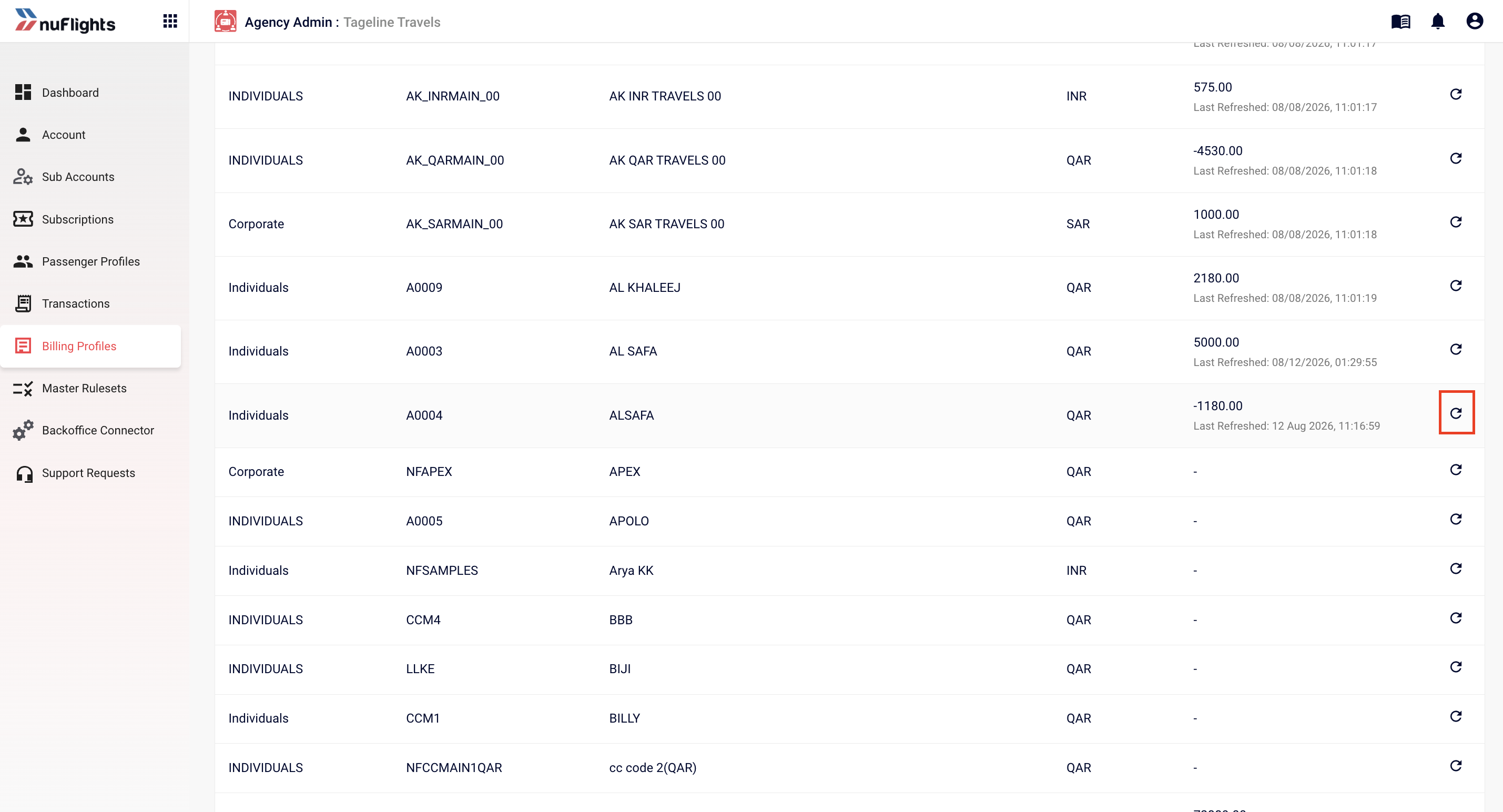
Refresh any time for the latest balance. The credit balance comes from TRAACS in real time. Last Refreshed shows when it was last checked.
Sync profiles from Wave TRAACS
If your agency uses Wave TRAACS, customer profiles come straight from your TRAACS system. To get the latest profiles:
- Click Sync from TRAACS in the top-right corner of the Billing Profiles page. NuFlights calls your Wave TRAACS system and fetches all customer profiles.
- Wait for the sync to finish. New profiles and changes made in TRAACS now show in the list.
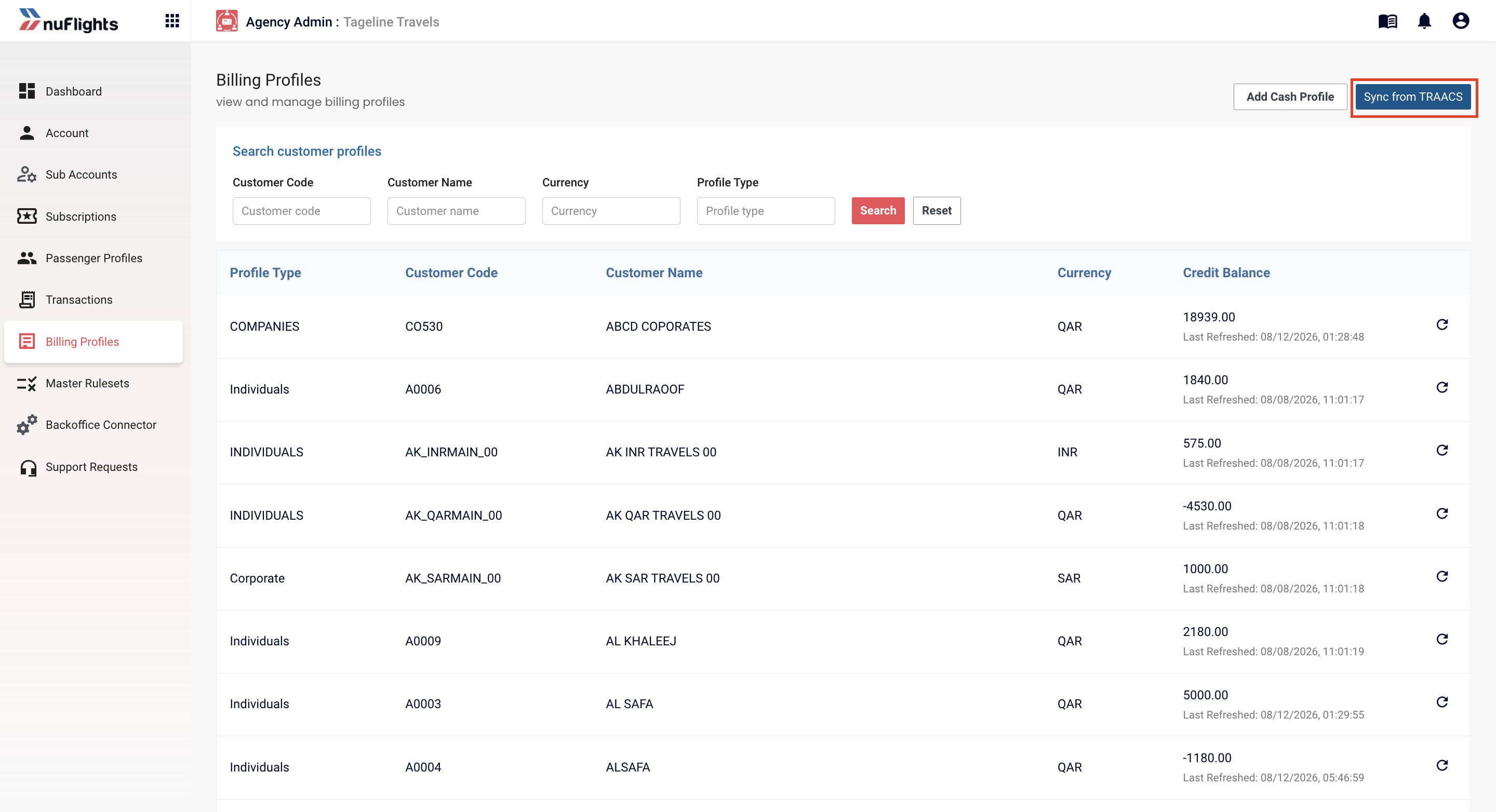
No need to add Wave TRAACS profiles by hand. Click Sync from TRAACS to import all customer profiles automatically. The sync also updates credit balances.
Add a cash customer
For walk-in or general customers who don't have their own profile in TRAACS, create a Cash Customer profile. Cash Customer profiles skip the credit check when a ticket is issued.
- Click Add Cash Profile in the top-right corner.
- Check that Profile Type is set to
CASH ACCOUNT. It's set automatically. - In Customer Code, enter a unique code (for example,
WIP-001). - In Customer Name, enter the customer name (for example,
walk in). - In Currency, select the currency.
- Click Save.
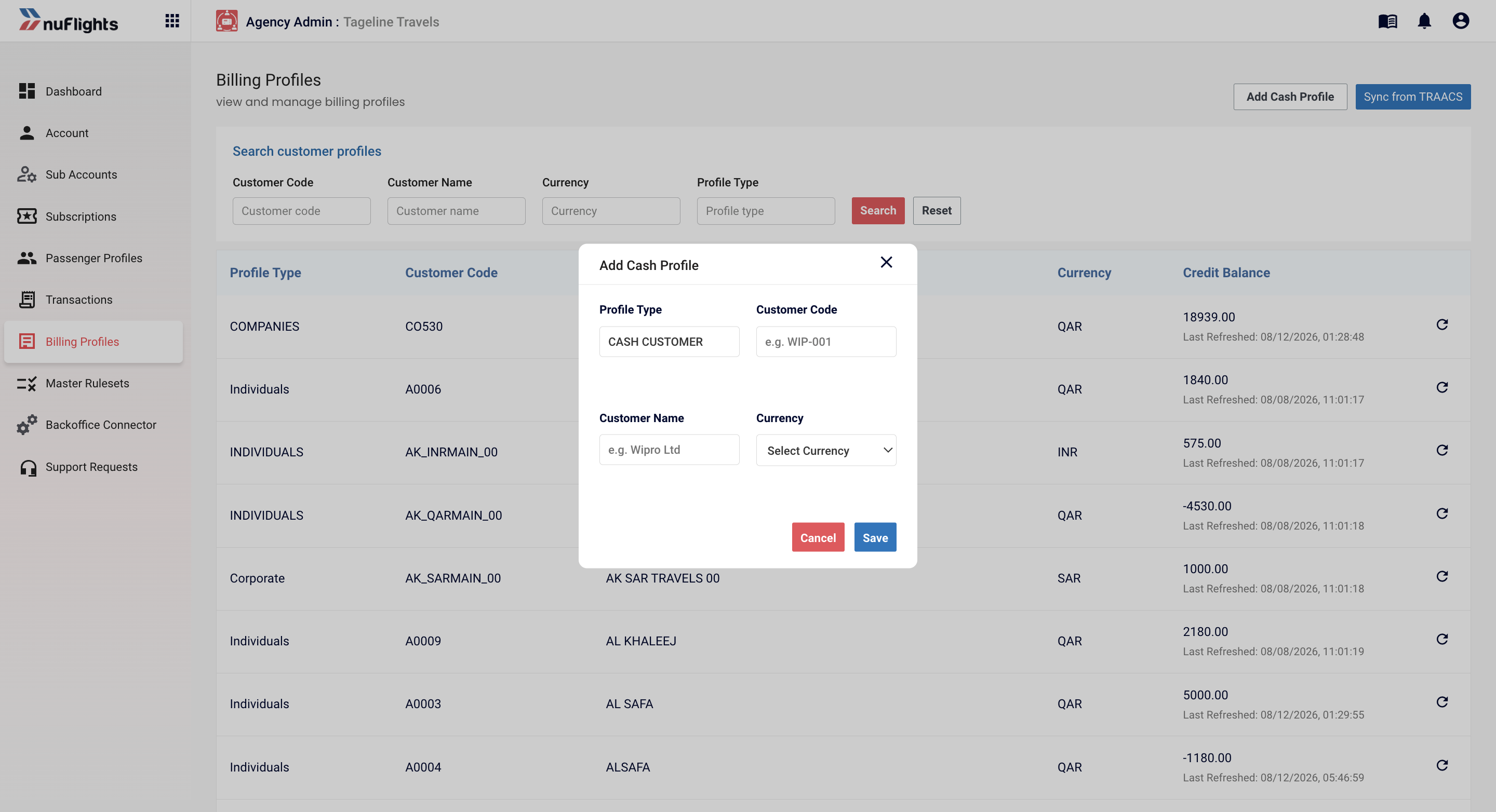
The new cash customer appears in the Billing Profiles list. Agents can use it straight away on the Payment page.
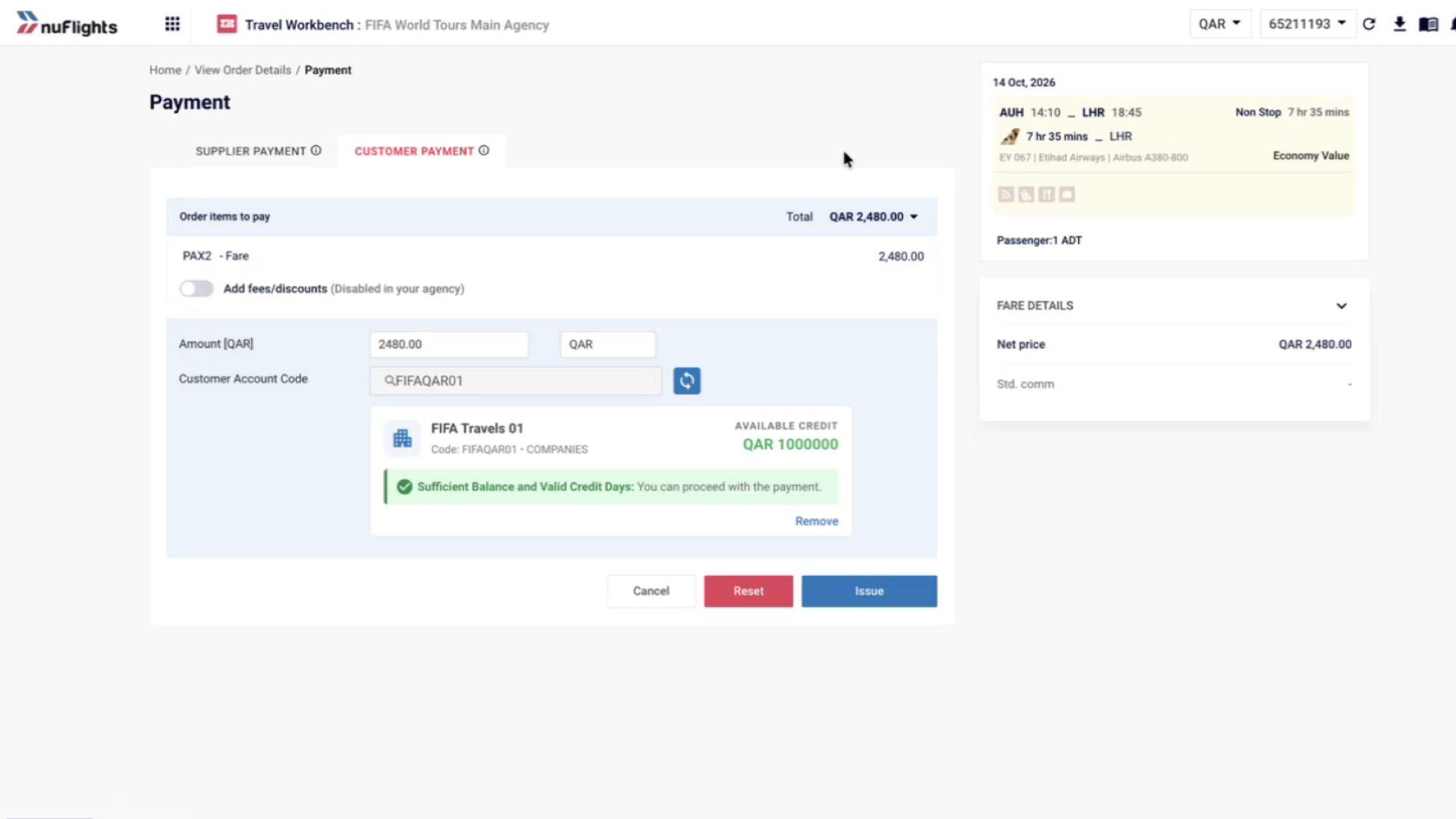
Cash customers have no credit check. When an agent selects a Cash Customer profile on the Payment page, the ticket can be issued directly, without any credit validation.
Add profiles for NuTRAACS or AIR File Export
If your agency uses NuTRAACS or AIR File Export, profiles aren't synced automatically. You can add them one at a time or import them from a CSV file.
Add one profile
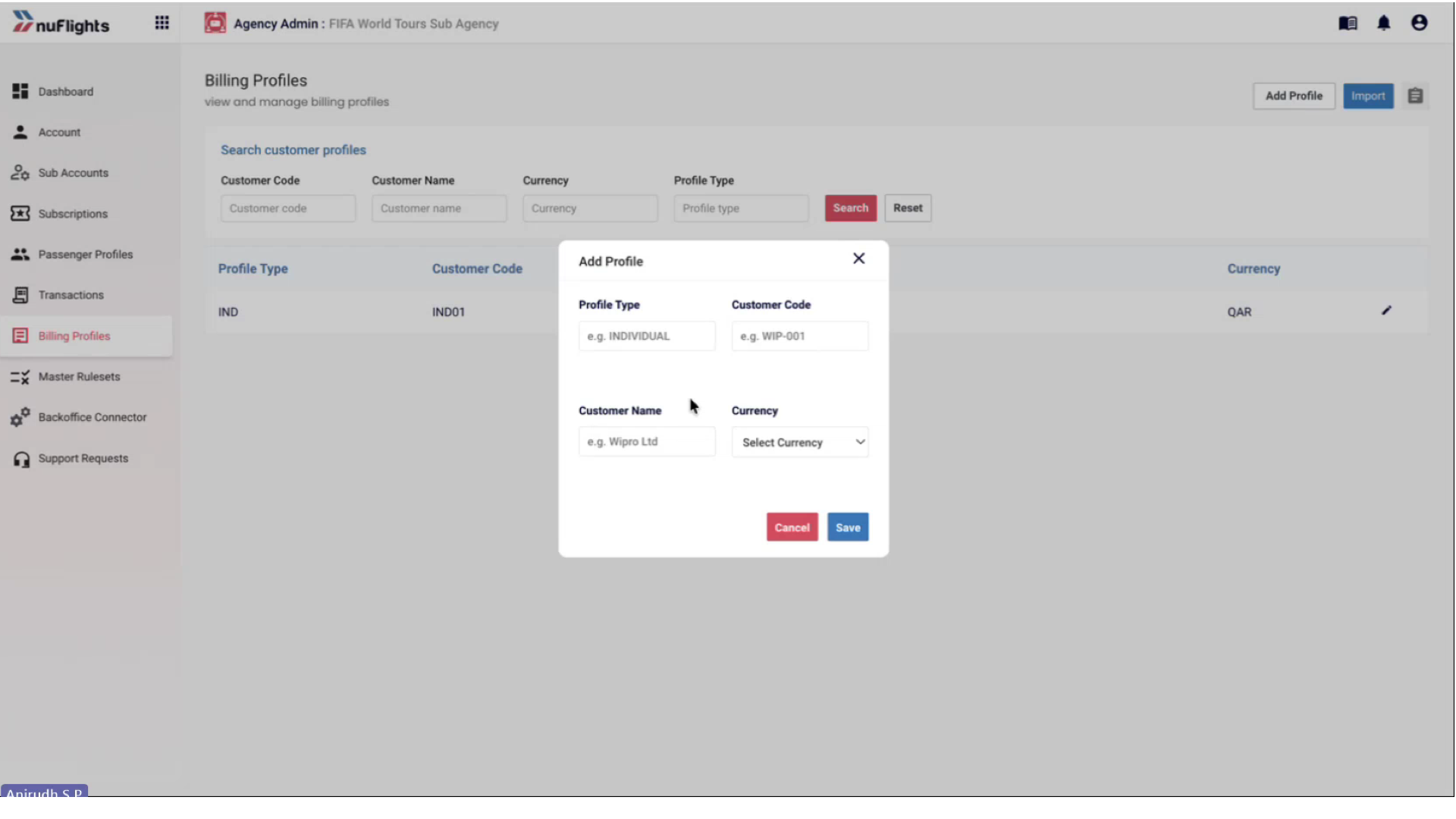
- On the Billing Profiles page, click Add Profile.
- Enter the customer details: Profile Type, Customer Code, Customer Name and Currency.
- Click Save.
Import profiles from a CSV file
Use this if you have a lot of customer records.
- Click Download CSV Template to get the template.
- Open the CSV file and fill in the customer details from your NuTRAACS system.
- Go back to the Billing Profiles page and click Import.
- Upload the completed CSV file.
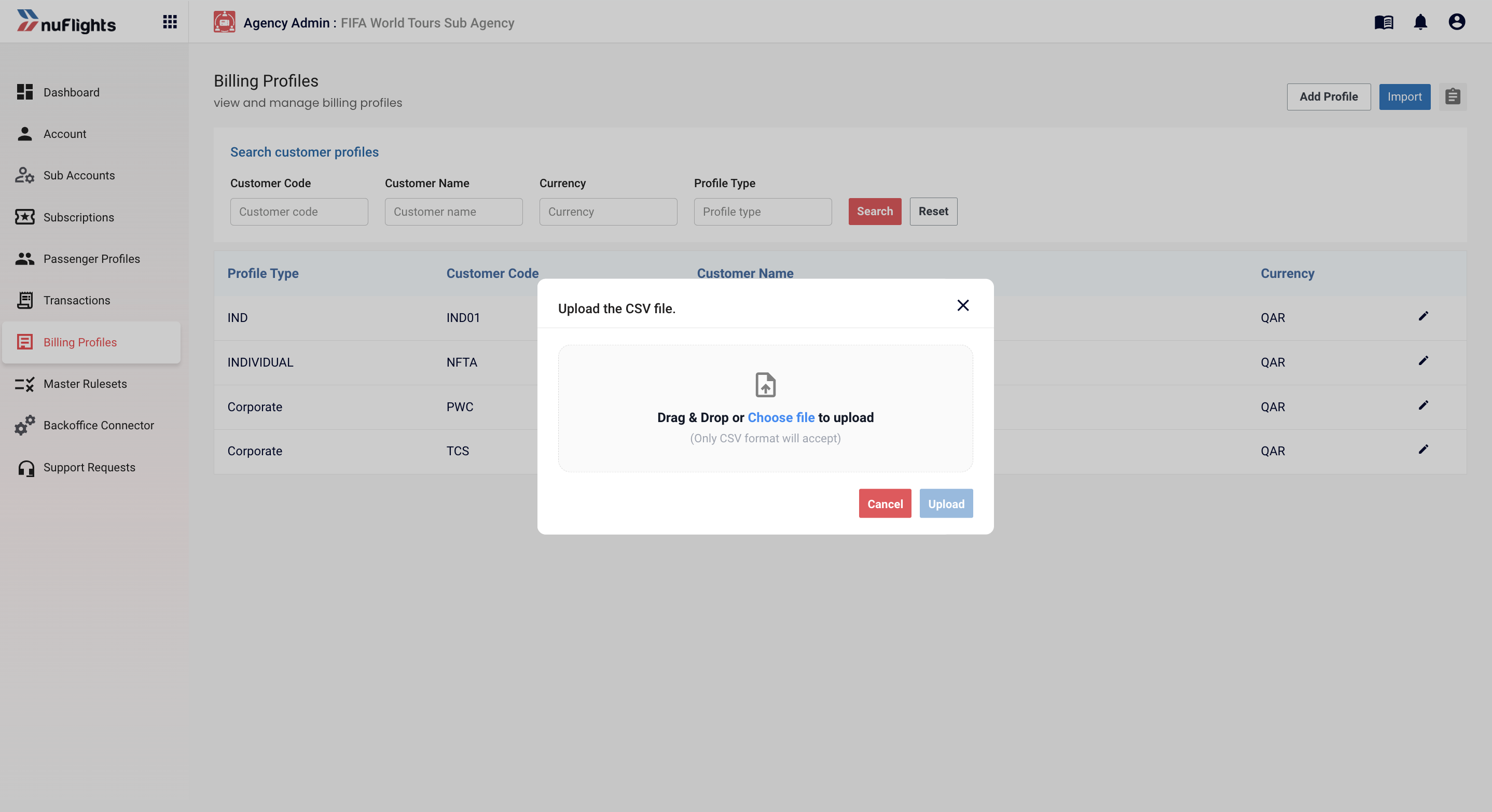
When the import is complete, all the profiles appear in the Billing Profiles list and agents can use them on the Payment page.
Summary by back-office type
| Back-office type | Profile source | Sync method | Credit control |
|---|---|---|---|
| Wave TRAACS | Fetched from TRAACS | Click Sync from TRAACS | Real-time credit check through TRAACS |
| NuTRAACS | Added manually or by CSV import | Add Profile / Import CSV | No automated credit check |
| AIR File Export | Added manually or by CSV import | Add Profile / Import CSV | No automated credit check |
| No back office | Not applicable | Not available: the Billing Profiles section isn't shown | Not applicable |
Related guides
- Pay and issue tickets: how agents use billing profiles on the Payment page.
- Back-office connector