

Users and roles
Use this to see who in your agency can use the NuFlights platform, invite new users, and choose their role and permissions.
Before you start, check that:
- You have admin access. Only users with admin access can add a new user.
Step 1: Open the user list
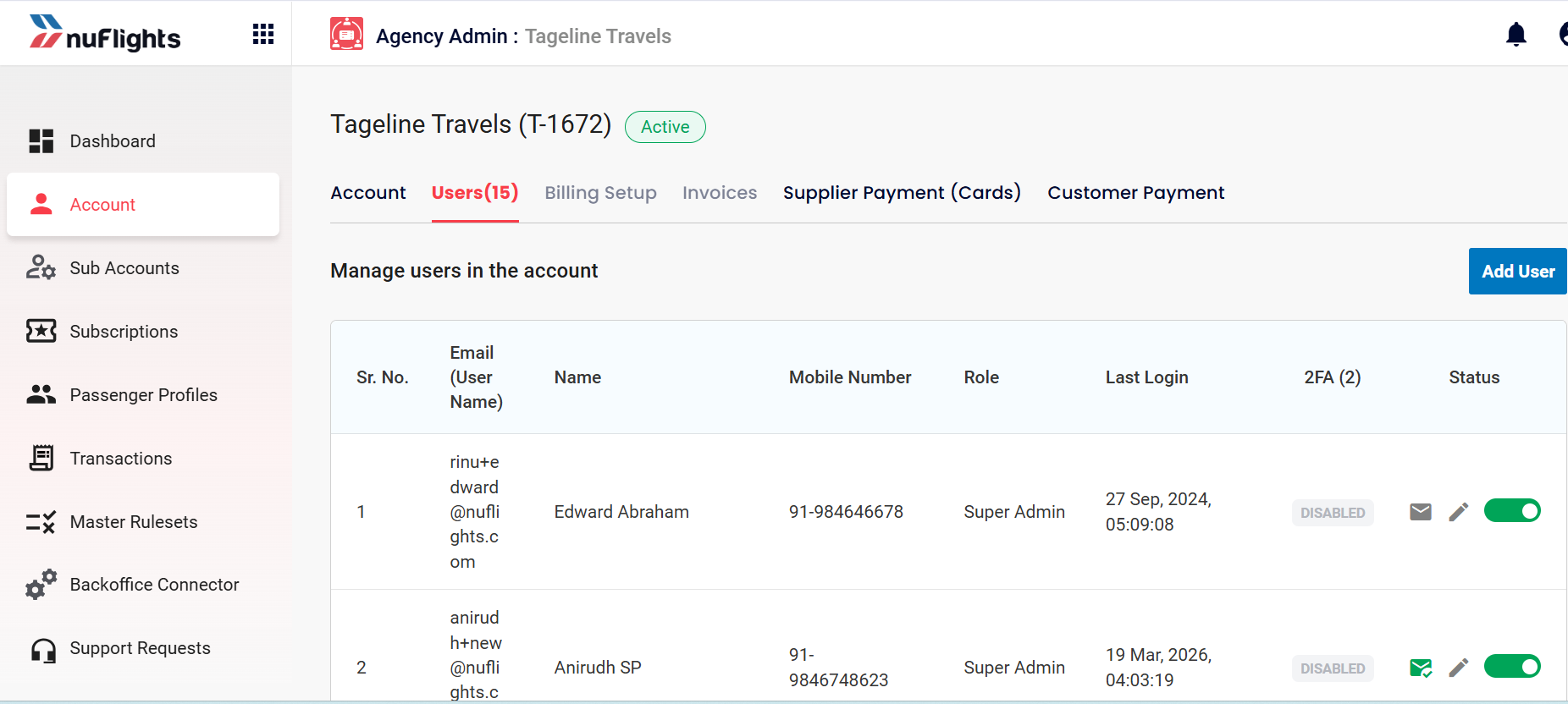
Go to Agency Admin > Account > Users. The list shows every user in your agency and their details. See What the user list shows.
Step 2: Click Add User
Click the Add User option. The new user form opens.
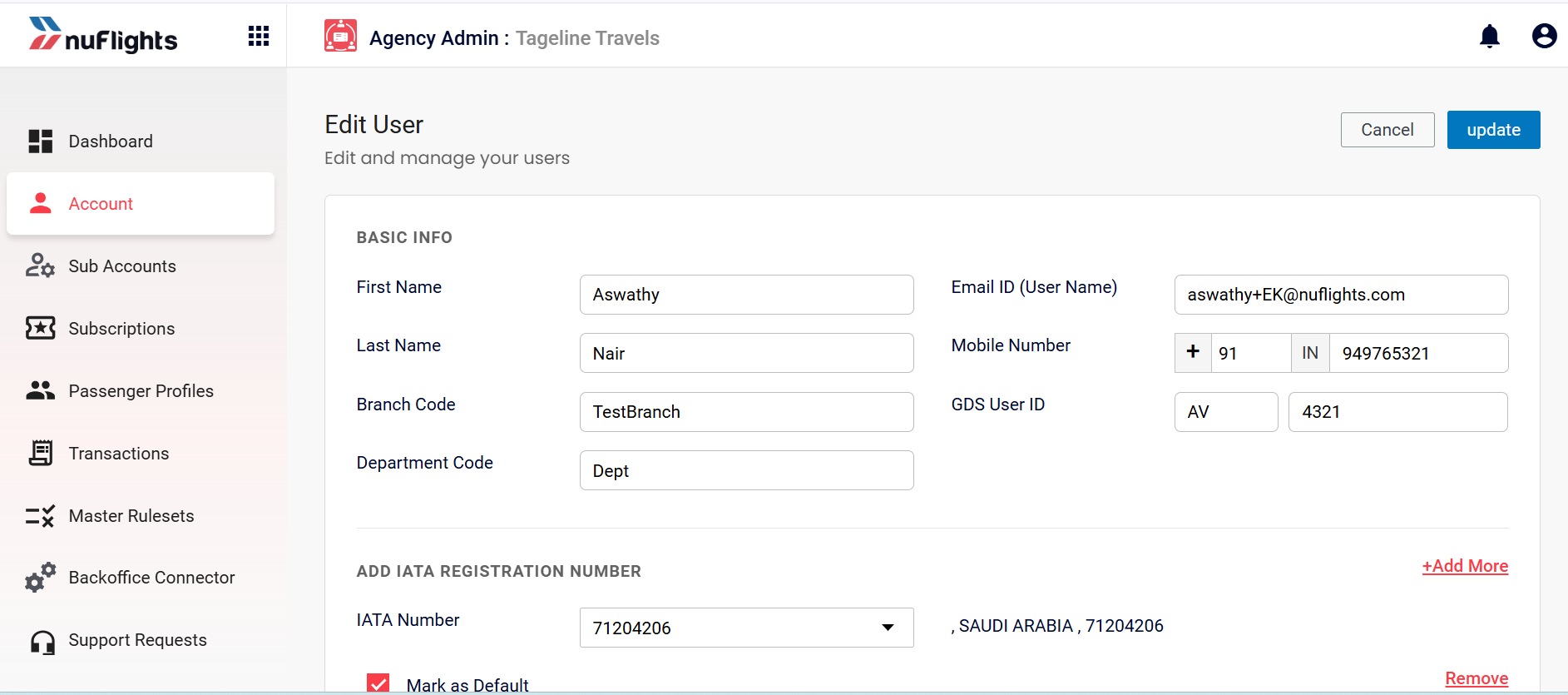
Step 3: Enter the basic information
Enter the user's:
- First Name and Last Name
- Branch Code and Department Code
- Email ID: this becomes their username
- Mobile Number
- GDS User ID
Step 4: Add the IATA registration
Add the applicable IATA registration number.
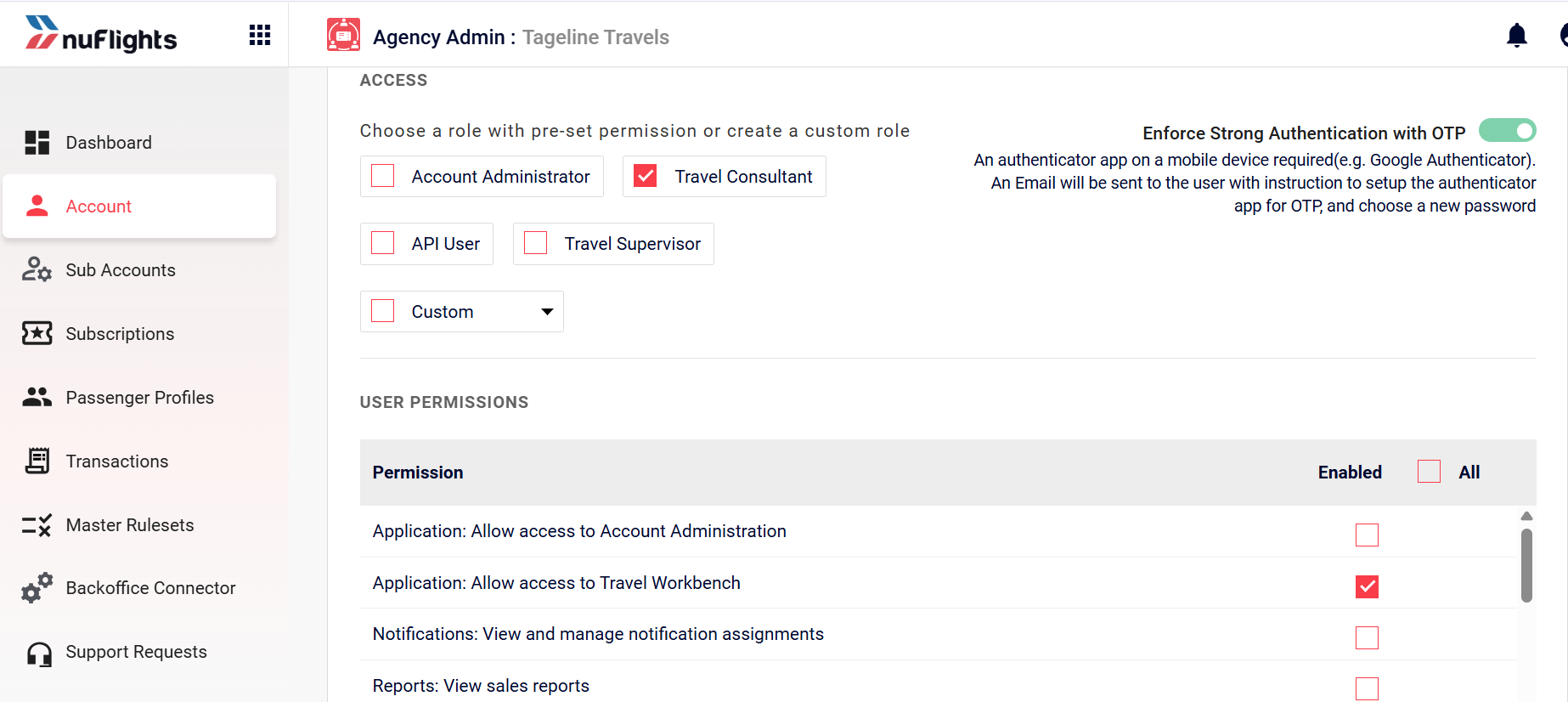
Step 5: Choose the role and permissions
- Choose a role. The role decides the user's level of access:
- Account Administrator
- Travel Consultant
- API User
- Travel Supervisor
- Custom Role (for example, Super Admin, Admin without ticket issue, Admin without manage user permission, Admin without travel workbench)
- Select the specific permissions the user is allowed, based on their role.
- If needed, turn strong authentication with OTP (2FA) on or off for the user while you manage their permissions. See Strong authentication with OTP (2FA).
Step 6: Send the invite
Click Invite.
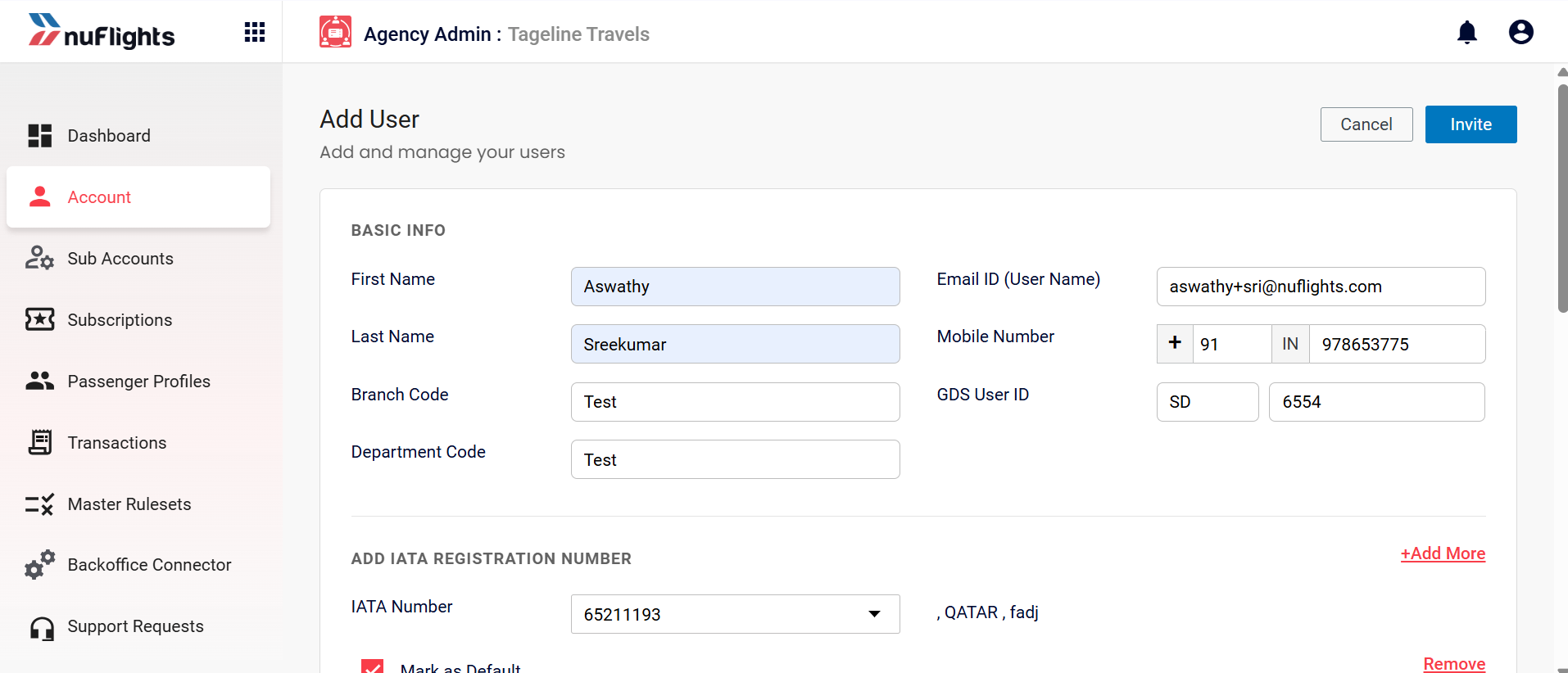
The user appears in the user list in a disabled state. An email with sign-up information goes to the email ID you entered.
The invitation link expires in 48 hours. After 48 hours the user can't sign up with it. To send a new one, click Click to resend the invitation on the user list.
What the user list shows
| Column | What it shows |
|---|---|
| Name & Email | The user's contact details. |
| Role | The user's level of access. |
| Last Login | Date and time of the user's last session. |
| 2FA Status | Whether Two-Factor Authentication is on for their account. |
| User Status | A toggle that sets the user to Active or Inactive. |
Strong authentication with OTP (2FA)
You can turn strong authentication with OTP on or off for a user when you manage their permissions.
With Two-Factor Authentication (2FA) on, the user needs an authenticator app (for example, Google Authenticator or Microsoft Authenticator) on their mobile device to log in.
How the user sets up 2FA
-
The user opens the invitation email. With 2FA on, it includes instructions to set up the authenticator app for OTP and a prompt to choose a new password.
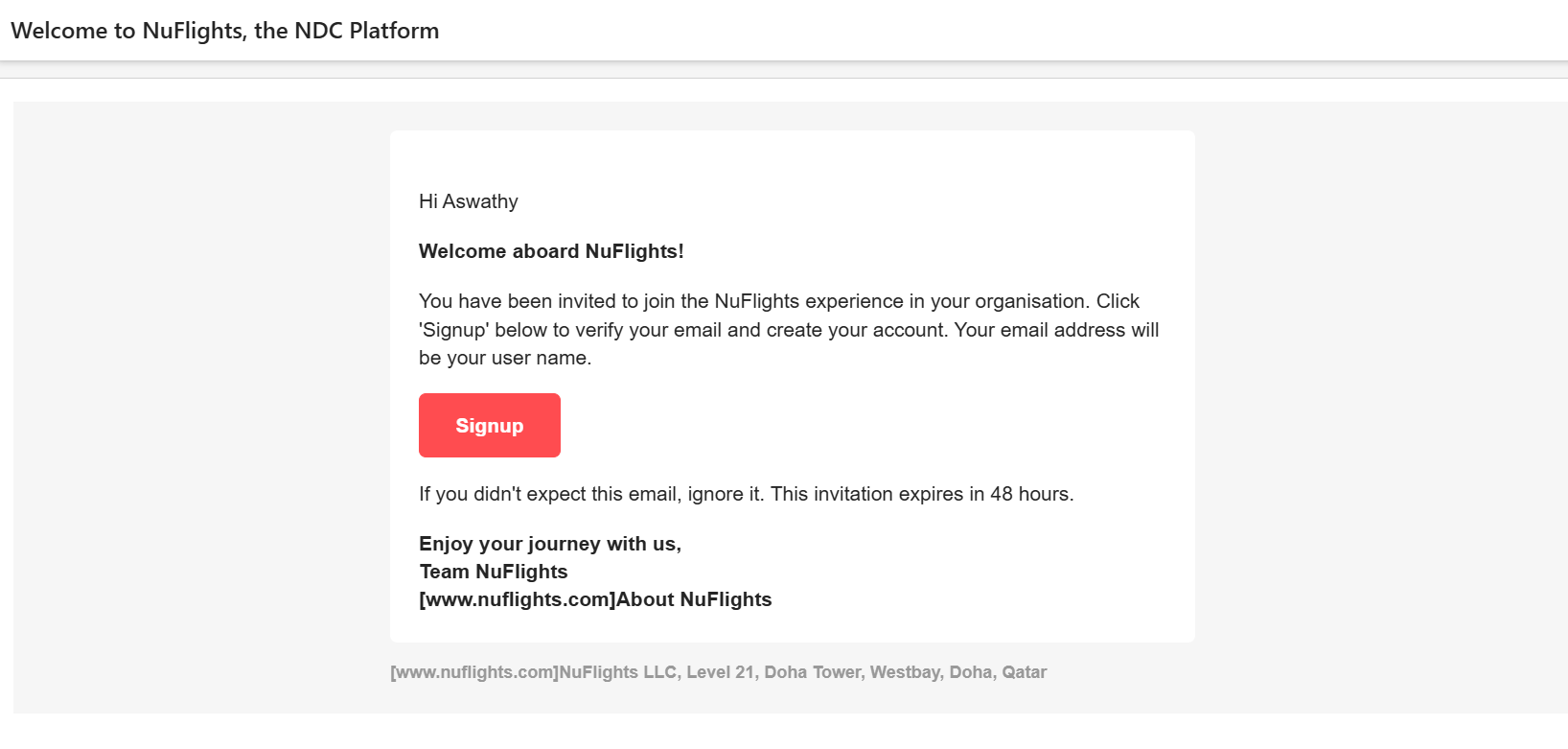
The NuFlights invitation email. -
The user clicks the sign-up link and sets a new password that meets the security conditions shown.
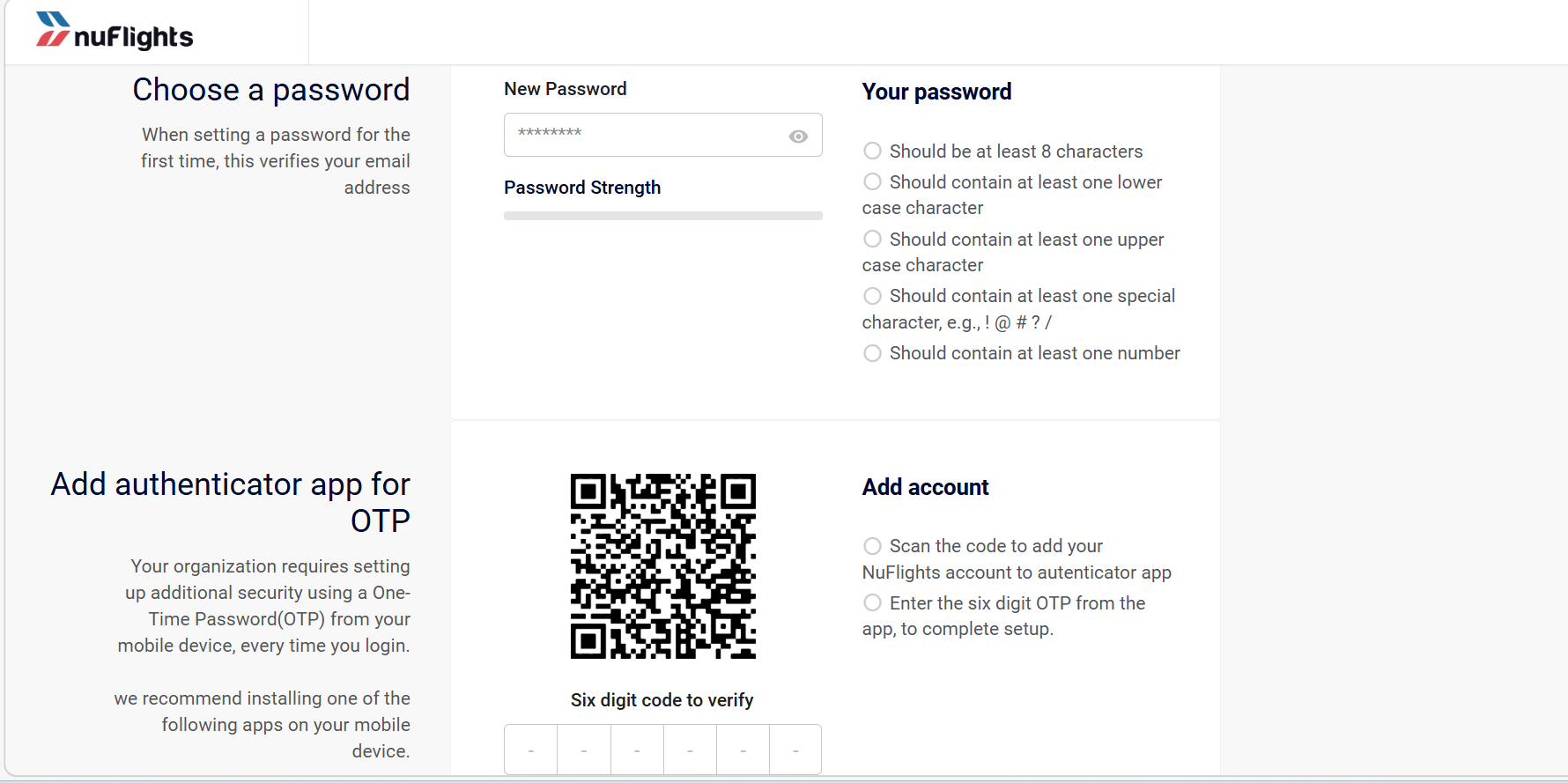
The user sets a password and sets up the authenticator app. -
The user scans the QR code with their authenticator app.
-
The app generates a 6-digit code. The user enters this code and saves it.
-
The user can now log in with all the access and permissions you gave them.
Related guides