

Invite an agency
Use this when you're a Platform Admin and want to onboard a new agency to NuFlights. You send an invitation in 4 steps; the agency then registers itself and you approve or reject the registration.
Platform Admin is for NuFlights staff only. The Platform Admin portal is a separate application from Agency Admin, Travel Workbench and Local Inventory. It is only for internal NuFlights staff and administrators, to manage agency onboarding, approvals, operational controls and platform-level configuration. Travel agencies and external users don't have access to it.
With Invite an Agency, Platform Admins onboard new organizations securely through invitation-based registration. Instead of creating accounts by hand, you send an invitation and the agency registers itself through a guided workflow. This saves manual effort and collects agency details in a standard format.
User roles and responsibilities
| Role | Responsibility |
|---|---|
| Platform Admin | Sends agency invitations, reviews registrations, approves or rejects agencies |
| Invited Agency | Completes registration and submits onboarding details |
| Account Manager | May be assigned after approval for operational onboarding |
Send an agency invitation
Sending an invitation starts the onboarding of a new agency. The agency gets an email and completes a guided self-registration. This keeps access controlled, collects accurate agency data, and makes sure the agency is verified before it becomes active on the platform.
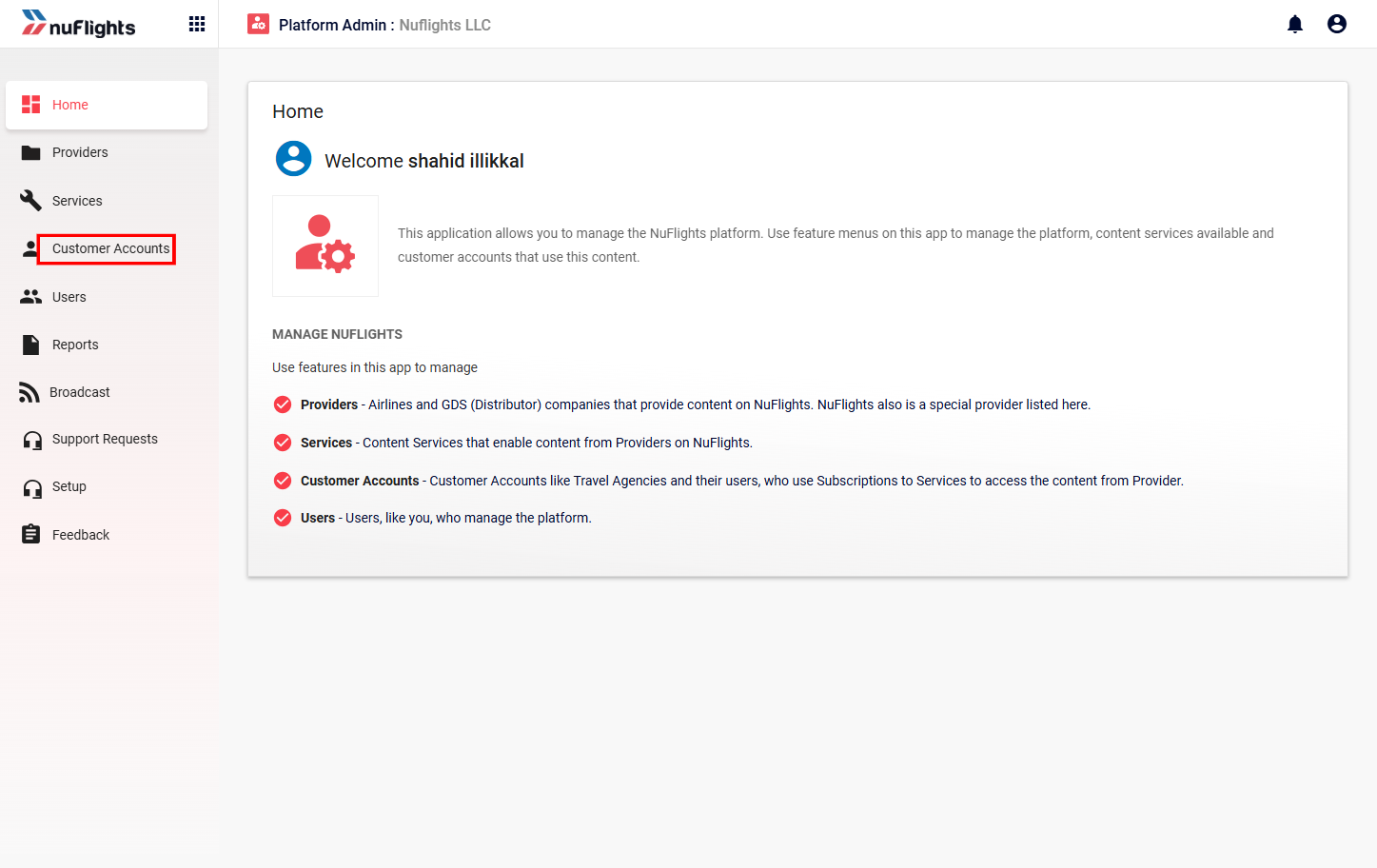
Step 1: Open Customer Accounts
- Log in to the NuFlights Platform Admin application with your authorized credentials.
- In the left menu, click Customer Accounts.
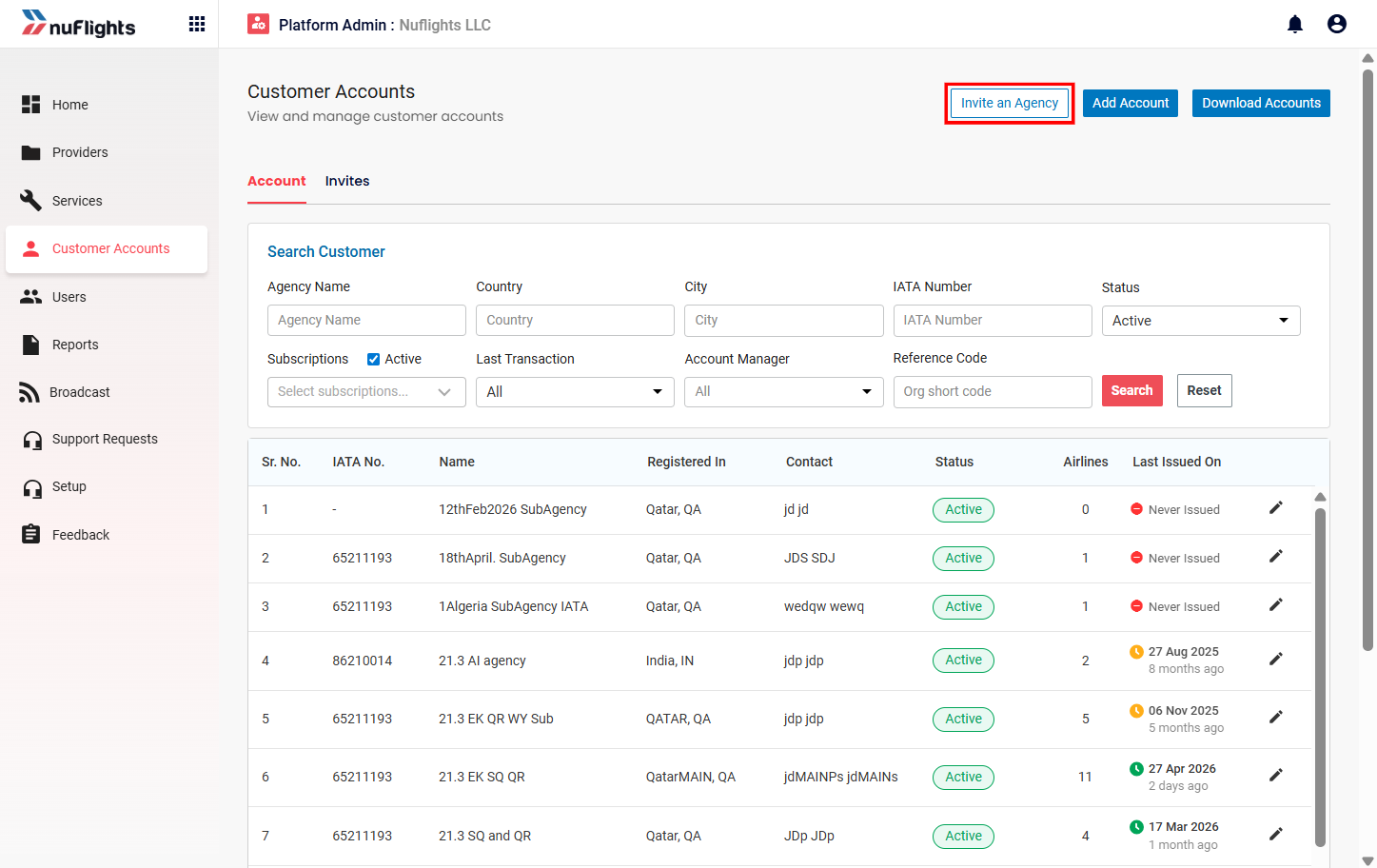
Step 2: Click Invite an Agency
In the Customer Accounts section, click Invite an Agency. The invitation pop-up form opens.
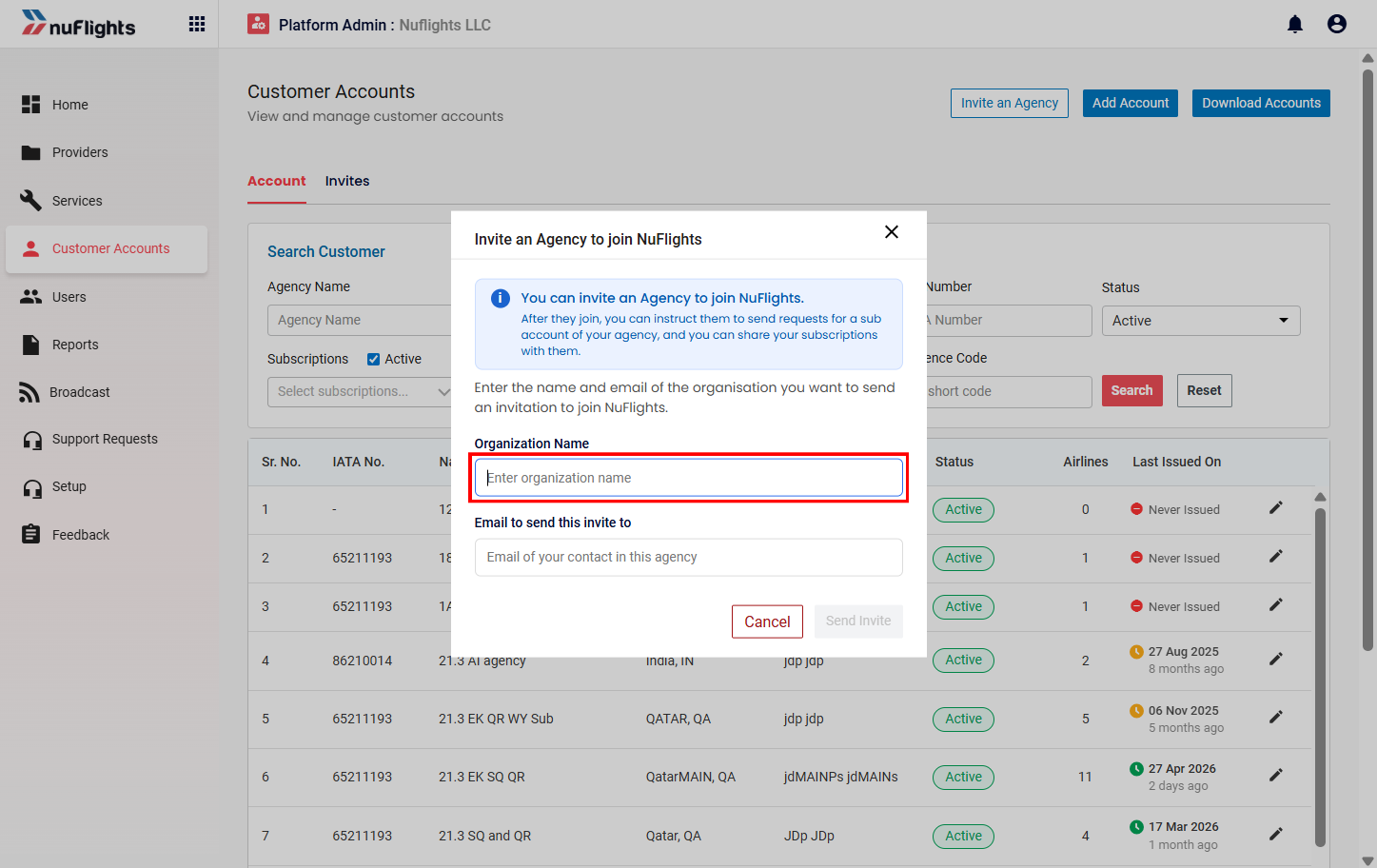
Step 3: Enter the agency details
Fill in both required fields:
| Field | Description |
|---|---|
| Organization Name | The official business or legal name of the organization you're inviting |
| Agency Email ID | The main contact email address, used for onboarding communication |
Step 4: Send the invitation
Click Send Invite. The system validates the details and shows a confirmation message.
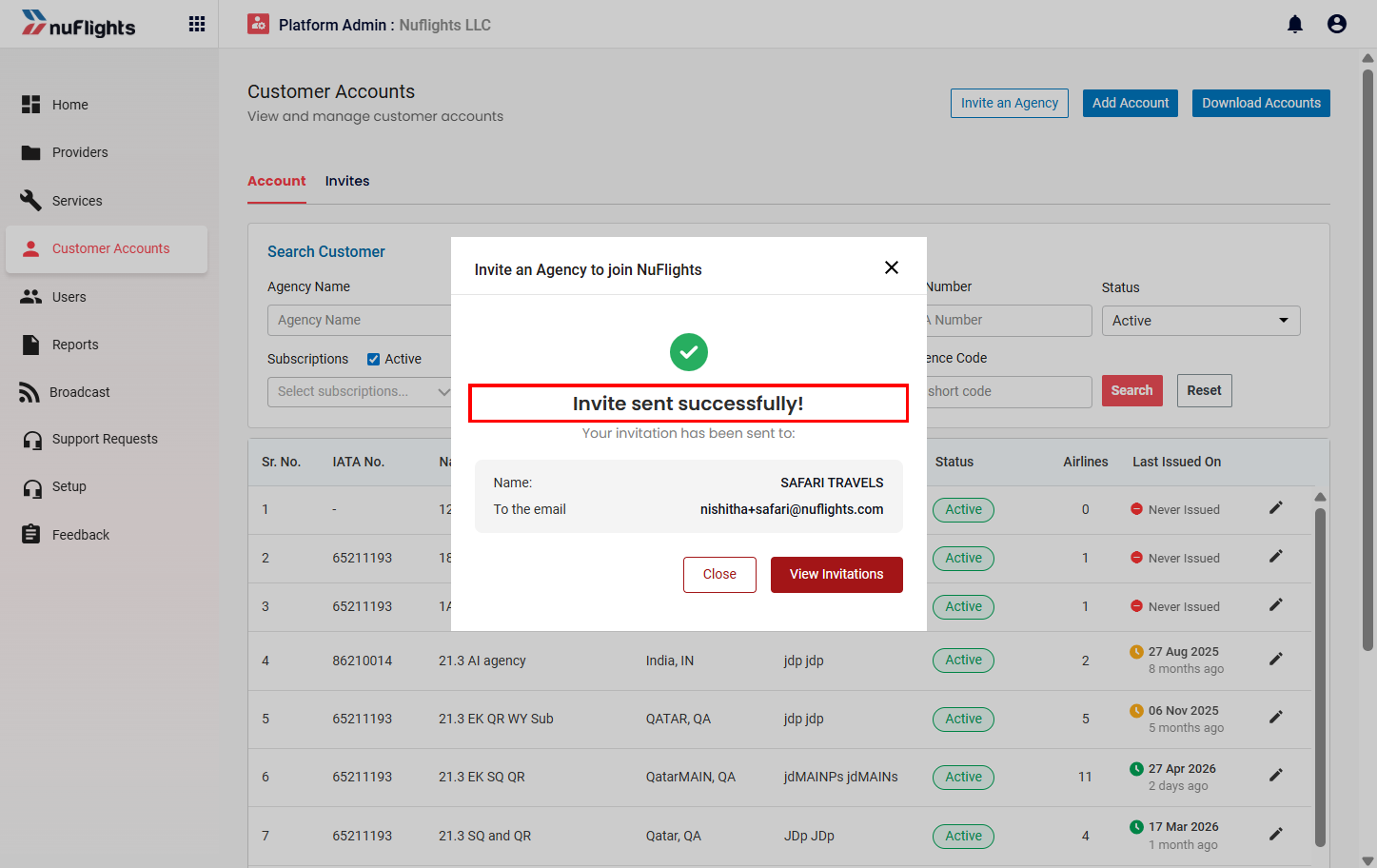
Once the invitation is sent:
- An automated onboarding email is sent.
- The invited organization receives an email with registration instructions.
- The invitation status shows in the Platform Admin portal.
No agency account exists yet. The invitation only gives access to the registration workflow. The agency account is created only after the agency submits its registration and a Platform Admin approves it.
Invitation email
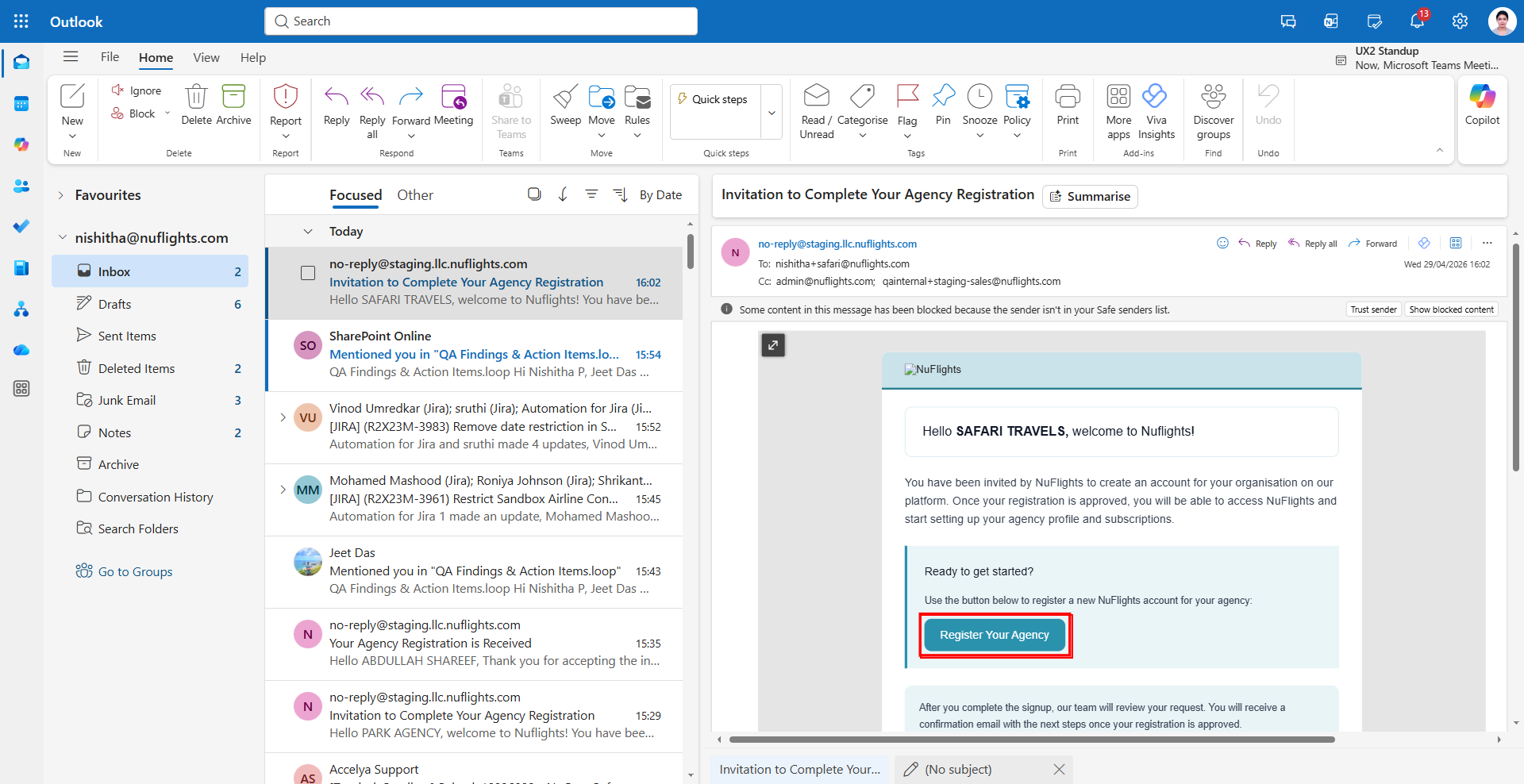
The invited organization receives an automated email from NuFlights. The email typically includes:
- An invitation message
- An organization reference
- Registration instructions
- A “Register your agency” button or link
- Secure onboarding access
The agency clicks the registration button to start onboarding.
Agency registration workflow
After receiving the invitation email, the agency goes through a guided, multi-step registration that captures all the required operational, business and compliance information:
- Agency Profile
- Agency Location
- IATA Registration
- Contact Information
- Review & Submission
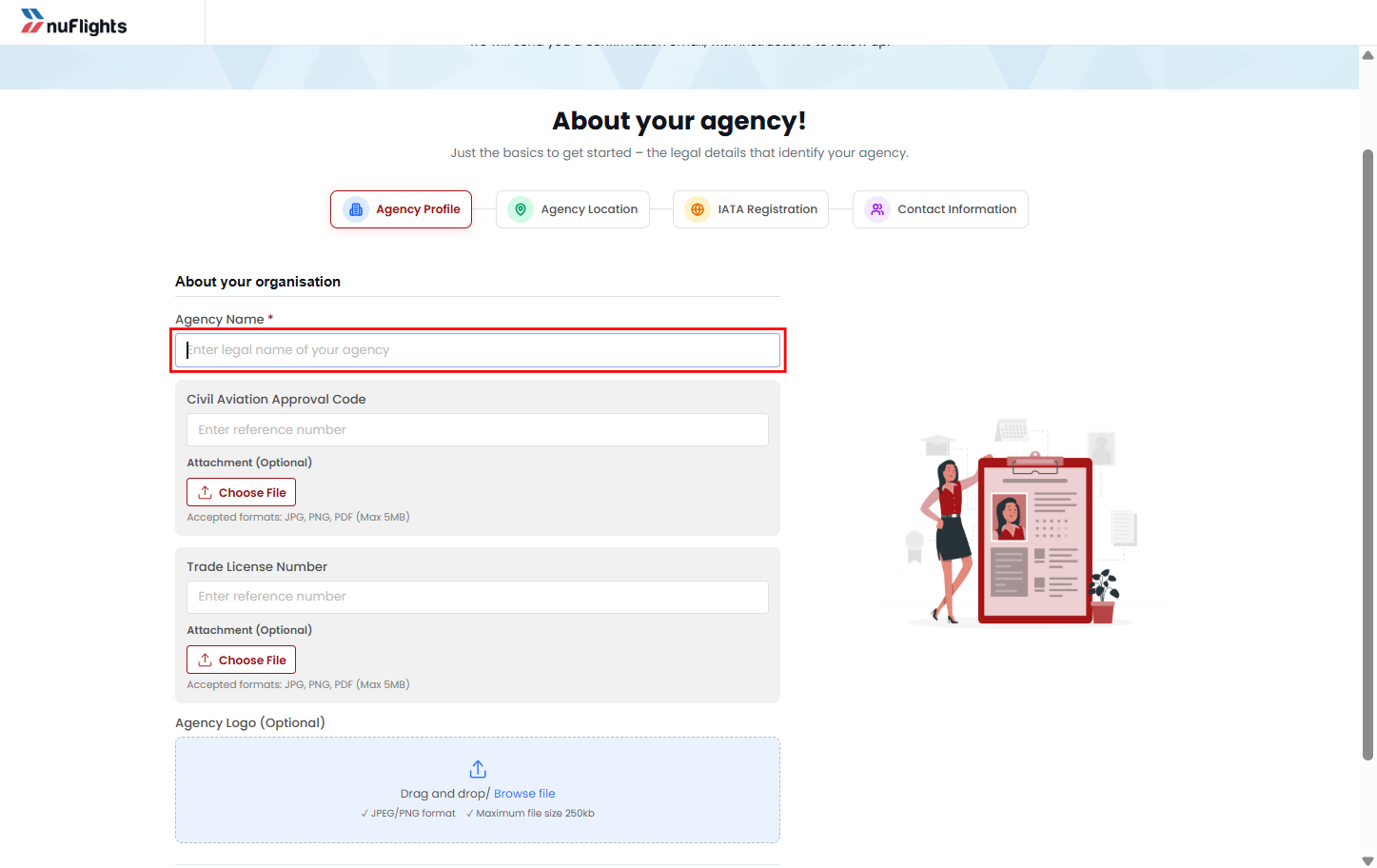
Step 1: Agency Profile
This captures the agency's core identity and verification details.
| Field | Description |
|---|---|
| Agency Name | Official registered agency or business name |
| Civil Aviation Code | Aviation authority registration details (if applicable) |
| Trade License Details | Business trade license information |
| Trade License Upload | Supporting document upload for verification |
| Agency Logo | Optional branding or logo upload |
Step 2: Agency Location
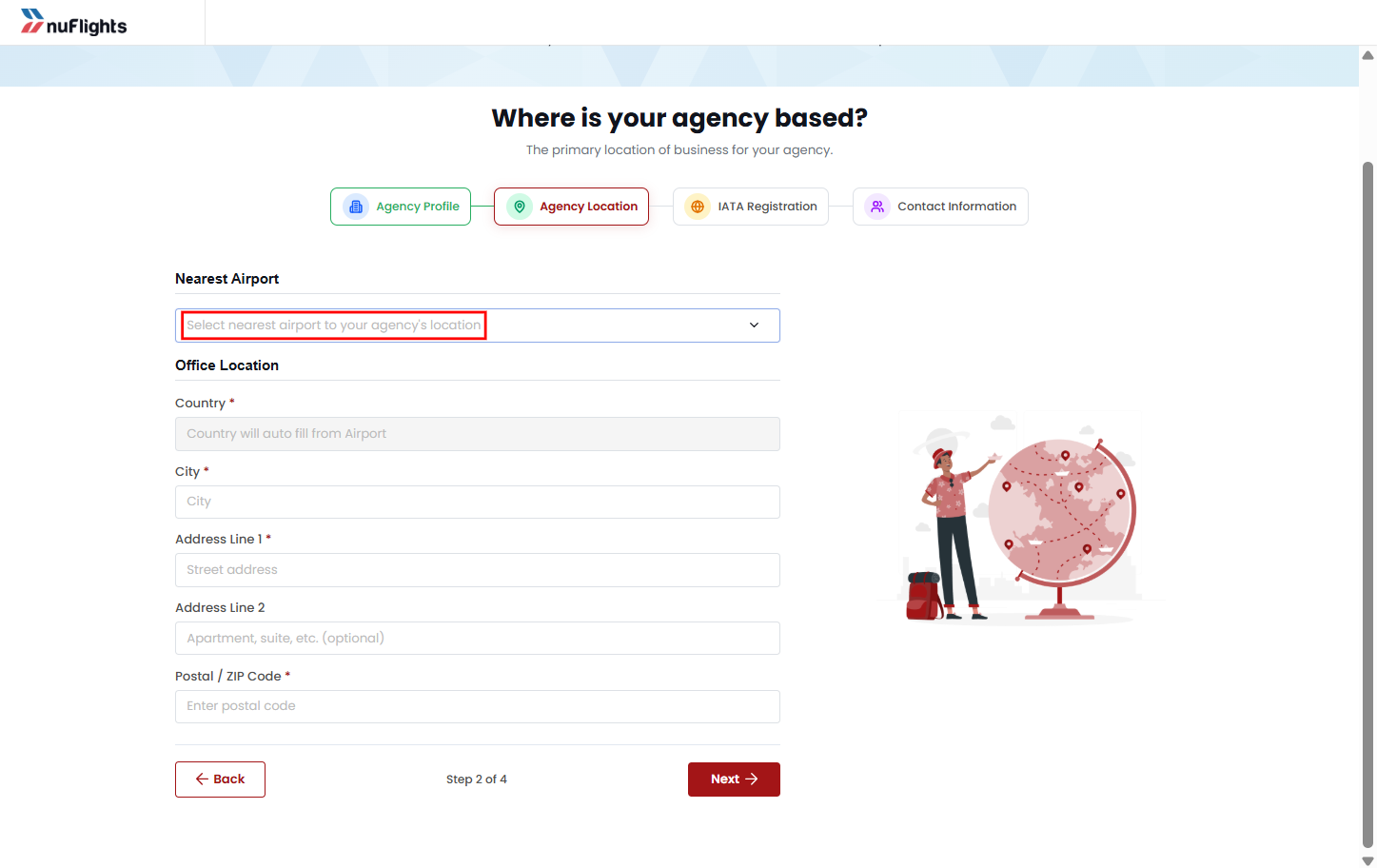
This captures the agency's operational and geographical details.
| Field | Description |
|---|---|
| Nearest Airport | Airport closest to the agency |
| Country | Country the agency operates in |
| City | City of operation |
| Office Address | Full business address |
| Postal Code | Postal or ZIP code |
Step 3: IATA Registration
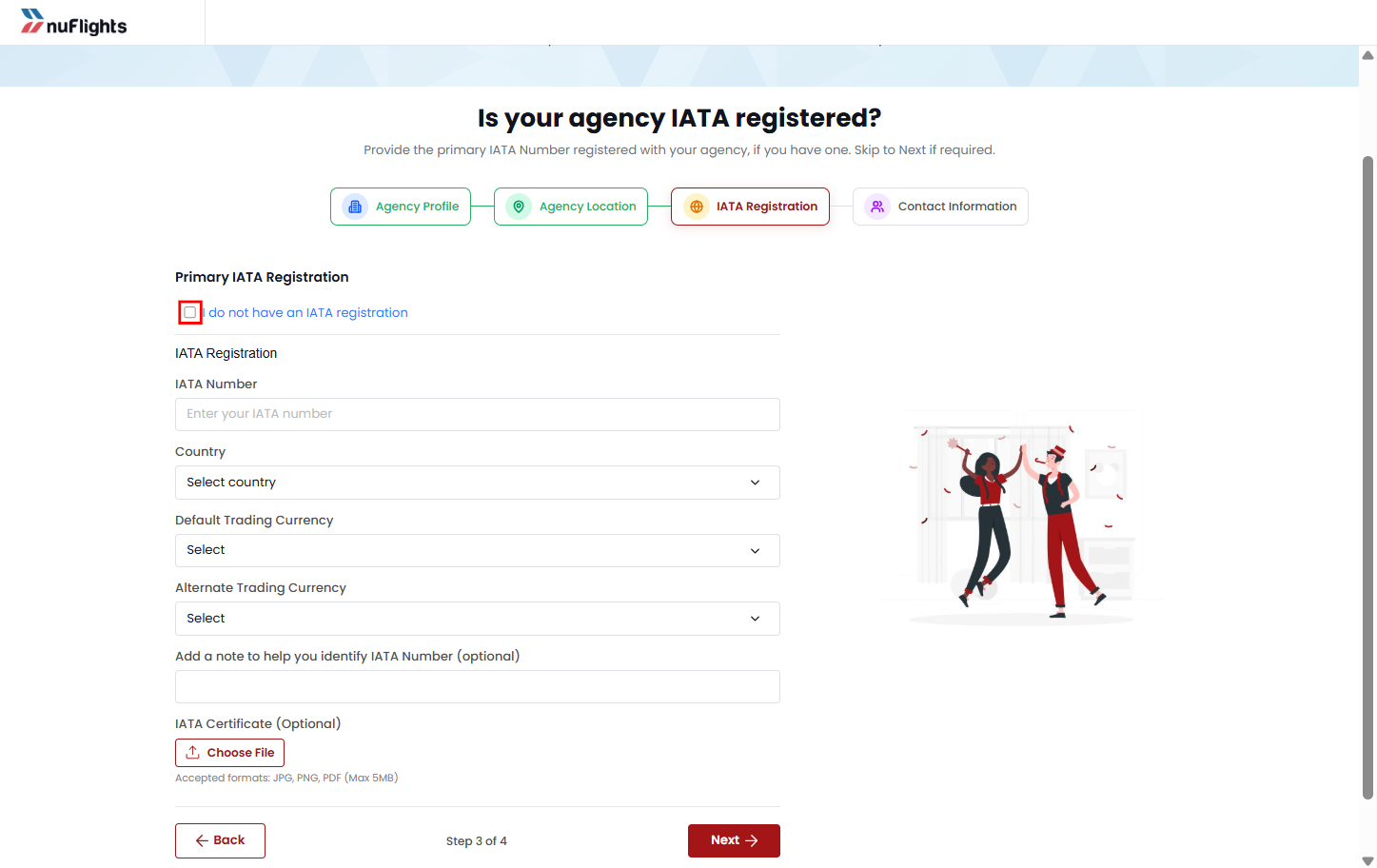
This captures IATA accreditation information.
- IATA registered agency: the agency enters its IATA number and gives supporting information if required.
- Non-IATA agency: if the agency has no IATA accreditation, it selects I don’t have an IATA number and continues without IATA details.
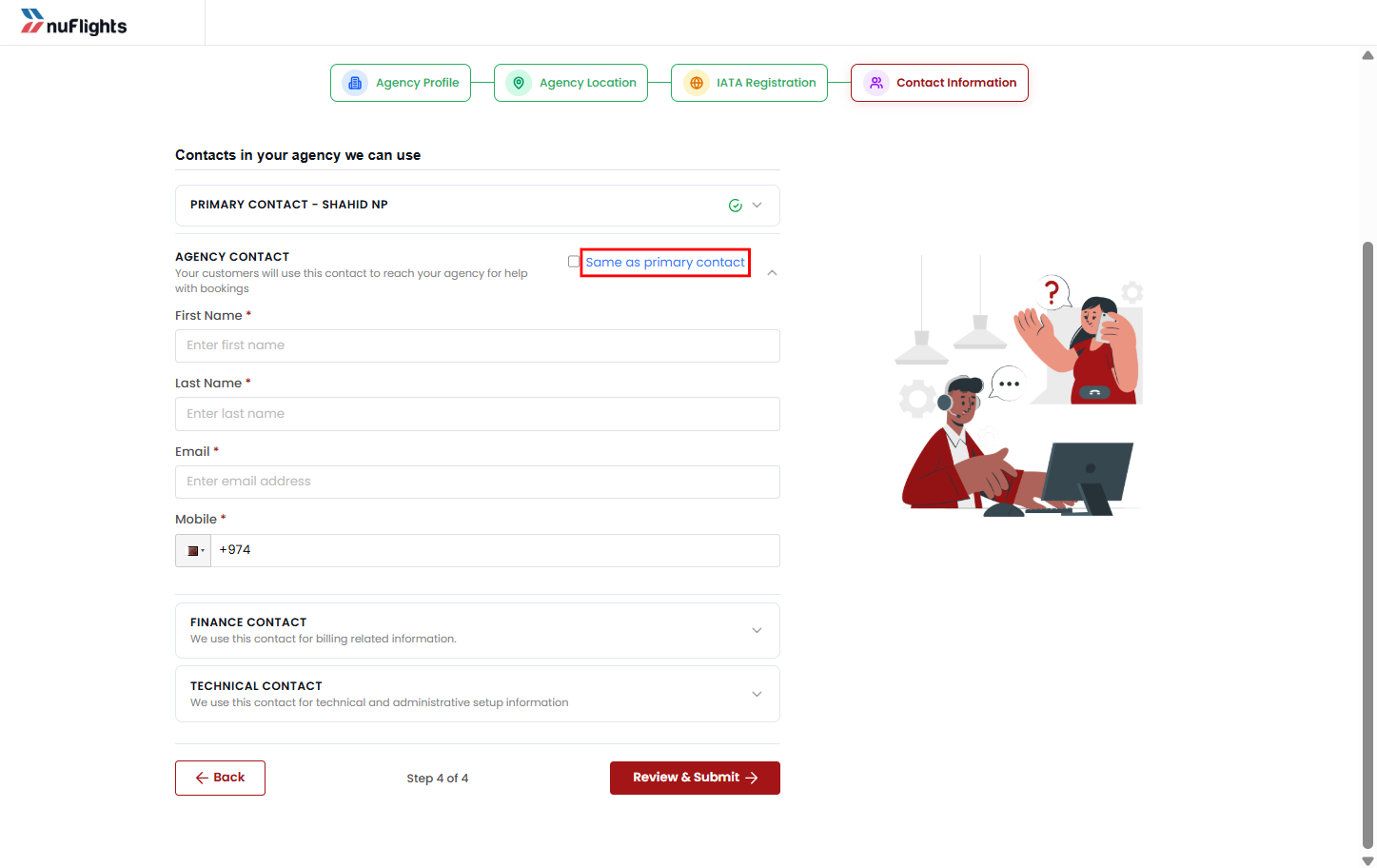
Step 4: Contact Information
This captures the operational contacts needed for onboarding and communication:
- Primary Contact
- Agency Contact
- Finance Contact
- Technical Contact
To avoid typing the same details again, the agency can select Same as primary contact. The Agency Contact, Finance Contact and Technical Contact fields are then filled in from the primary contact's details.
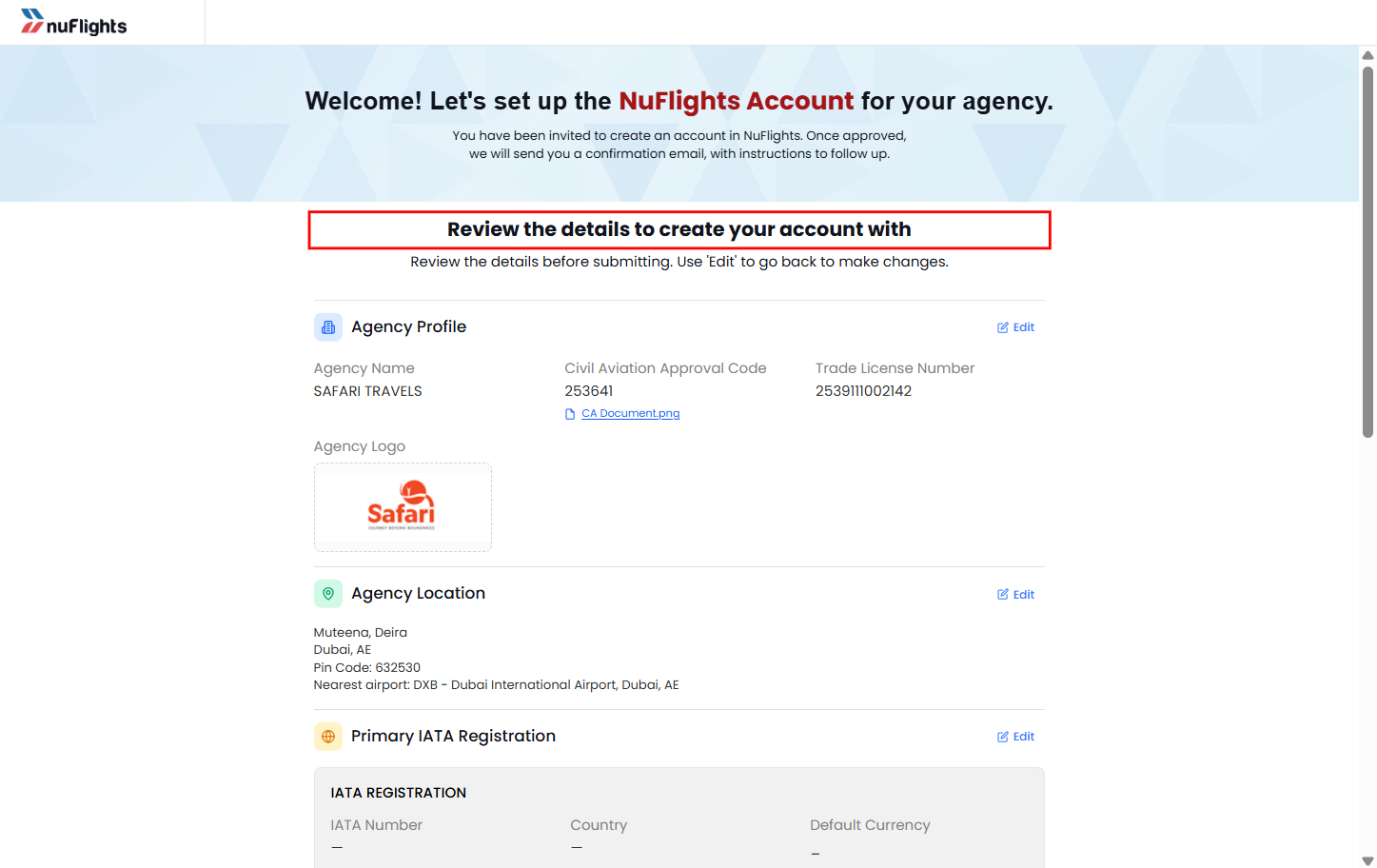
Review and final submission
Before submitting, the agency goes to a final review page. It shows all the information entered, and the agency can review and edit any details.
After checking, the agency clicks Submit. The registration request is created and sent to the Platform Admin for review.
Registration confirmation
After submitting, the agency sees a confirmation message and a unique Reference ID for tracking. For example:
Your registration request has been submitted successfully.
Reference ID: NF-AG-10245
The agency is told that its request is under review and that approval may take 1–2 business days.
Refresh the invitation status
After the agency completes registration, go back to the Invitation List page and click Refresh. The list updates with the latest registrations and their current status.
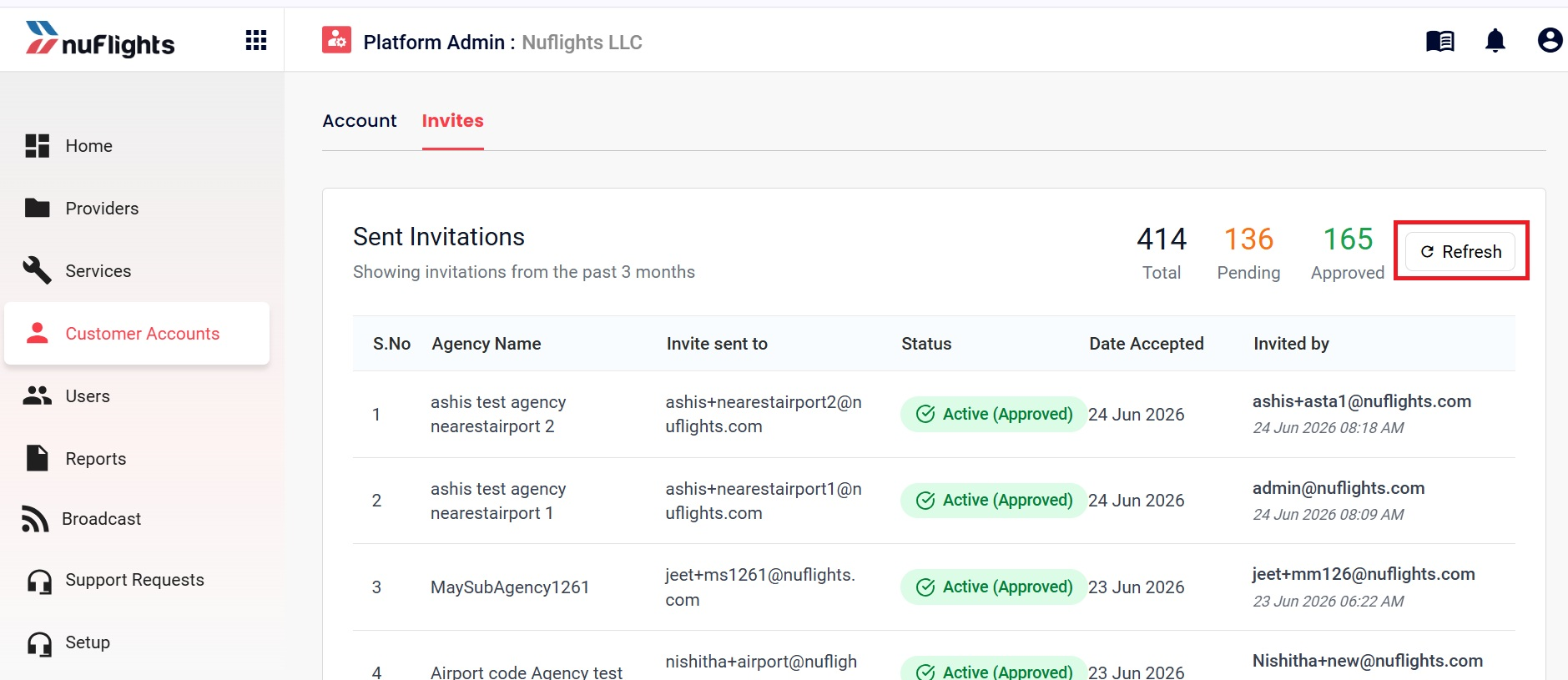
Refresh after registration. Use Refresh once the agency has registered to load the most recent invitation status.
Review submitted requests
Once the agency submits its registration, the onboarding request appears in the Platform Admin review queue: Customer Accounts → Invite section.
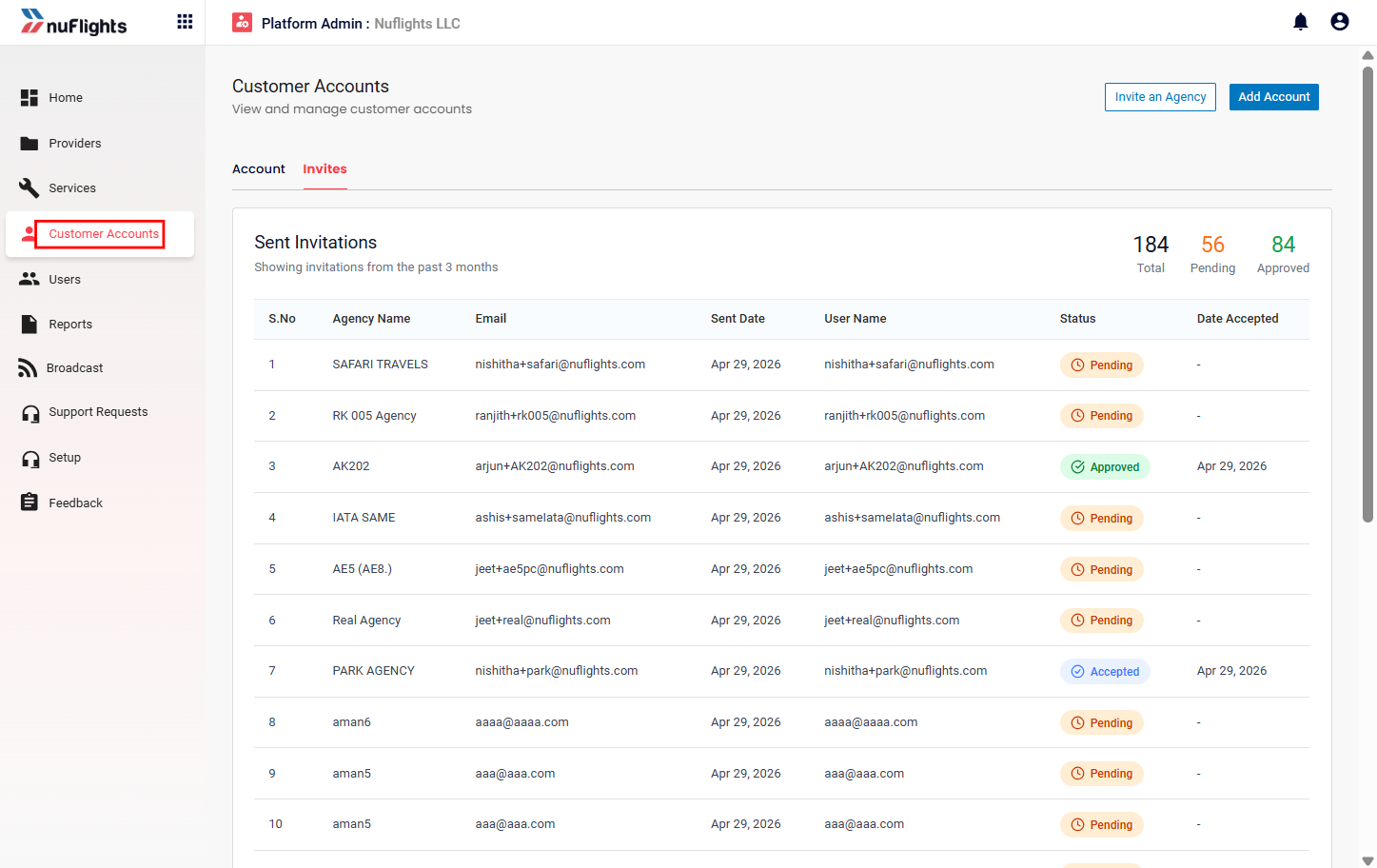
Here you can:
- View all submitted agency requests
- Track onboarding statuses
- Review uploaded documents
Approve or reject an agency
After your review, update the request status.
Approve agency
If the registration is valid:
- Click Approve.
- Assign an Account Manager (if applicable).
- Finalize onboarding.
Reject agency
If the registration fails validation:
- Click Reject.
- Enter the rejection reason. It's mandatory.
- Submit the rejection.
Status lifecycle
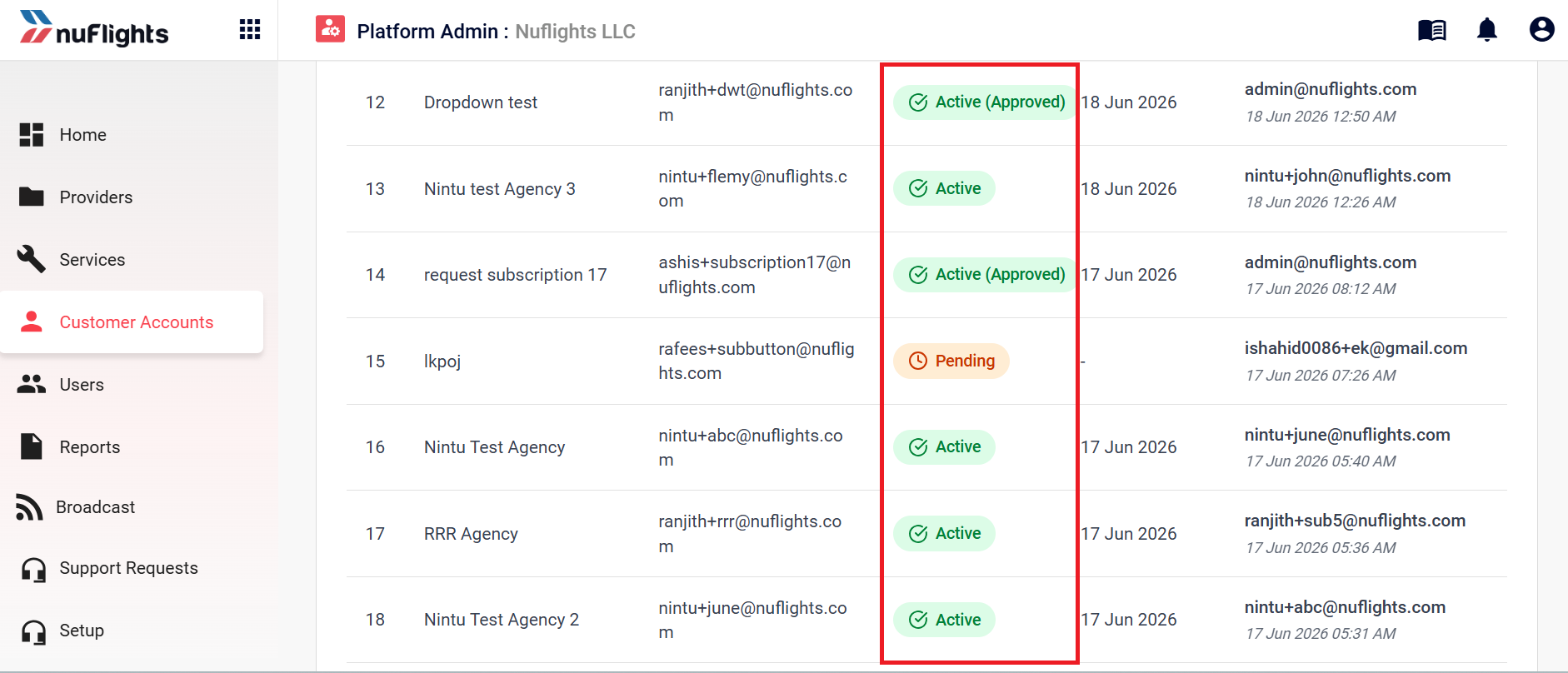
| Status | Condition | Colour |
|---|---|---|
| Pending | Invitation sent but not yet accepted by the agency | Amber |
| Accepted | Agency registration completed and waiting for Platform Admin approval | Blue |
| Active (Approved) | Newly registered agency approved by a Platform Admin | Green |
| Active | Existing registered agency accepted the invitation or login request | Green |
| Rejected | Newly registered agency rejected by a Platform Admin | Red |
Subscription request flow after agency registration approval
Once a Platform Admin approves the agency registration, subscription sharing can begin.
- Subscription request sent automatically. Once the sub-agency registration is approved, the sub-agency doesn't need to do anything: NuFlights sends the subscription request automatically.
- Email to the main agency. The main agency receives an email with a unique, generated Subscription Request Code.
- Copy the code. The main agency opens the email and copies the request code.
- Process the request. The main agency uses the copied code in the application to review and process the subscription request.
- Approve and share. After verifying the request, the main agency approves it and shares the required subscriptions with the approved sub-agency.
- Subscription active. The requested subscription is now available to the sub-agency, which can start using it.
Flow summary
Sub-agency registration approved → NuFlights automatically sends the subscription request → Main agency receives the email → Main agency copies the request code → Main agency approves → Subscription shared → Sub-agency gets access