

Sell local inventory seats
Use this if your agency buys bulk seats from airlines and wants to sell them through NuFlights. You'll create and publish a trip in 7 steps, then agents book it in Travel Workbench and you manage the passenger manifest.
Local Inventory is an application for agencies that purchase bulk seats from airlines and want to sell them systematically through NuFlights. This guide covers creating trip inventory, booking flights from that inventory, and managing the passenger manifest.
Create and publish a trip
Step 1: Open Local Inventory
- Click the Applications (grid) icon in the top header.
- Select Local Inventory.
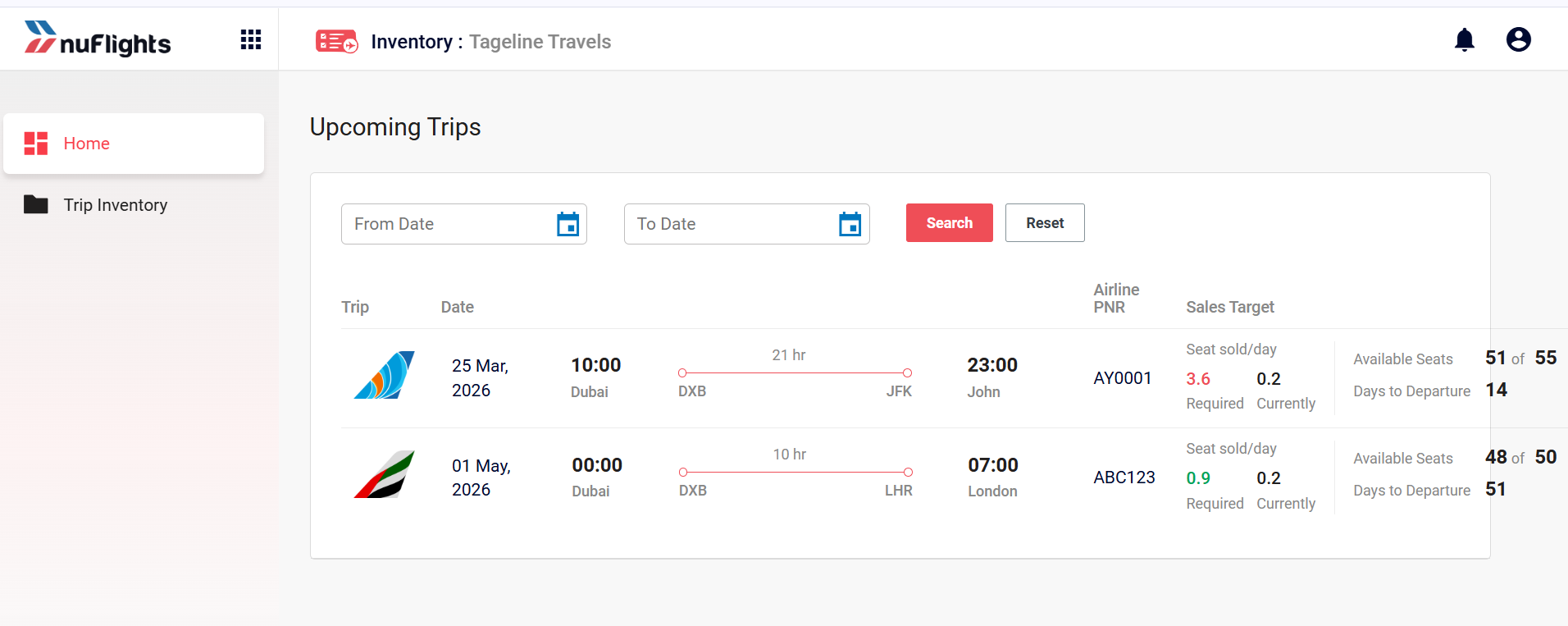
The Home page opens with the Upcoming Trips dashboard. It summarises all active trips: route, departure date, airline PNR, seats sold per day, available seats and days to departure.
Step 2: Start a new trip
- In the left sidebar, click Trip Inventory.
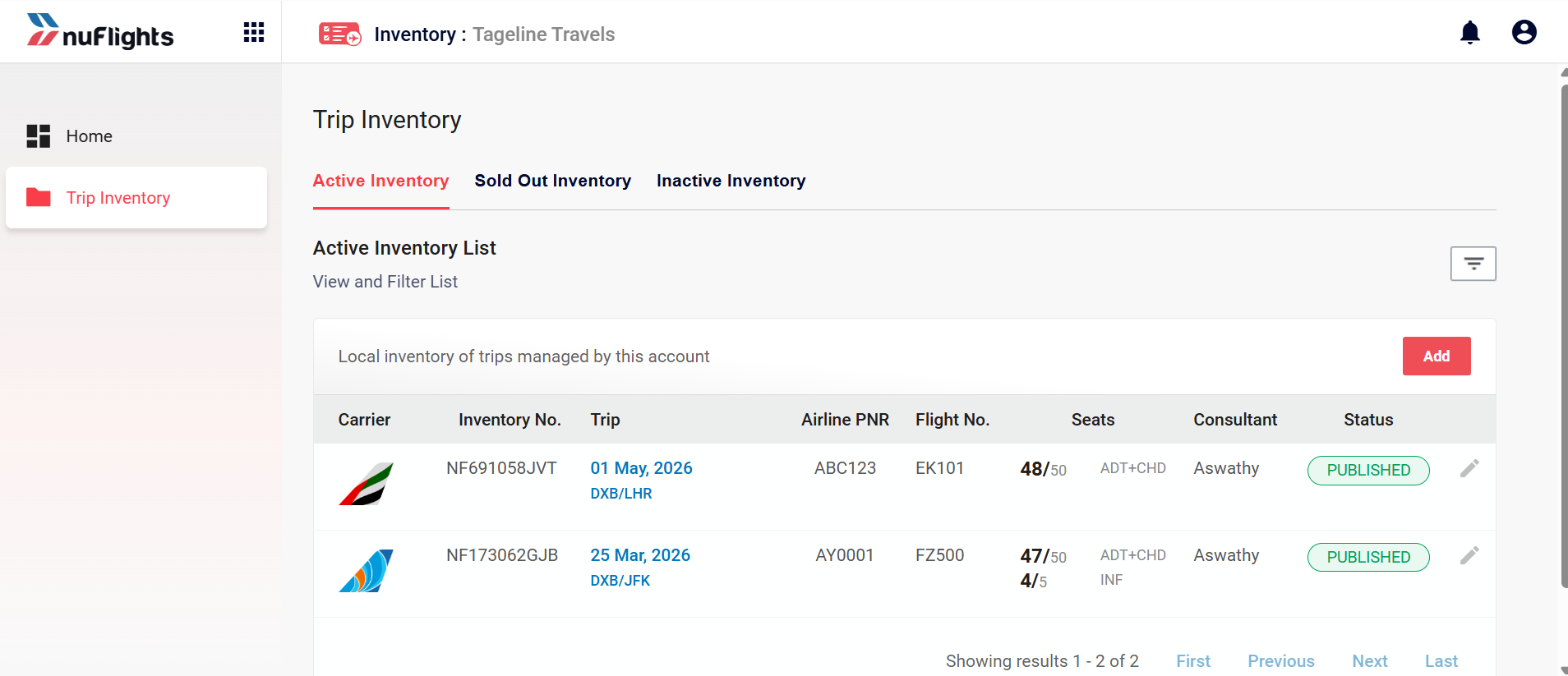
- On the Active Inventory tab, click Add (top right of the list). The New Trip form opens with the Trip Detail section at the top.
The inventory list has three tabs:
- Active Inventory: trips that are published and available for booking.
- Sold Out Inventory: trips where all seats are sold.
- Inactive Inventory: trips that were unpublished or cancelled.
Each row in the Active Inventory List shows the carrier logo, inventory number, trip date and route, airline PNR, flight number, seat count, consultant name and a status badge (PUBLISHED or DRAFT).
Step 3: Enter the trip details
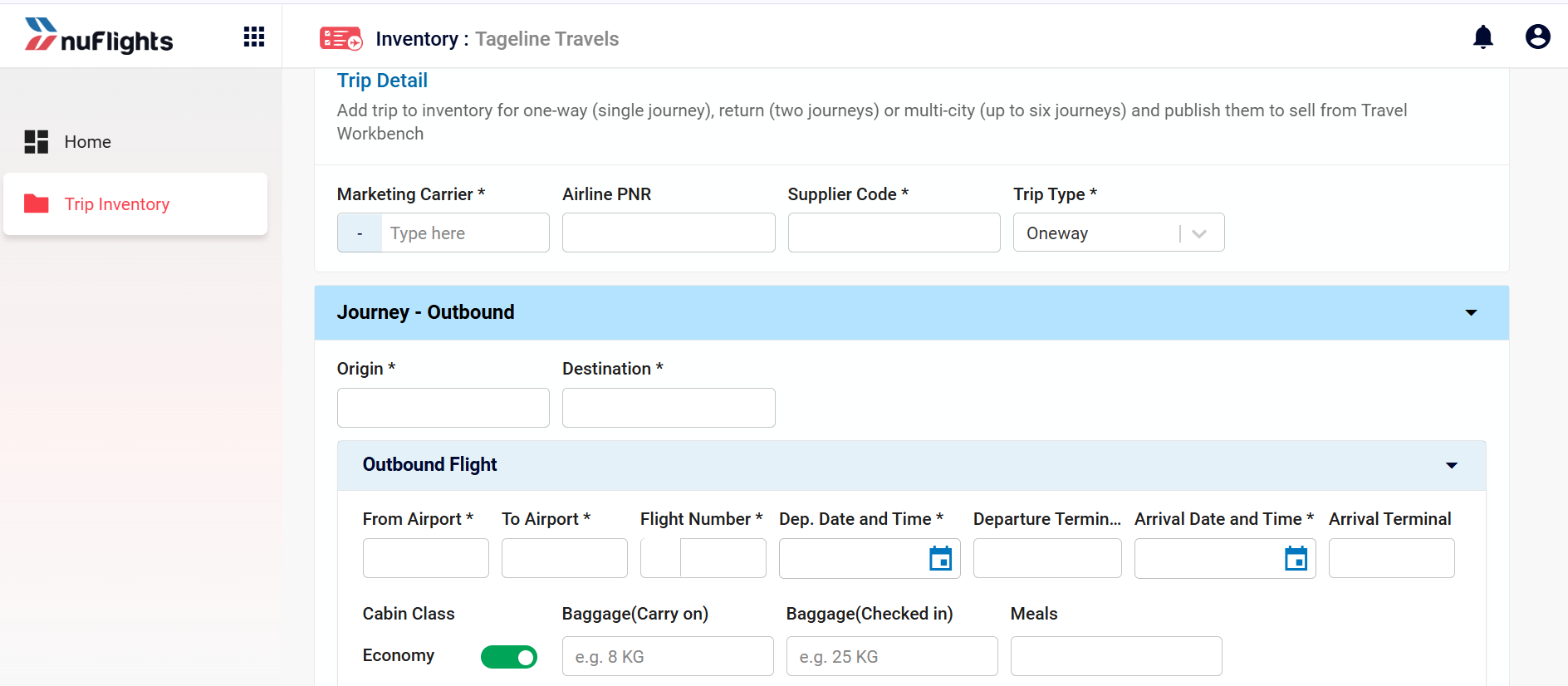
Fill in the header fields:
| Field | Description |
|---|---|
| Marketing Carrier | The airline you bought the seats from (for example, Emirates – EK). |
| Airline PNR | The booking reference the airline gave you for the bulk purchase. |
| Supplier Code | The internal code from your invoice or supplier. |
| Trip Type | Select Oneway, Return or Multi-city (up to six journeys). |
Step 4: Add the flights
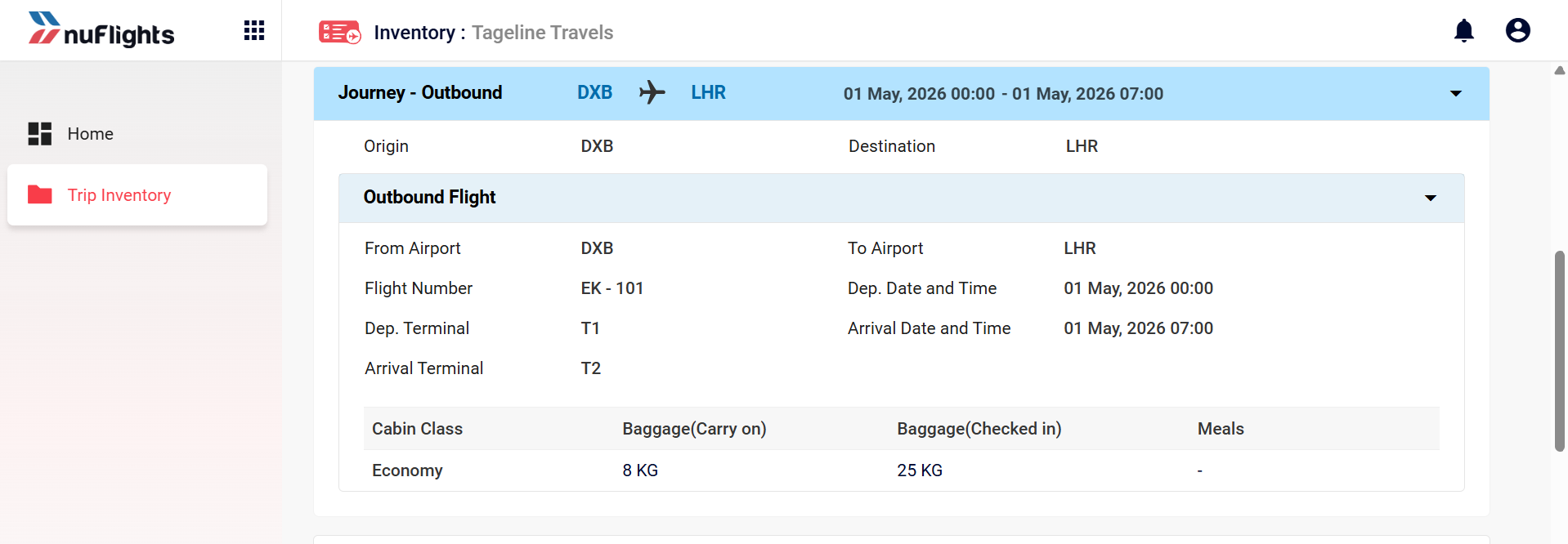
- Under Journey – Outbound, enter the Origin and Destination airport codes (for example, DXB to LHR).
- Expand the Outbound Flight panel and fill in the flight fields below.
- For each Cabin Class (Economy, Business, First), turn the class on and enter its baggage and meals.
| Field | Description |
|---|---|
| From Airport / To Airport | Airport codes for this leg of the journey. |
| Flight Number | The operating flight number (for example, EK 101). |
| Dep. Date and Time | Departure date and time (use the calendar picker). |
| Departure Terminal | Terminal code at the origin airport. |
| Arrival Date and Time | Arrival date and time at the destination. |
| Arrival Terminal | Terminal code at the destination airport. |
For each cabin class:
- Baggage (Carry on): for example, 8 KG.
- Baggage (Checked in): for example, 25 KG.
- Meals: whether meals are included for that class.
Connecting flight? Click + Add Flight at the bottom of the Outbound Flight panel to add more flight segments.
For Return or Multi-city trips, see Multi-city and return trips.
Step 5: Set the fares and seats
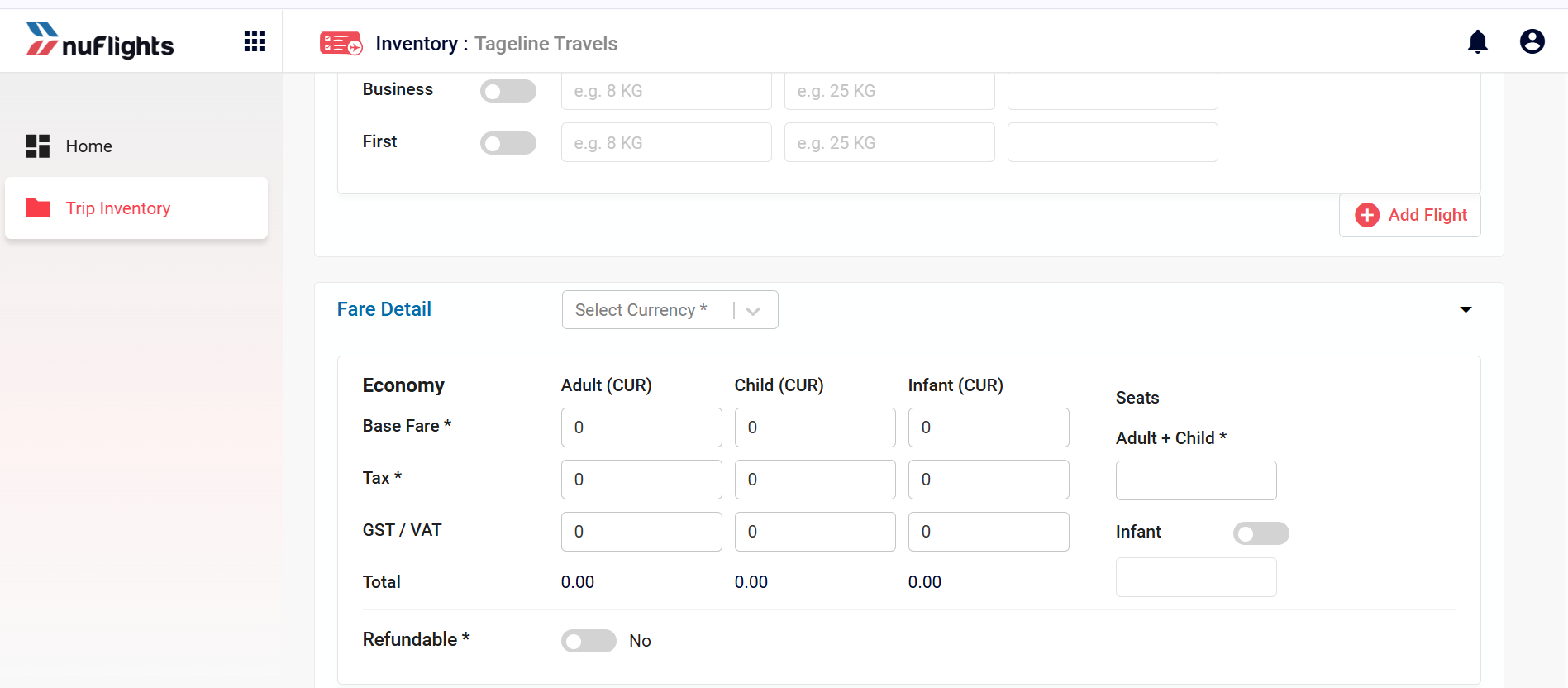
- Scroll down to the Fare Detail section.
- Select the Currency.
- For each cabin class (for example, Economy), enter the fare breakdown in the Adult (CUR), Child (CUR) and Infant (CUR) columns.
- Enter the seat allocation.
| Field | Description |
|---|---|
| Base Fare | The ticket price before taxes. |
| Tax | Airport or government taxes that apply. |
| GST / VAT | Goods and Services Tax or Value Added Tax, where applicable. |
| Total | Calculated automatically: Base Fare + Tax + GST/VAT. |
Seat allocation
- Adult + Child: enter the total number of seats bought for adults and children combined.
- Infant: if applicable, turn it on and enter the number of infant seats allowed.
Step 6: Add refund rules
- Set Refundable to Yes. The refund rule section appears.
- For each rule, enter:
- Before Departure (HRS): the threshold in hours before departure (for example, 24 HRS, 48 HRS).
- Penalty – Fixed: a fixed currency amount deducted as a cancellation fee.
- Penalty – Percent (%): a percentage of the base fare to deduct.
- Check the Refundable Amount for Adult, Child and Infant. The system calculates it from the penalty you set.
- To add rules for other time windows, click +.
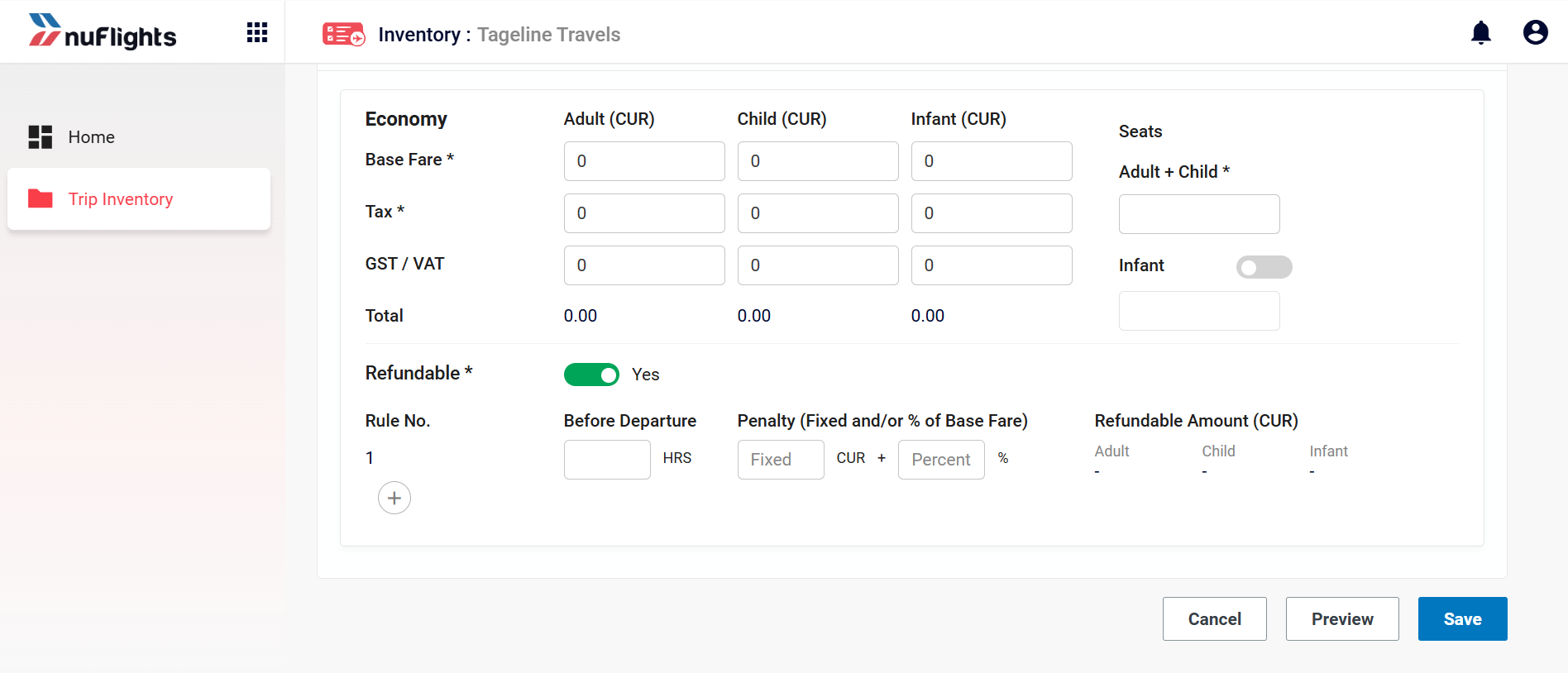
You can use a fixed and a percentage penalty together. The system combines both penalties when it calculates the net refundable amount.
Step 7: Save and publish the trip
- Click Preview to review all the trip, flight, fare and refund details.
- Click Save to store the inventory as a Draft. You can edit drafts freely.
- When you're ready, use the Draft ↔ Published toggle on the Inventory Detail page to publish the trip. It becomes available for booking in Travel Workbench.
Check everything before you publish. Once a trip is Published, you can't change its core details: carrier, PNR, fares and flight schedule.
View inventory details
Click an inventory row to open its Inventory Detail page. It has two tabs at the top:
- Inventory: the full trip summary, including Inventory Item No., Airline PNR, Supplier Code, Airline Carrier, Travel route, Departure Date, Trip Type, Seat Remaining, Total Seats, and Creation/Last Update Date.
- Passenger Manifest (n): all the passengers booked on this trip. The count in brackets updates automatically.
The Draft / Published toggle is in the Inventory Details header. From this page you can also Edit, Cancel, Print or Email.
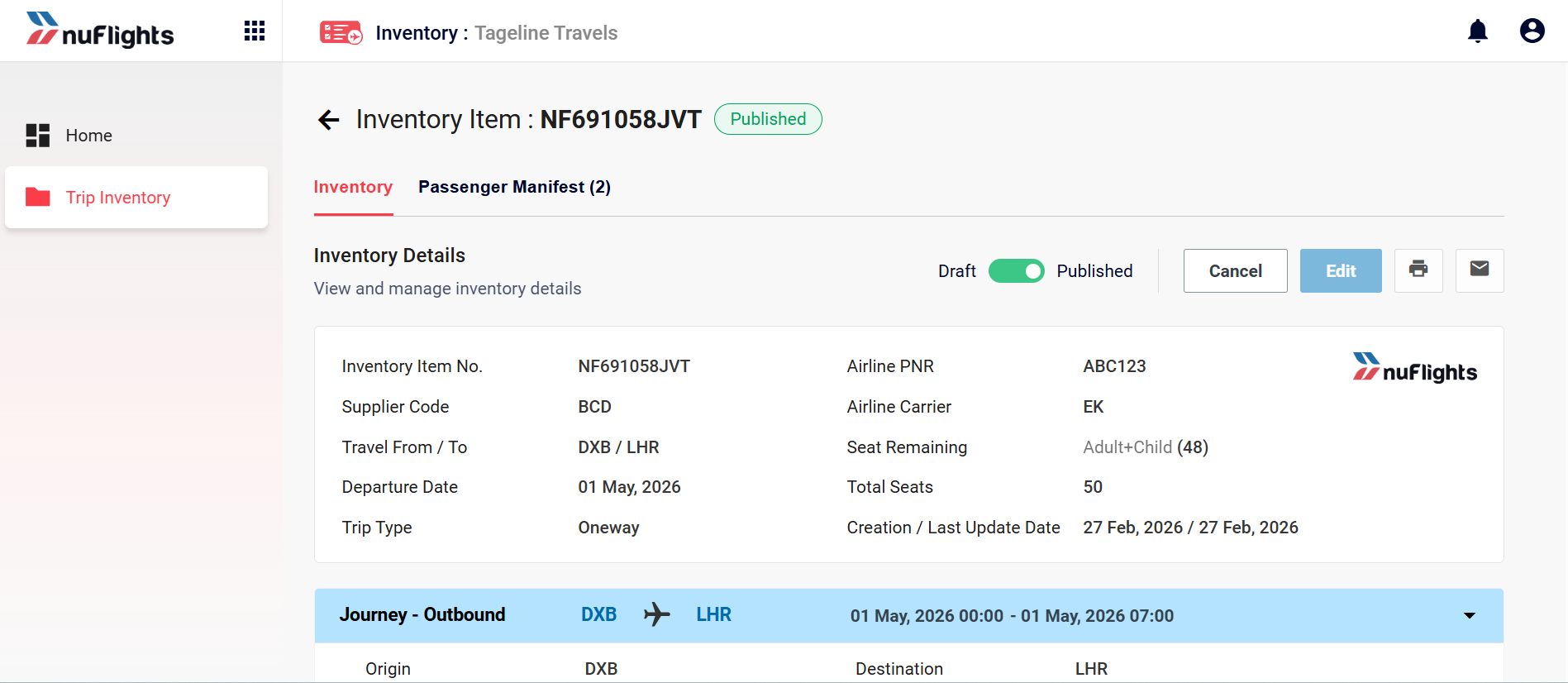
Expand Journey – Outbound to review the confirmed flight segment details.
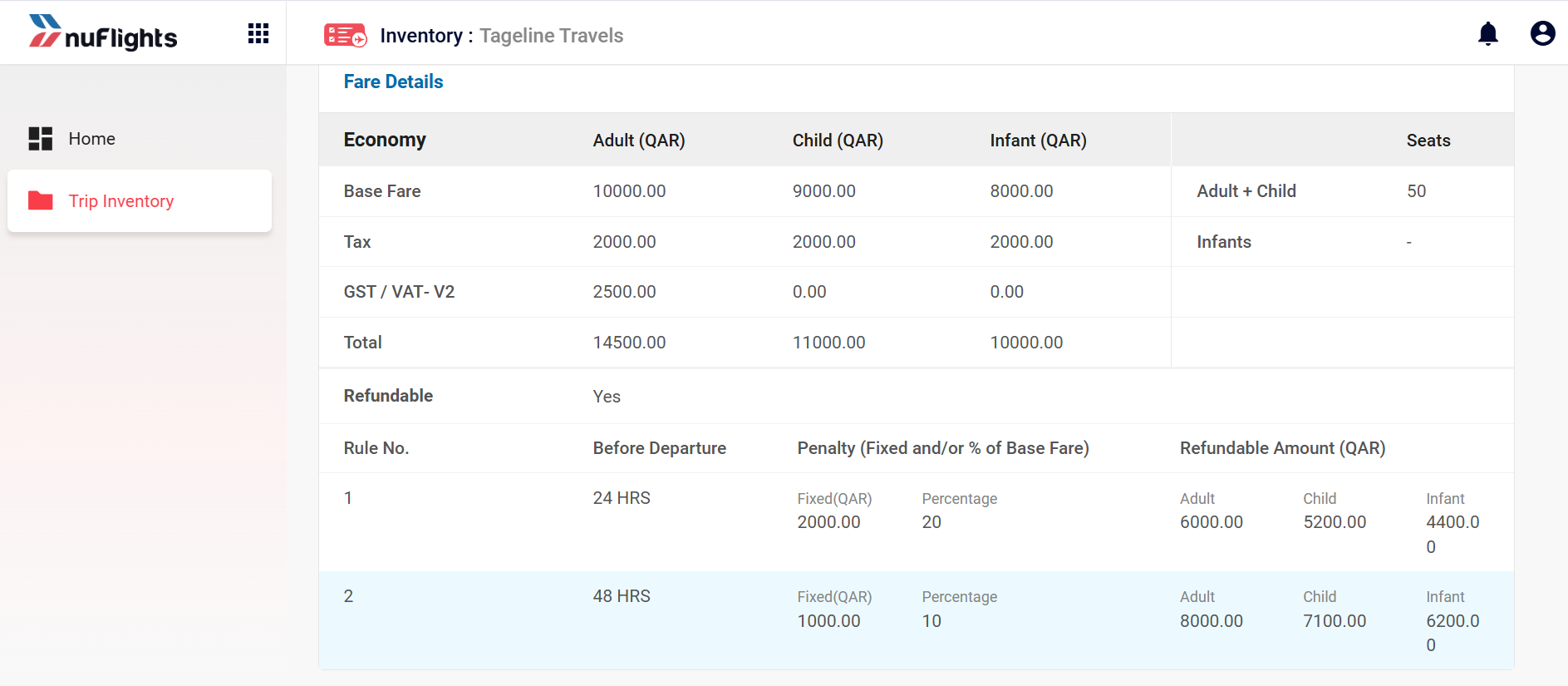
Scroll further down to see Fare Details, with the fares and refund rules you set, read-only.
Subscriptions
To get Local Inventory offers, your agency needs an active Local Inventory Subscription on its NDC Connect account. This subscription links the NF LOCAL INV content provider to your agency, so Local Inventory flights appear in your Travel Workbench search results.
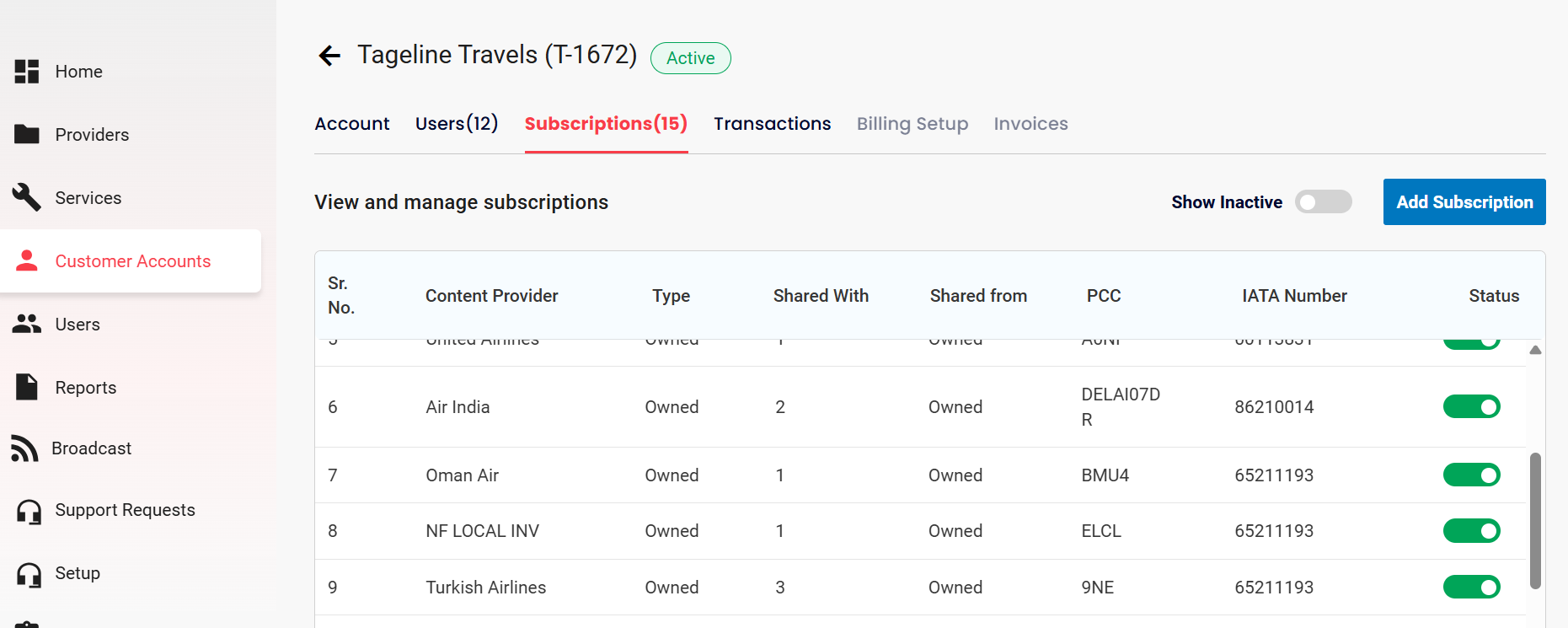
Missing Local Inventory? If NF LOCAL INV isn't an option in the Select Airlines dropdown in Travel Workbench, the subscription isn't active. Contact NuFlights Support to have it added to your agency's account.
Booking from Local Inventory
Agents search and book these seats in Travel Workbench. To search, book and issue tickets for Local Inventory flights, see:
Passenger Manifest
The Passenger Manifest shows all the bookings for one trip in one place. It's the main way to send passenger details to the operating airline.
Viewing the Manifest
- Go to Local Inventory → Trip Inventory and click your published trip.
- On the Inventory Detail page, click the Passenger Manifest (n) tab.
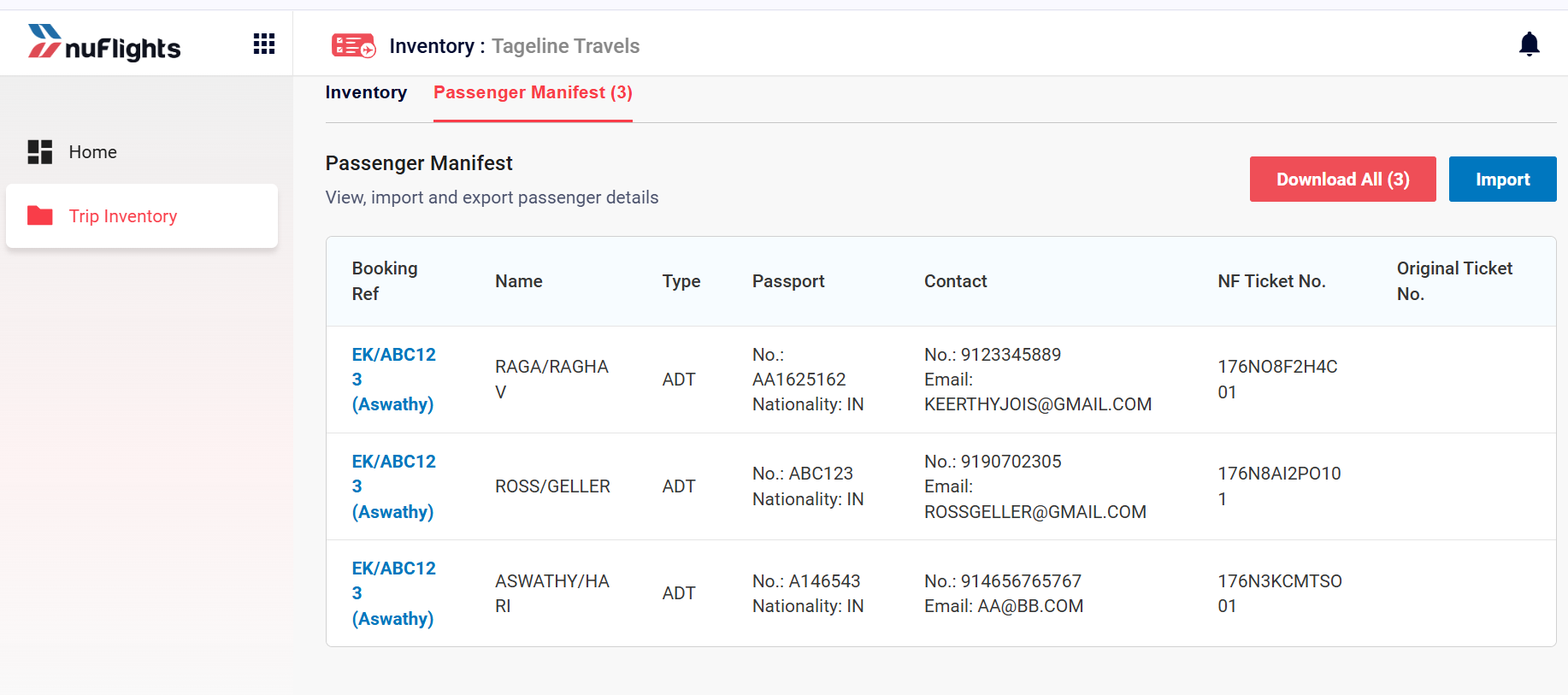
The manifest has these columns for every booked passenger:
| Column | Description |
|---|---|
| Booking Ref | The booking reference linking the passenger to the airline PNR (for example, EK/ABC123), shown as a link with the consultant name. |
| Name | The passenger's full name, as Last/First. |
| Type | Passenger type: ADT (Adult), CHD (Child) or INF (Infant). For INF, it also shows the name of the Associated adult. |
| Passport | Passport number and nationality code (for example, No.: AA1625162 / Nationality: IN). |
| Contact | The passenger's phone number and email address. |
| NF Ticket No. | The NuFlights-issued ticket number for this passenger (for example, 176NO8F2H4C01). |
| Original Ticket No. | The airline-issued ticket number, filled in after the airline processes the booking. Leave it blank until the airline confirms it. |
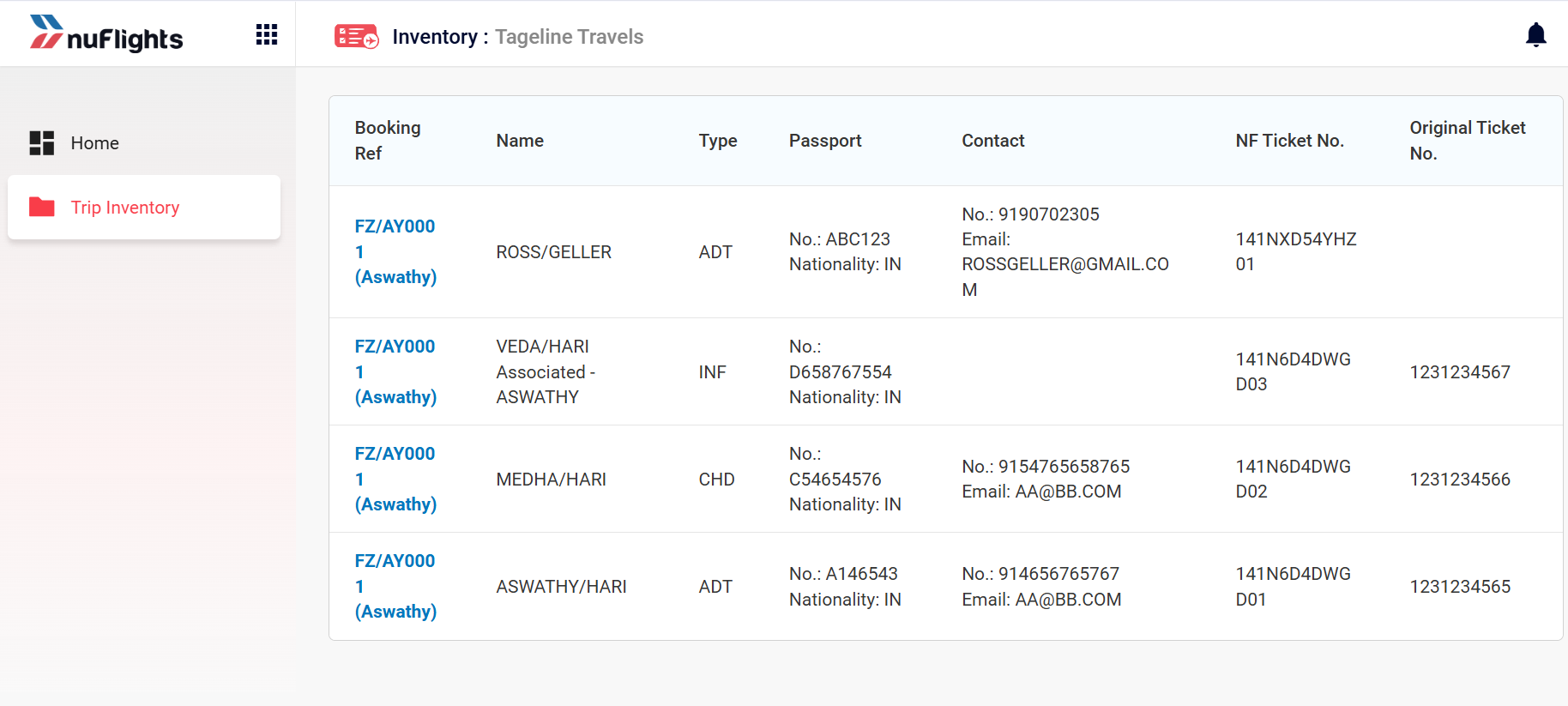
Passenger types explained
- ADT (Adult): aged 12 and above. Full fare applies.
- CHD (Child): aged 2–11. Child fare applies.
- INF (Infant): under 2 years old. Infants travel on the lap of an associated adult. The Type field shows
INFand the associated adult's name.
Downloading and importing the manifest
- To export all passenger records as a CSV file, click Download All (n) (top right of the manifest). Share this file with the operating airline for check-in and seat assignment.
- To bulk-upload passenger data back into the manifest (for example, Original Ticket No.), click Import.
The downloaded CSV has all the columns, including SL NO, Group Booking Ref, Fulfillment Order ID, Individual Booking Ref, Ticket Number, passenger name fields, Email, Contact No, Nationality, DOB, Type, Passport No, Passport Expiry, Associated Passenger, Passenger Booking Ref and Passenger Ticket Number.

Send the manifest to the airline well before departure. NuFlights tickets aren't synced back to the airline's GDS automatically, so the airline needs this file to recognise and seat the passengers correctly.
Optional guidance
Filtering your inventory
On the Trip Inventory page, click the filter icon (top right of the list) to narrow the results. You can filter by:
- Origin / Destination: airport codes.
- Date Range: only upcoming or past trips in a selected period.
- Airline Carrier / PNR: a specific airline or booking reference.
Multi-city and return trips
When you set Trip Type to Return or Multi-city:
- More Journey panels (Inbound, or Journey 2 to 6) appear automatically.
- Fill in each journey's flight segments, baggage and fare details separately.
Manifest management best practices
- Download the passenger manifest and send it to the airline at least 48–72 hours before departure.
- If more agents book seats after you've sent it, download the updated manifest and send it again.
- Keep a copy of the downloaded CSV for internal audit records.
- Use the Original Ticket No. column to record the airline-issued ticket numbers once the airline confirms the booking.