

Pay and issue tickets
Use this when an order is booked but not yet paid, or only partly paid. You'll take the payment and issue the e-tickets in 6 steps.
Before you start, check that:
- The order status is Booked and the TTL (Ticketing Time Limit) hasn't passed.
- If you'll pay by card or IATA EasyPay, your admin has set it up in Agency Admin.
Step 1: Open the order
Find the booking by its PNR and open the Order View page. Not sure how? See Find a booking.
Step 2: Check that payment is due
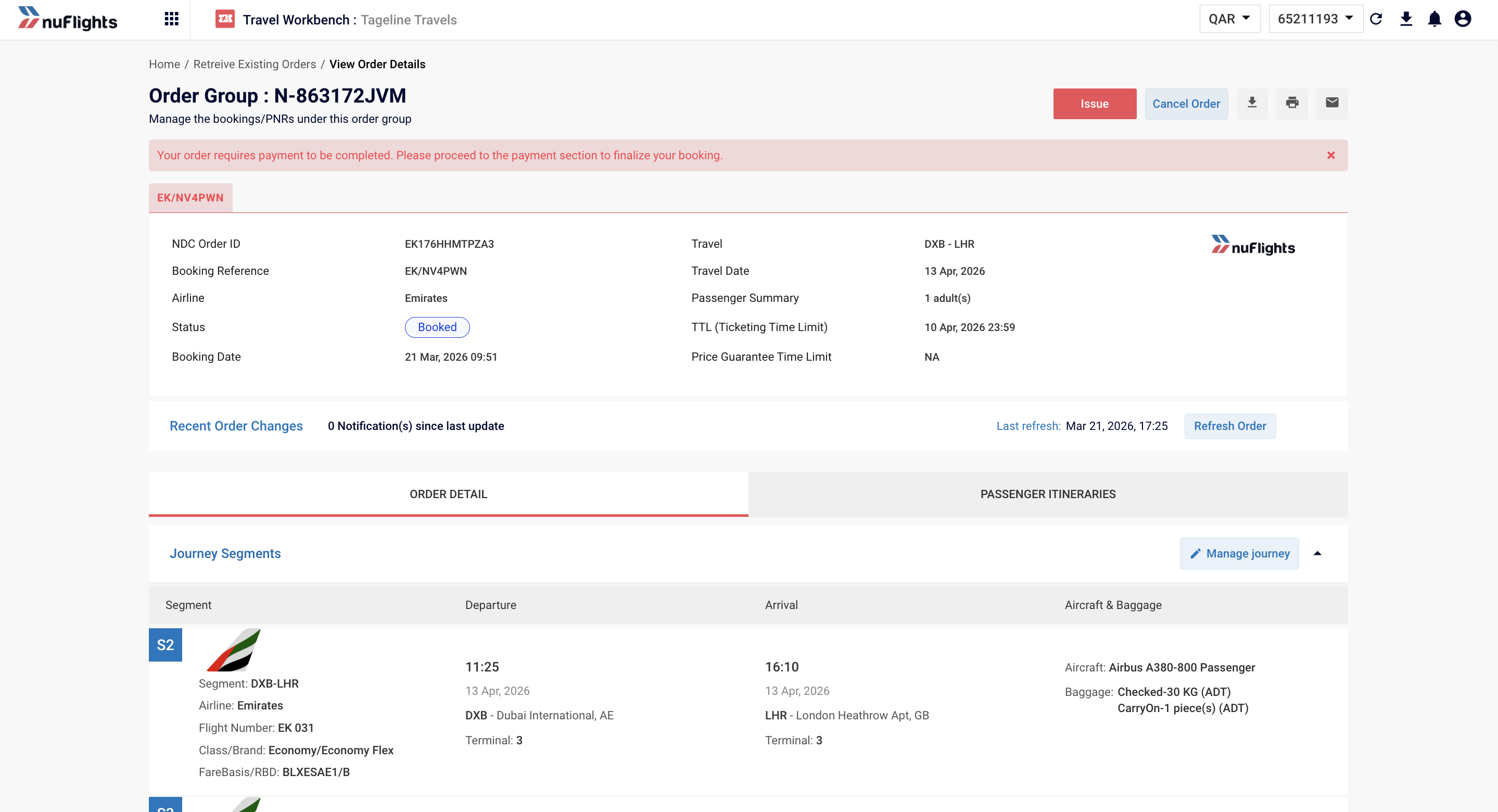
Look at the TTL (Ticketing Time Limit) in the order details. You must pay and issue before this time.
If payment is needed, you'll see a red message at the top of the page: "Your order requires payment to be completed. Please proceed to the payment section to finalize your booking."
Step 3: Click Issue
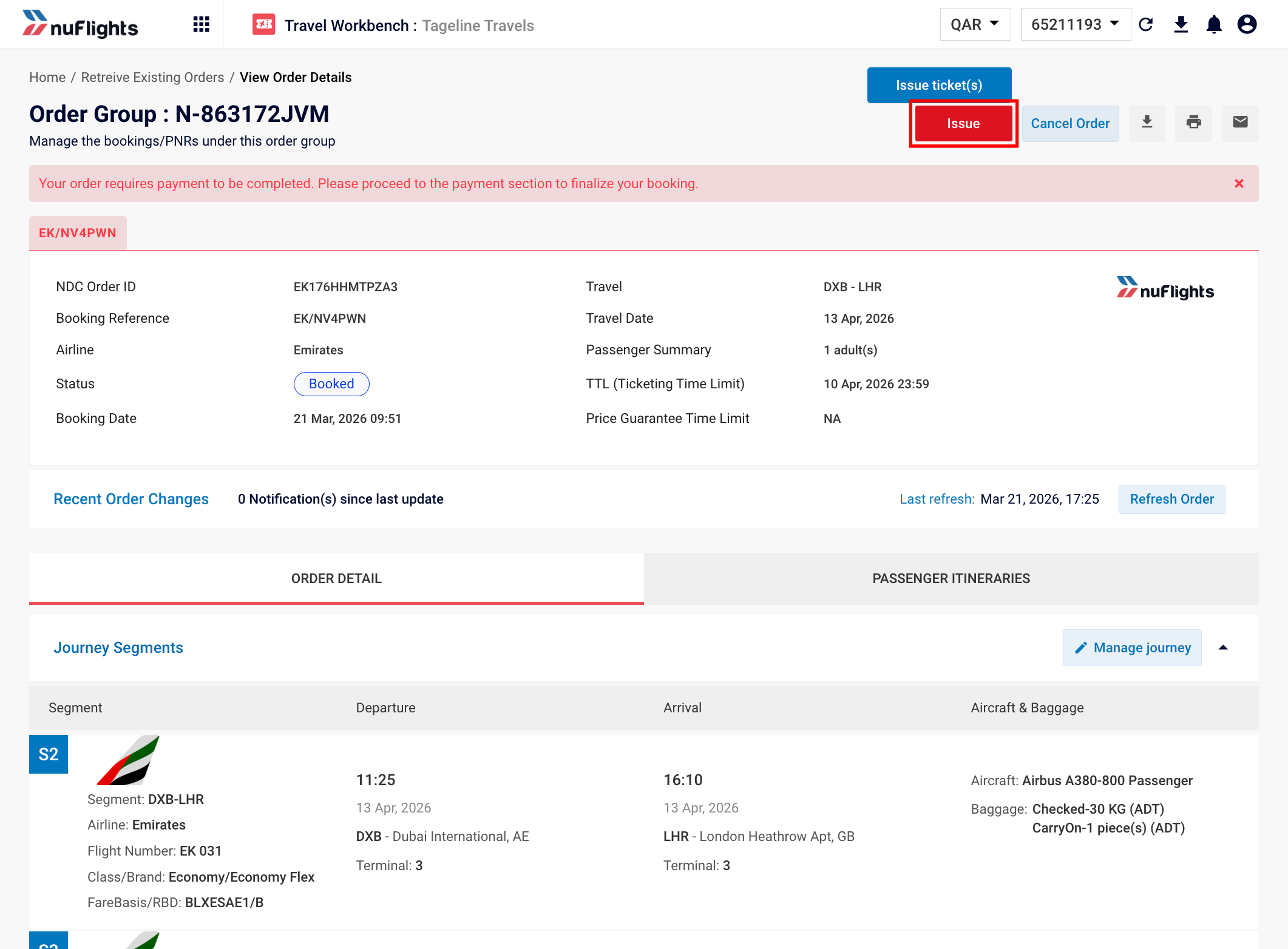
- Click the red Issue button at the top right of the order.
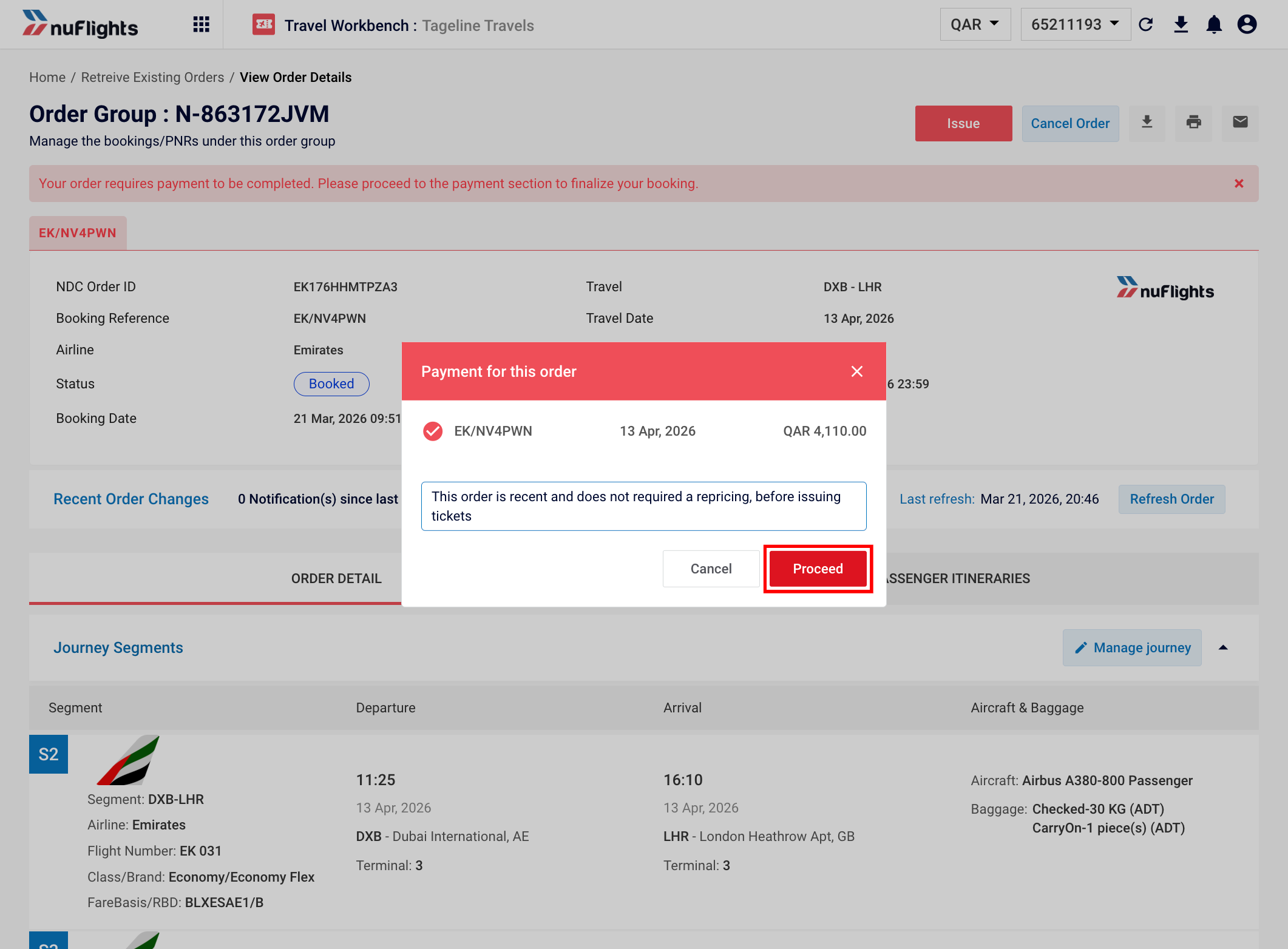
- If a Price Guarantee message pops up, click Proceed. The Payment page opens.
Step 4: Check the amounts
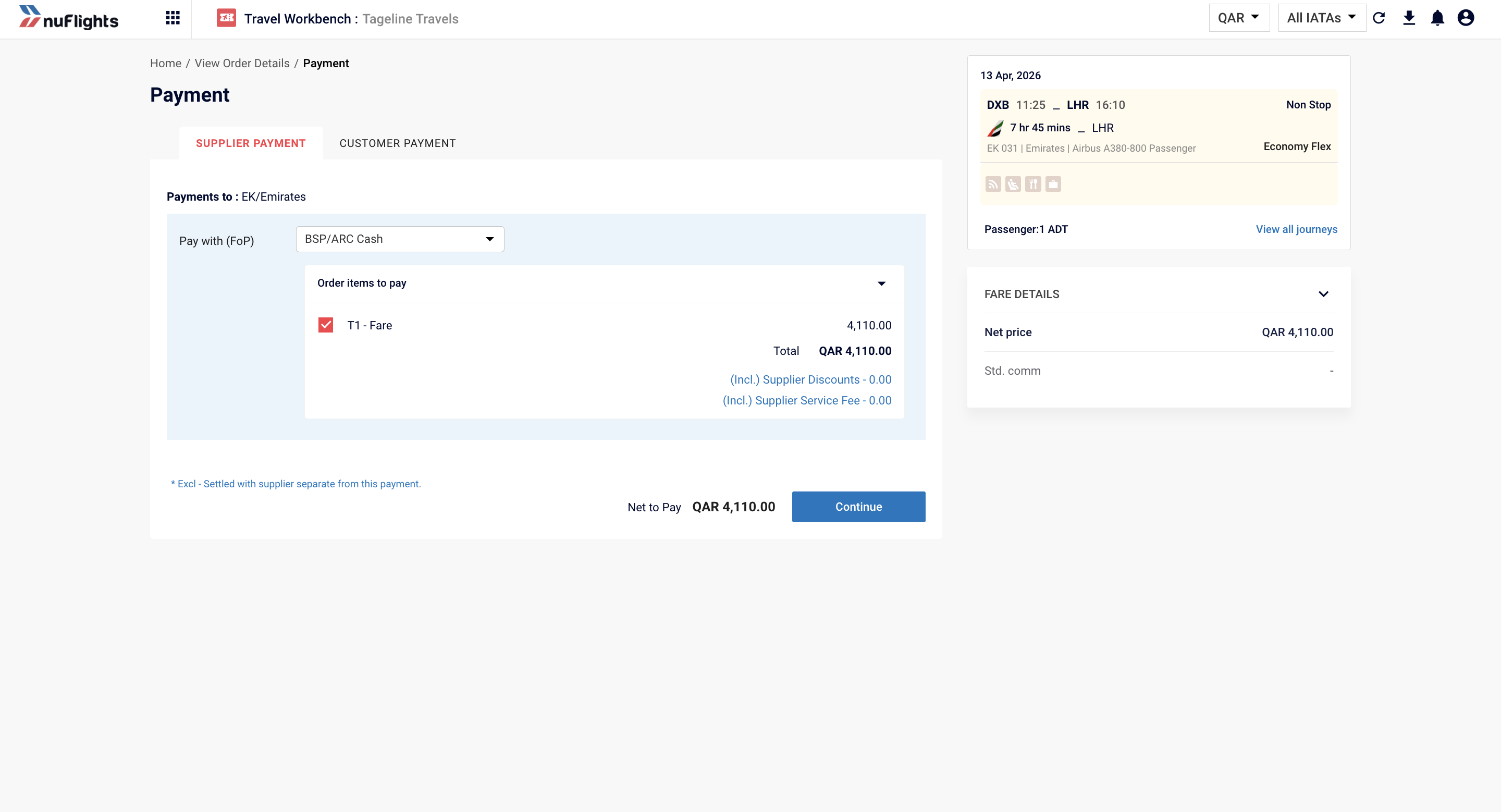
The Payment page has two tabs:
- Supplier Payment: what you pay the airline.
- Customer Payment: what you collect from the traveler.
Step 5: Choose how to pay
On the Supplier Payment tab, in Pay with (FoP), pick one:
| Option | When to use it |
|---|---|
| BSP/ARC Cash | Your usual cash settlement through BSP or ARC. |
| Stored Card | An agency card your admin has saved. |
| IATA EasyPay | Pay from your IATA EasyPay wallet. |
| Passenger Card | The traveler's own credit card. |
| Miscellaneous | Only for Local Inventory bookings (the provider is NuFlights). |
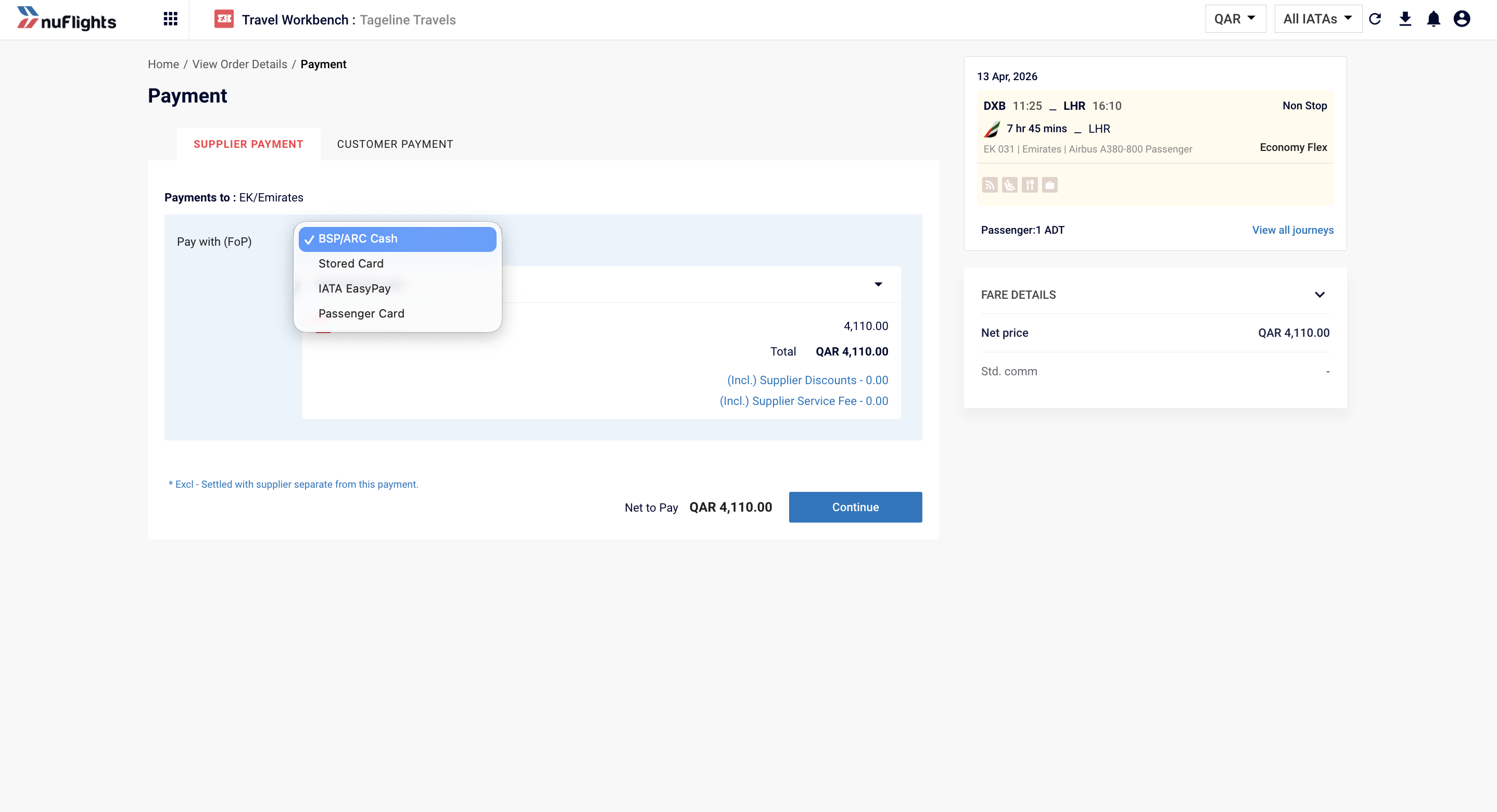
When you've picked, click Continue.
Don't see Card or EasyPay? Cards and IATA EasyPay must be set up in Agency Admin first. Ask your agency admin to add them: see Configure Cards & EasyPay.
Step 6: Issue the tickets
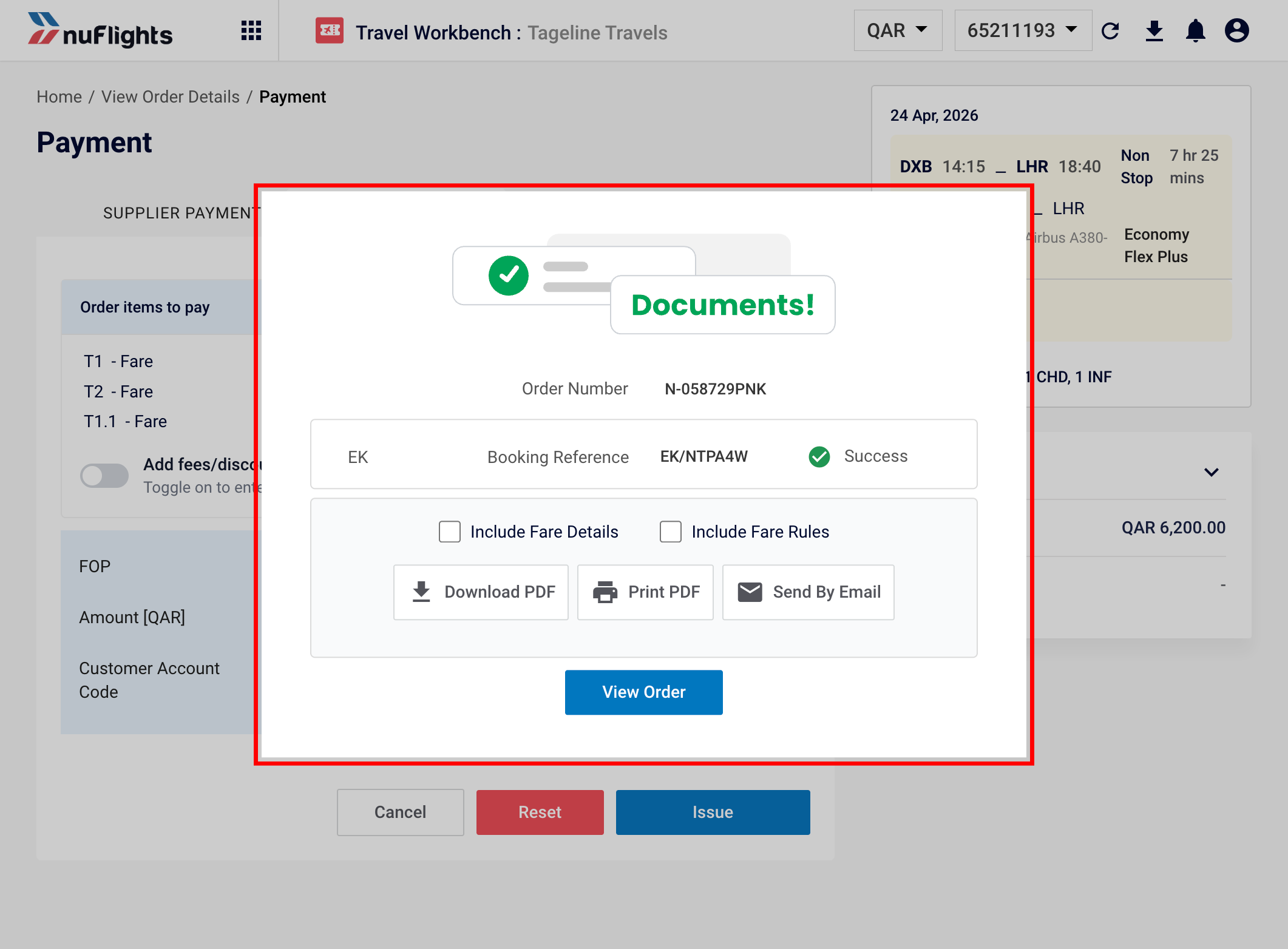
- Check the Order Items to Pay and the amounts to be paid.
- Add a Customer Account Code if your back office needs one (optional). See TRAACS Credit Control & Customer Account Code below.
- Click Issue at the bottom of the page.
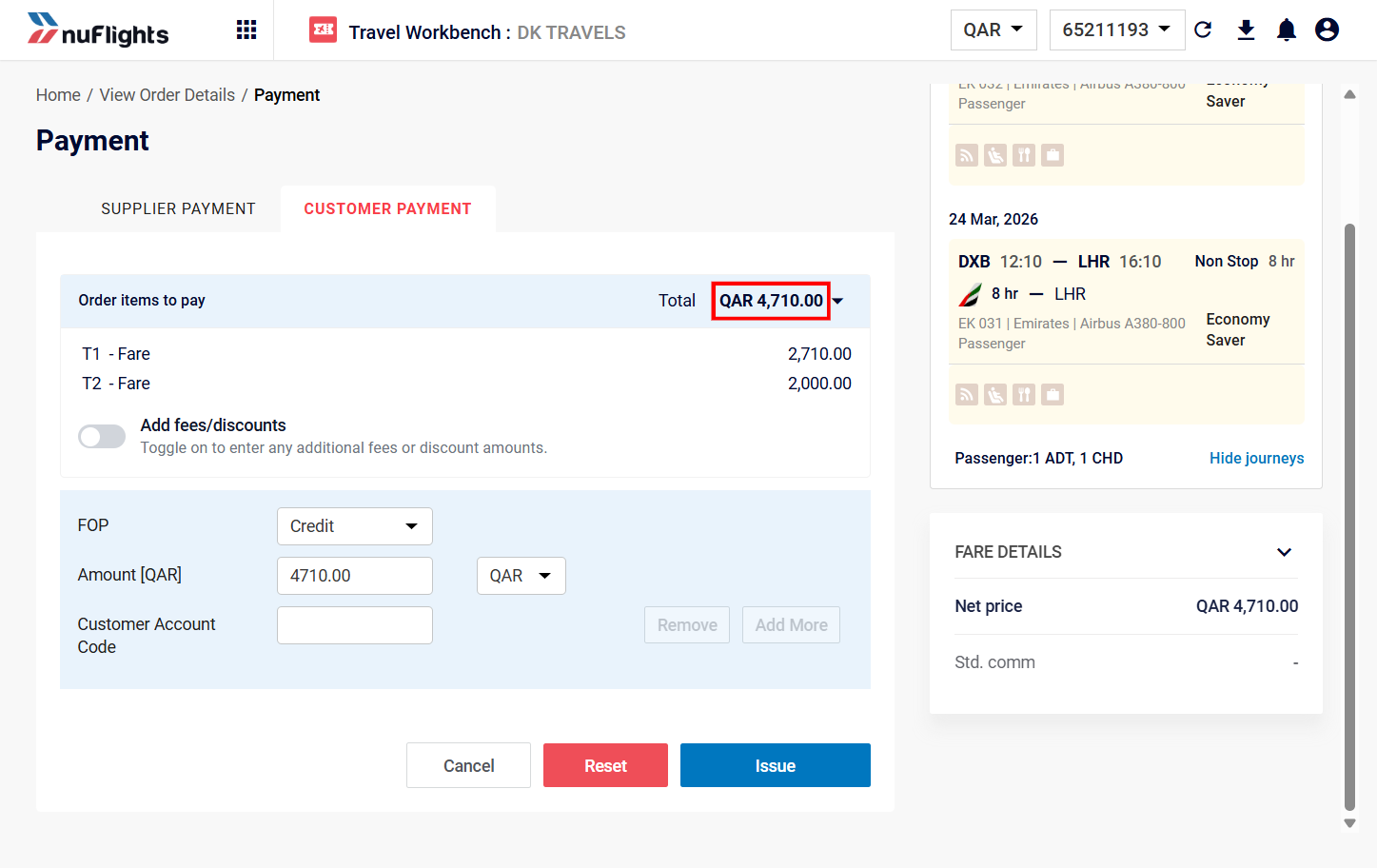
A success message appears and the tickets are issued. You can then view the ticketed order.
Issue button not working? If your agency uses Wave TRAACS, the customer may not have enough credit. They need to settle their balance with your finance team first. See Scenario 1: Wave TRAACS customers.
Local Inventory tickets come from NuFlights. Tickets issued under the NF LOCAL INV carrier are generated by NuFlights, not an operating airline. The order shows the NuFlights NDC Order ID (for example NF_D4321F) next to the booking reference from the airline bulk purchase.
Service fees and discounts
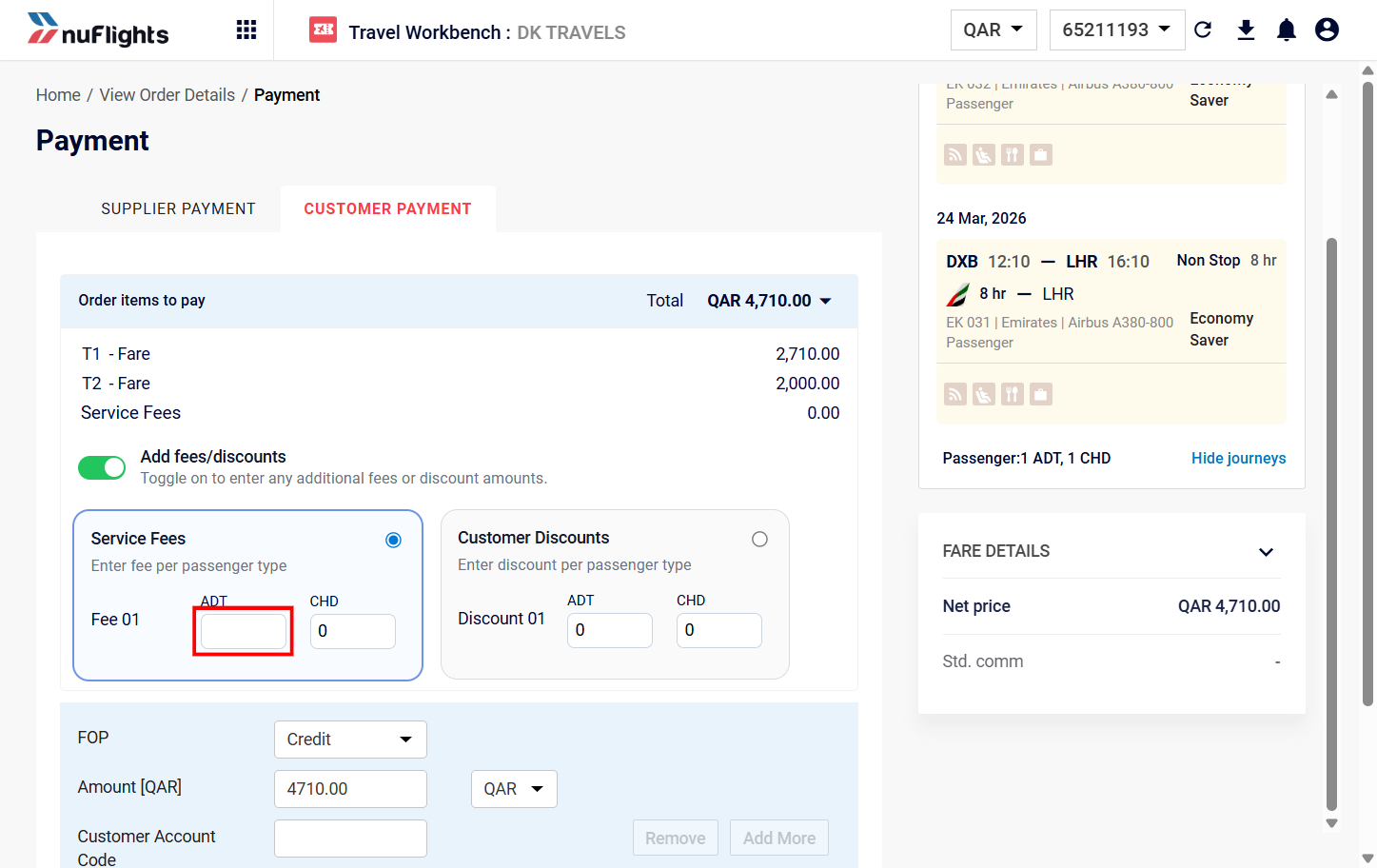
To add an agency fee or a discount to what the traveler pays:
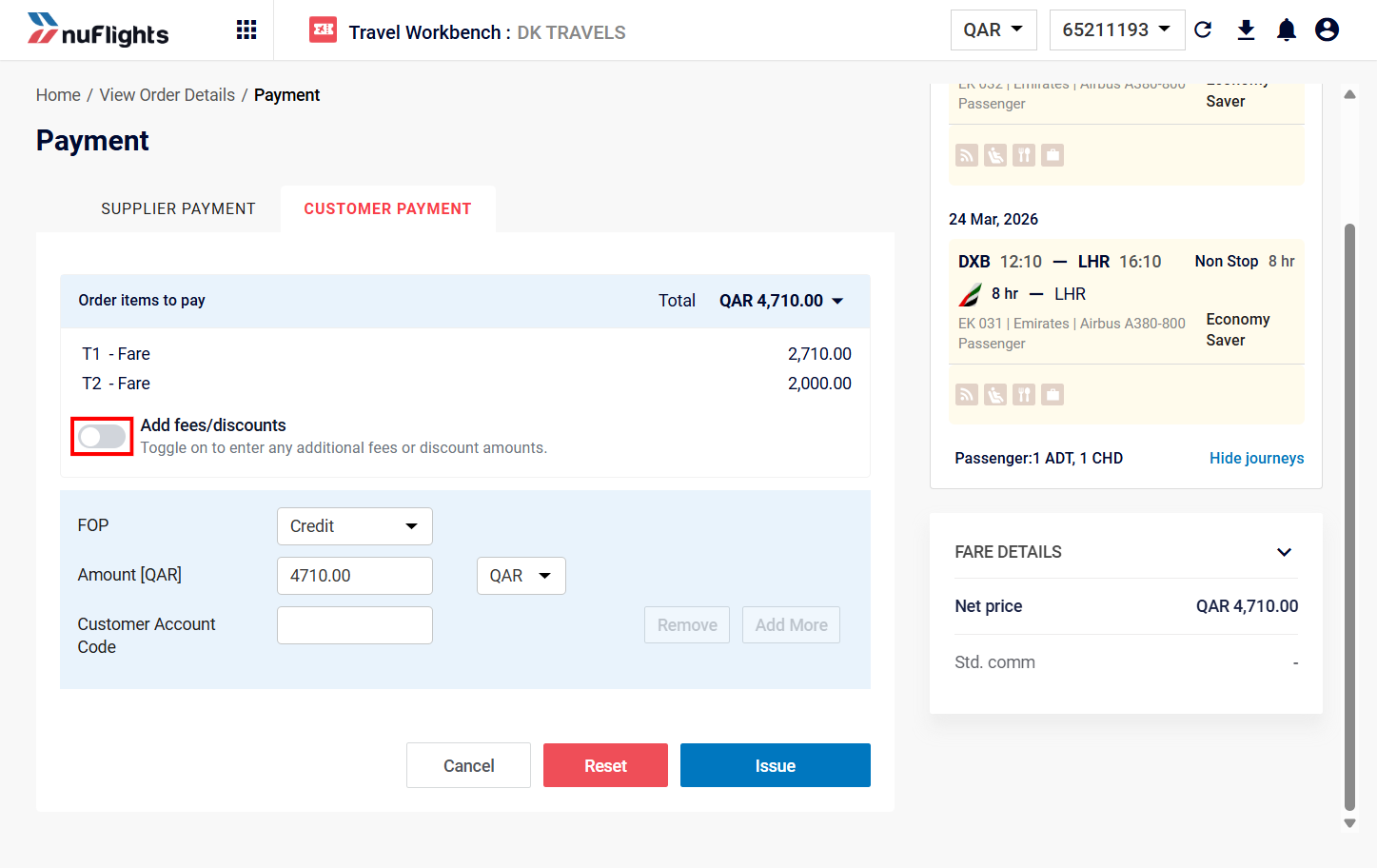
- On the Customer Payment tab, find the Order Items to Pay table.
- Turn on the Service Fee / Discount switch.
- Enter the fee or discount amount. The Customer Payment total updates.
Want different fee labels or defaults? Your admin sets them up in Agency Admin. See Set up service fees.
TRAACS Credit Control & Customer Account Code
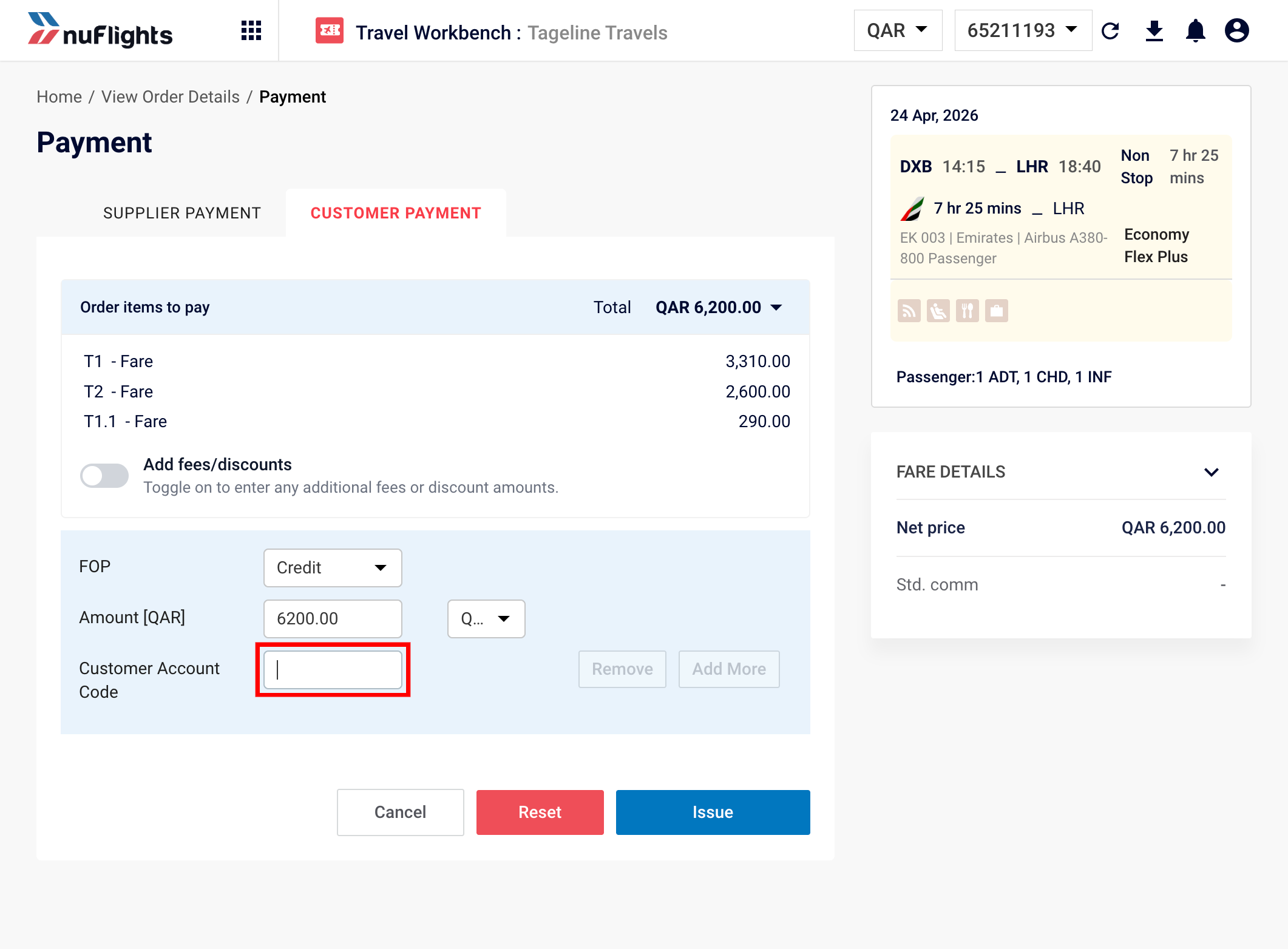
The Customer Account Code field on the Payment page works differently depending on your agency's back office setup. There are three cases:
- Scenario 1: Wave TRAACS customers: search for the customer, with a real-time credit check.
- Scenario 2: NuTRAACS & AIR File Export customers: search for the customer, no credit check.
- Scenario 3: Back office disabled: free text, no checks.
Set up Billing Profiles first. Billing Profiles must be configured in Agency Admin before you can use the Customer Account Code features below. See the Billing Profiles guide.
Scenario 1: Wave TRAACS customers
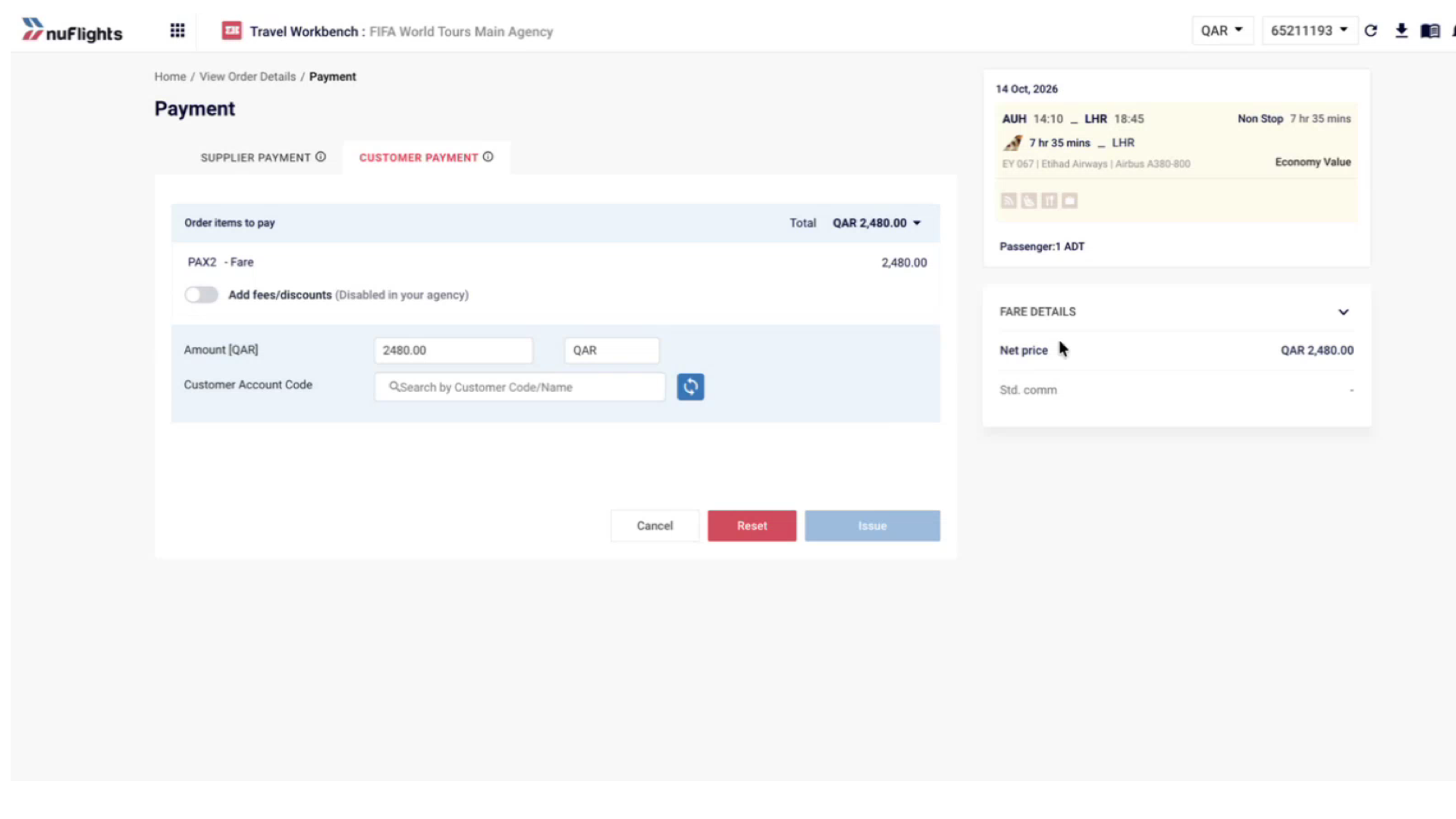
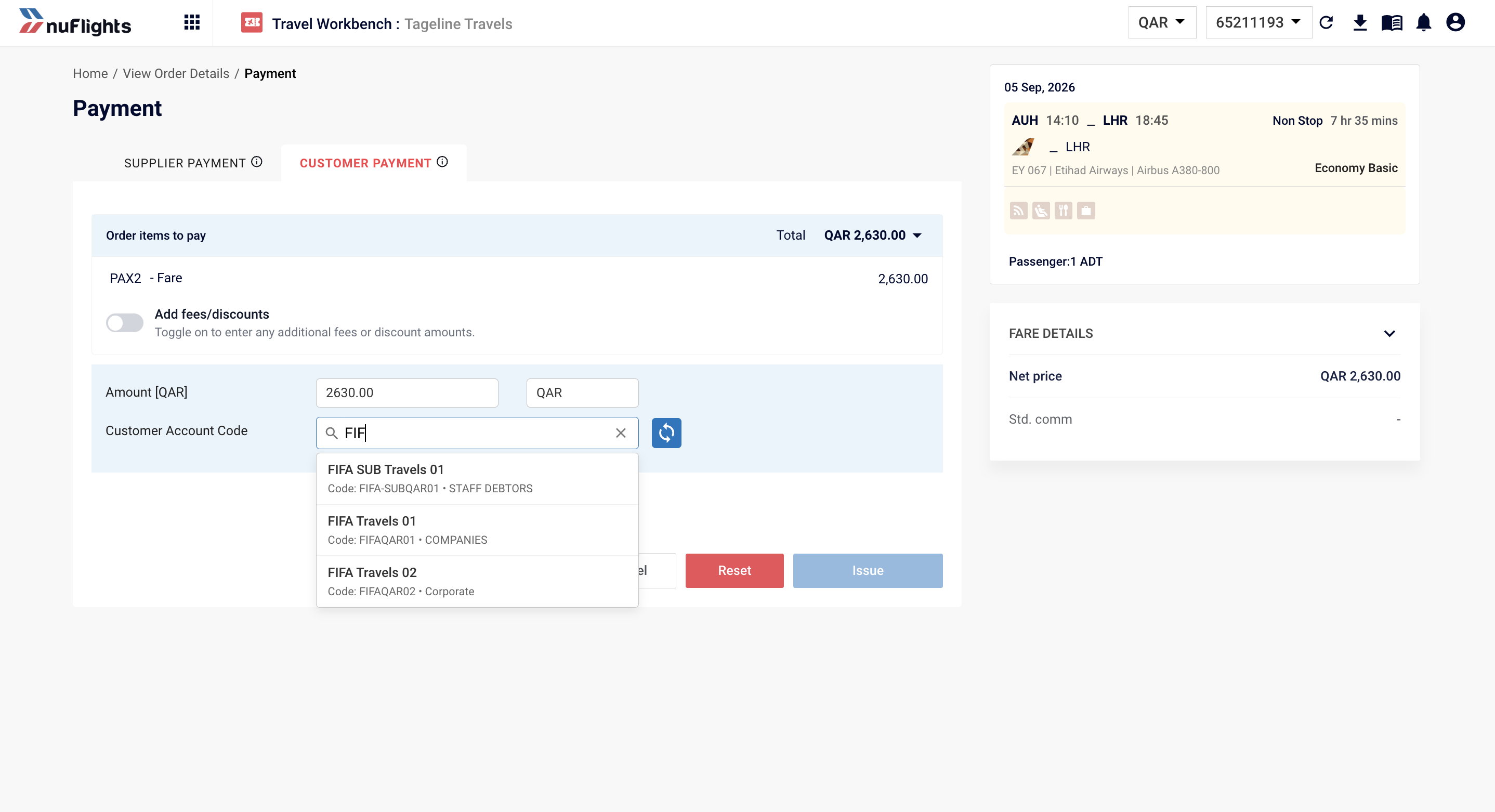
If your agency is connected to Wave TRAACS, the Customer Account Code field is a searchable dropdown, not a free text box.
Pick the customer
- On the Payment page, find the Customer Account Code field under Customer Payment.
- Start typing a customer code or name. Matching billing profiles appear in a dropdown.
- Select the right billing profile.
Real-time credit check
When you select a billing profile, NuFlights checks the customer's credit in your Wave TRAACS system straight away. There are two possible results.
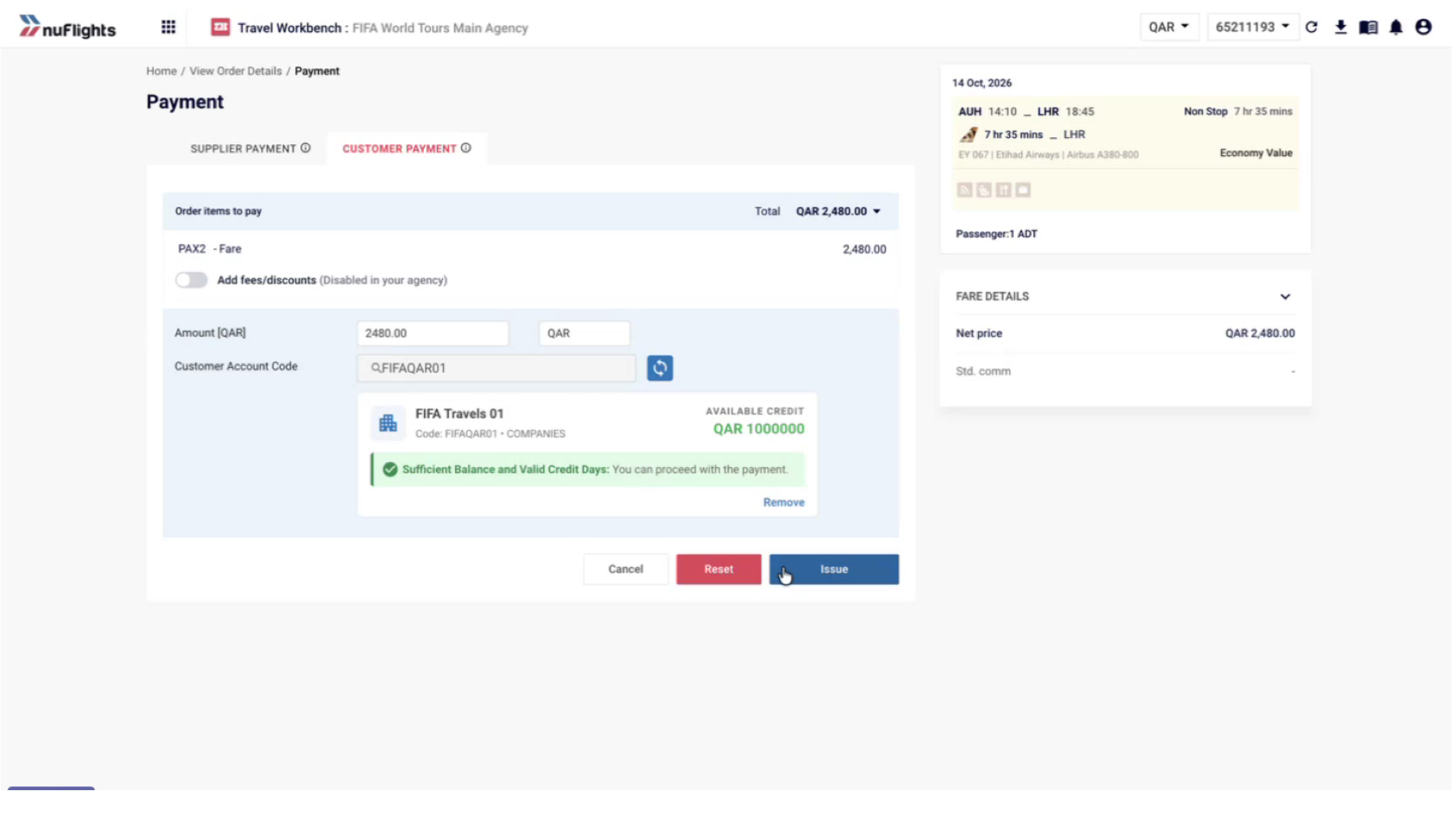
Sufficient balance. The check passes and a green message says: "Sufficient Balance and Valid Credit Days: You can proceed with the payment." The Issue button stays active.
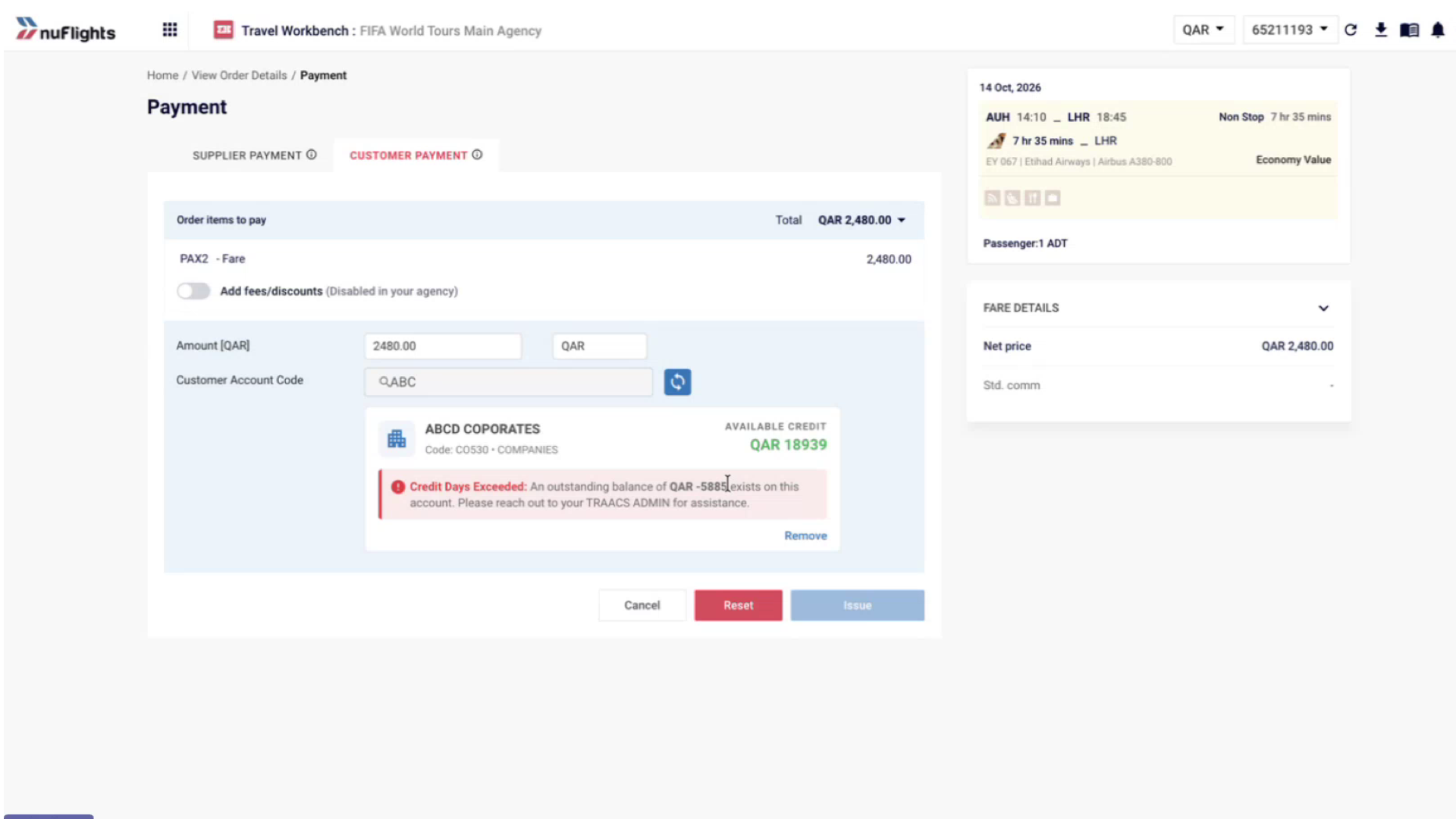
Insufficient credit. The check fails and a red message says: "Credit Days Exceeded: An outstanding balance of [amount] exists on this account. Please reach out to your TRAACS ADMIN for assistance." A pop-up also shows the exact shortfall. You can't issue the ticket until the customer's credit is sorted out in TRAACS.
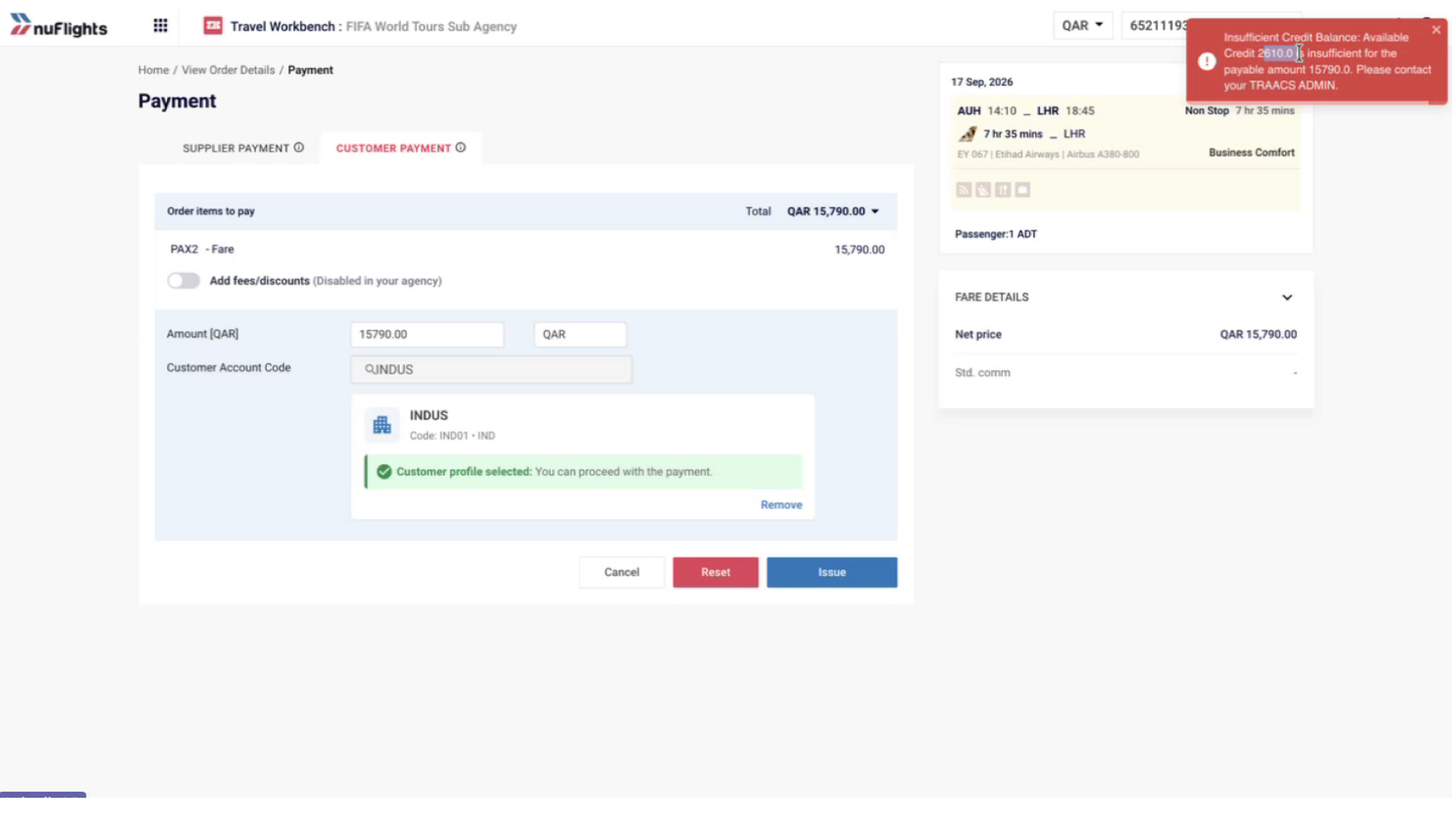
A failed credit check blocks issuing. The customer must first settle their outstanding balance with your agency's finance team. Once their credit is updated in TRAACS, try issuing again.
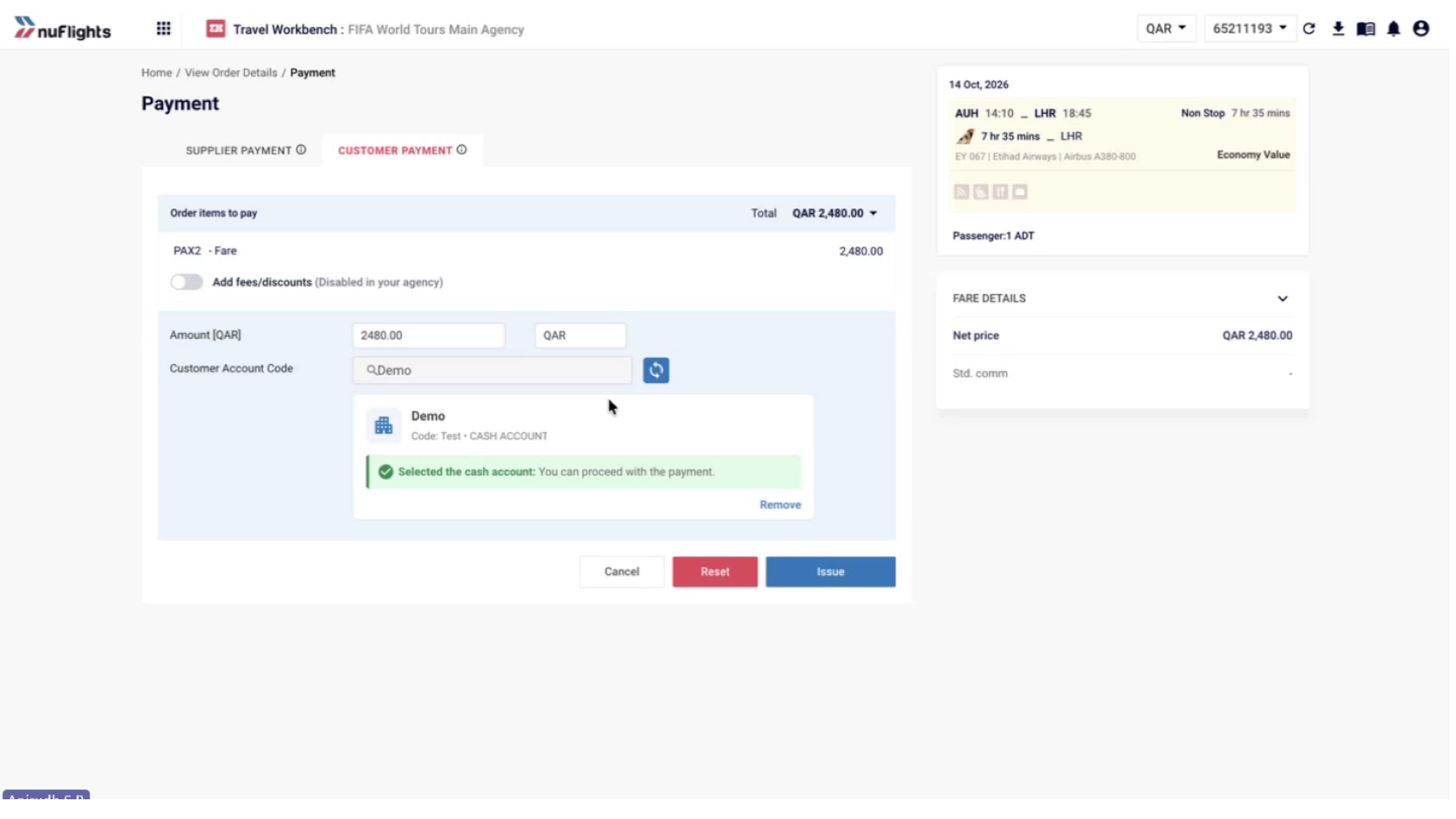
Cash customers: no credit check
If you select a Cash Customer profile (for walk-in or general customers), there is no credit check. You can issue the ticket straight away.
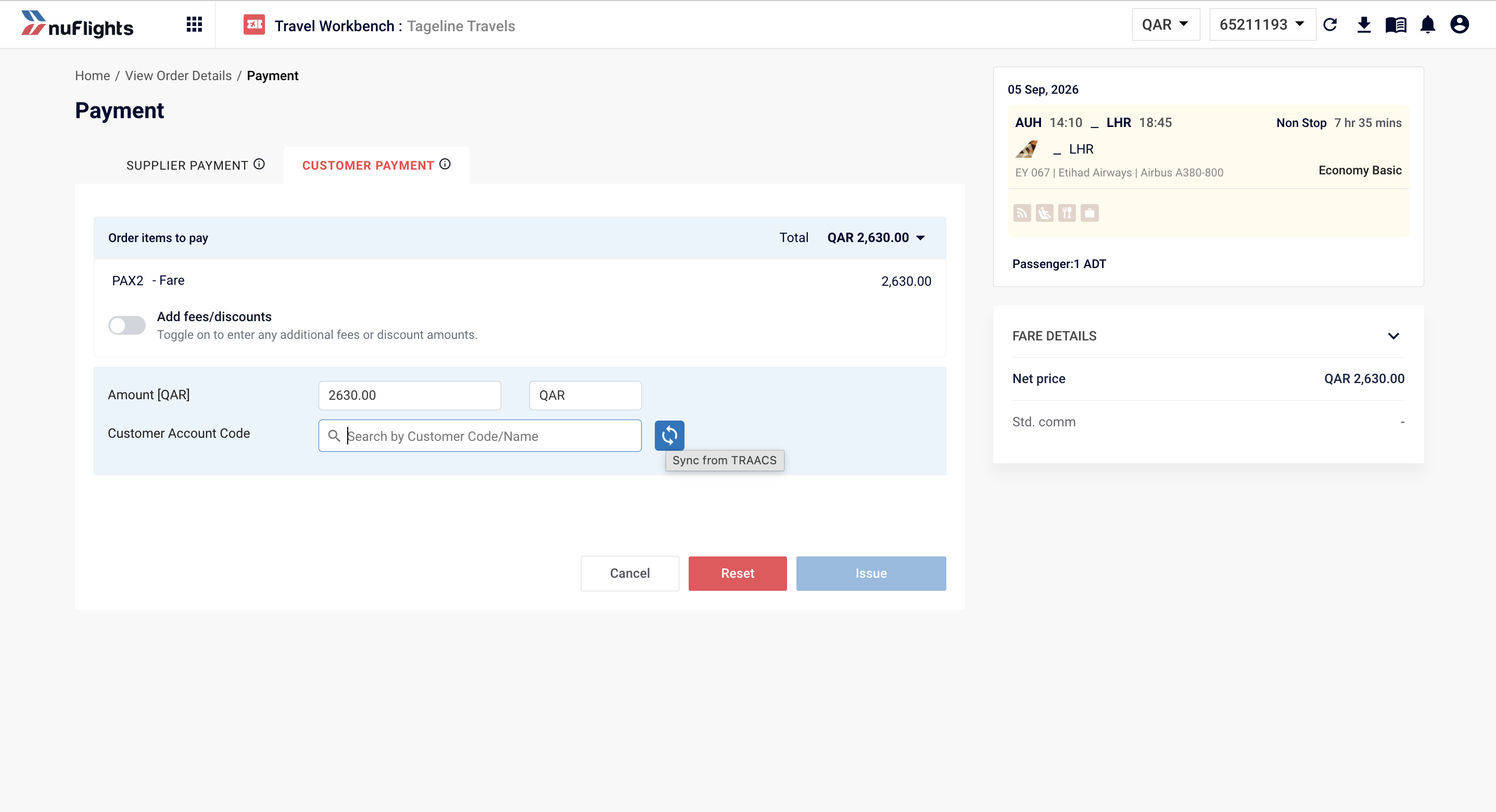
Customer missing? Sync from TRAACS
If a billing profile is missing from the search results (for example, the customer was just added in TRAACS), you can sync profiles from the Payment page without going to Agency Admin:
- Click the Sync from TRAACS icon (↻) next to the Customer Account Code field.
- Wait for the sync to finish.
- Search for the customer code again. The new profile now appears.
Scenario 2: NuTRAACS & AIR File Export customers
If your agency uses NuTRAACS or AIR File Export, the Customer Account Code field is also a searchable dropdown linked to your Billing Profiles. But there is no real-time credit check: the credit balance isn't checked against NuTRAACS.
Pick the customer
- Search for a customer code or name in the dropdown.
- Select the billing profile. A green message says: "Customer profile selected: You can proceed with the payment."
- Click Issue.
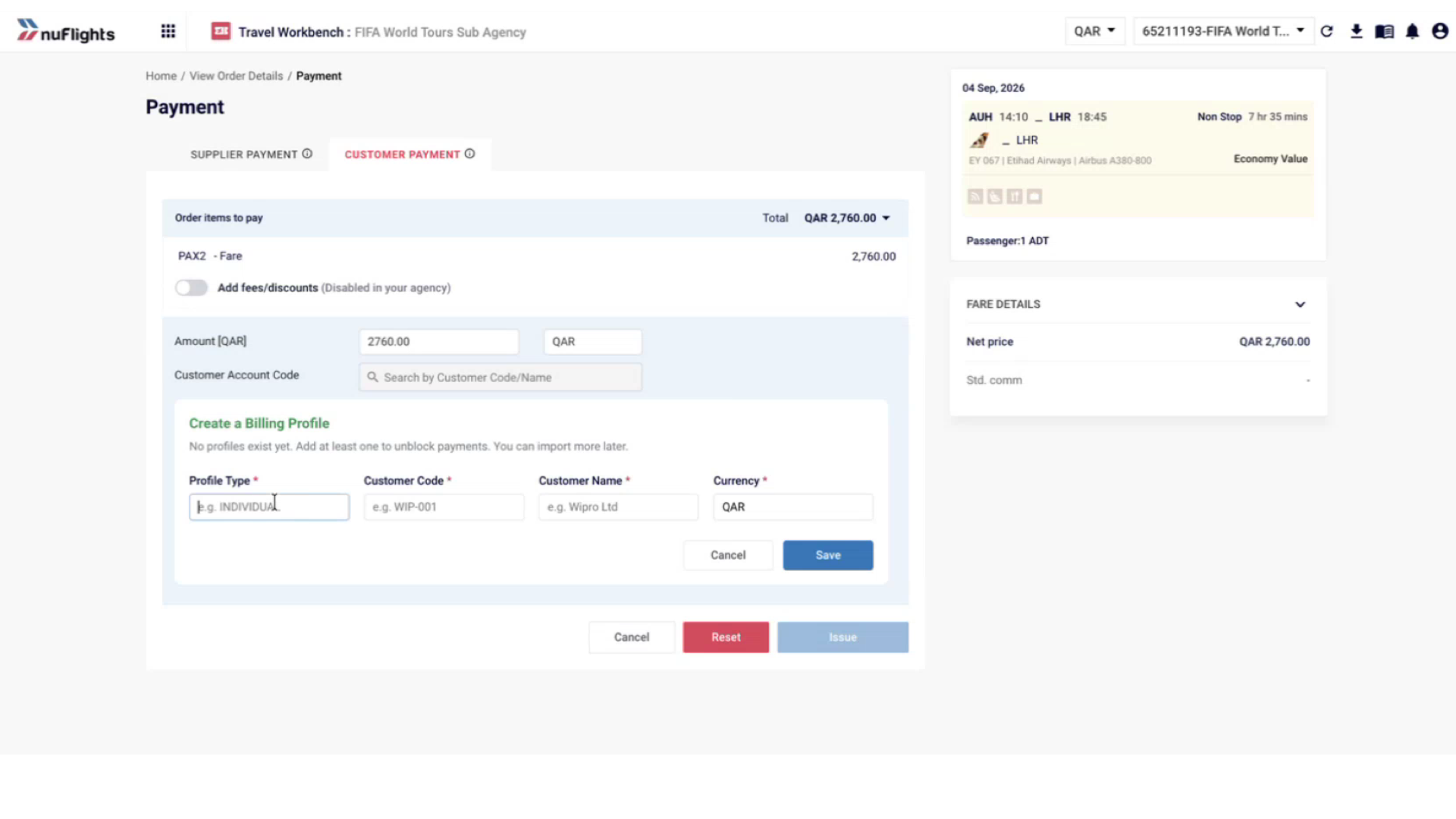
Customer missing? Add a profile from the Payment page
If you can't find the billing profile, add it from the Payment page:
- Click Add next to the search field.
- Enter the customer details: Profile Type, Customer Code, Customer Name and Currency.
- Save the profile. You can use it straight away, and it also shows in Billing Profiles in Agency Admin.
Adding lots of customers? NuTRAACS and AIR File Export agencies can also import billing profiles in bulk from a CSV file in Billing Profiles in Agency Admin.
Scenario 3: Back office disabled
If your agency has no back office connector (no TRAACS, NuTRAACS or AIR File Export), the Customer Account Code field stays a free text box, exactly as before.
- You can type any value or leave it blank.
- There is no credit check or profile check.
- The code is saved for reporting only.
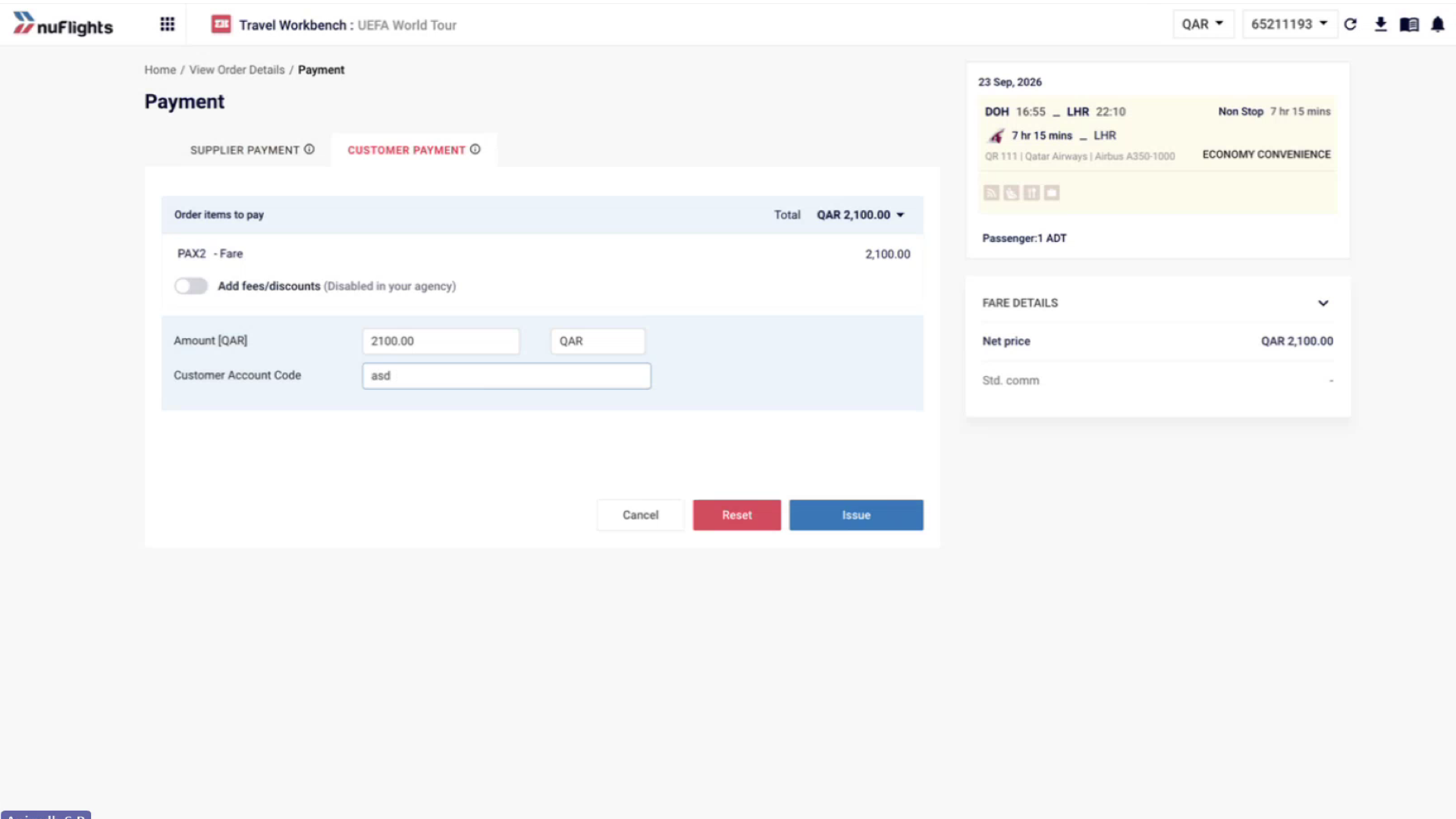
Nothing changes for agencies without a back office connector. The Customer Account Code field works exactly as it did before.
Related guides
- Find a booking
- Configure Cards & EasyPay (Agency Admin)
- Set up service fees (Agency Admin)
- Billing Profiles (Agency Admin)