

Agency cards & EasyPay
Use this to save the cards and IATA EasyPay your agency uses to pay airlines and suppliers. Agents can then reuse a saved card during booking without entering its details again.
Before you start, check that:
- You have the Back Office Account Code for the card from your back-office system.
Step 1: Open Supplier Payment Cards
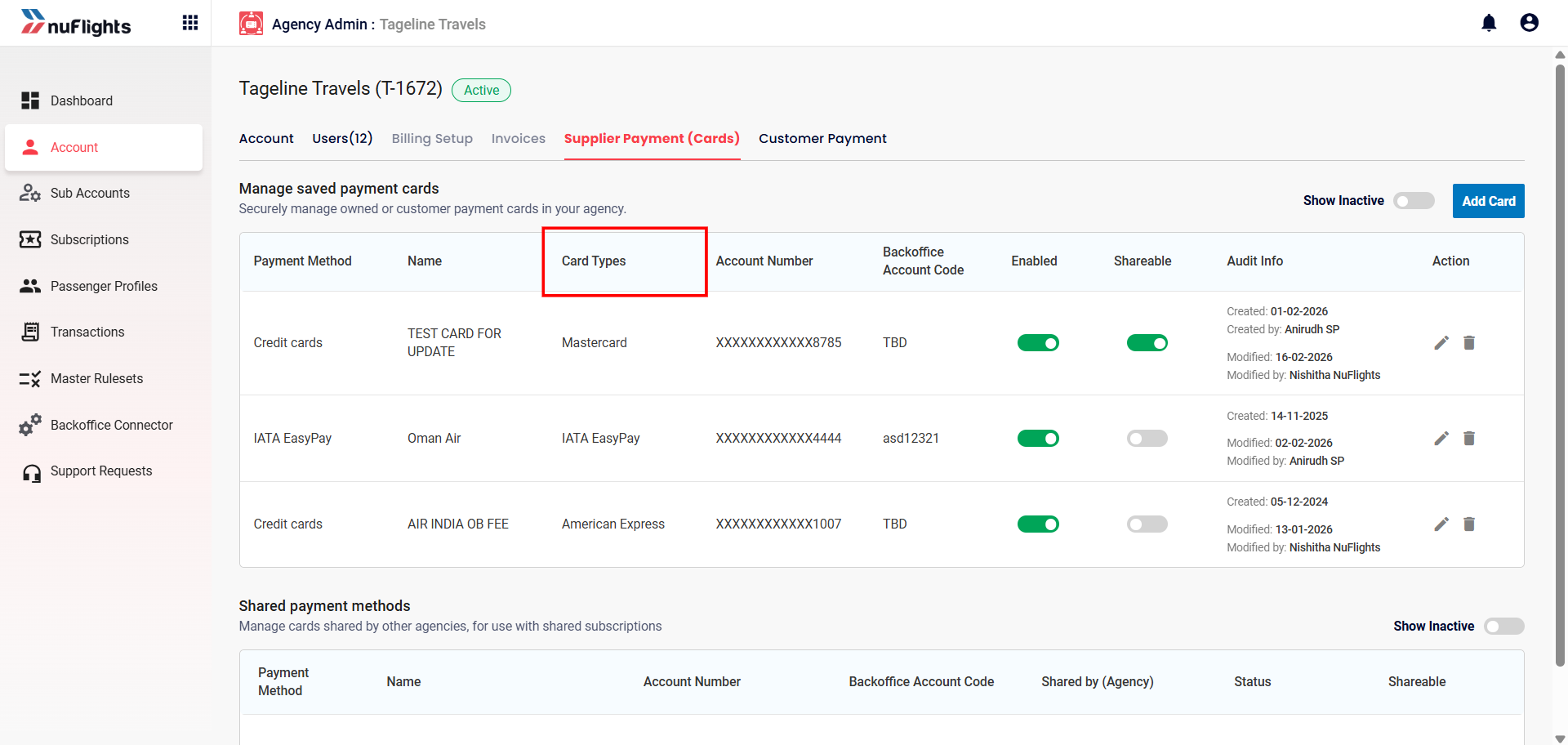
Go to Agency Admin > Account > Supplier Payment Cards. The page has two parts:
- Manage Saved Payment Cards: the cards your agency has set up.
- Shared Payment Methods: cards other agencies (for example, a parent agency) have shared with you.
Step 2: Click Add Card
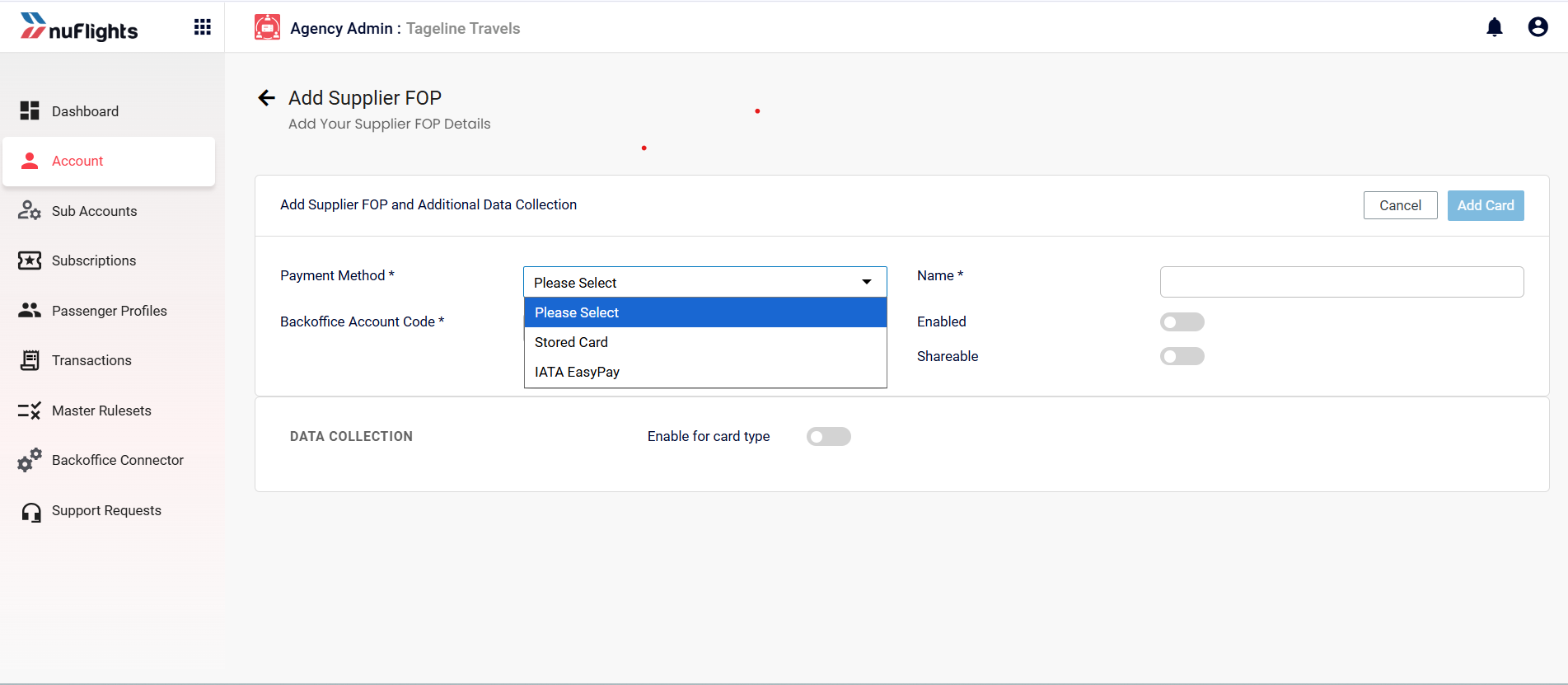
Click Add Card. The Add Supplier FOP page opens.
Step 3: Enter the card details
- Select Payment Method (mandatory): choose the type from the dropdown, for example Credit Card or IATA EasyPay.
- Name (mandatory): enter a label you'll recognize, for example "Main Corporate Card".
- Back Office Account Code (mandatory): enter the code from your back-office system, so transactions are mapped correctly.
warning
Don't skip the Back Office Account Code. Without it, accounting reconciliation may fail.
Step 4: Set the toggles
- Enable: turn it ON to make the card active for booking and ticketing. Keep it OFF while you're still checking the details.
- Shareable: turn it ON to let your sub-agencies use this payment method.
- Data Collection (Enable for Card Type) (optional): turn it ON only if specific card types need extra validation details during the transaction. Leave it OFF for standard use.
Step 5: Save the card
Click Add Card to save.
tip
Agents see the card on the Payment page. Once a card is enabled, and shared if needed, it's available on the Travel Workbench Payment Page.
What the card list shows
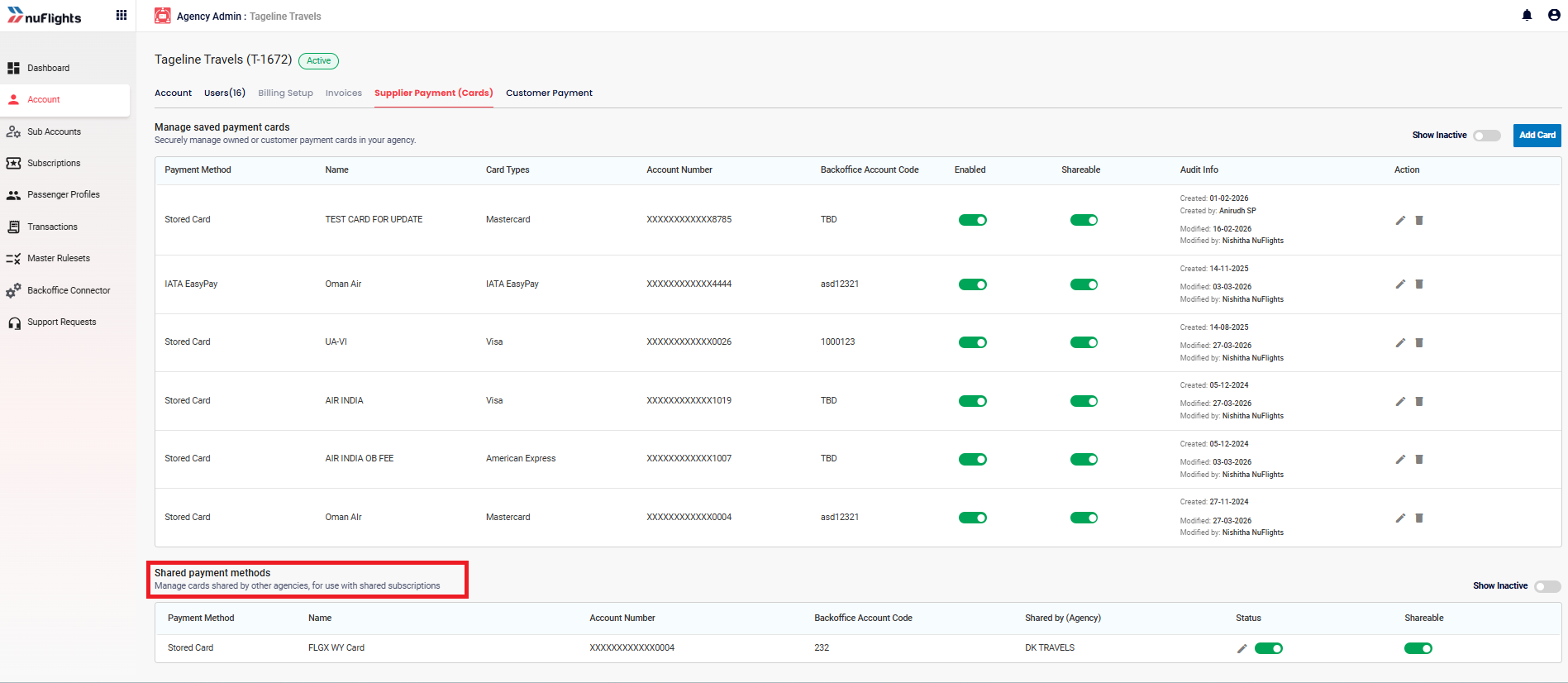
The Manage Saved Payment Cards list shows every payment method you've set up:
| Column | What it shows |
|---|---|
| Payment Method | The type, for example Credit Card or IATA EasyPay. |
| Name | An internal label, for example "Air India OB Fee" or "Corporate MasterCard". |
| Back Office Account Code | Connects the payment to your accounting system. Critical for reconciliation. |
| Enabled | Toggle to turn the card on (green) or off (grey). |
| Shareable | Toggle to share the card with your sub-agencies. |
Shared Payment Methods lists the cards other agencies have shared with you.
Manage existing cards
- Edit: click the edit icon to change details such as the Name or Back Office Account Code.
- Delete: remove payment methods you no longer use.
- Toggle status: turn a card on or off, or change its sharing, straight from the list.
Related guides