

Add bags, meals and assistance
Use this to add ancillary services to a booking, such as excess baggage, meals, wheelchair assistance and more. NuFlights supports both free and paid ancillaries, depending on what the airline offers. It takes 4 steps.
Before you start, check that:
- You've opened the booking you want to change. Not sure how? See Find a booking.
Step 1: Open Manage Ancillaries
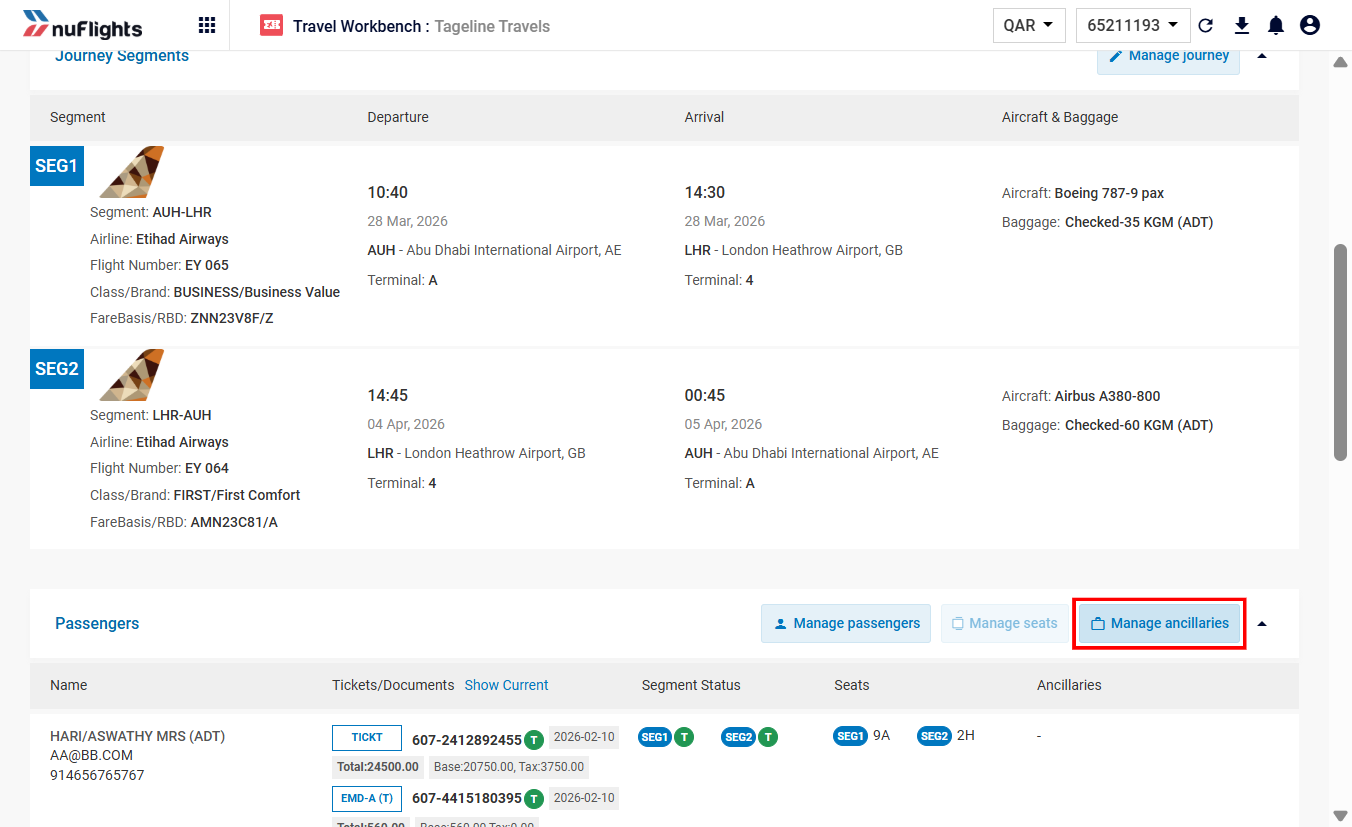
- On the Order View page, find the Ancillaries section or button.
- Click Manage Ancillaries to open the service selection screen.
Step 2: Select services
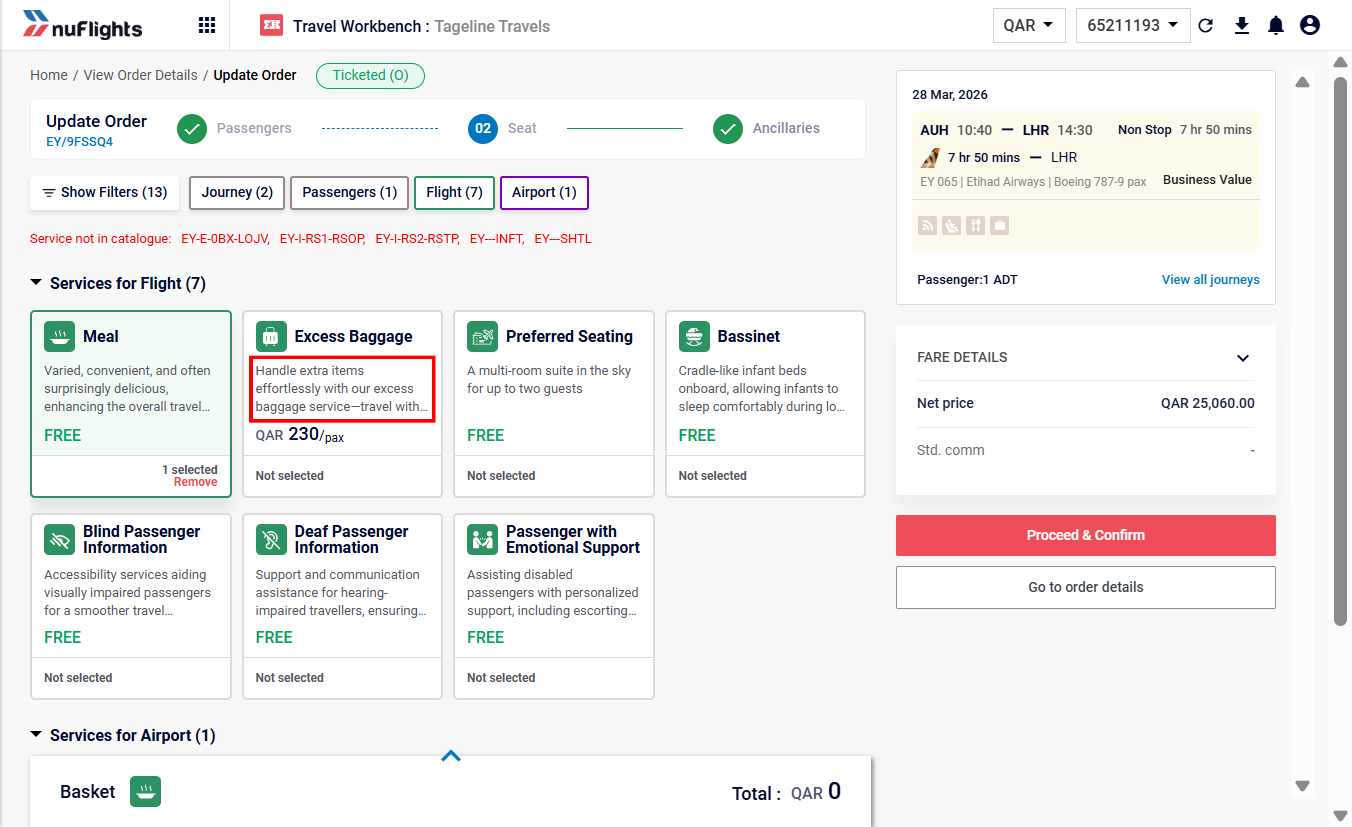
The screen shows the services available for the booking, grouped by category (for example Meals or Baggage).
- Click a category tile (for example Meals) to see its options.
- Select the item you want (for example Vegetarian Meal).
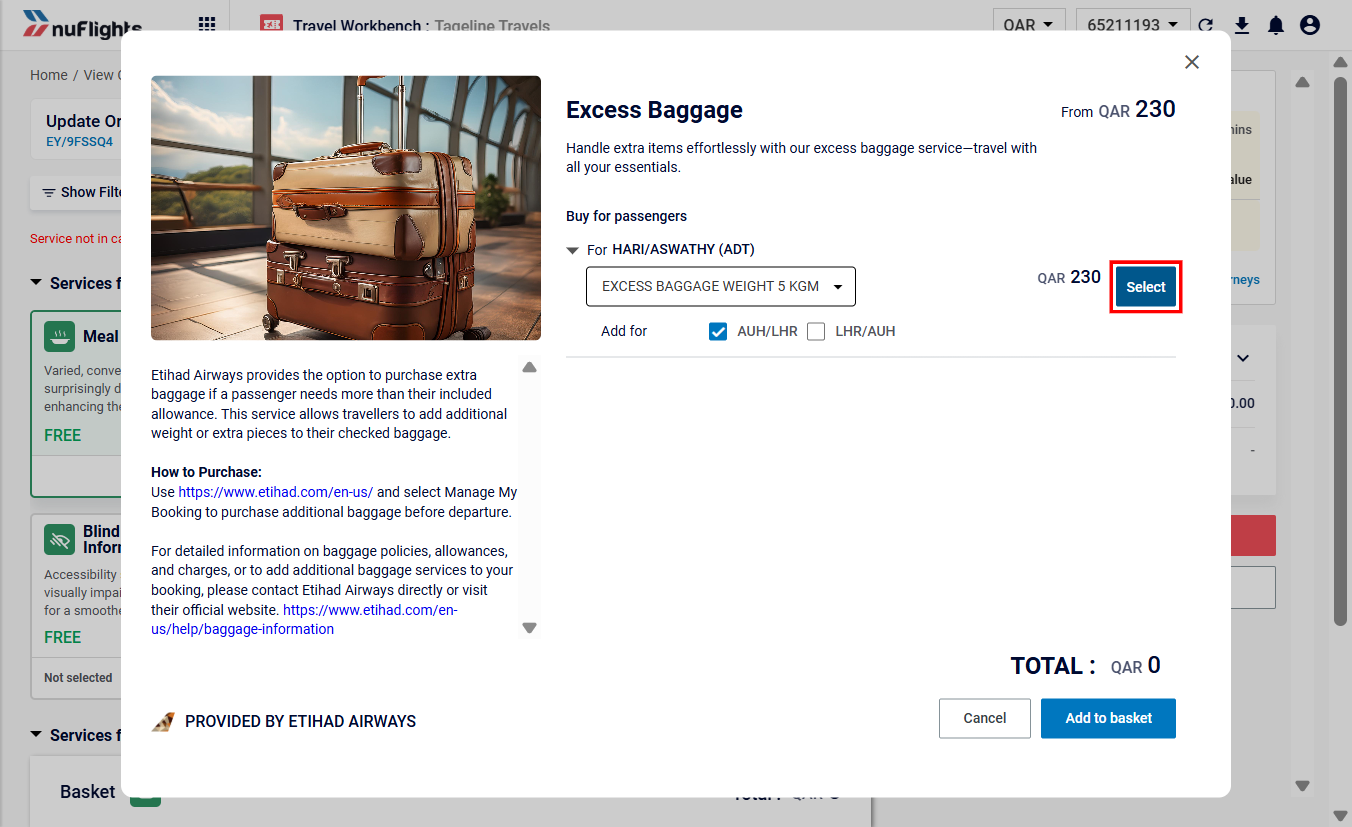
- Choose the passenger or passengers who need the service, and the flight segment or segments it applies to.
- Click Add to Basket to stage the changes.
Step 3: Review the basket and pay
When you've added all the services you need:
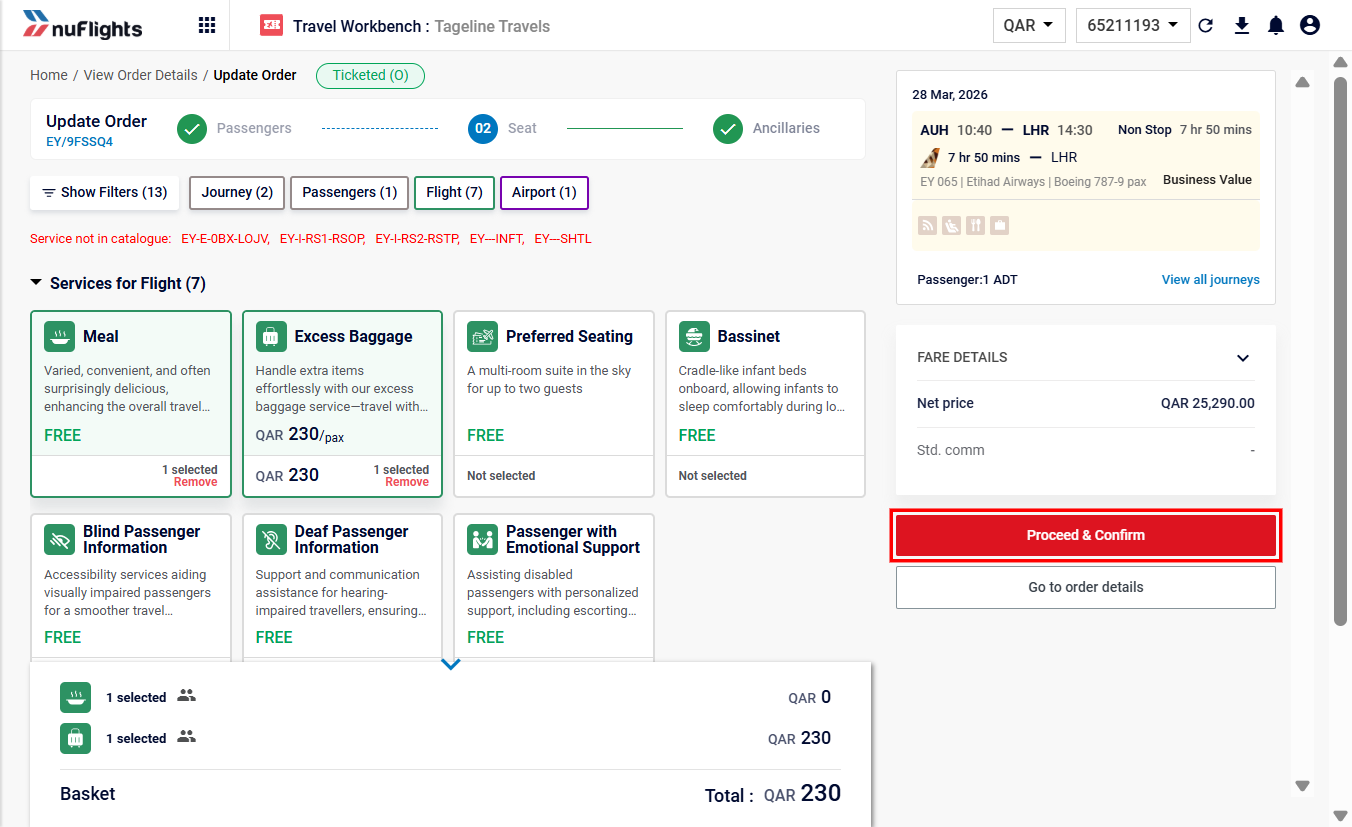
- Check the Basket for the selected items and the total cost.
- If the service is free (for example some meal requests), the cost shows as 0.00.
- If the ancillary needs payment (for example Excess Baggage), go to the payment screen.
info
Paying for ancillaries works like paying for tickets. For how to take payment and issue EMDs for paid ancillaries, see Pay and issue tickets.
Step 4: Check the services on the order
Once the services are added (and paid for, if needed):
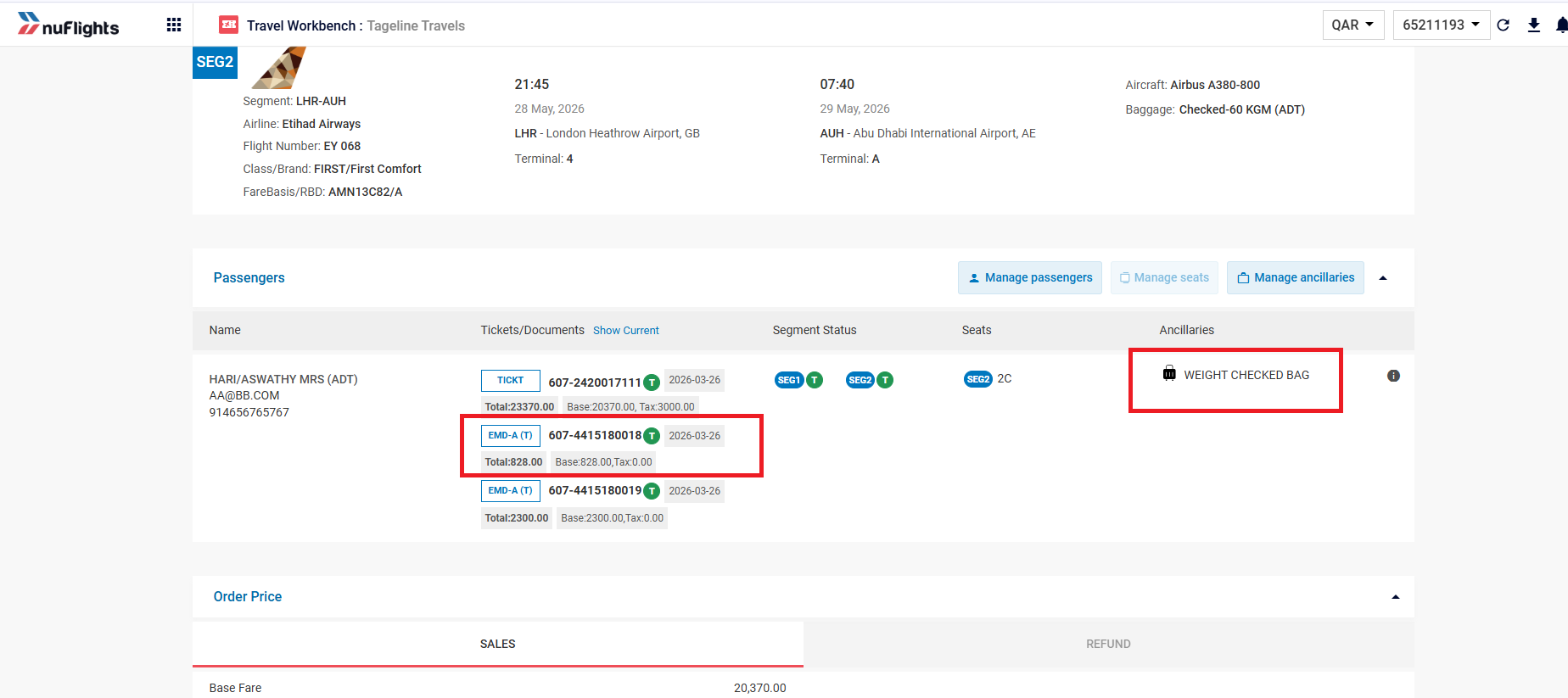
- The Order View page shows the new services next to the passenger and segment they apply to.
- For paid services, an EMD (Electronic Miscellaneous Document) number is generated and shown.
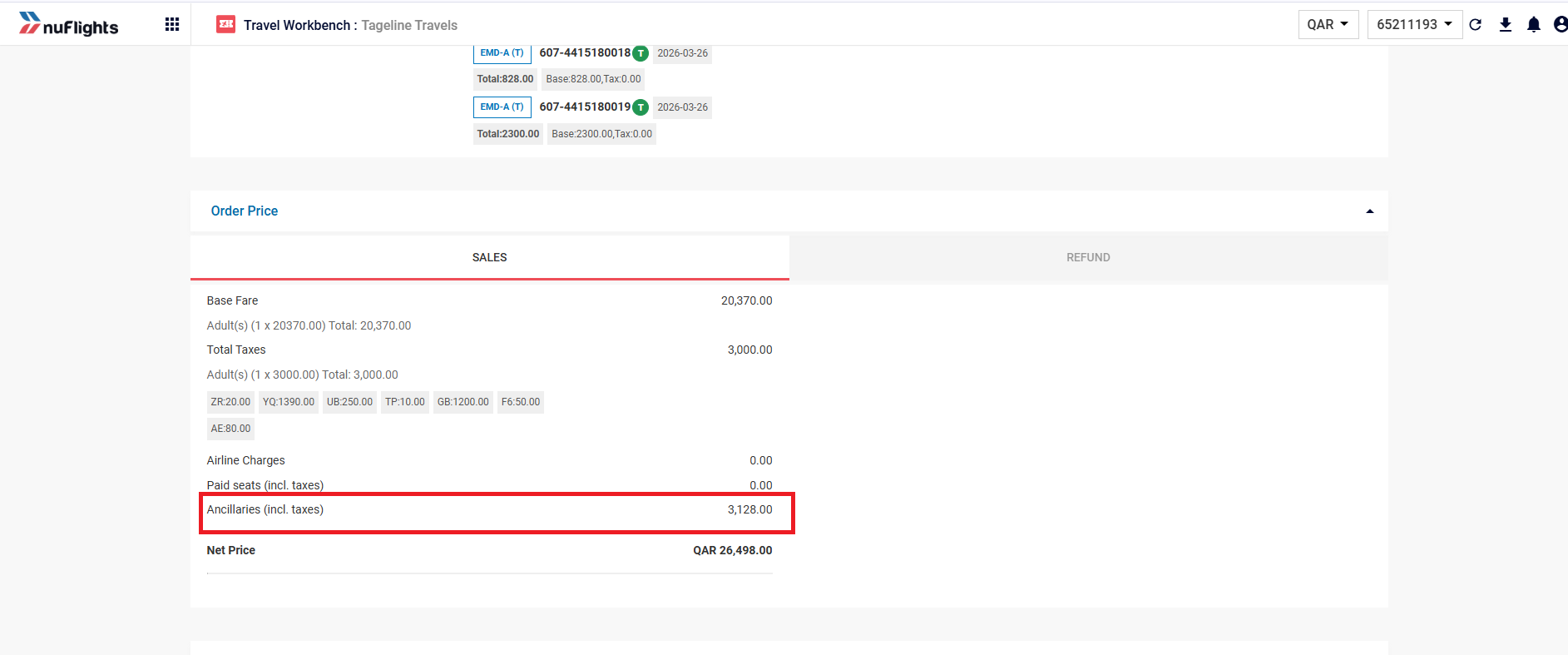
- The amount paid for the ancillary service is shown in the Order Summary section.
Related guides