

Pay with the traveler’s card
Use this when the customer gives you their own credit card details during the booking, and you want to take a real-time payment with that card in the Travel Workbench. It takes 5 steps.
Step 1: Open the order
Open the existing PNR or order that needs payment.
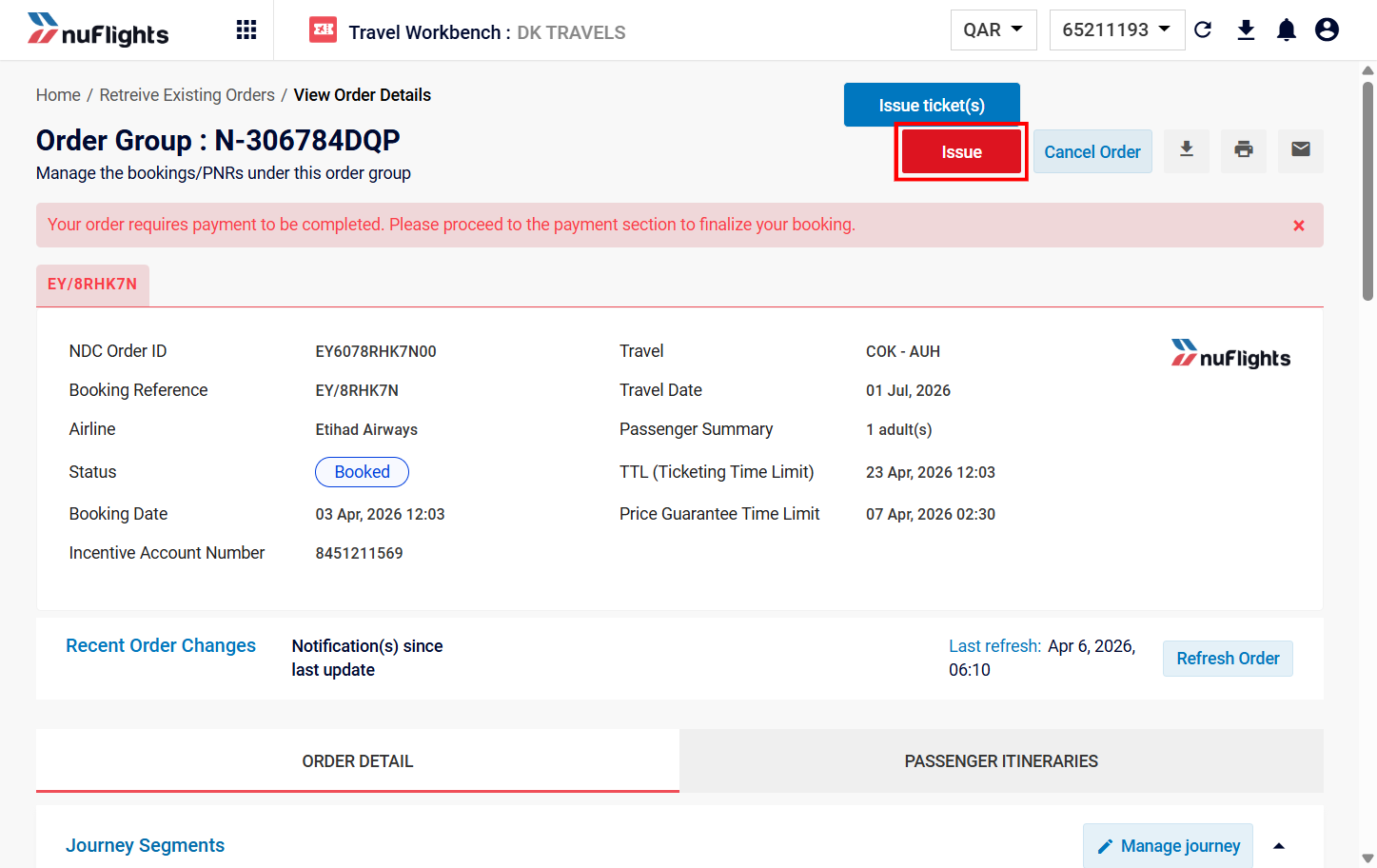
Step 2: Go to the Payment page
On the order page, click Issue (or go through any reprice checks) to reach the Payment page.
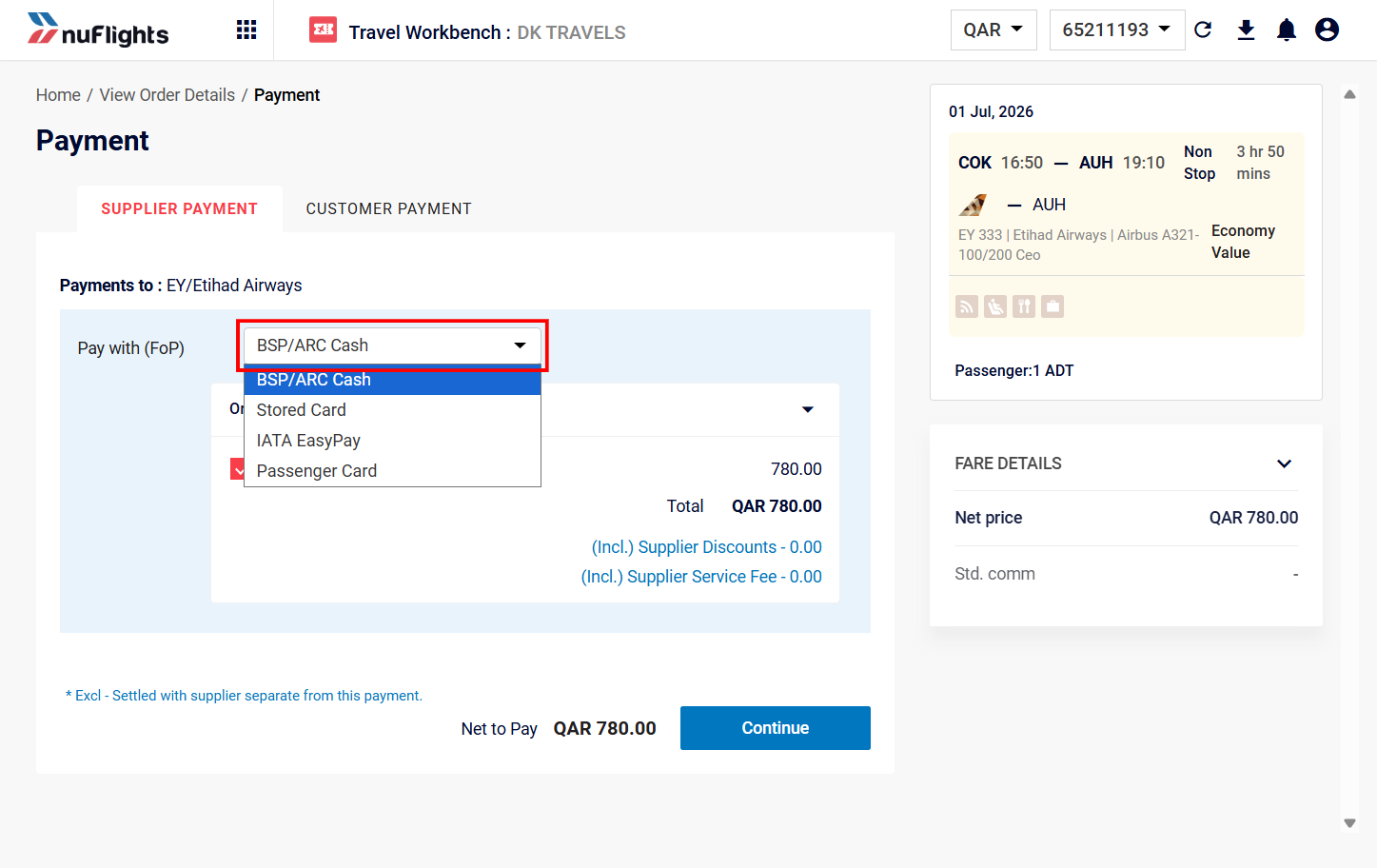
Step 3: Select Passenger Card
- In the Supplier Payment section, find the supported Forms of Payment (FOP).
- Select Passenger Card from the FOP dropdown. The card details fields appear.
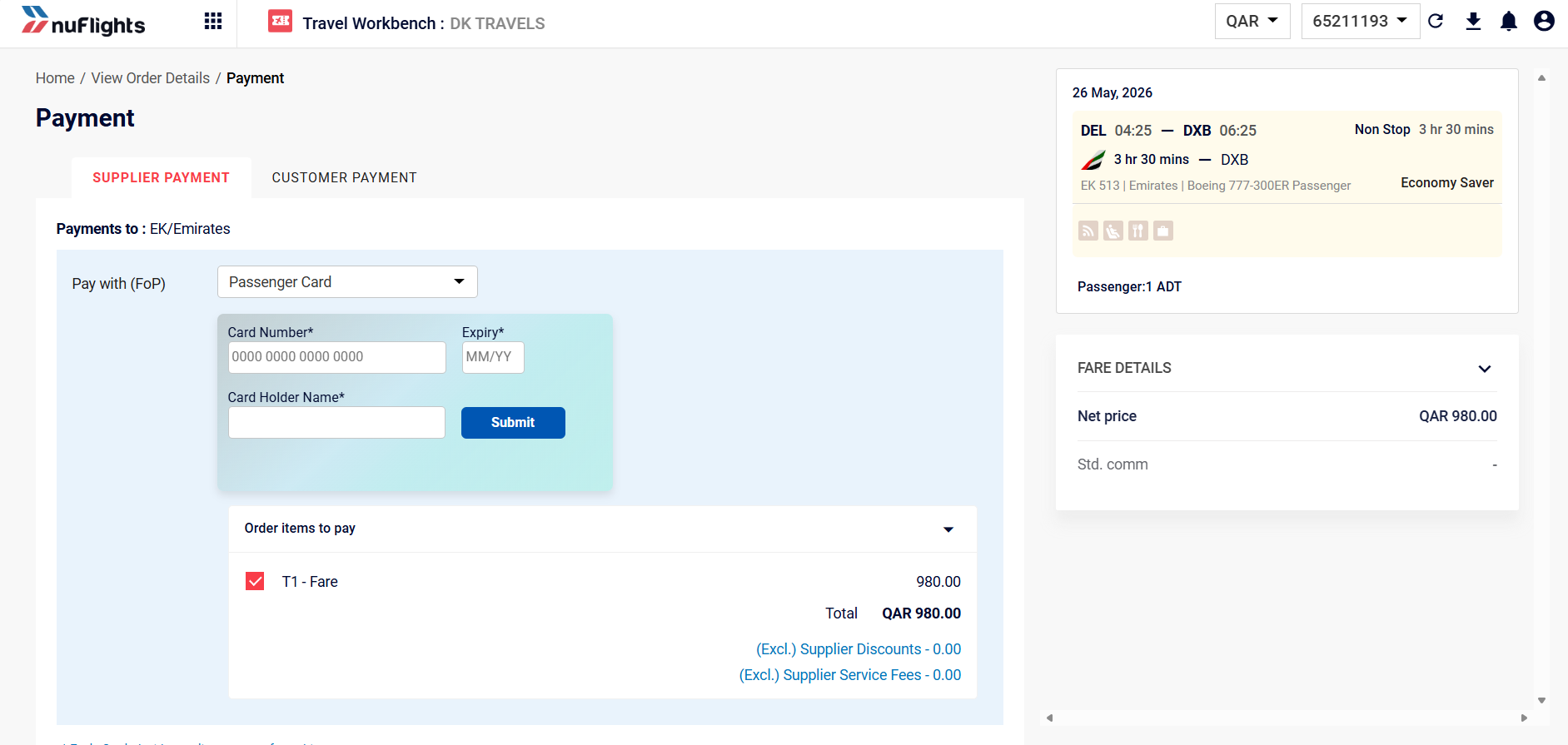
Step 4: Enter the card details
Enter the details the customer gives you:
- Card Number
- Expiry Date
- Cardholder Name
Card details are never stored. For security, passenger credit card details are never stored in any NuFlights database. They're used only for this transaction.
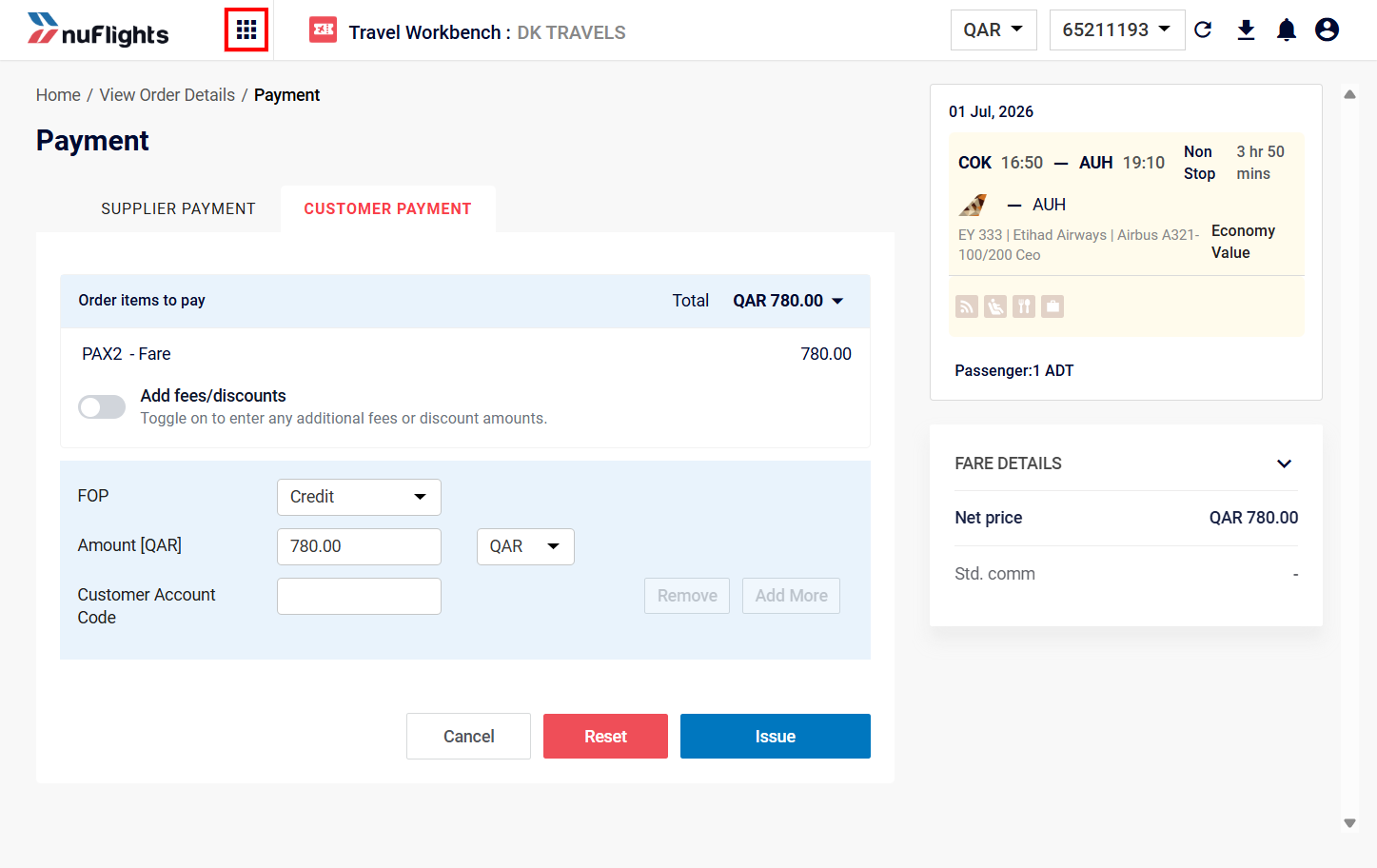
Step 5: Click Issue
The system checks the card format automatically. If the details are correct, click Issue to complete the payment.
Supported forms of payment vary by airline
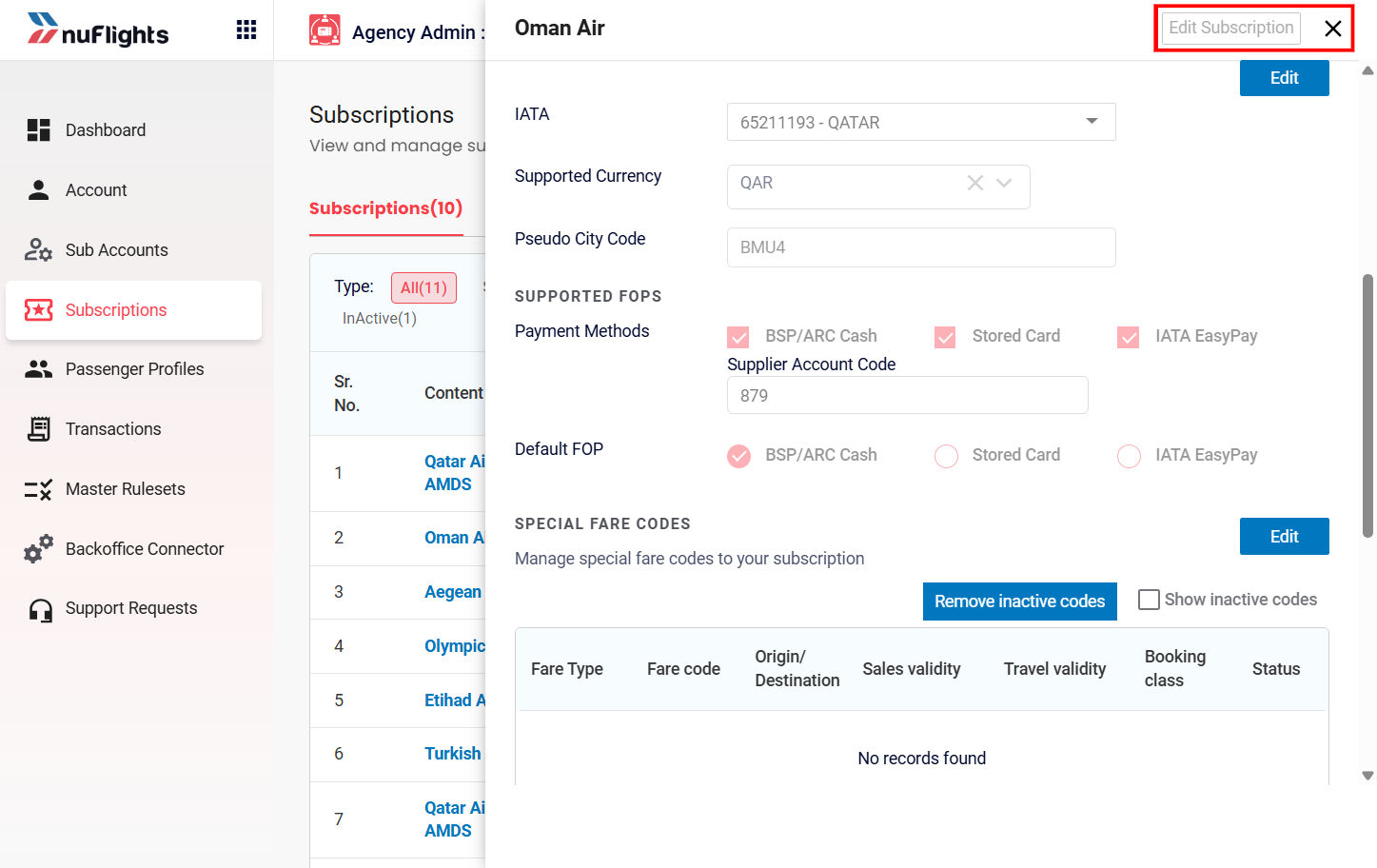
The supported Forms of Payment (FOP) may vary by airline. You can check the supported FOPs for each subscribed airline in the Agency Admin application.
Check the supported FOPs (admins only)
If you have admin rights, you can check the supported payment methods for any airline subscription:
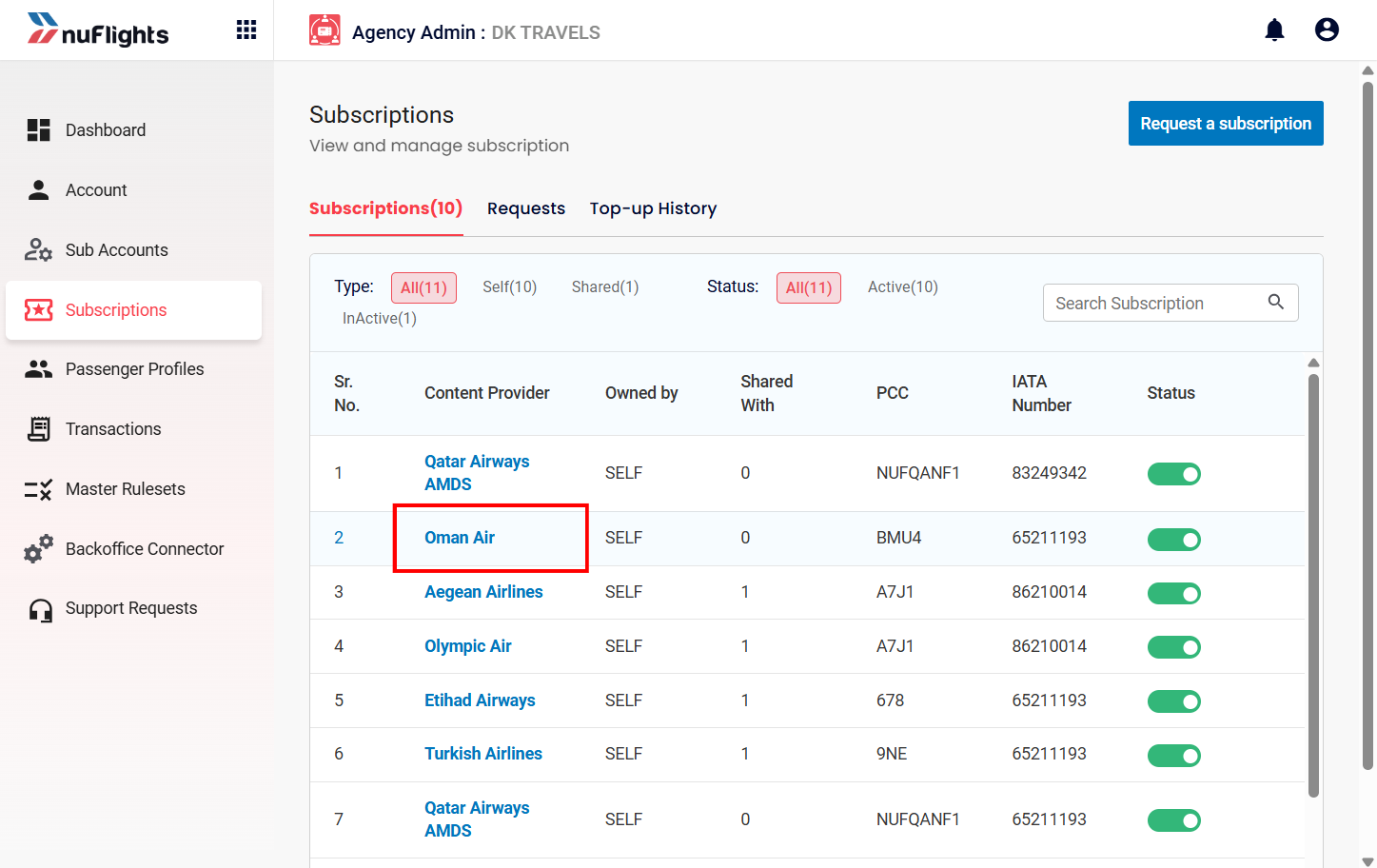
- Open the Agency Admin application.
- Go to Subscriptions.
- Select the airline subscription. Its supported FOPs are listed.
Related guides