

Cancel a booked order
Use this to cancel a booked PNR (Passenger Name Record) that hasn't been ticketed yet. A booked PNR is a reservation made without payment or ticket issue.
info
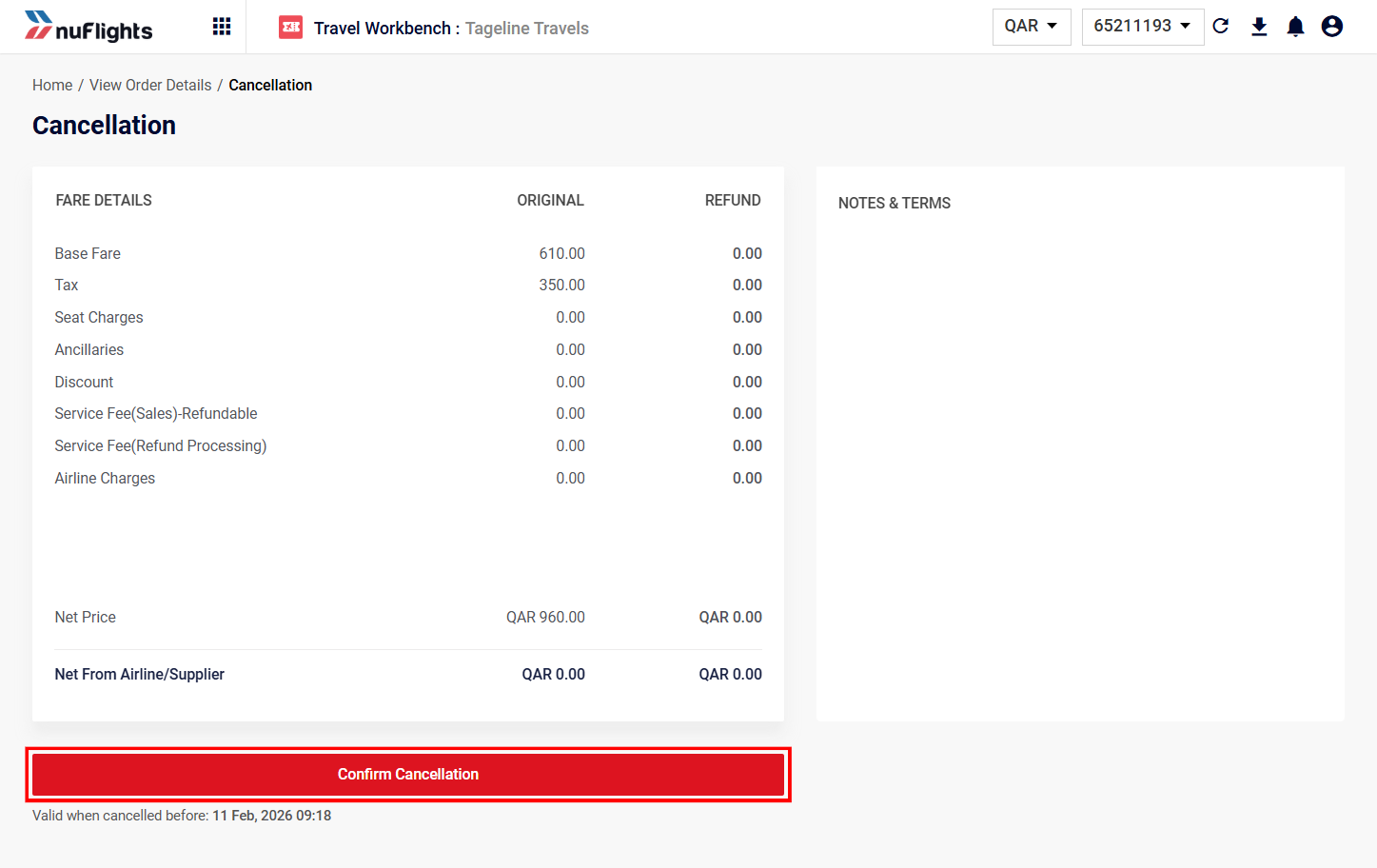
No refund and no charges. Because a booked PNR is not a confirmed ticket, there is no refund process and no cancellation charges apply. The booking is simply removed from the system.
Before you start, check that:
- You have an existing order with the status Booked.
- You are logged in to the Travel Workbench.
Step 1: Open the booked order
- Go to the Retrieve Orders page.
- Search for the Booked order you want to cancel and open it.
Not sure how? See Find a booking.
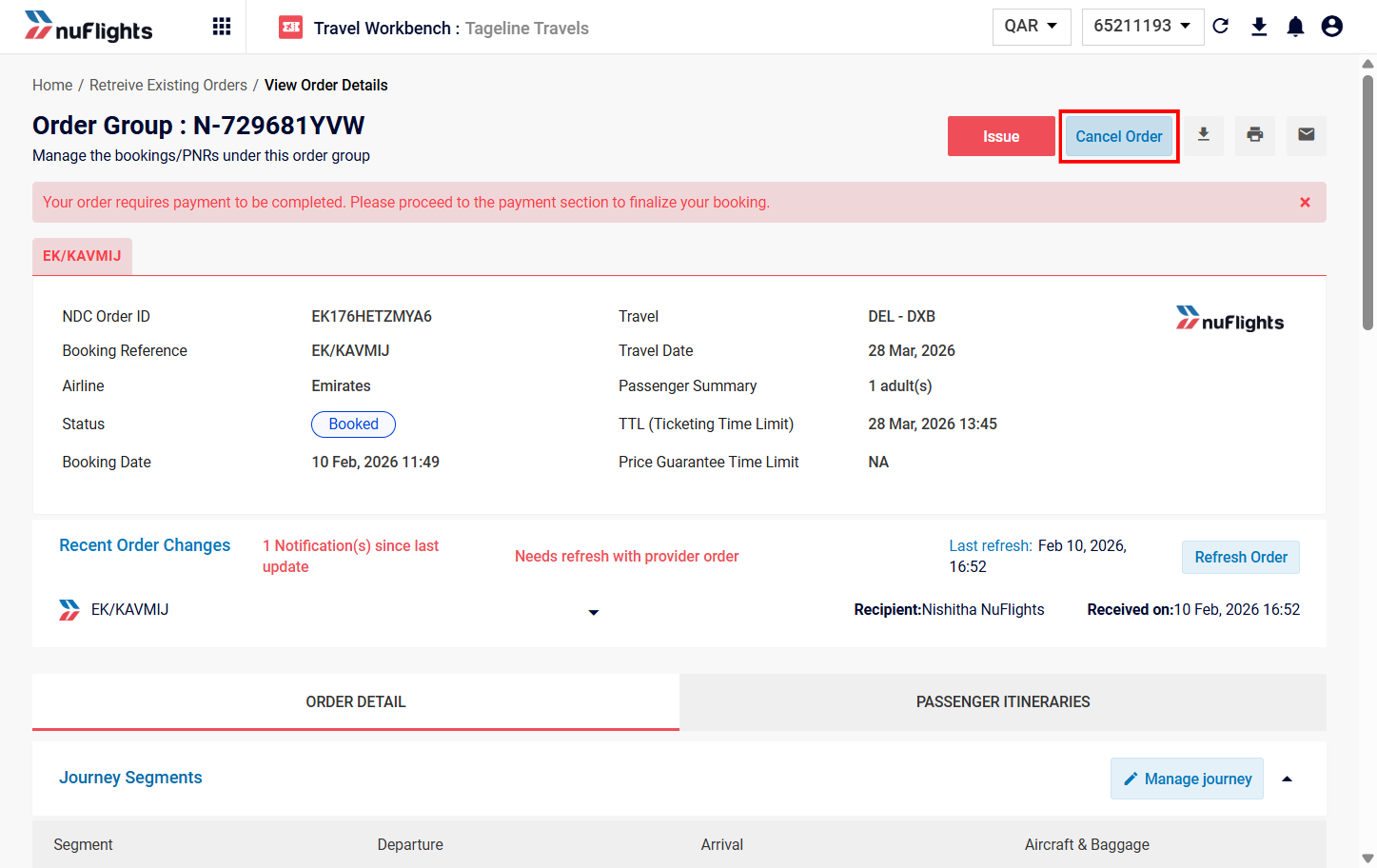
Step 2: Click Cancel Order
On the order details page, click Cancel Order (usually at the top of the page).
Step 3: Confirm the cancellation
A confirmation dialog asks if you want to cancel all items in the order.
- Click Proceed.
- Confirm the cancellation in any prompt that follows.
Step 4: Check the order status
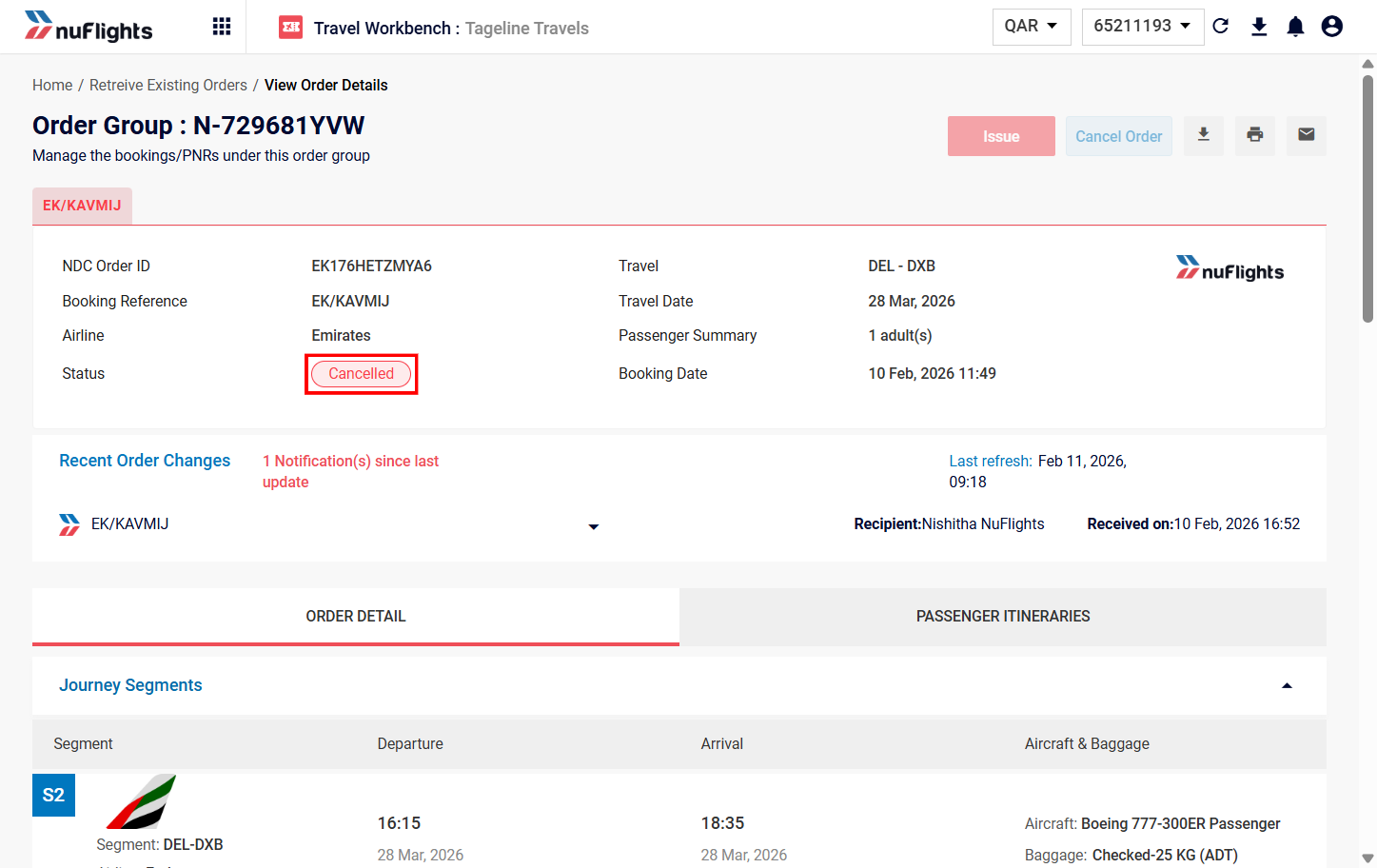
The cancellation is processed straight away and the Order Status changes to Cancelled. You can see the new status on the Order Details page.
Related guides