

Edit passenger details
Use this to edit or update passenger details that were entered during booking, such as passport details, contact details and frequent flyer numbers. You'll make the changes with the Manage passengers option and then save.
Step 1: Open the order
Find the PNR you want to change and open it on the Order View page. Not sure how? See Find a booking.
Step 2: Click Manage passengers
- Find the Passengers section.
- Click the Manage passengers button at the top right of the section.
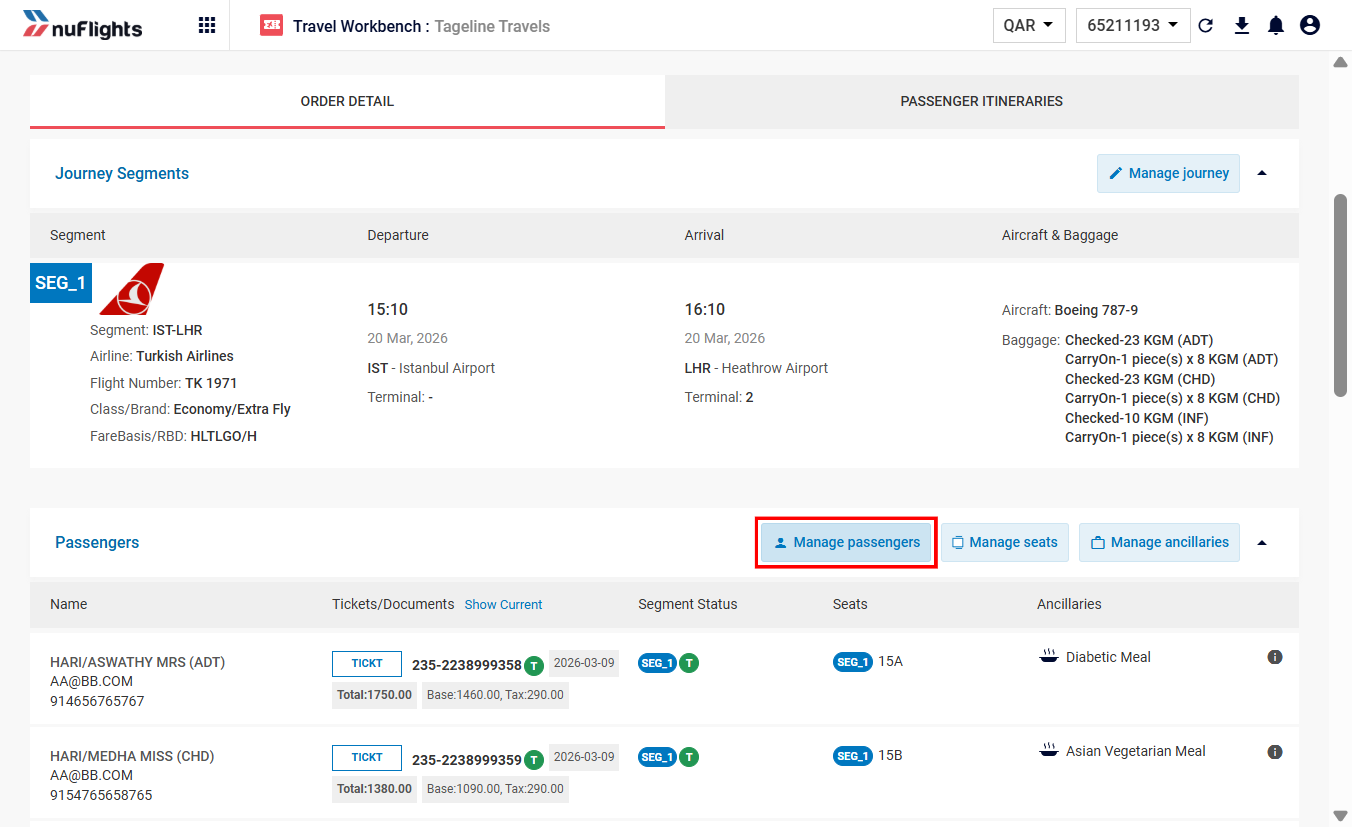
The Passenger details screen opens over the page. You make your changes here.
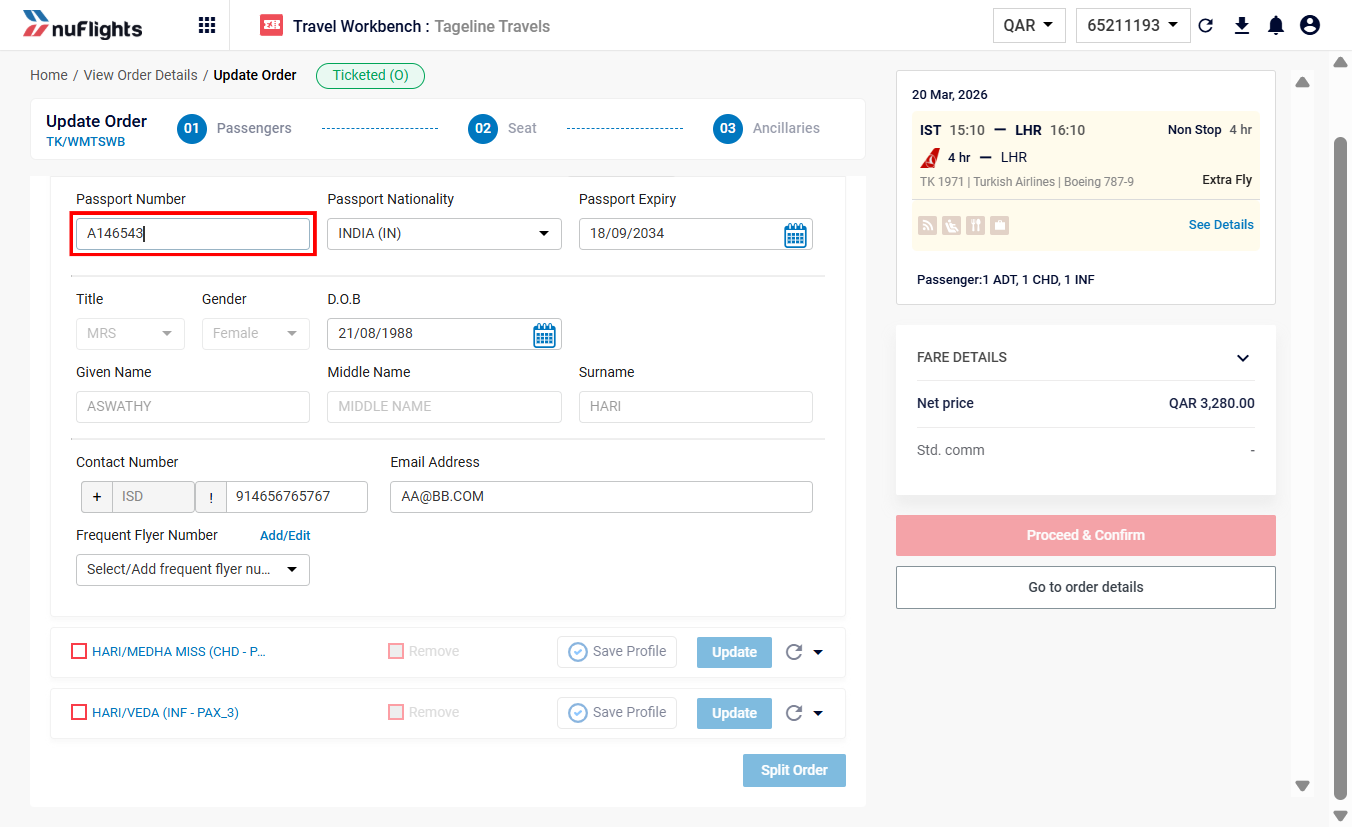
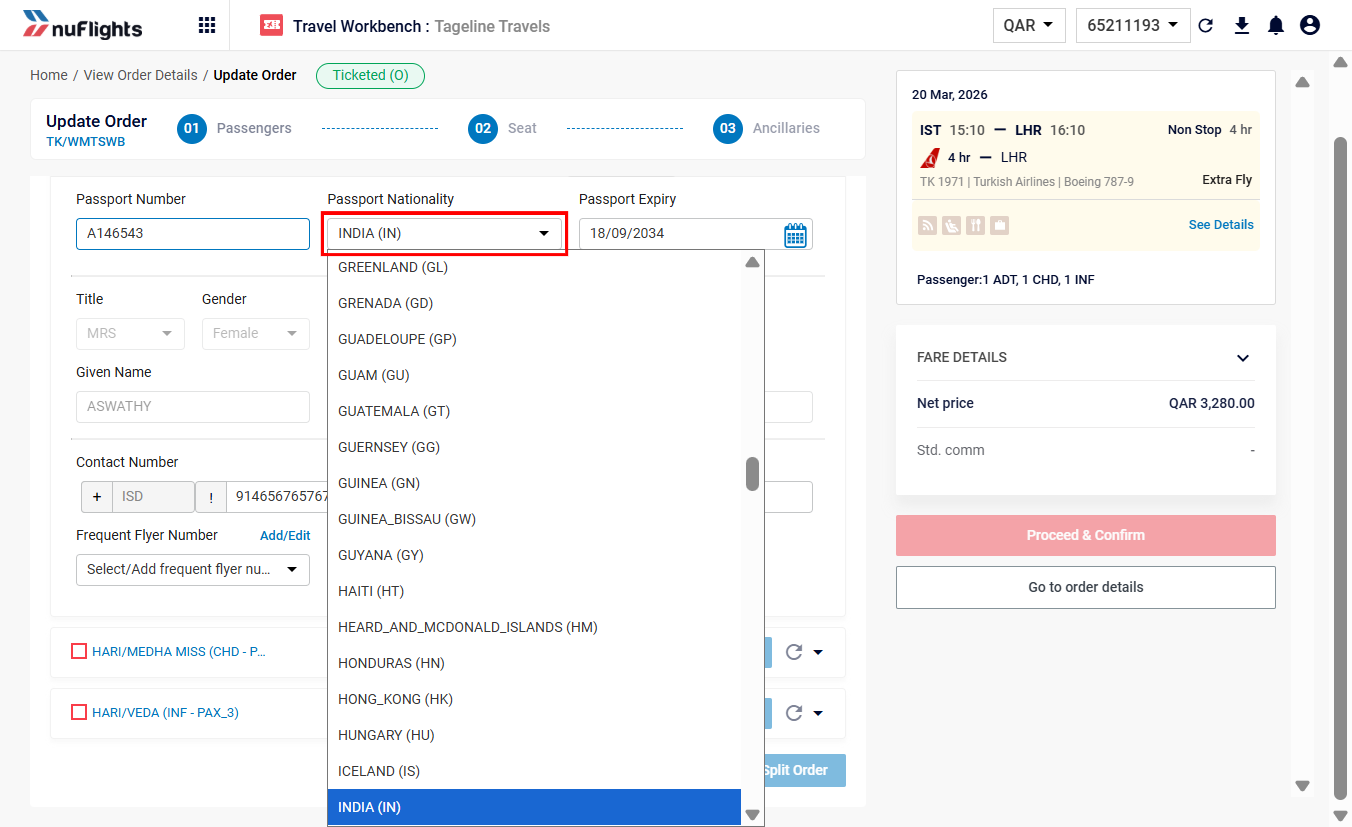
Step 3: Update passport and nationality
Correct these fields directly in the form:
- Passport Number
- Nationality
- Passport Expiry Date
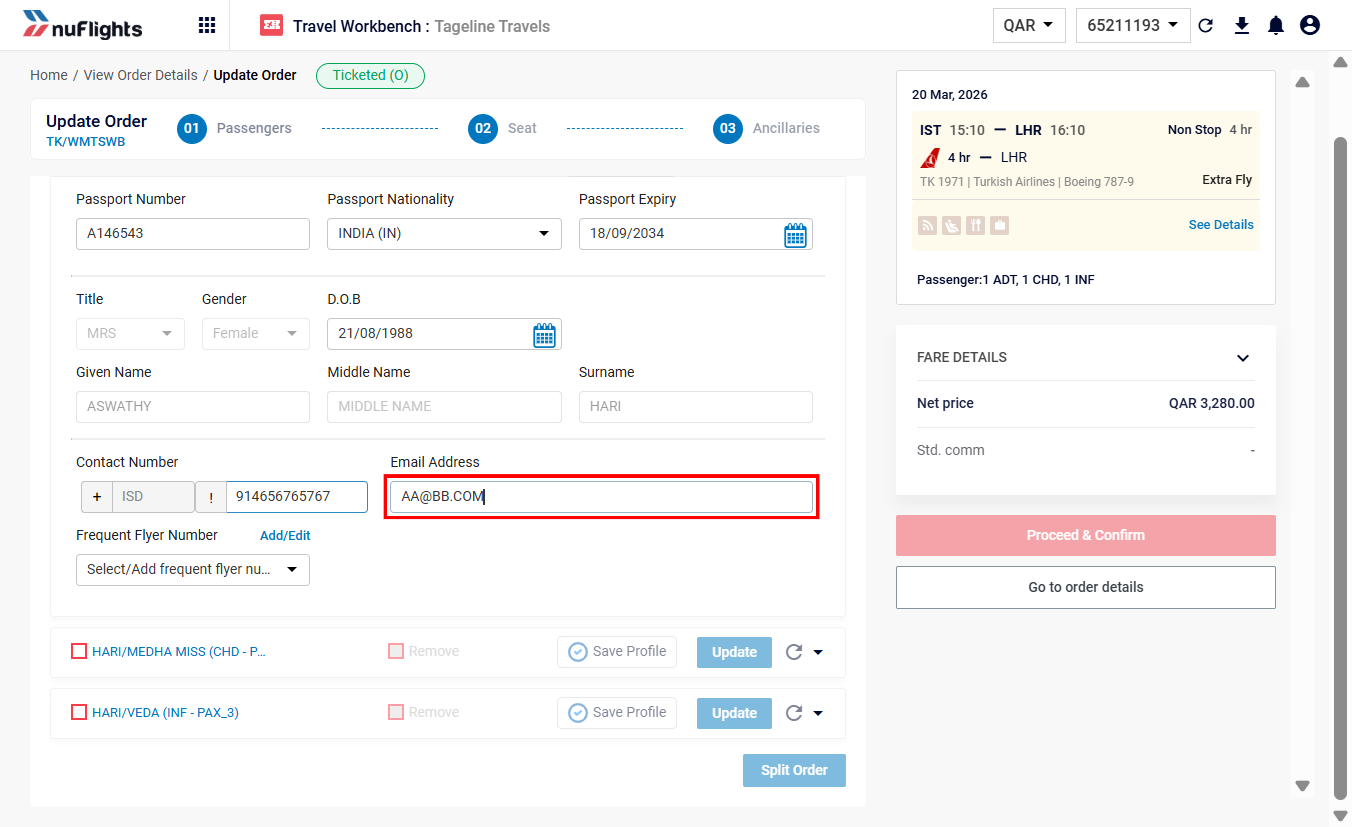
Step 4: Update contact details if needed
If you need to correct the passenger's details or how they are contacted, update these fields:
- Date of Birth: keeps age-related pricing and identification accurate.
- Contact Number: the passenger's main phone number.
- Email Address: where itineraries and updates are sent.
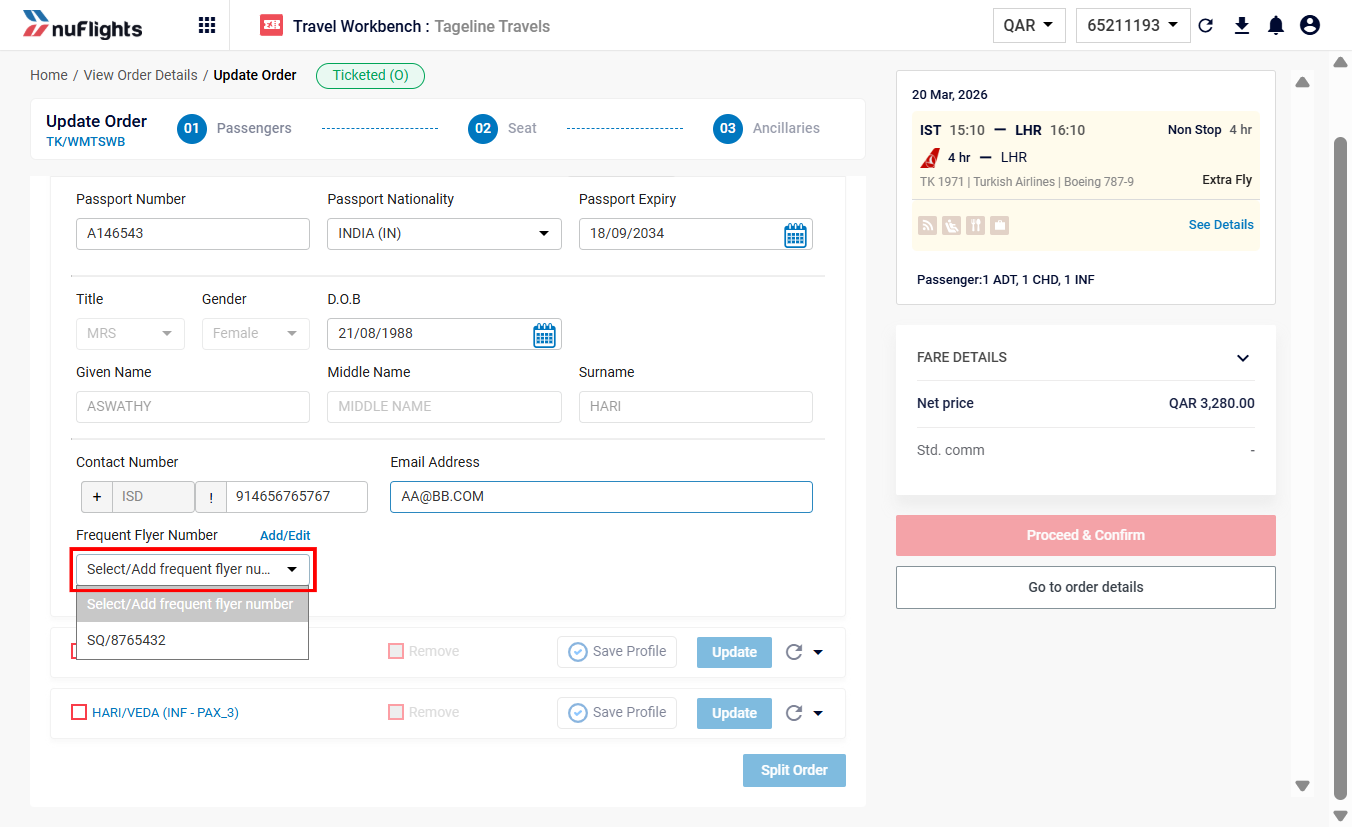
Step 5: Add a frequent flyer number if needed
If the passenger has a loyalty account with the airline, add their frequent flyer number so they get credit for the trip.
- Find the Frequent Flyer Number field in the passenger's details.
- Enter the loyalty number.
Depending on the airline, the number may be checked straight away when you enter it.
Step 6: Save your changes
When you've made all the changes (passport, contact details or frequent flyer numbers), click the Save or Update button (typically at the bottom of the screen) to apply them to the PNR.
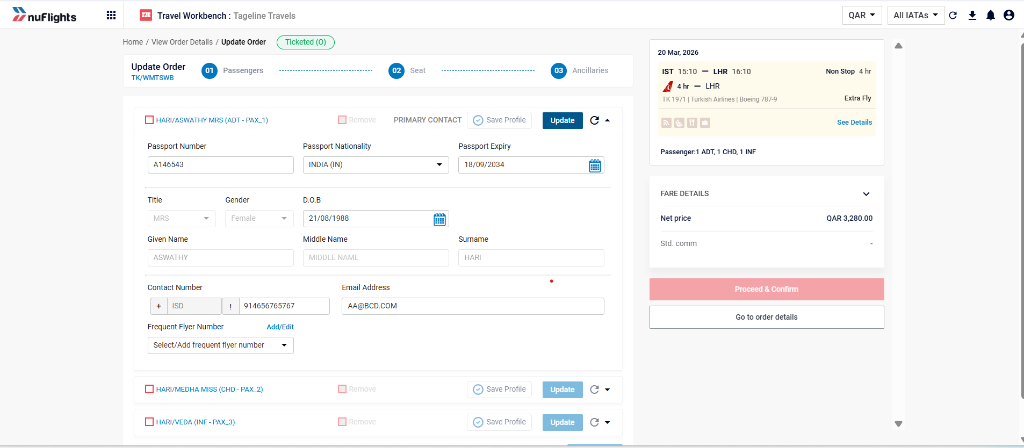
The passenger details are now updated in NuFlights and synchronized with the airline.
Related guides