

Split a PNR
Use Split PNR to move one or more passengers from a multi-passenger booking into a new, separate PNR (Passenger Name Record). For example, when:
- One or more passengers want to travel separately.
- Some passengers are cancelling their journey while others continue.
- A booking made together needs to be managed separately for changes or ticketing.
Before you start, check that:
- You have a Booked or Ticketed PNR with multiple passengers.
- You are logged in to the Travel Workbench.
Step 1: Open the PNR
- Go to the Retrieve Orders page.
- Search for the Booked or Ticketed PNR with multiple passengers and open it.
Not sure how? See Find a booking.
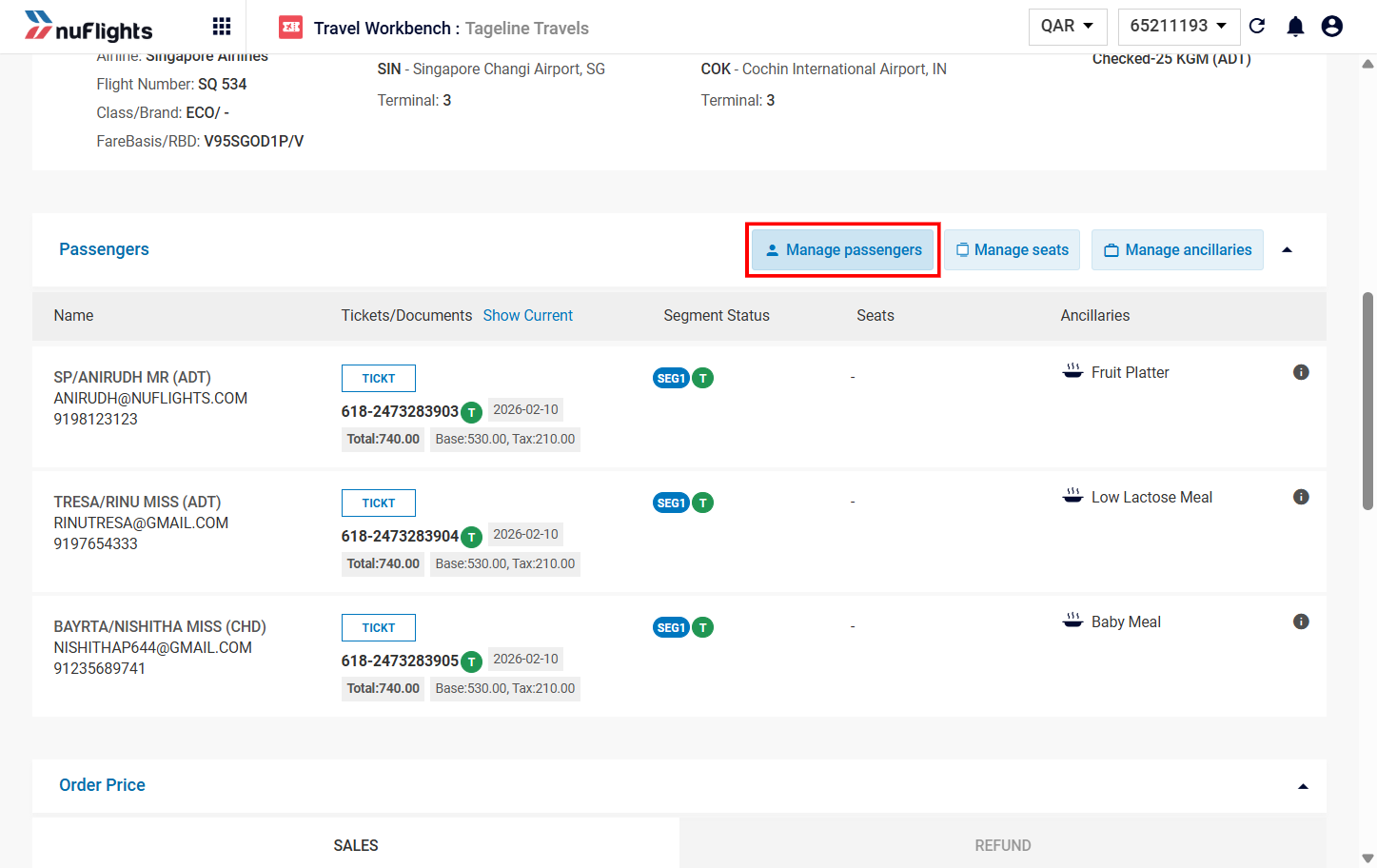
Step 2: Click Manage Passengers
- Scroll to the Passenger Details section.
- Click the Manage Passengers button. The Order Update page opens.
Step 3: Select the passengers and click Split Order
- On the Order Update page, find the list of passengers.
- Tick the checkbox next to each passenger you want to split (for example, "Renault Trisa").
- Click the Split Order button.
info
You can't split the primary contact. The primary contact can't be split from the booking. Only other passengers can be moved to a new PNR.
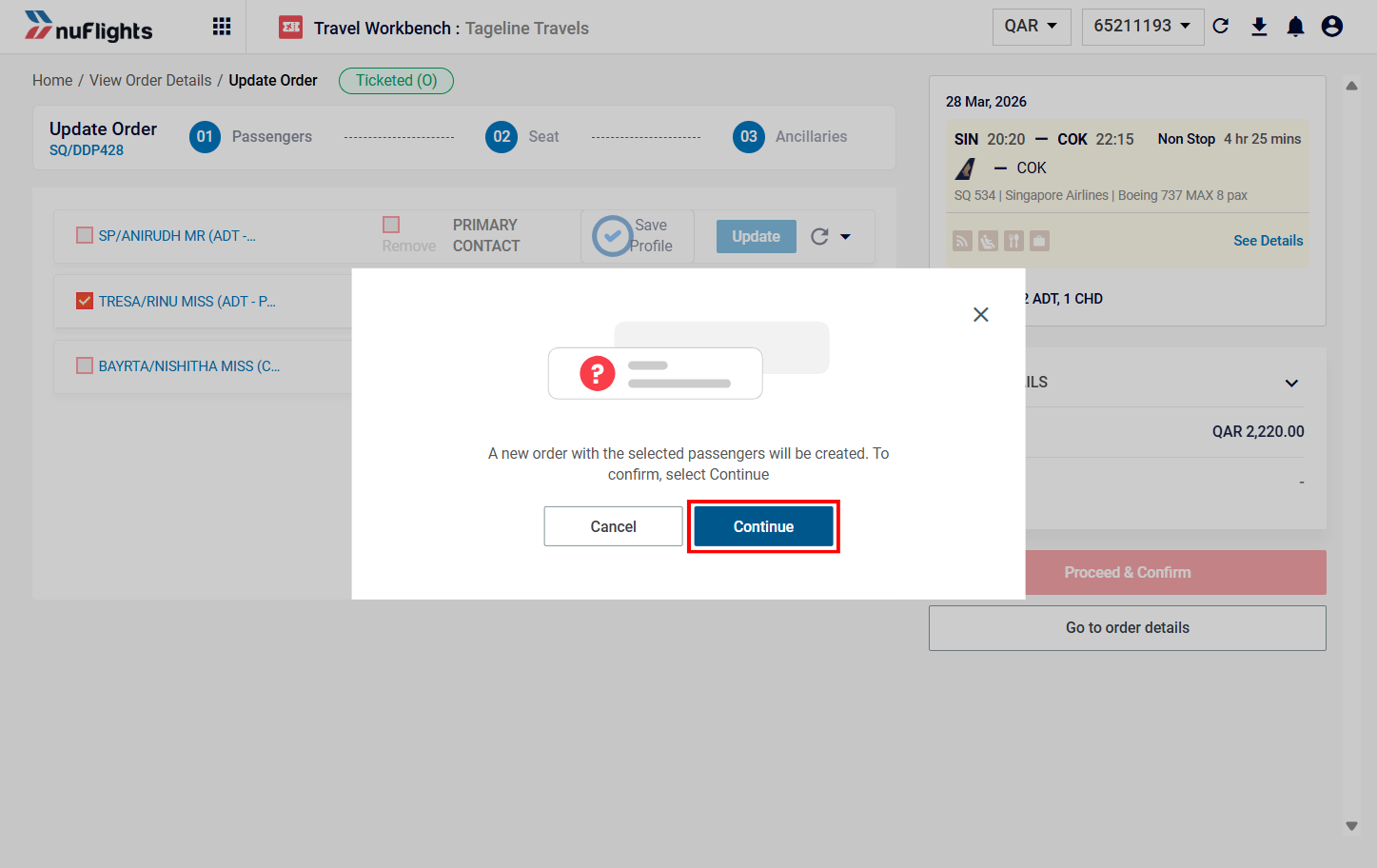
Step 4: Click Continue
- A confirmation message says a new order will be created for the selected passengers. Click Continue.
- The split is processed and an "Order changed successfully" message appears.
Step 5: Check the new PNRs
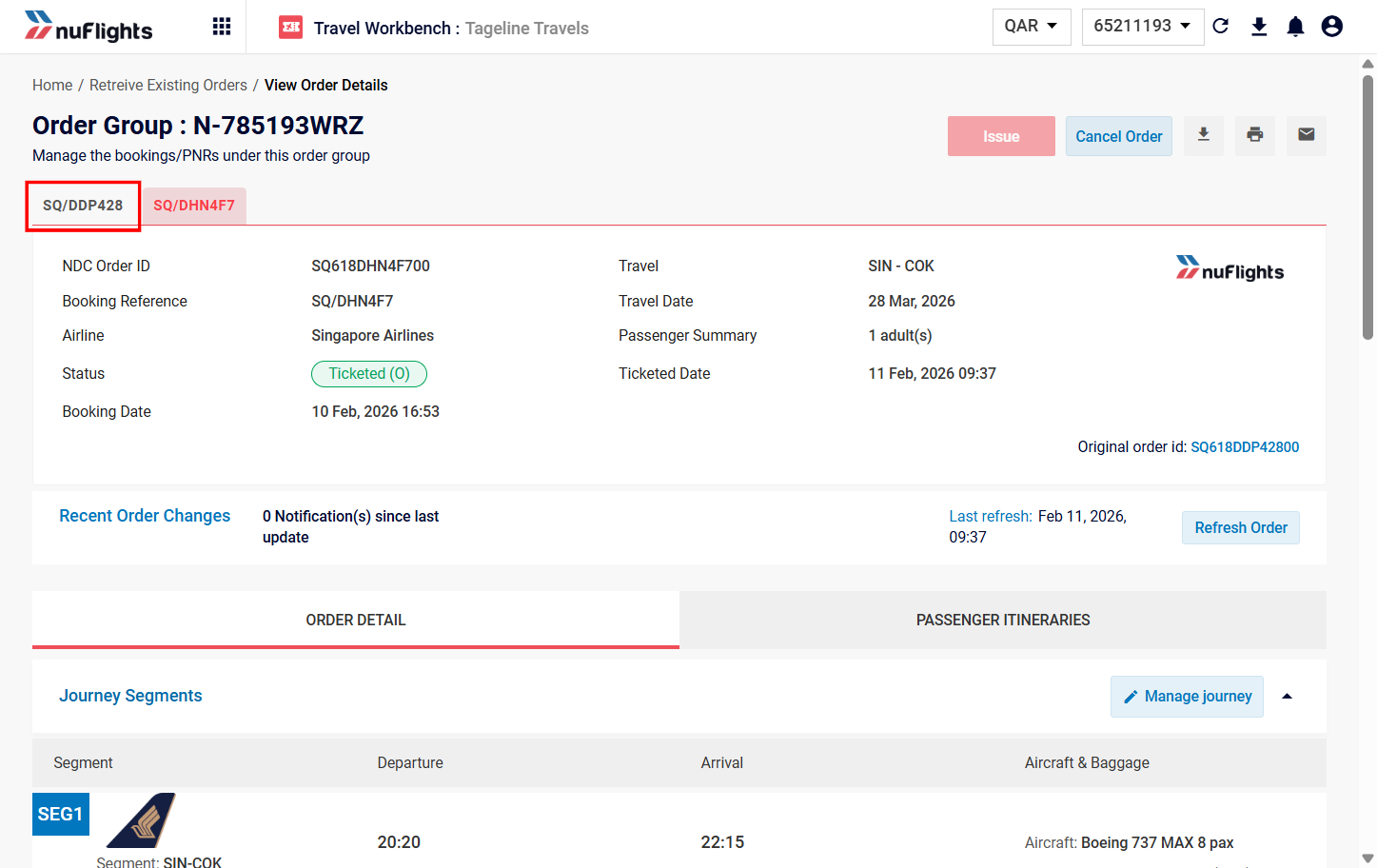
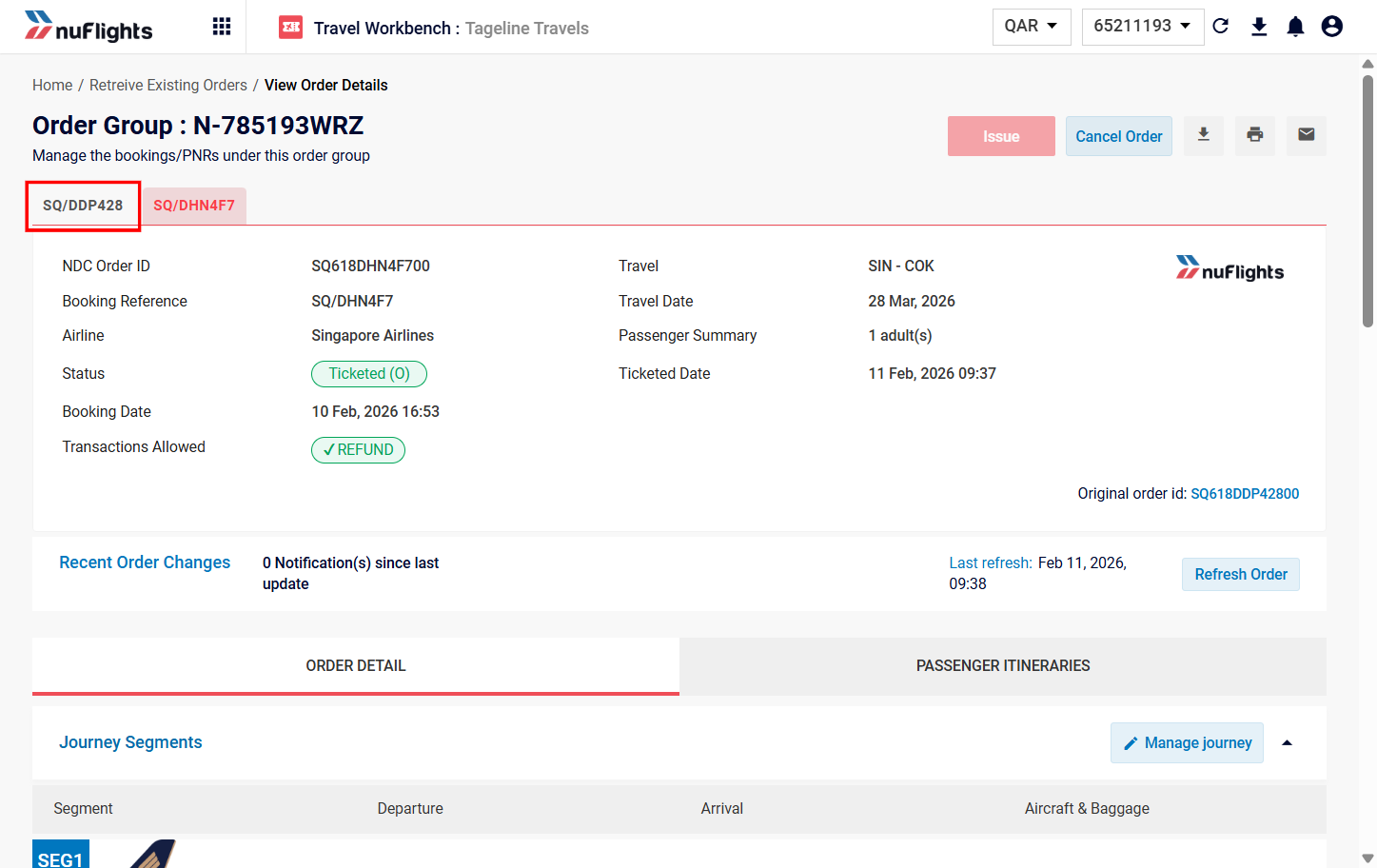
Click View Order. After the split:
- The remaining passengers stay in the original Master PNR.
- The split passengers move to a new Child PNR with a different reference number.
- Both PNRs have their own PNR numbers.
Related guides