

Book a flight
Use this to search for flights, compare airline offers and create a booking on NuFlights. You'll go from search to a booked order in 8 steps.
Before you start, check that:
- You're logged in to your NuFlights agency account.
- Your agency has an active subscription with at least one airline.
Step 1: Set up your search
On the flight search screen, fill in the search fields:
| Field | What to enter |
|---|---|
| Airline (optional) | Leave it blank to search all active airline subscriptions connected to your agency. To get offers from one airline only, select it from the list. |
| Trip type | Return for a round trip, Multi-City for a multi-city journey, or One Way for a single-leg journey. |
| Origin and Destination | Type an airport code (for example LHR) or a city name. Airport details appear as you type, so you can confirm your choice. |
| Dates | Your departure date and, for return trips, your return date. |
| Passengers | The number of adults, children and infants. |
| Cabin type | The cabin class you want (for example Economy or Business). |
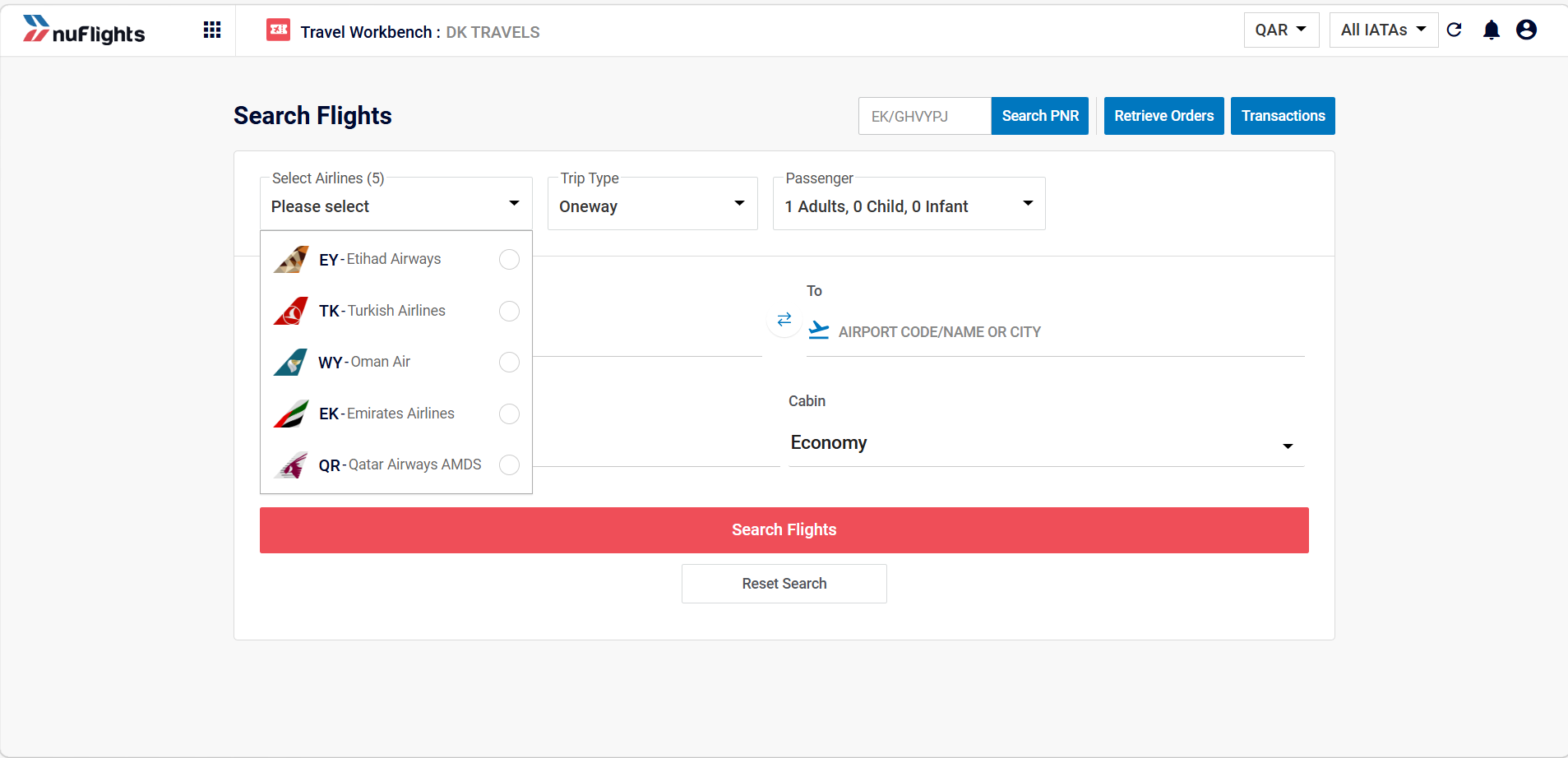
If you search all airlines, you can still filter the results down to one airline on the results page.
Booking Local Inventory flights? To search and book only your agency's Local Inventory flights, select the NF – NF LOCAL INV carrier from the list. The selected airline shows a green tick.
Applying a Special Fare Code: to use a negotiated rate or corporate fare, you must first select the airline it belongs to. Once you've selected an airline, an optional Special Fare Code dropdown appears. Pick your configured code to apply it to the search.
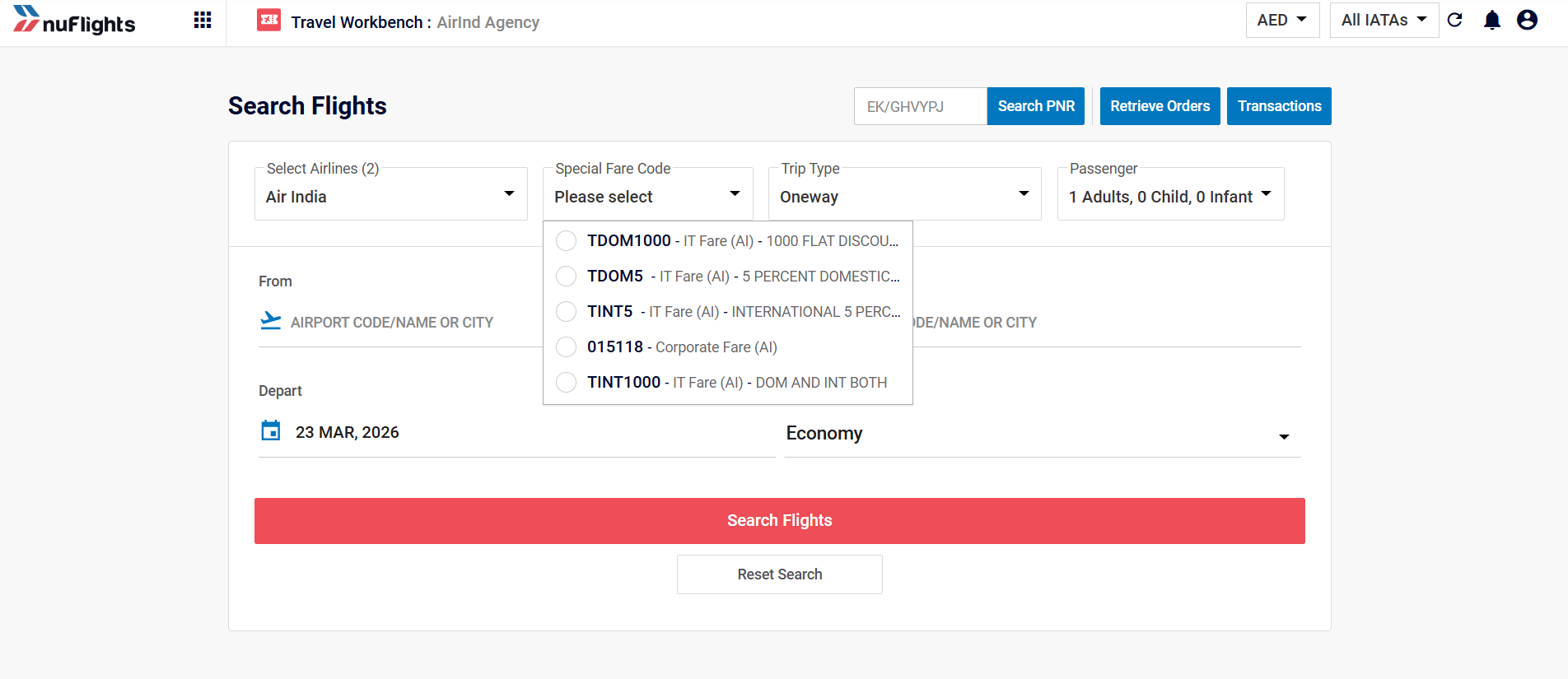
Special Fare Codes are set up in Agency Admin. They must be configured in the Agency Admin portal before you can use them. See the Special Fare Codes guide.
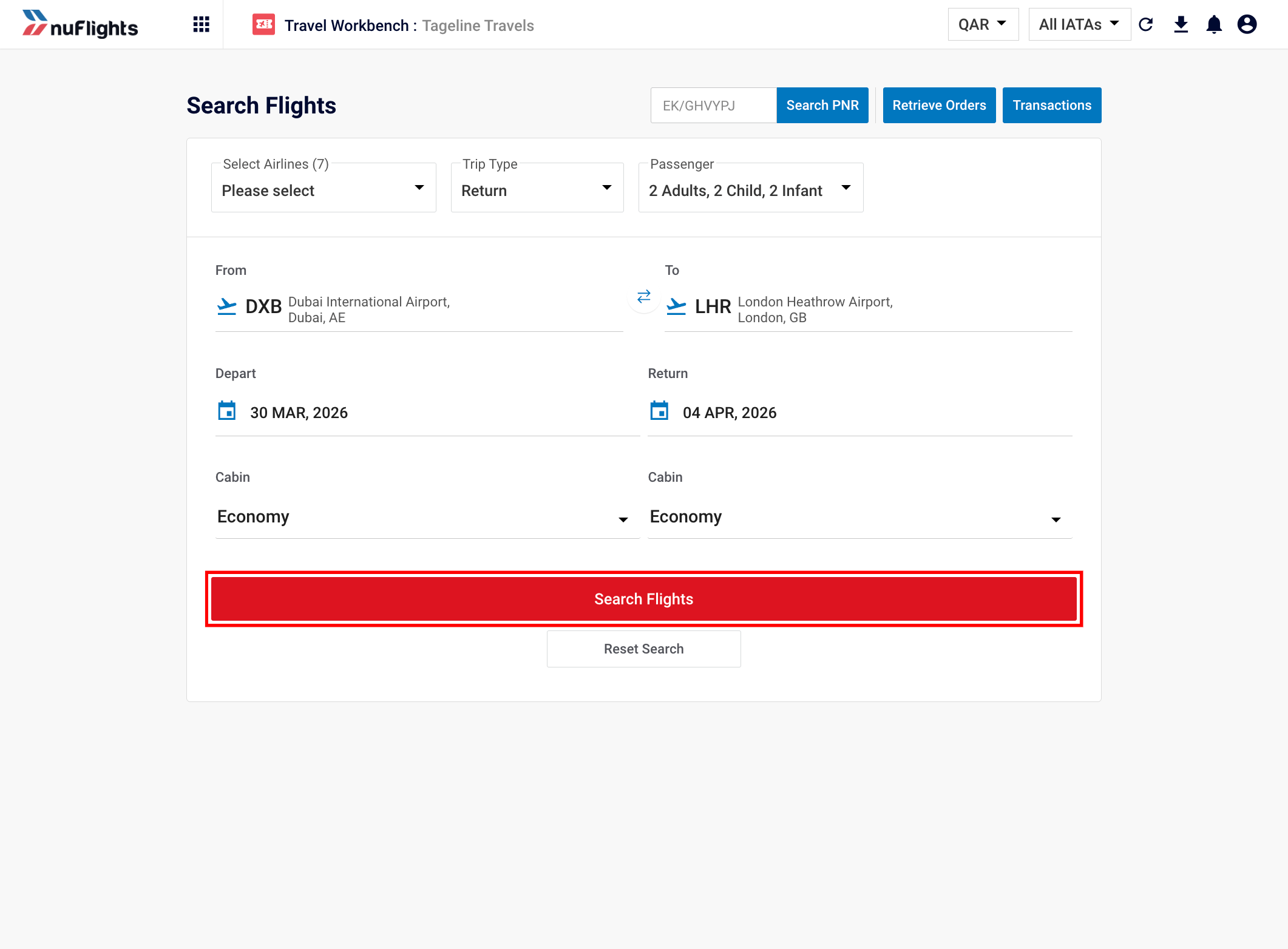
Click Search to find available flights.
Step 2: Browse the offers
When the search finishes, NuFlights has queried all your subscribed airlines and shows the results:
- Airlines that returned offers show the number of available offers next to their logo.
- Airlines with no matching offers are marked, so you can see at a glance which airlines had availability.
Offers are sorted Cheapest first by default. Switch to Fastest first to see the shortest travel time at the top.
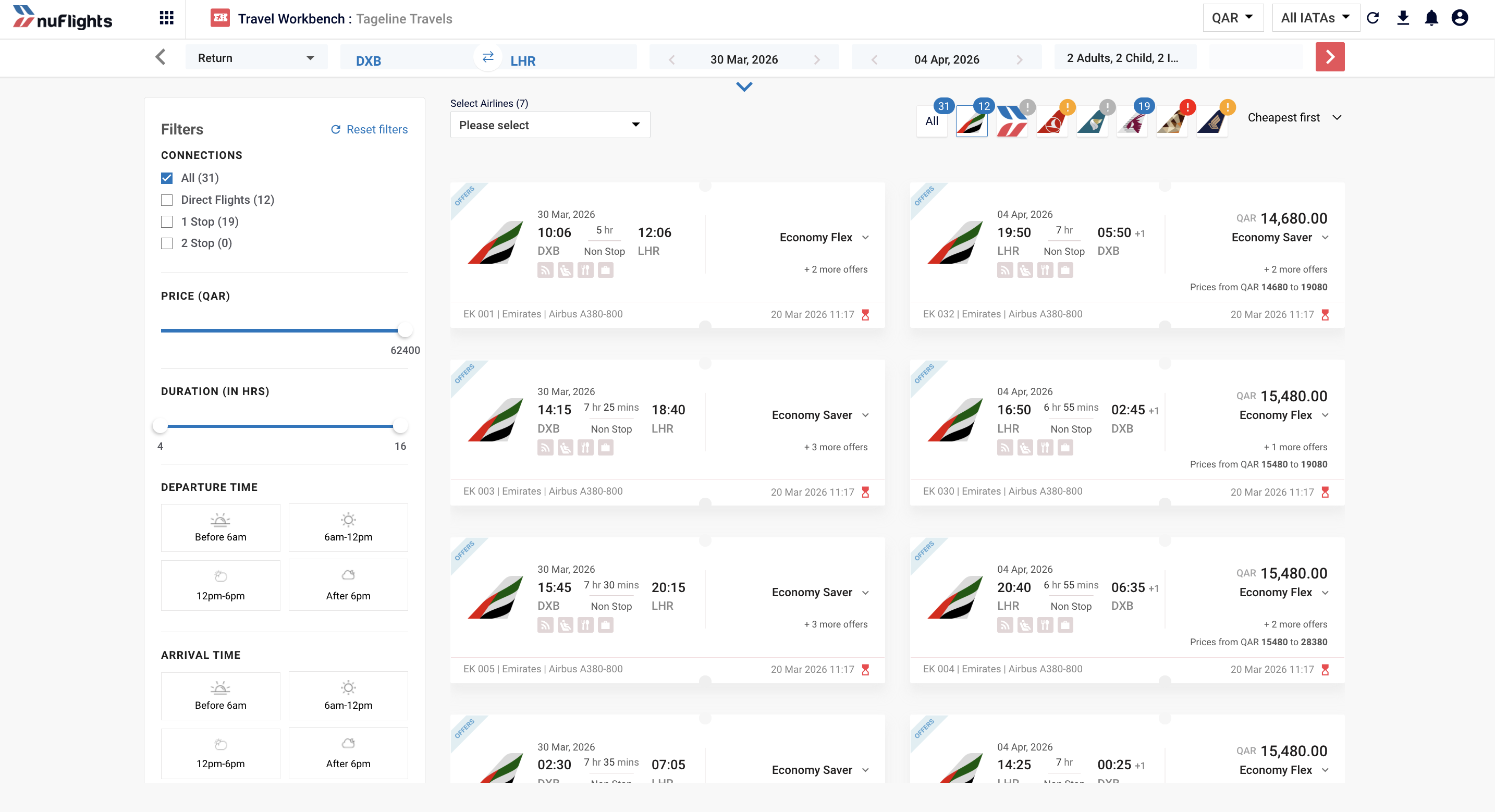
To narrow down the results, use the filter panel on the left:
- Airline: offers from a specific airline.
- Number of connections: direct flights, one stop, and so on.
- Price range: a minimum and maximum price.
- Trip duration: total travel time.
- Departure and arrival time: specific time windows.
Step 3: Select an offer
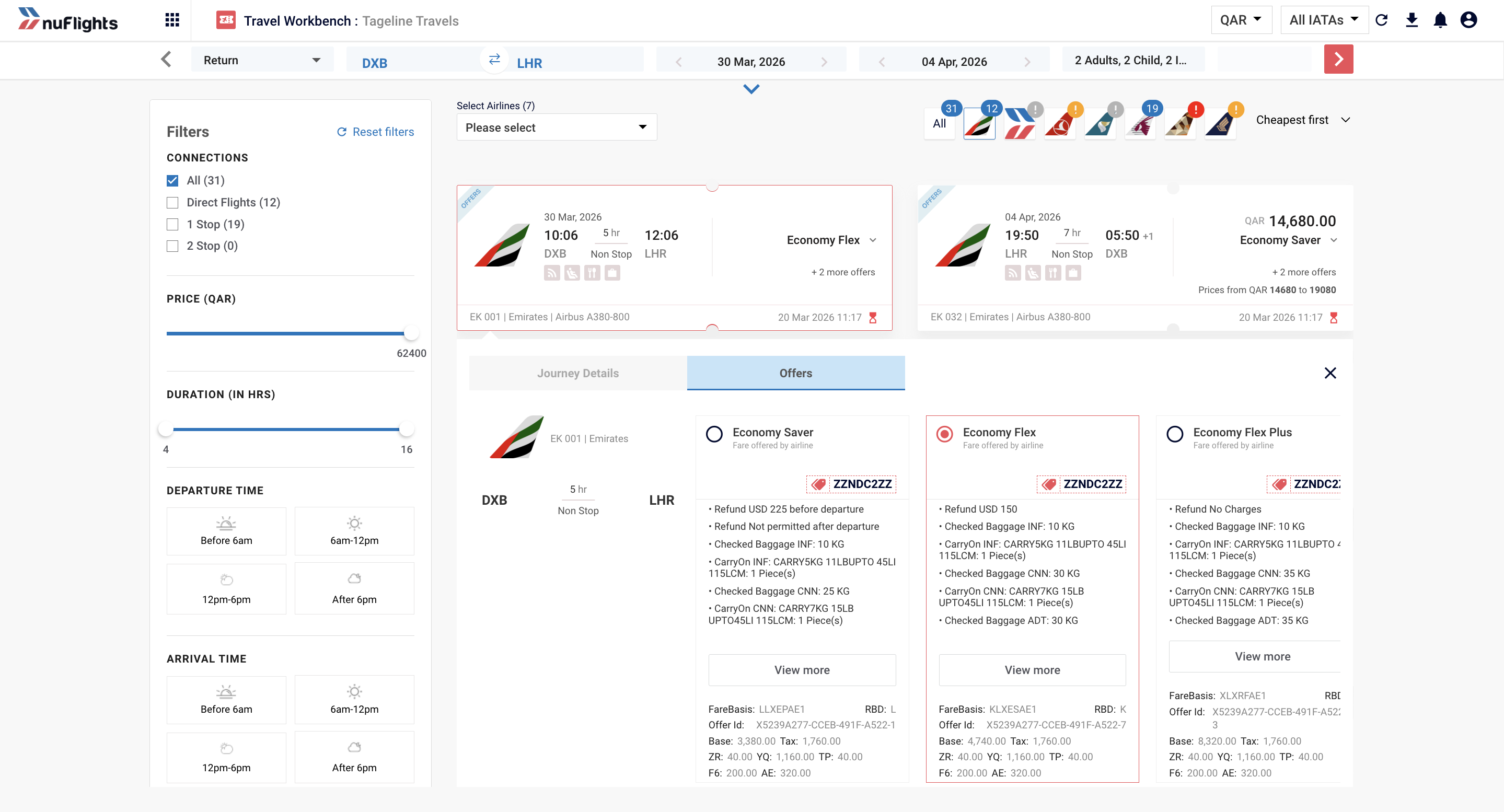
- Expand an itinerary to see its branded fare options.
- Compare the branded fares. Each one shows:
- Amenities and inclusions
- Fare basis code and RBD (Reservation Booking Designator)
- Price per passenger and total price
- Select an offer. For a round trip, select an offer for the outbound leg first, then one for the inbound leg.
Step 4: Review the price
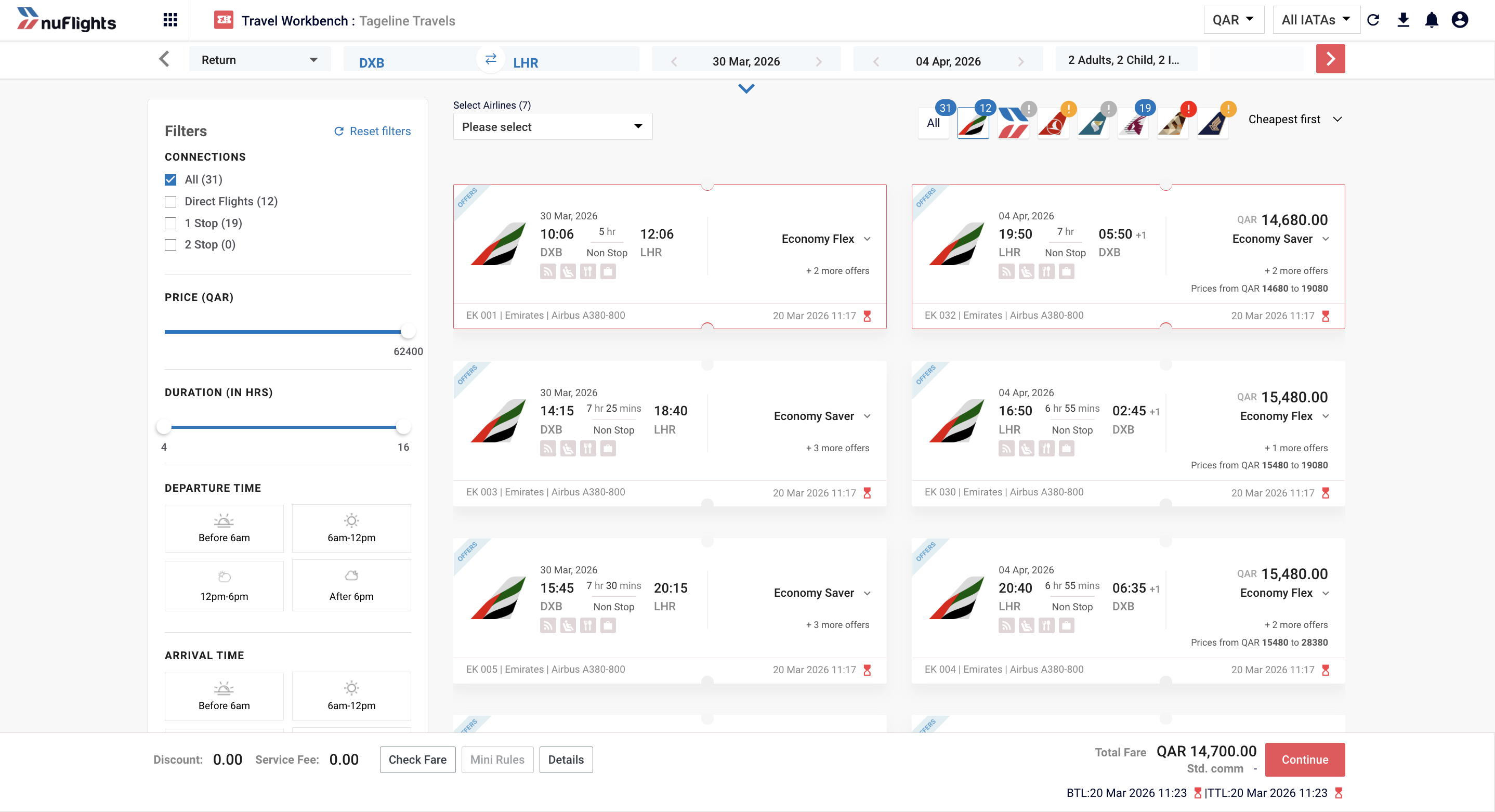
Once you've selected your offers, NuFlights prices the combined itinerary with the airline. You'll see the confirmed price with:
- Booking Time Limit (BTL): the deadline to complete the booking (typically around 20 minutes, but it varies by airline).
- Ticketing Time Limit (TTL): the deadline to pay after the order is booked.
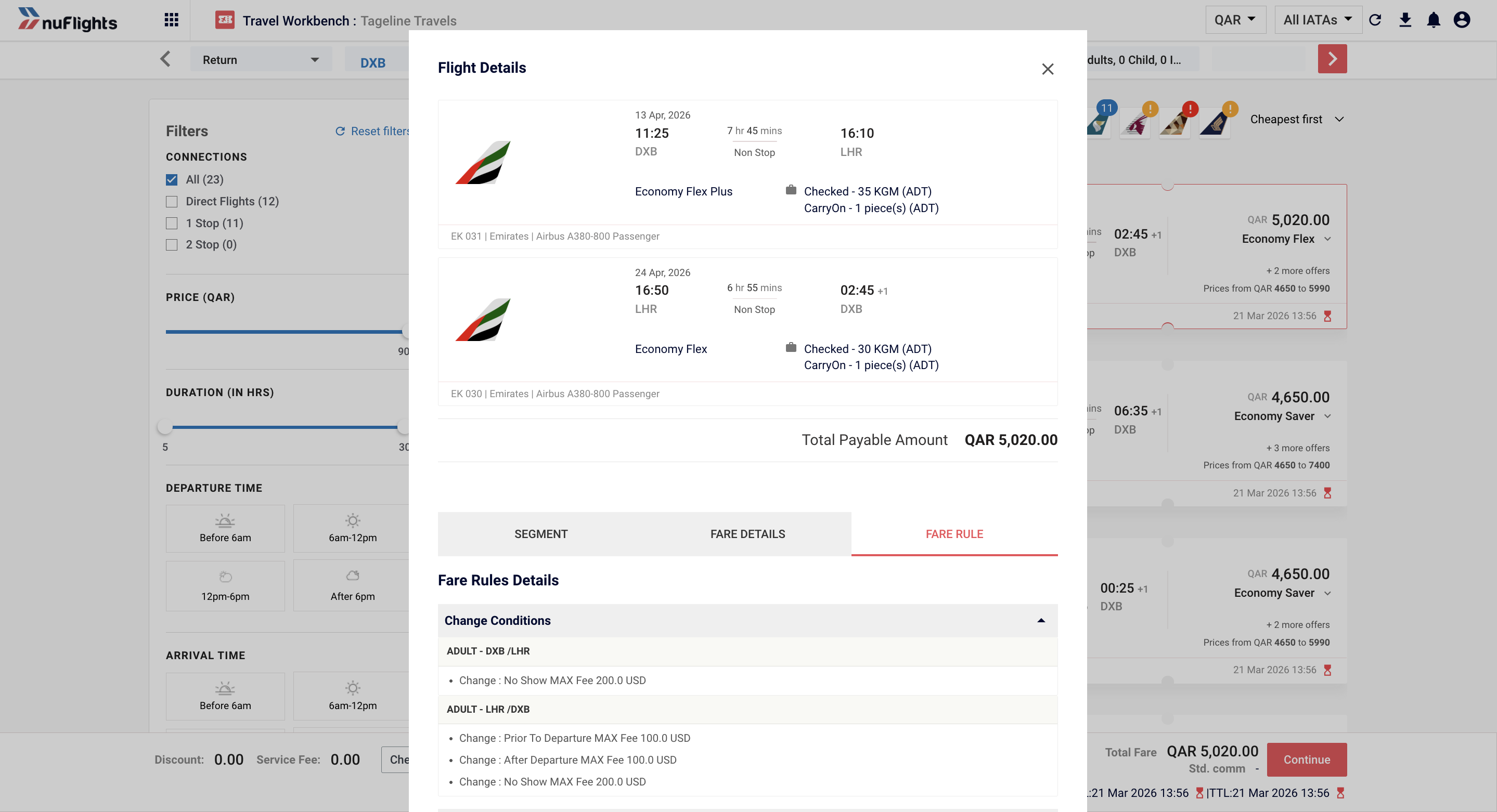
You can also review the offer details:
- Flight details: segments, departure and arrival times, aircraft information.
- Fare details: base fare, taxes and a detailed fare breakdown.
- Fare rules: the cancellation, change and refund policies for the offer.
Click Continue.
Step 5: Add an agency contact (optional)
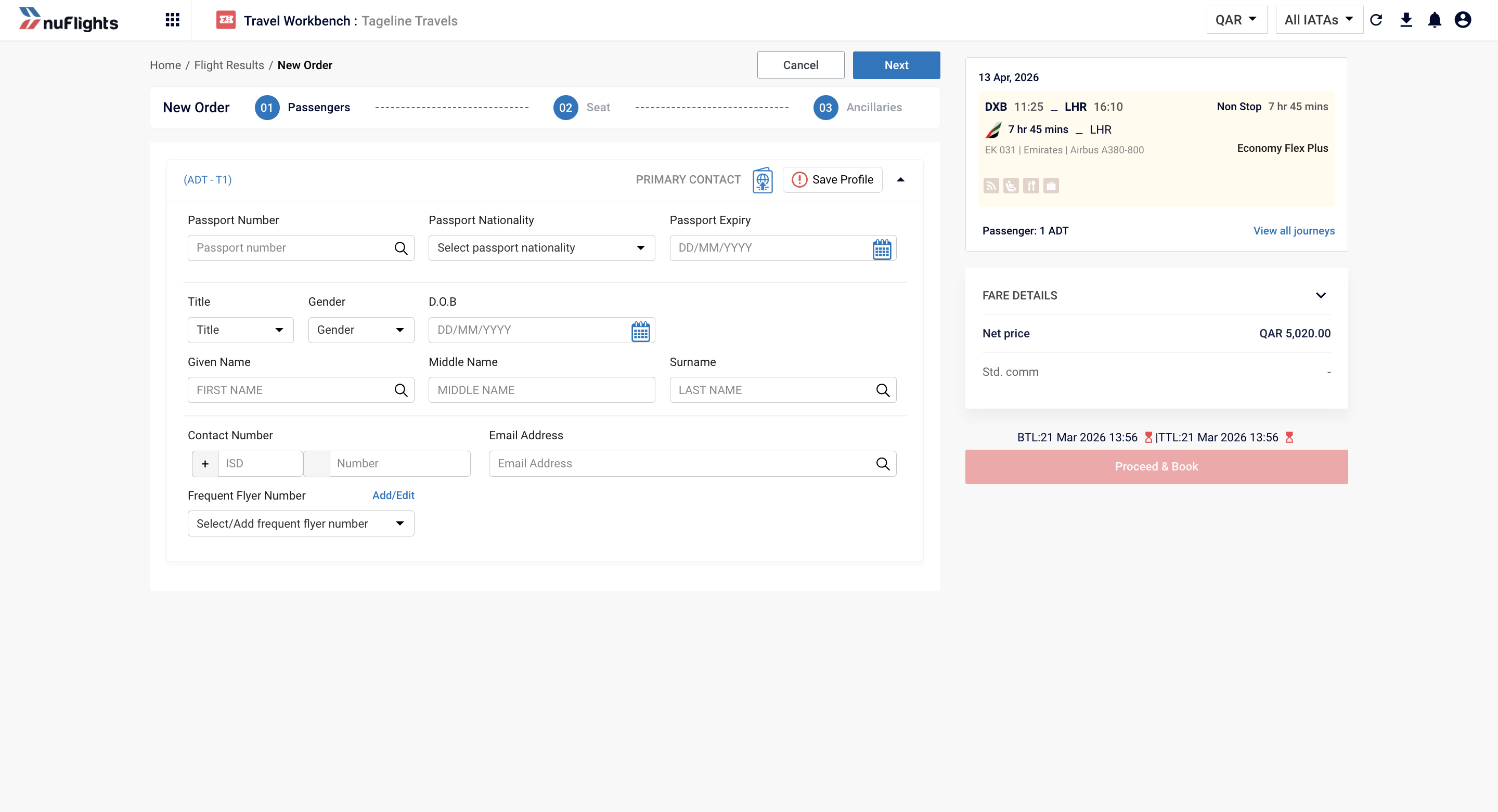
On the Passenger Details screen you enter the details for each passenger. You can also add a secondary contact (the agent's or the agency's contact details) for booking communications.
New: secondary contact. Agents can include their own contact details or their agency's contact for booking notifications, in addition to the passenger's details.
At the top of the screen, use the toggle in the Include Agency Contact panel to add a secondary contact for notifications:
| Option | What it uses |
|---|---|
| My Contact | The logged-in agent's contact number and email address. |
| Agency Contact | The agency's contact number and email address. |
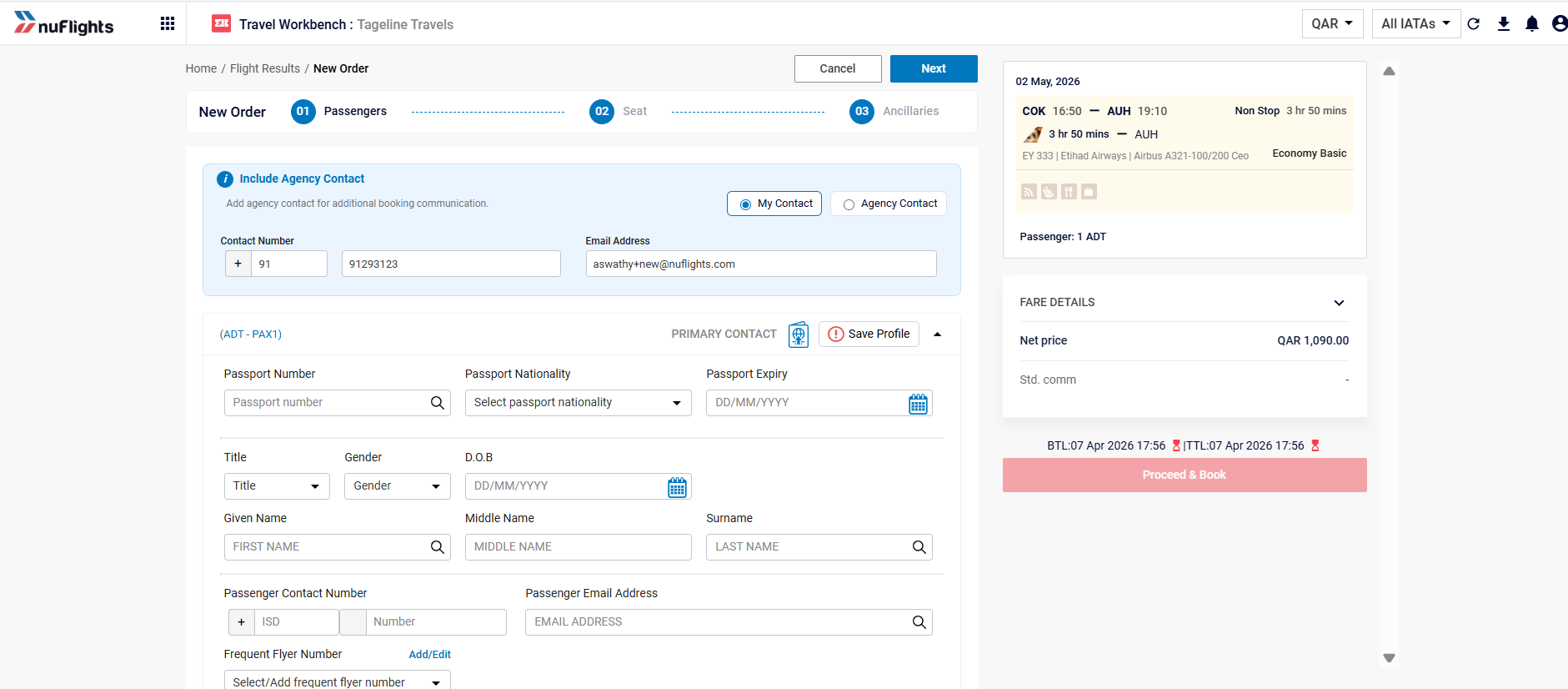
With My Contact or Agency Contact, the passenger's contact isn't required. The Passenger Contact Number and Passenger Email Address become optional, and the agent or agency contact is used for all booking notifications.
Step 6: Enter passenger details
For each passenger, you can:
- Search for an existing passenger profile to fill in their details automatically.
- Enter the details manually, and optionally save the profile for future bookings.
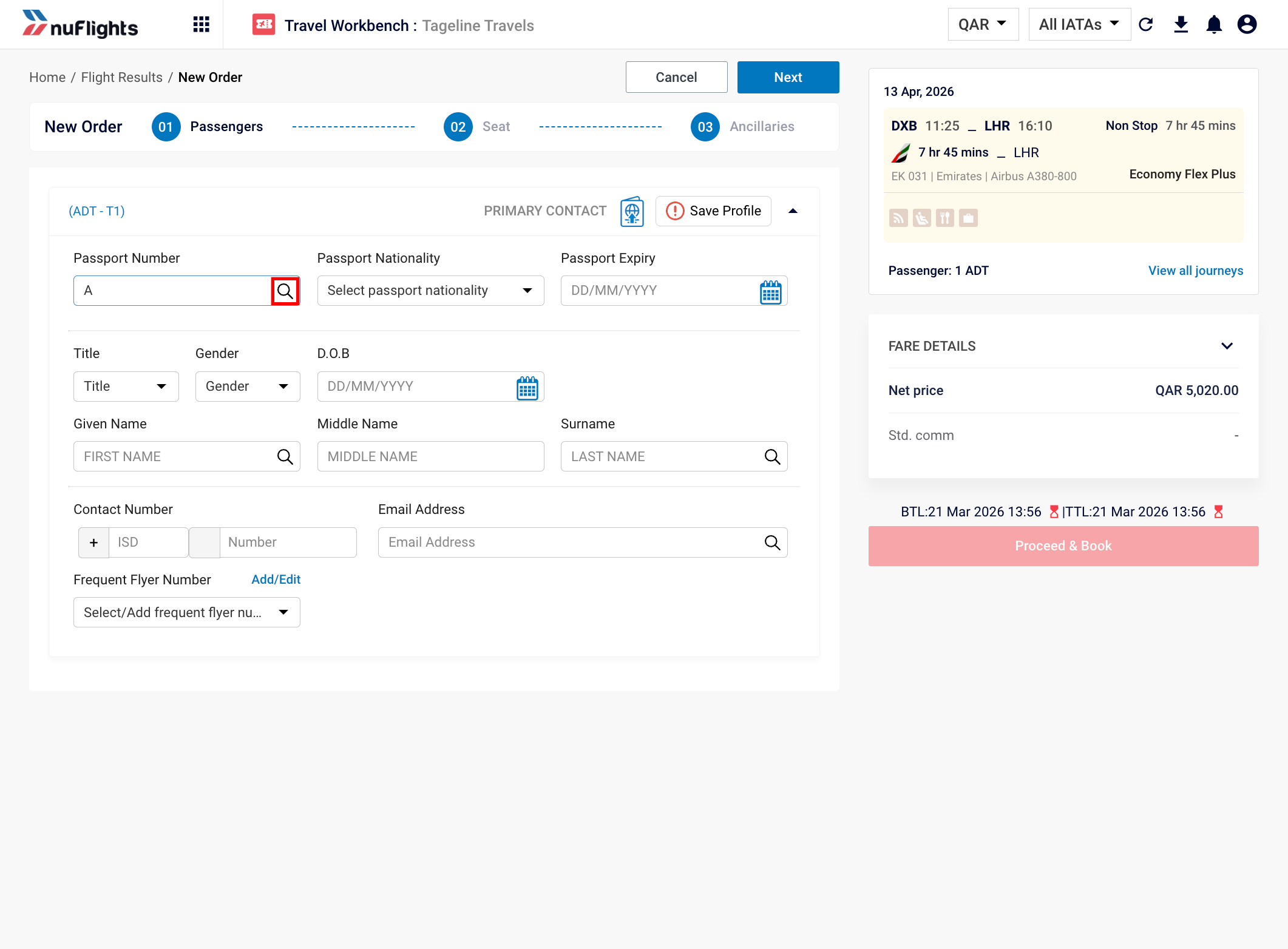
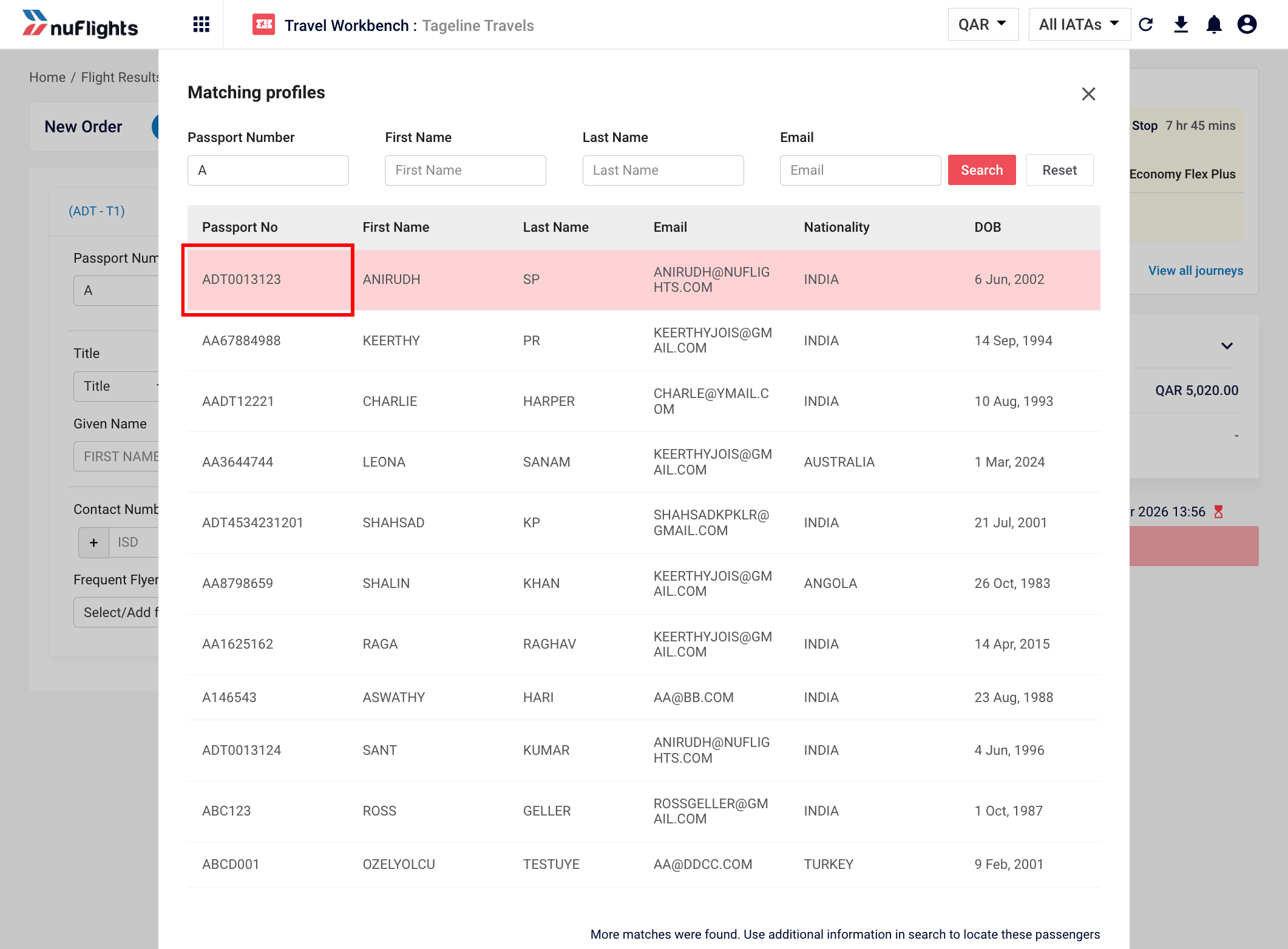
The identity documents you can use depend on the journey:
| Journey type | Supported documents |
|---|---|
| International Travel | Only Passport |
| Domestic Travel | National ID or Passport |
Documents can vary by airline. The supported document types may vary by airline, based on system configuration.
Then, for each passenger:
- Select the identity document type (Passport or National ID) that fits the journey.
- Enter the mandatory details:
- Identity document type and nationality
- Document expiry date
- Title (Mr, Ms, Mrs and so on)
- First name and last name
- Gender and date of birth
- Passenger Contact Number and Passenger Email Address
- Enter the optional details, if available: middle name and frequent flyer number.
- Repeat for every passenger in the booking.
Infants must travel with an adult. For an infant passenger, associate the infant with an adult passenger who is travelling with them: select or enter that adult passenger's name.
Saving passenger details
To save a passenger's details for future bookings:
- Click Save Profile.
- The details are stored in Agency Admin > Passenger Profiles, and you can reuse them in future bookings.
When you've filled in all the passenger details, click Next.
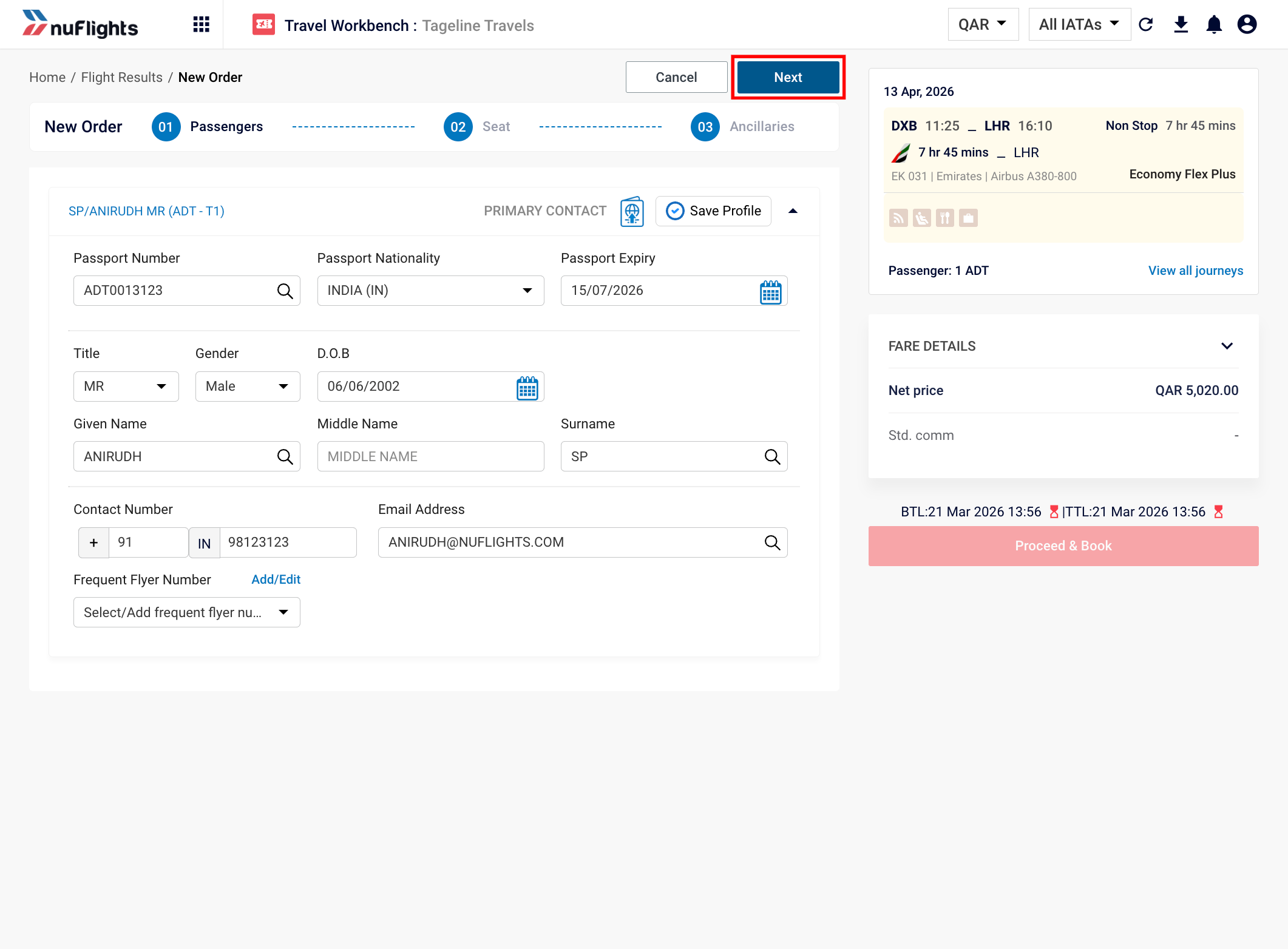
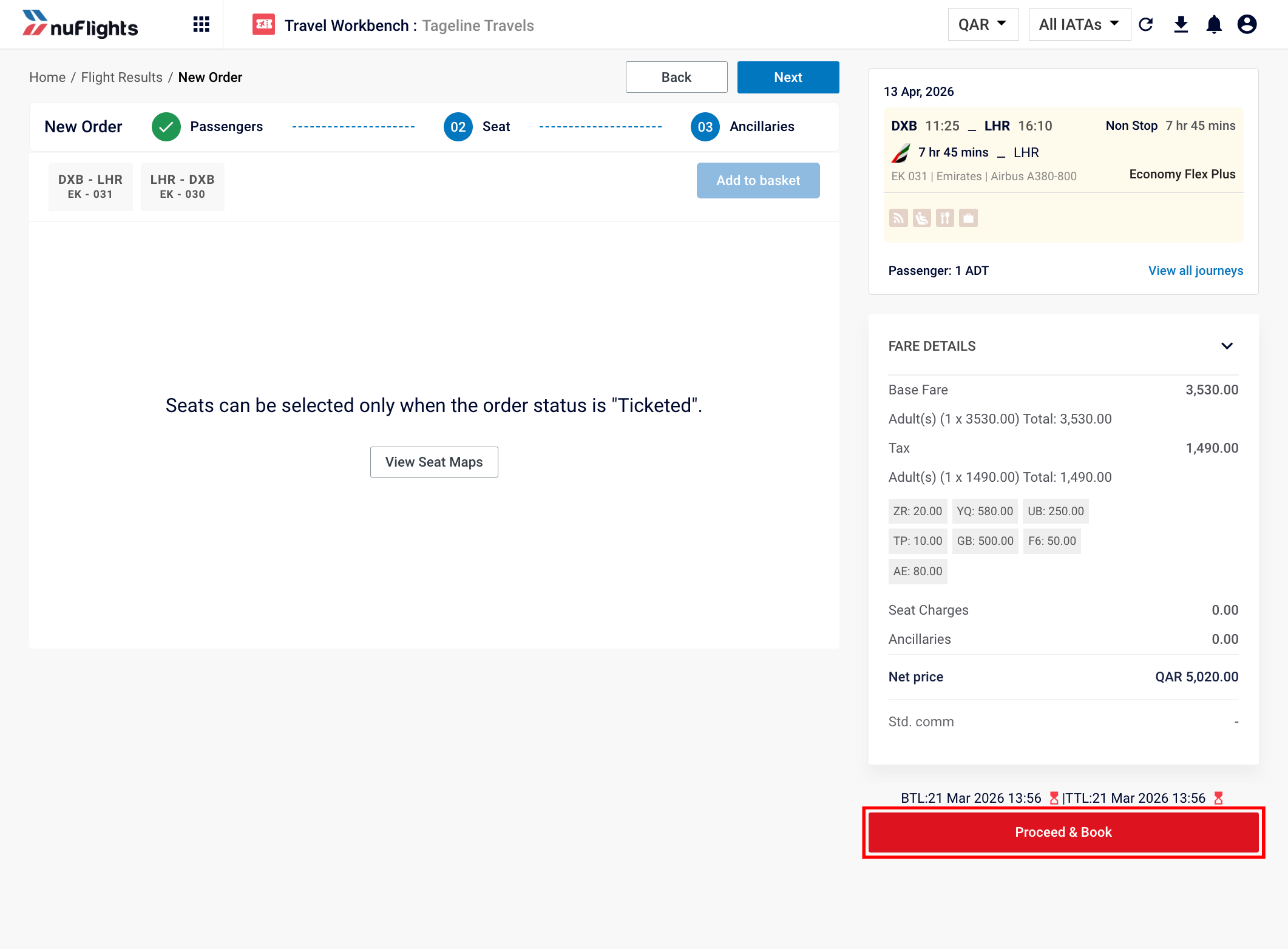
Step 7: Confirm and book
- On the final confirmation screen, review the itinerary, passengers and pricing.
- When everything is correct, click Proceed and Book to create the order with the airline.
Step 8: Check the booking confirmation
When the order is created, NuFlights shows the airline's booking reference. The order status is Booked: it's waiting for payment within the TTL (Ticketing Time Limit).
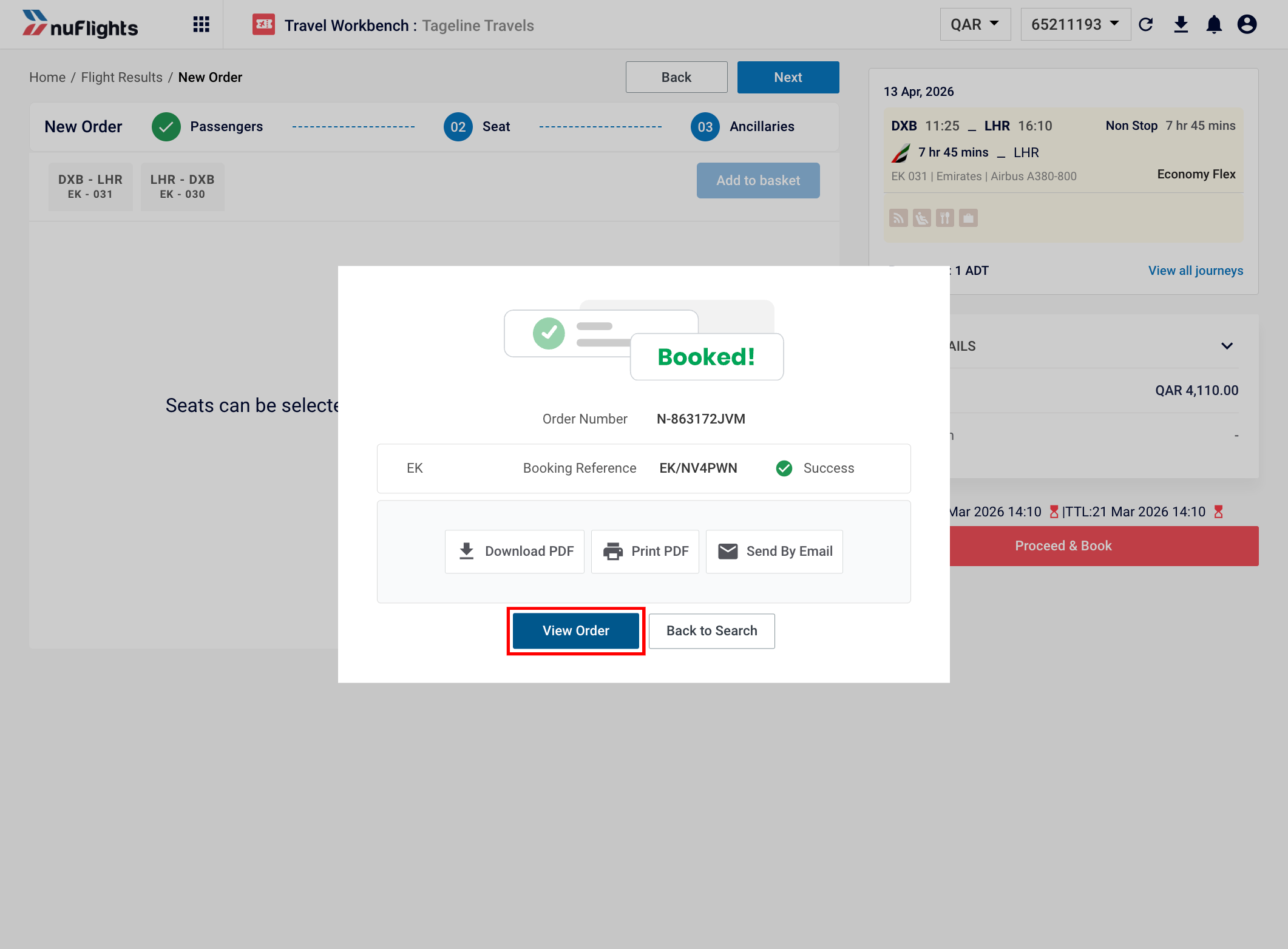
From the confirmation screen, you can:
- Download the itinerary as a PDF.
- Print the itinerary.
- Email the itinerary PDF to the passenger.
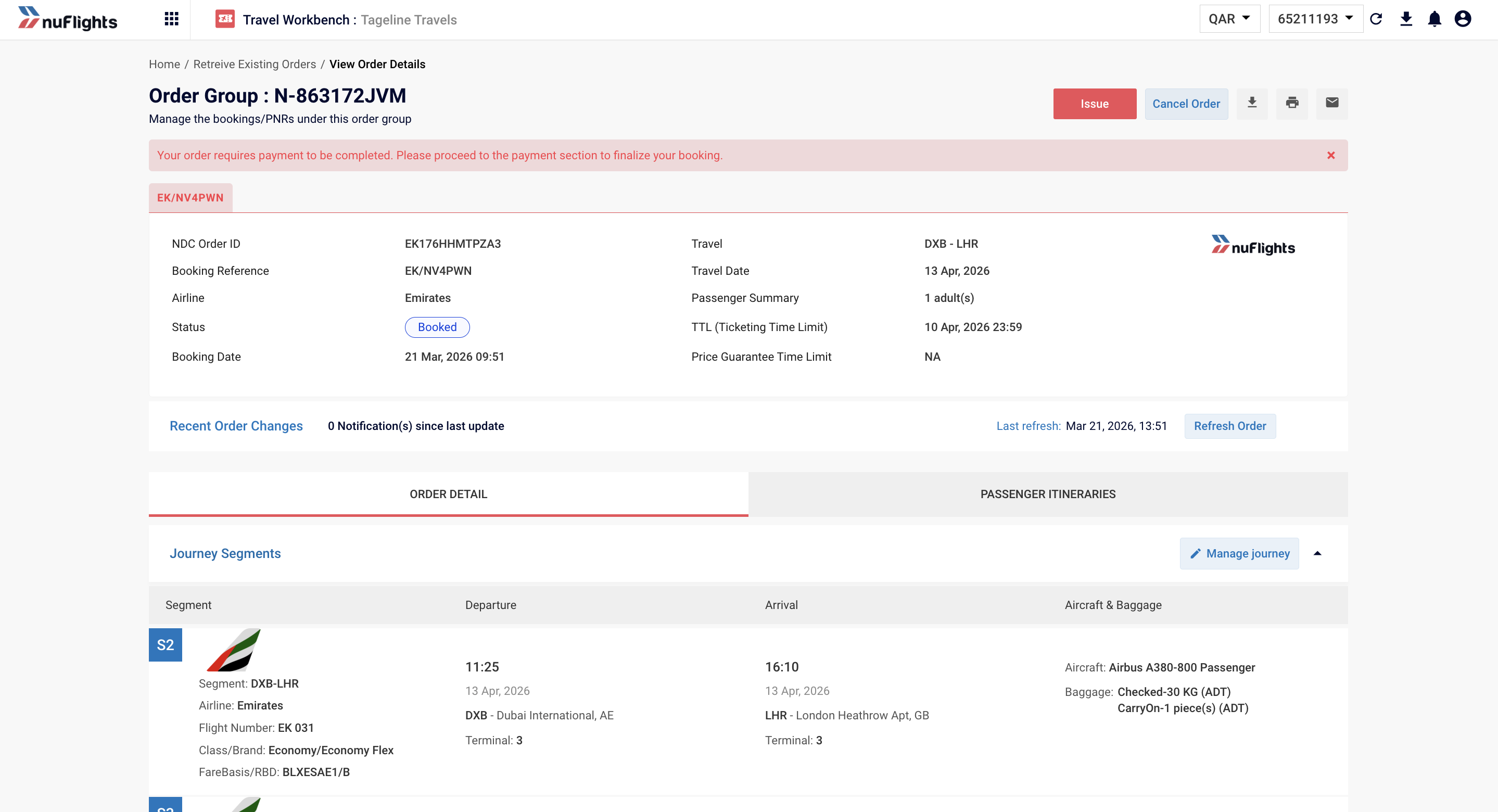
- View Order to see the full order details.
What's next
After booking, you must pay and issue the tickets within the TTL (Ticketing Time Limit). See Pay and issue tickets.
Seat selection
After you enter the passenger details, NuFlights shows the available seat options if the airline supports seat selection at the time of booking. If the airline doesn't support seat selection before booking, the screen says so and you can skip this step.
For more on seats, see Choose seats.
Ancillary services
NuFlights also shows the available ancillary services (for example extra baggage or meals) if the airline offers them during booking. Not all airlines offer ancillaries before ticketing: the screen shows whether this option is available.
For more on ancillaries, see Add bags, meals and assistance.
Order details
After booking, the order summary includes:
- Order status: the current state of the order (for example Booked or Ticketed).
- Segment details: all flight segments in the itinerary.
- Passenger list: names and contact information for all passengers, including the secondary contact if you added one.
- Pricing breakdown: base fare, taxes and total cost.
- Fare rules: the rules for the booked fare.
Print itinerary
To print a copy of the passenger itinerary:
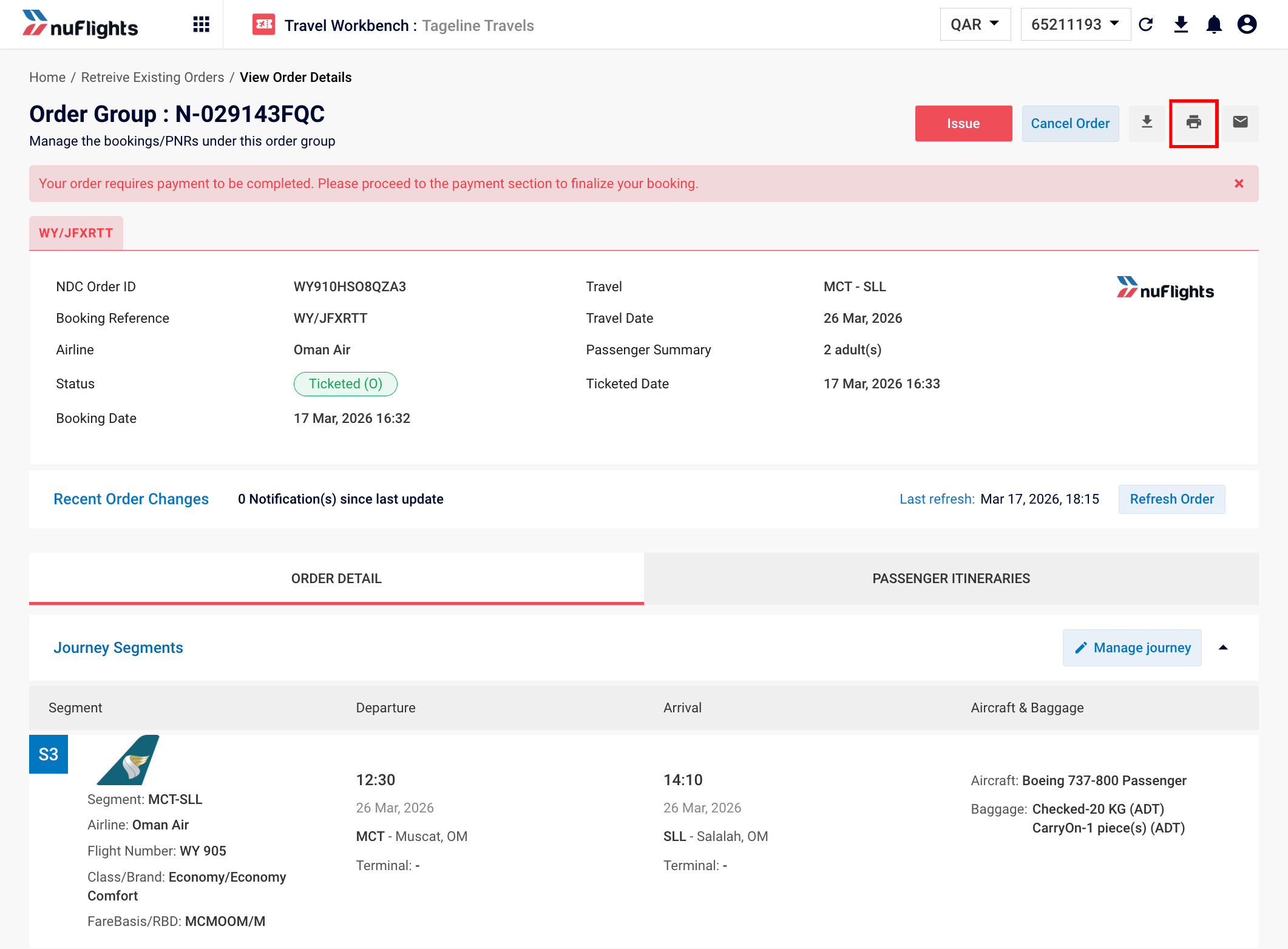
- Open the Order View.
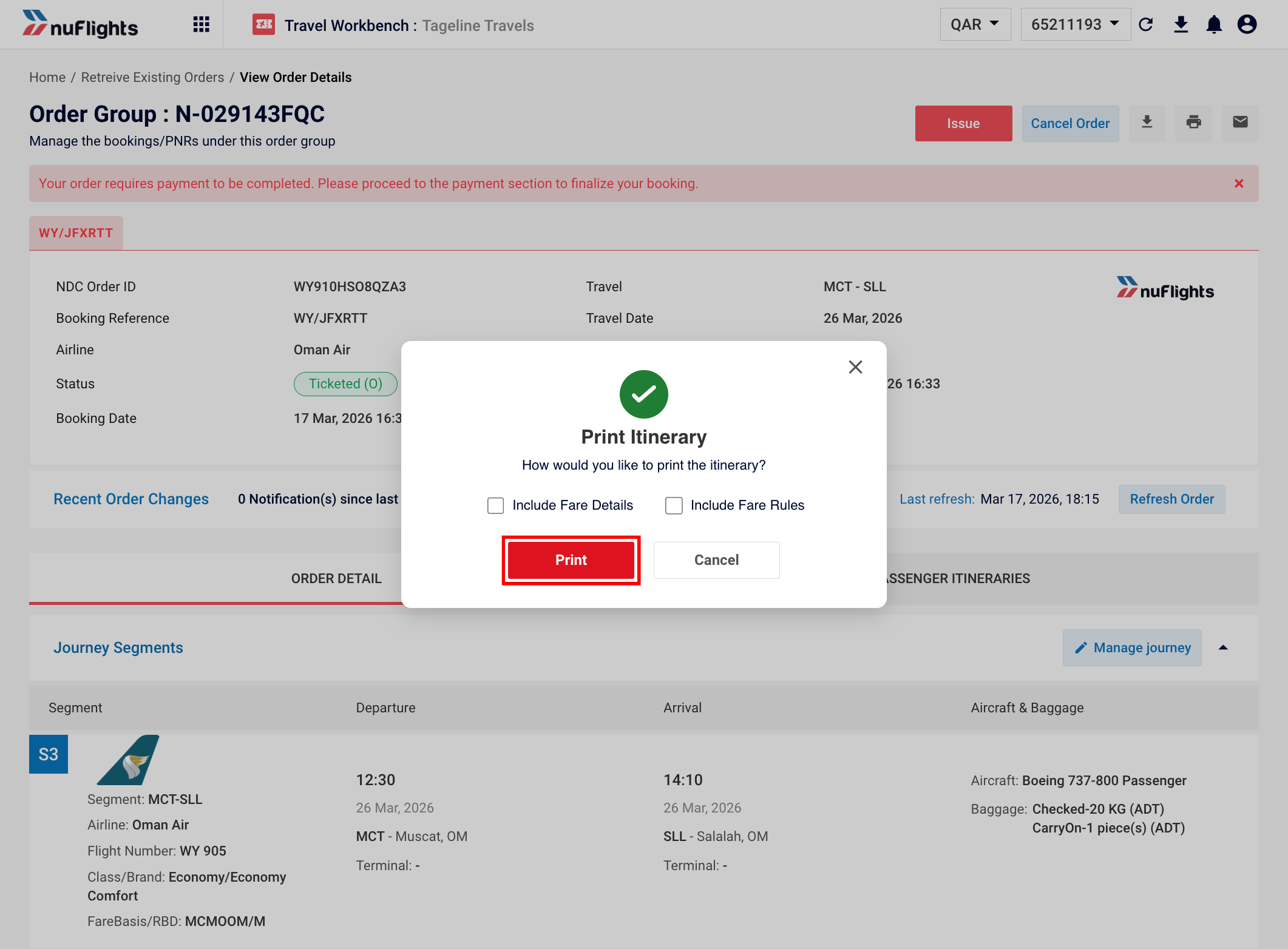
- Click the Print Icon at the top of the screen.
- In the pop-up, choose your printing preferences and confirm.
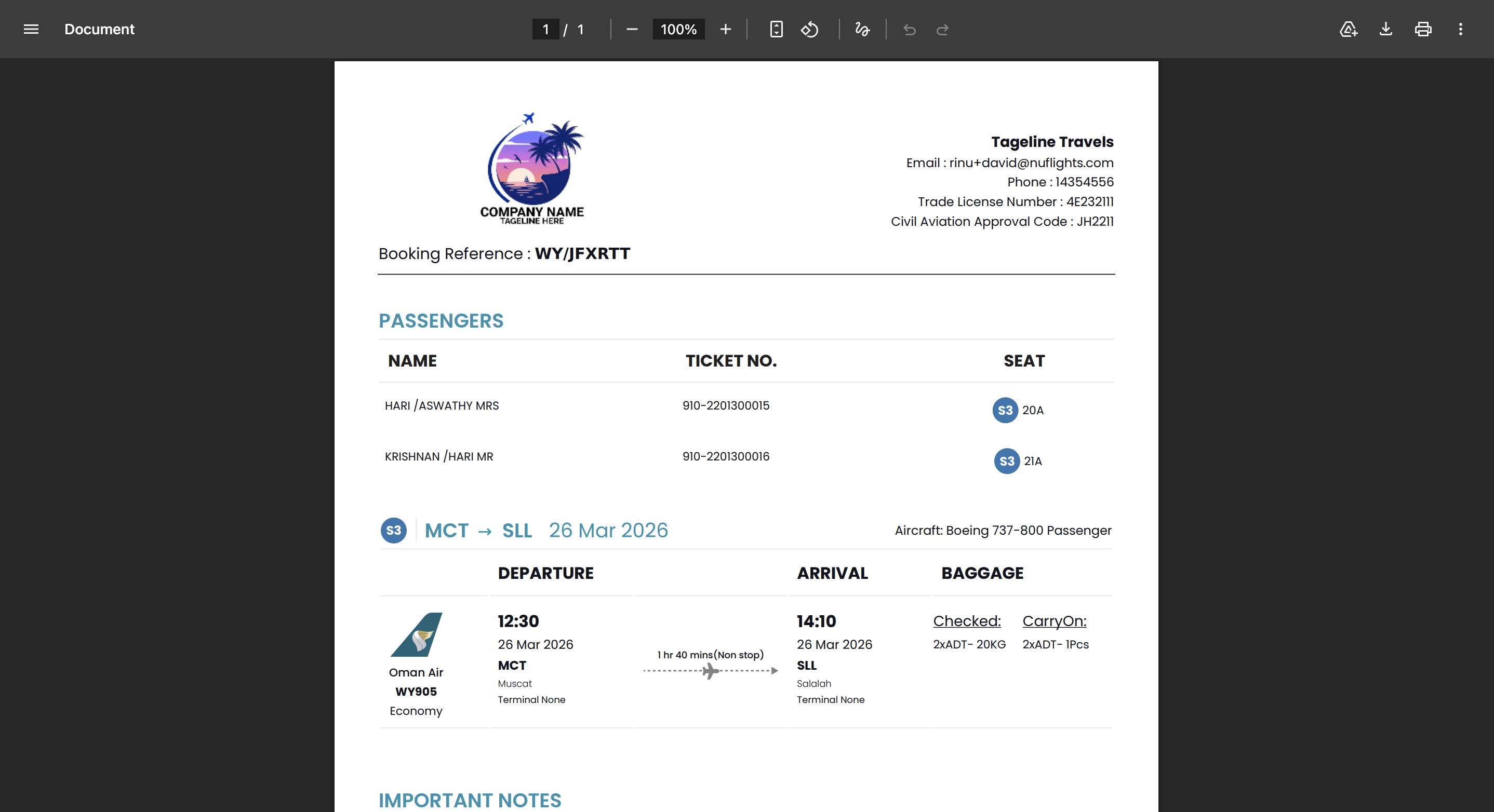
A formatted, printable version of the itinerary is generated for the passenger.
Email itinerary
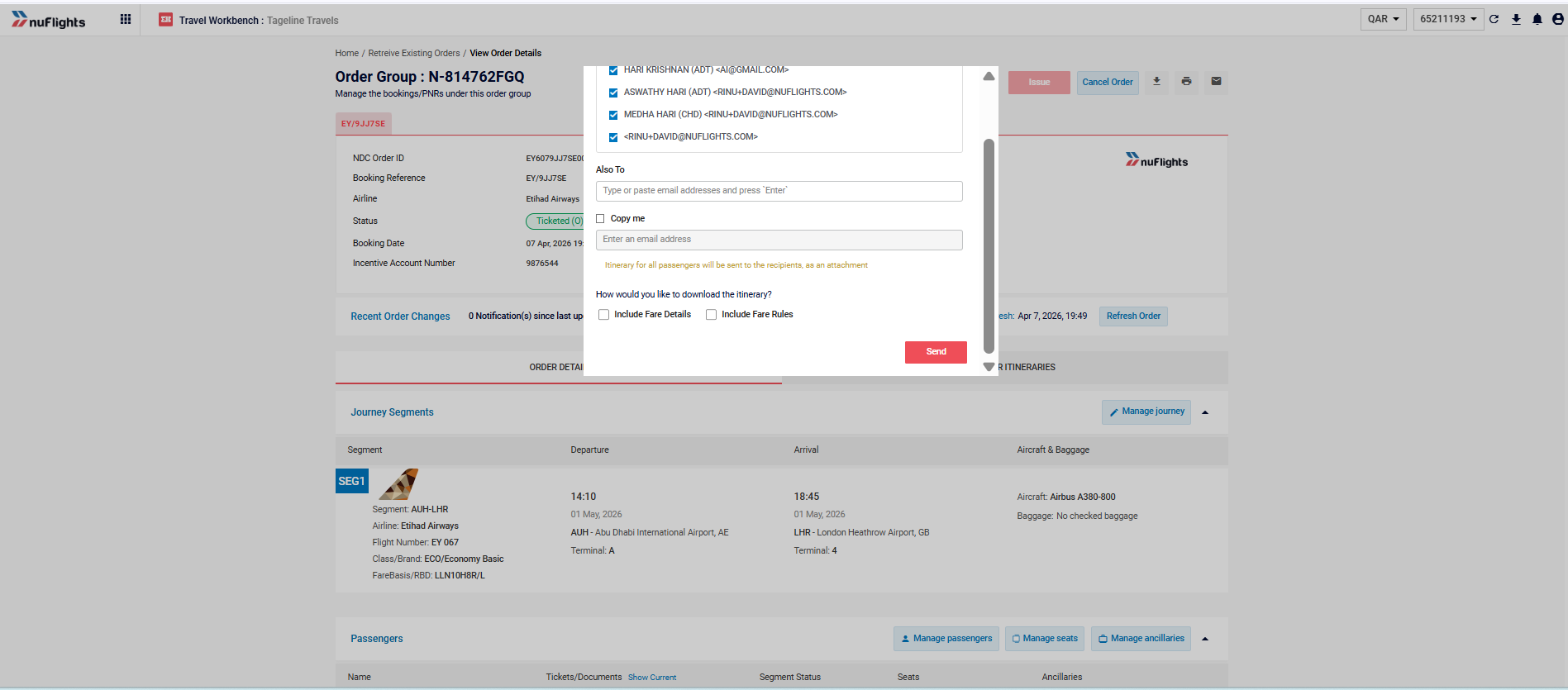
You can email a copy of the itinerary, with the PDF attached, to passengers and agents.
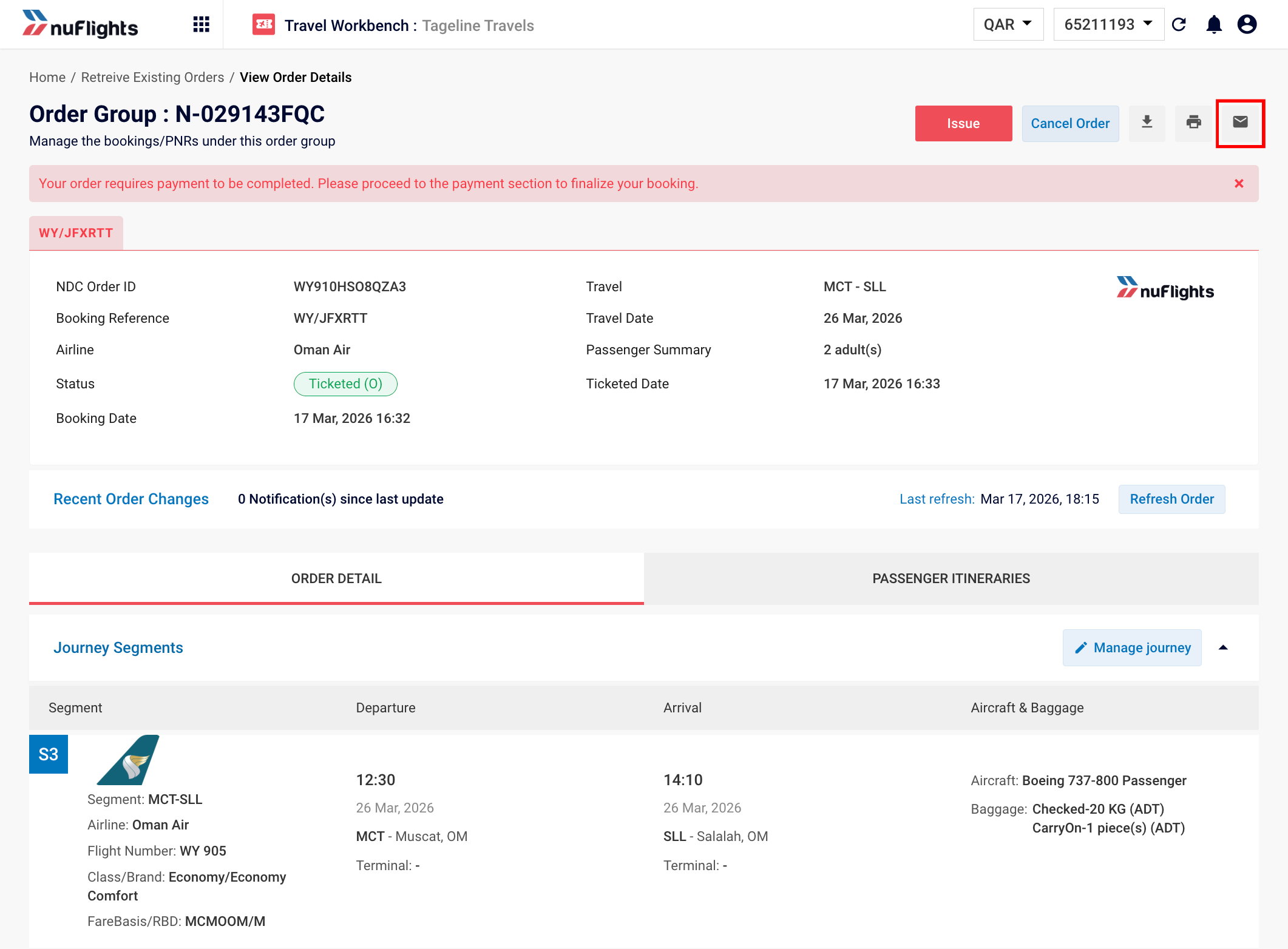
- In the Order View, click Email Itinerary.
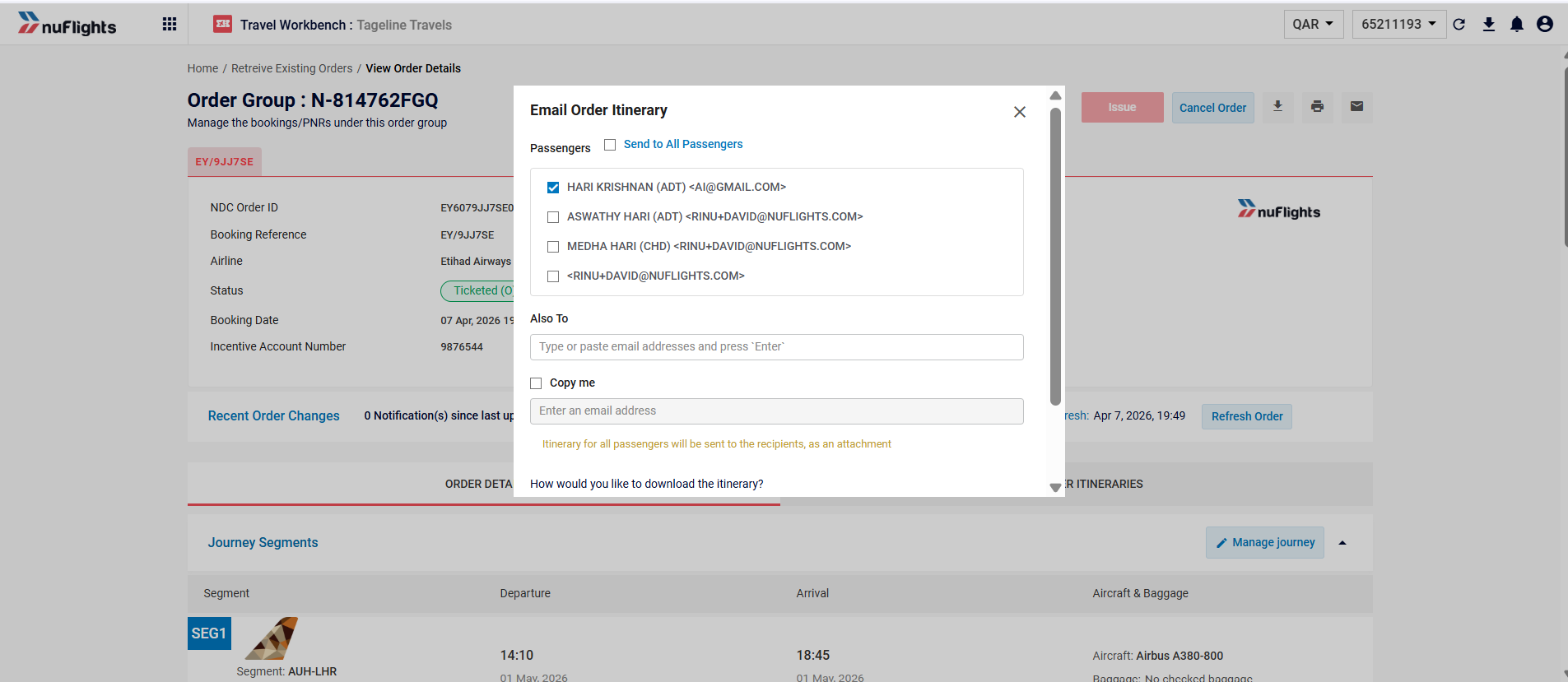
- In the pop-up, select the email address to send the itinerary to. The list has the email addresses of all passengers, and of the secondary contact if you added one.
- Tick the box to copy the agent on the email.
- Optionally, add other email IDs to receive a copy.
- Click Send.
Related guides