

Choose seats
Use this to view the airline's seat map and assign seats to passengers on a booking, including both free and chargeable seats. It takes 5 steps.
Before you start, check that:
- You've opened the booking. Not sure how? See Find a booking.
Step 1: Open the seat map
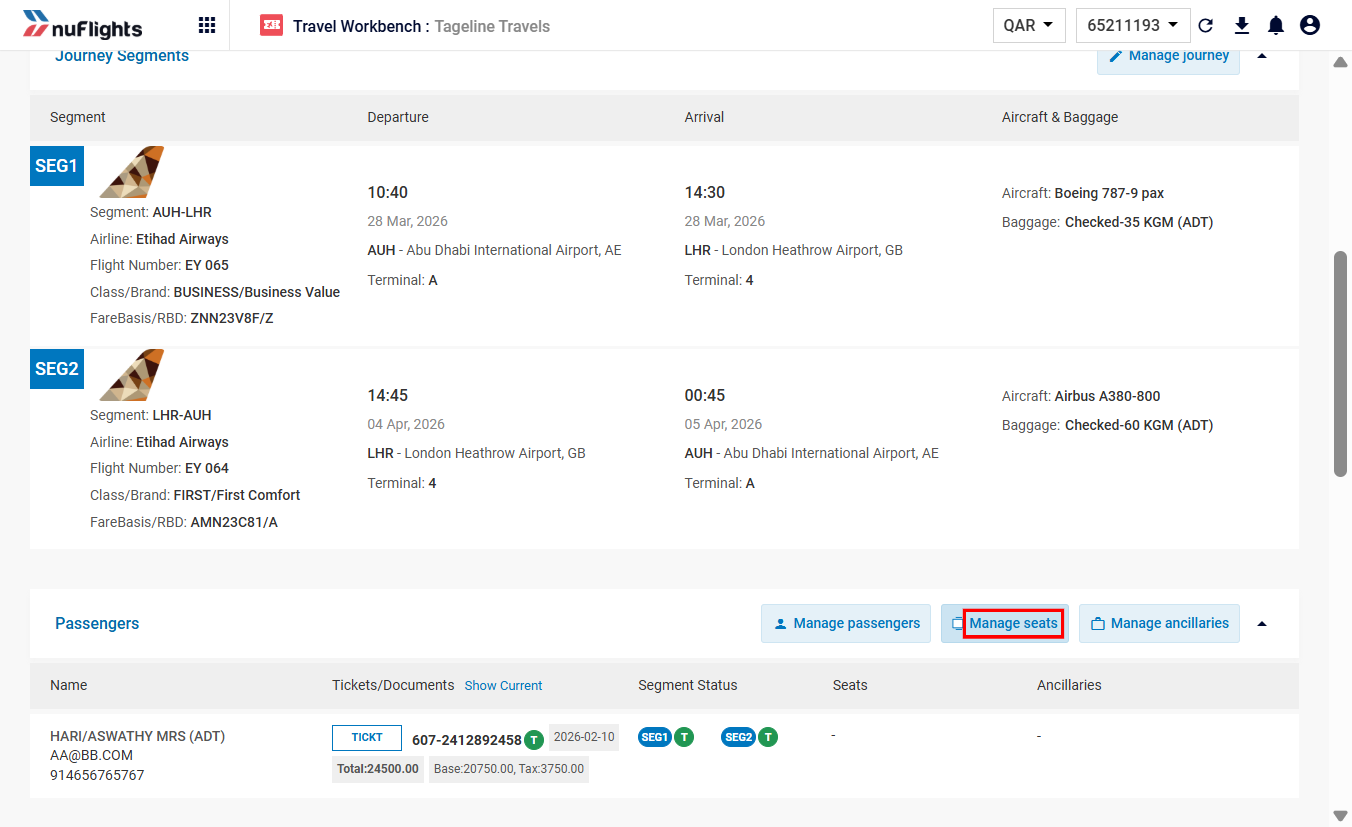
- On the Order View page, click Manage Seats.
- The seat map opens for the flight's cabin class (Economy, Business and so on).
Step 2: Select seats
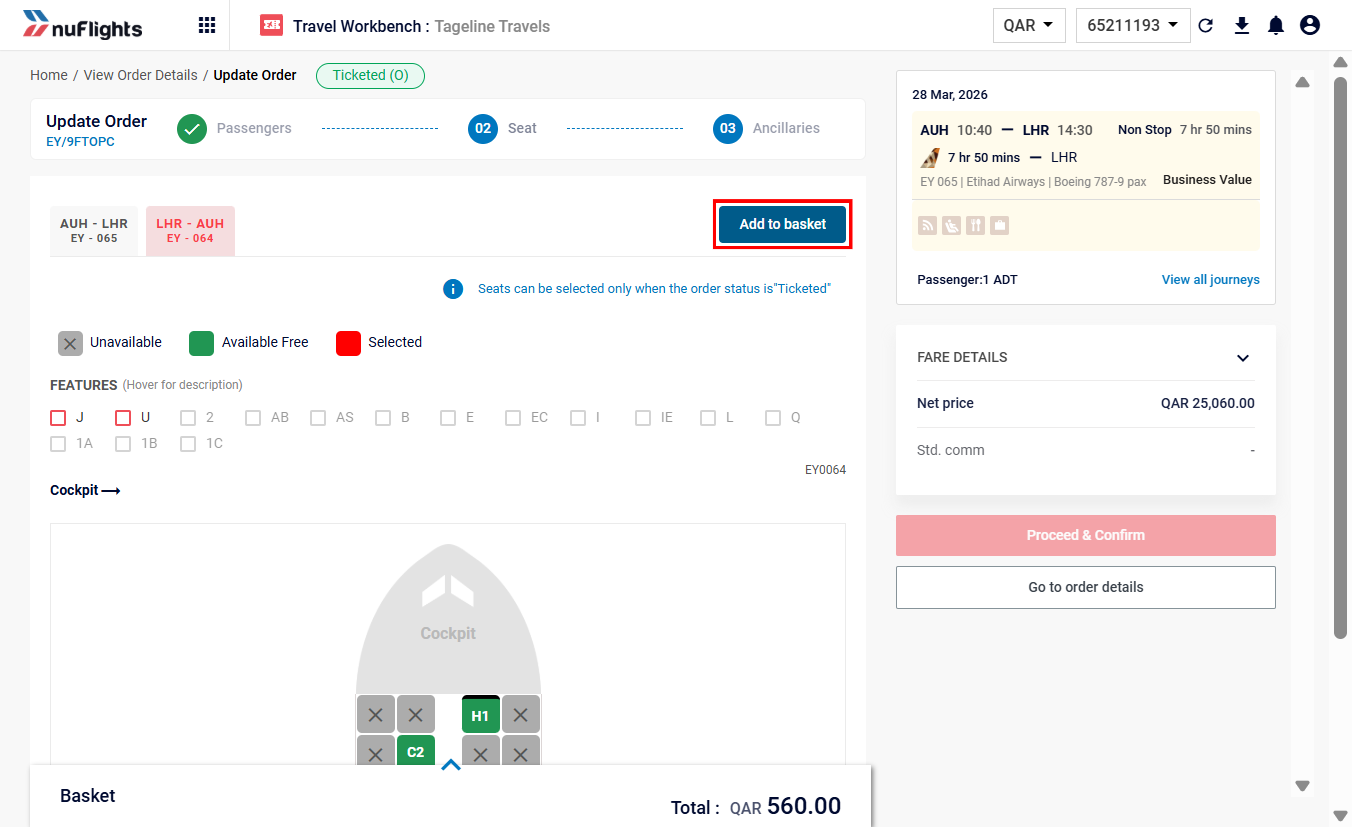
The seat map shows the available seats and their attributes (for example window, aisle or extra legroom).
- Hover over a seat to see its details, including its price (if chargeable) and features.
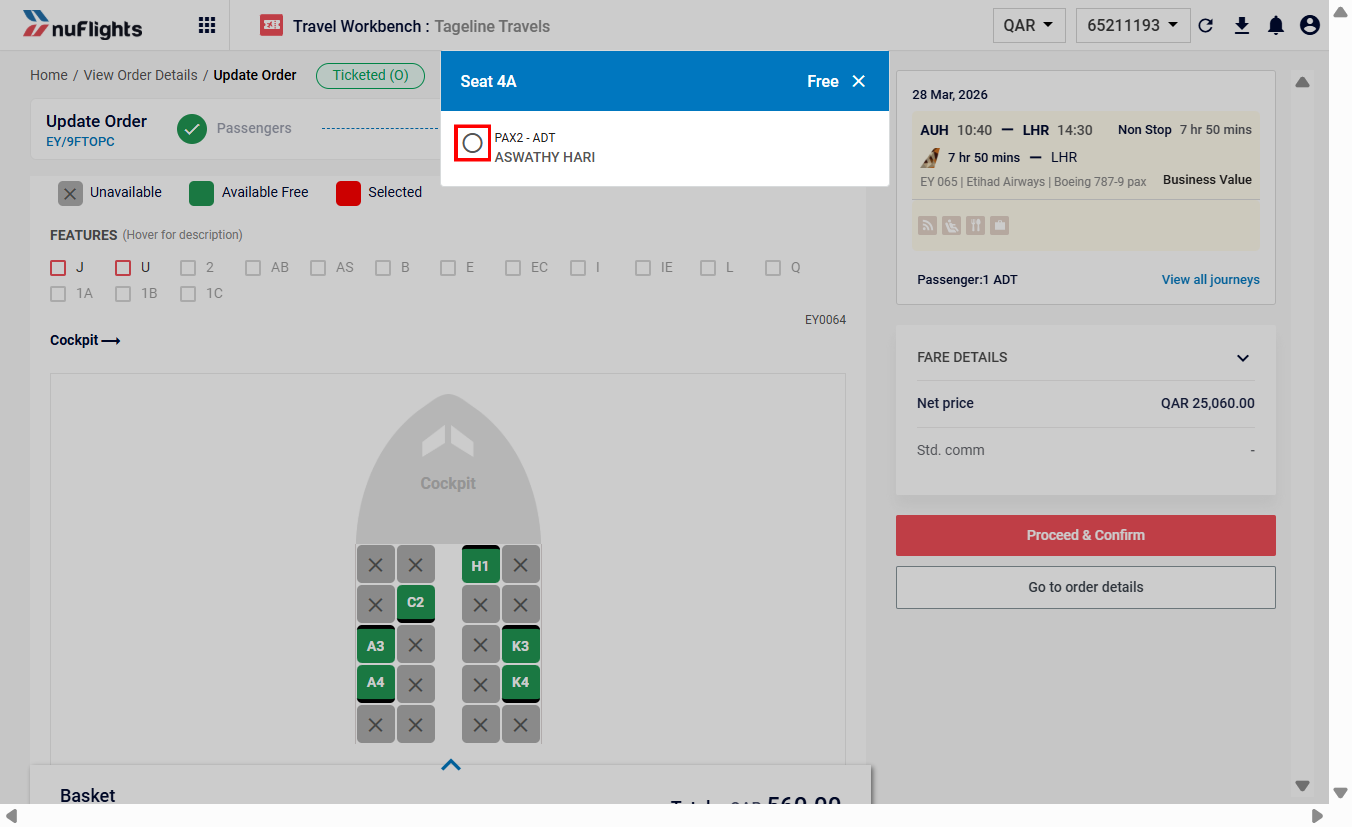
- Click the seat you want.
- In the pop-up listing the passengers, select the passenger to assign to this seat.
- Click Add to Basket to save the selection.
Step 3: Confirm the selection
- Repeat for other passengers or segments if needed.
- Check the Basket to make sure all seat assignments are correct.
- Click Proceed and Confirm.
Step 4: Pay for chargeable seats (if any)
If you selected chargeable seats, payment is required to issue the EMD.
info
Paying for seats works like paying for tickets. For how to complete the payment for chargeable seats, see Pay and issue tickets.
Step 5: Check the seats on the order
After you confirm:
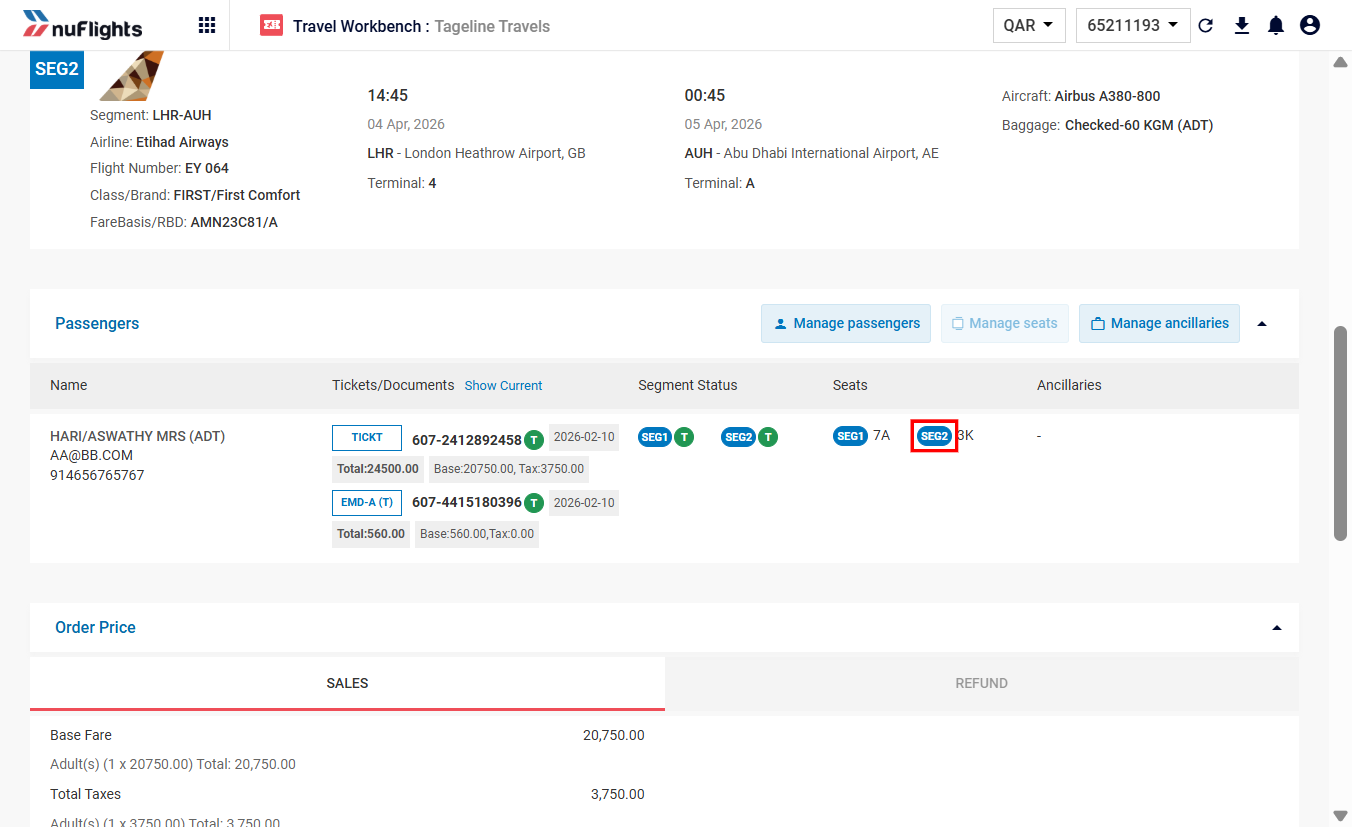
- The Order View page shows the assigned seat numbers for each segment.
- If you paid, the EMD is listed in the order details.
Related guides