

Find a booking
Use this to find an existing booking (PNR) in the Travel Workbench and open it in the Order View. It takes 4 steps.
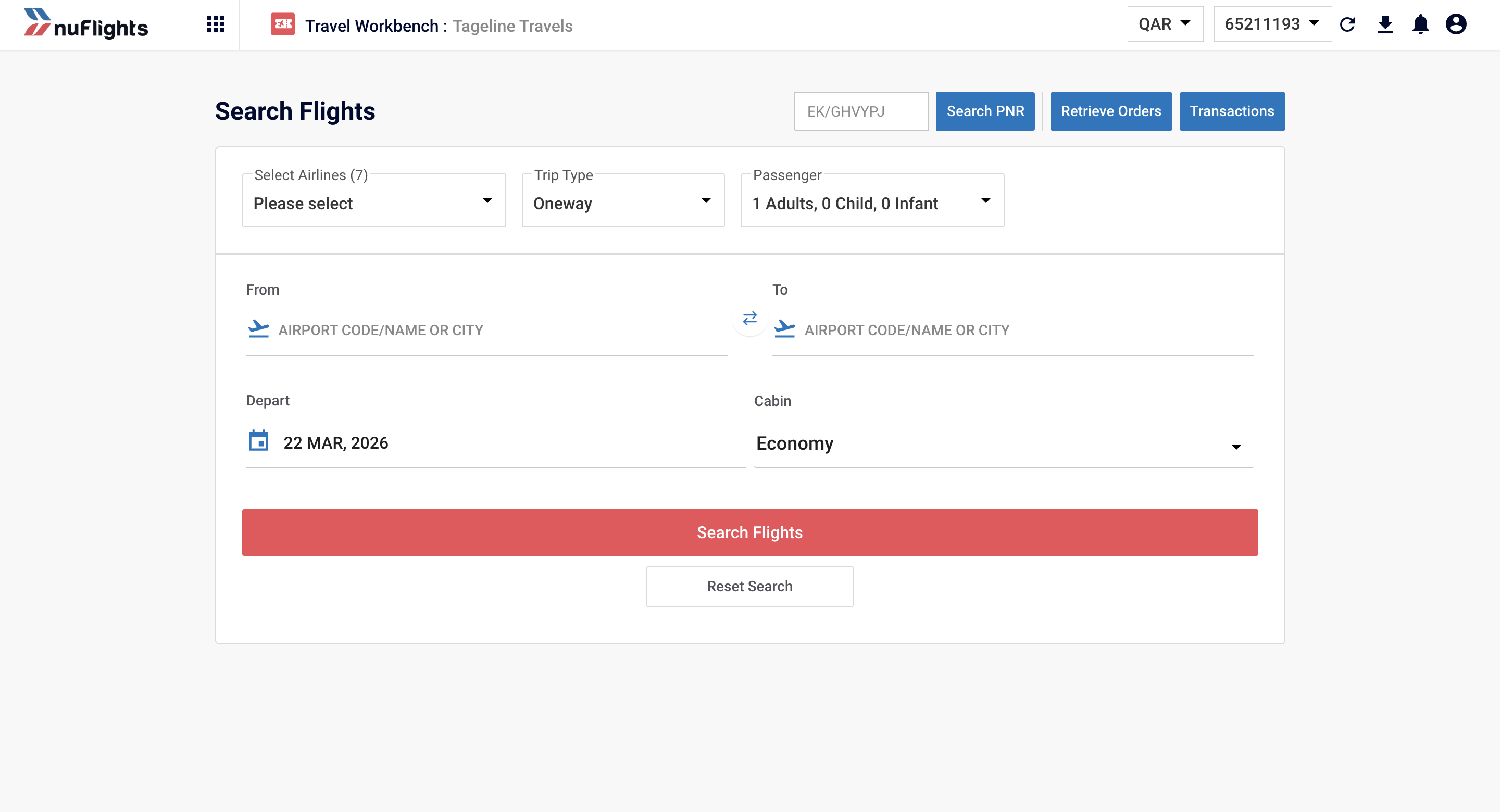
Step 1: Open the Search Flights page
From the main dashboard, make sure you're on the Search Flights page.
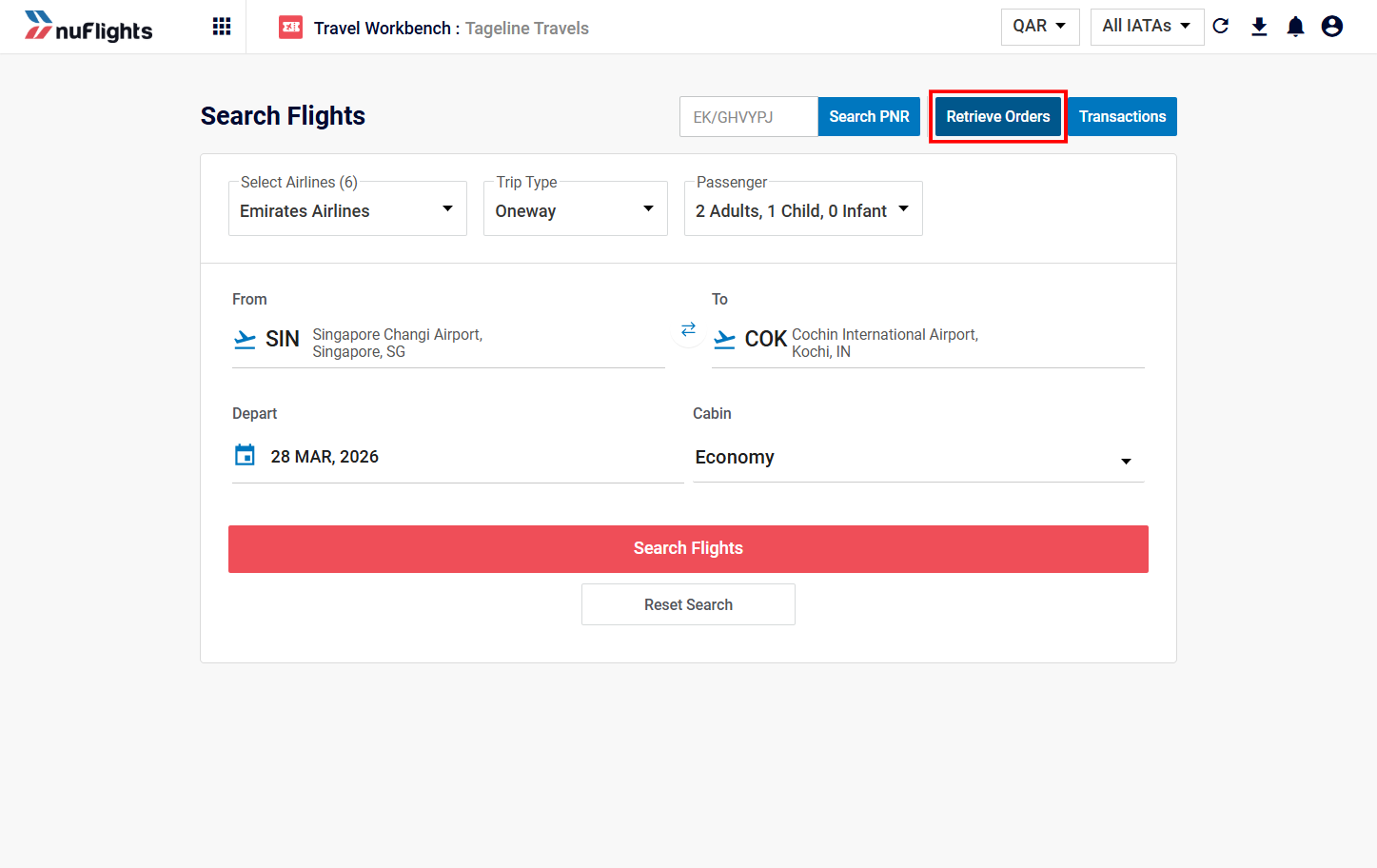
Step 2: Click Retrieve Orders
At the top of the search form, click Retrieve Orders, next to the Search PNR field.
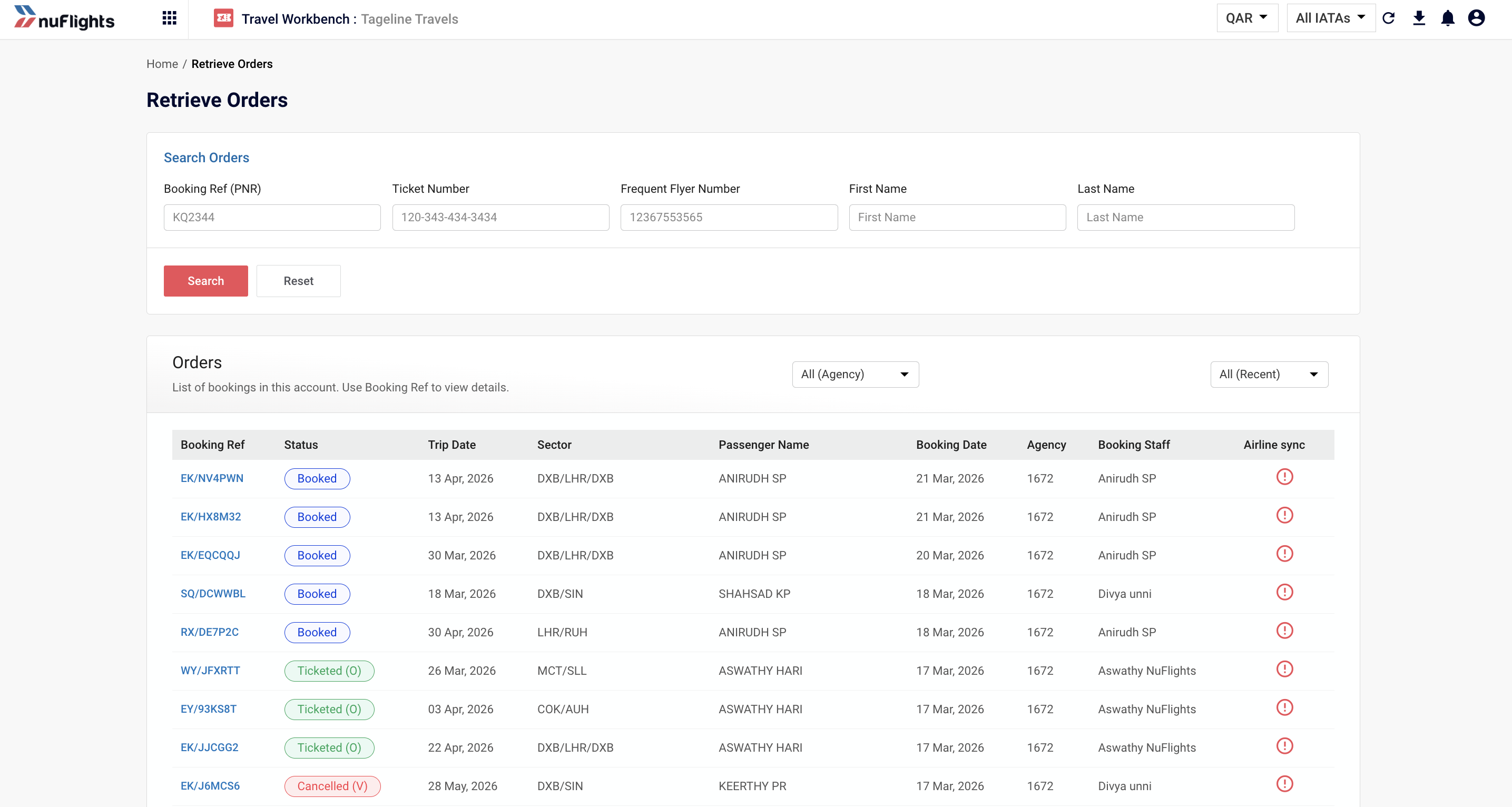
Step 3: Open the booking
You'll see a list of your agency's recent orders, with the status of each one (for example Ticketed, Booked or Cancelled).
- Browse the list to find the booking.
- Click its Booking Ref (for example
EK/HNFAXN) to see the full order details.
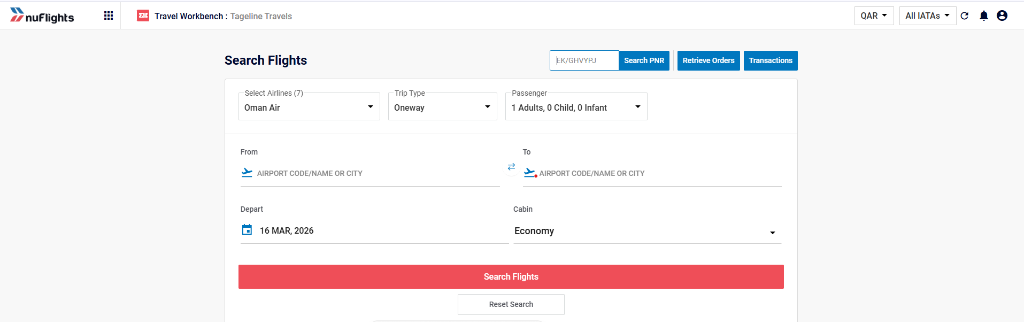
Already know the PNR? Enter it in the Search PNR field in the format EK/XXXXXX, where EK is the airline code and XXXXXX is the 6-character alphanumeric PNR number. This takes you straight to the Order View for that booking.
Step 4: Check the order details
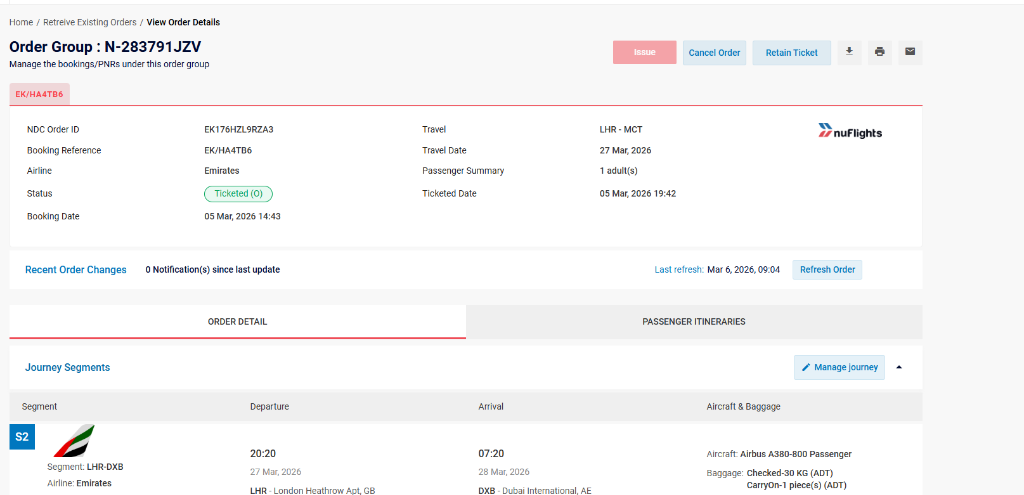
The Order View page shows everything about the booking.
Booking summary
- NDC Order ID: the unique identifier for the order.
- Segment: the flight segment or segments in the booking.
- Ticketed Date: the date the ticket was issued.
- Status: the current status of the booking (for example Booked or Ticketed).
- Airline: the operating airline.
- Booking Reference: the PNR locator code.
- Booking Date: the date the booking was created.
Journey segments
- Flight Number: the flight identifier.
- Departure & Arrival Times: the scheduled times for each leg.
- Terminals: departure and arrival terminal information.
- Baggage Allowances: the included baggage entitlements.
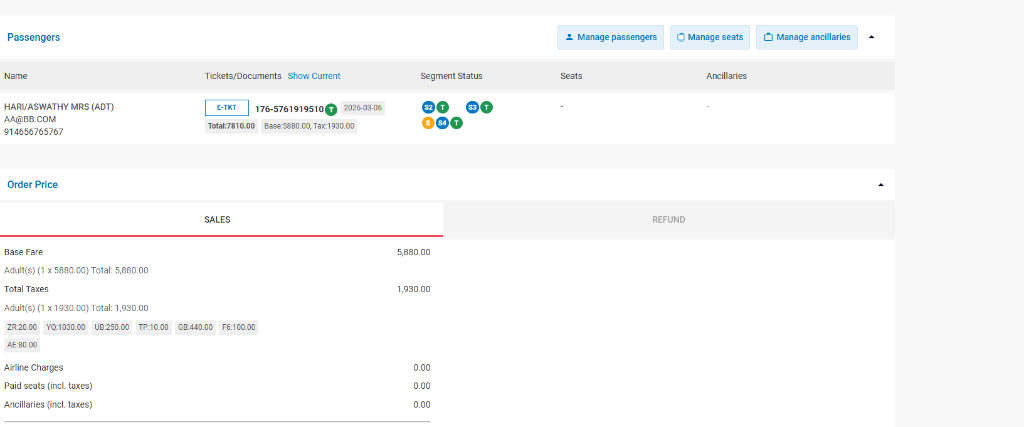
Passenger information
- Passenger Details: name and contact information.
- Ticket Number: the issued e-ticket number.
- Segment Status: whether the segment is ticketed or flown.
- Seat Assignments: any seats that have been assigned.
- Ancillaries: any additional services added to the booking.
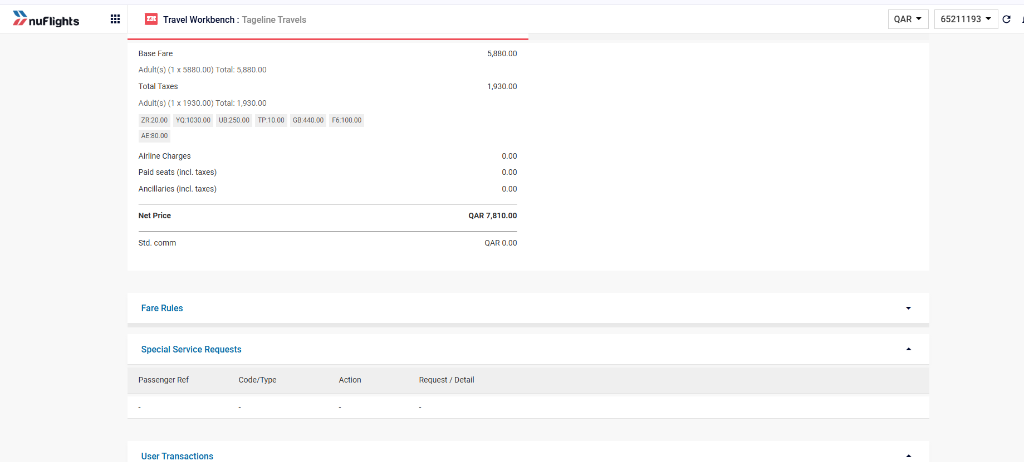
Order pricing
- Base Fare: the core fare amount.
- Taxes & Charges: a breakdown of the taxes and fees.
- Fare Rules: the fare conditions for the booking.
- Special Services: any special service requests (SSRs) on the booking.
Manage the order
From the Order View, you can:
- Manage Journey: change the flight segments.
- Manage Passengers: update passenger details such as passport information or contact details.
- Manage Seats: select or change seats for passengers on each journey segment.
- Issue tickets: issue tickets for booked orders.
- Cancel the order: cancel the booking if needed.
- Manage Ancillaries: add or remove ancillary services such as meals, baggage or other extras.
- Split PNR: split passengers from a booking into a separate PNR.
- Print Itinerary: click the Print Icon at the top of the Order View to generate and print a copy of the passenger itinerary.