

Cancel a ticketed order and refund
Use this when a passenger wants to cancel a ticketed order and get their money back. You'll cancel the order, process the refund and check the refunded amount.
Step 1: Open the ticketed order
Find the ticketed PNR and open its order details. Not sure how? See Find a booking.
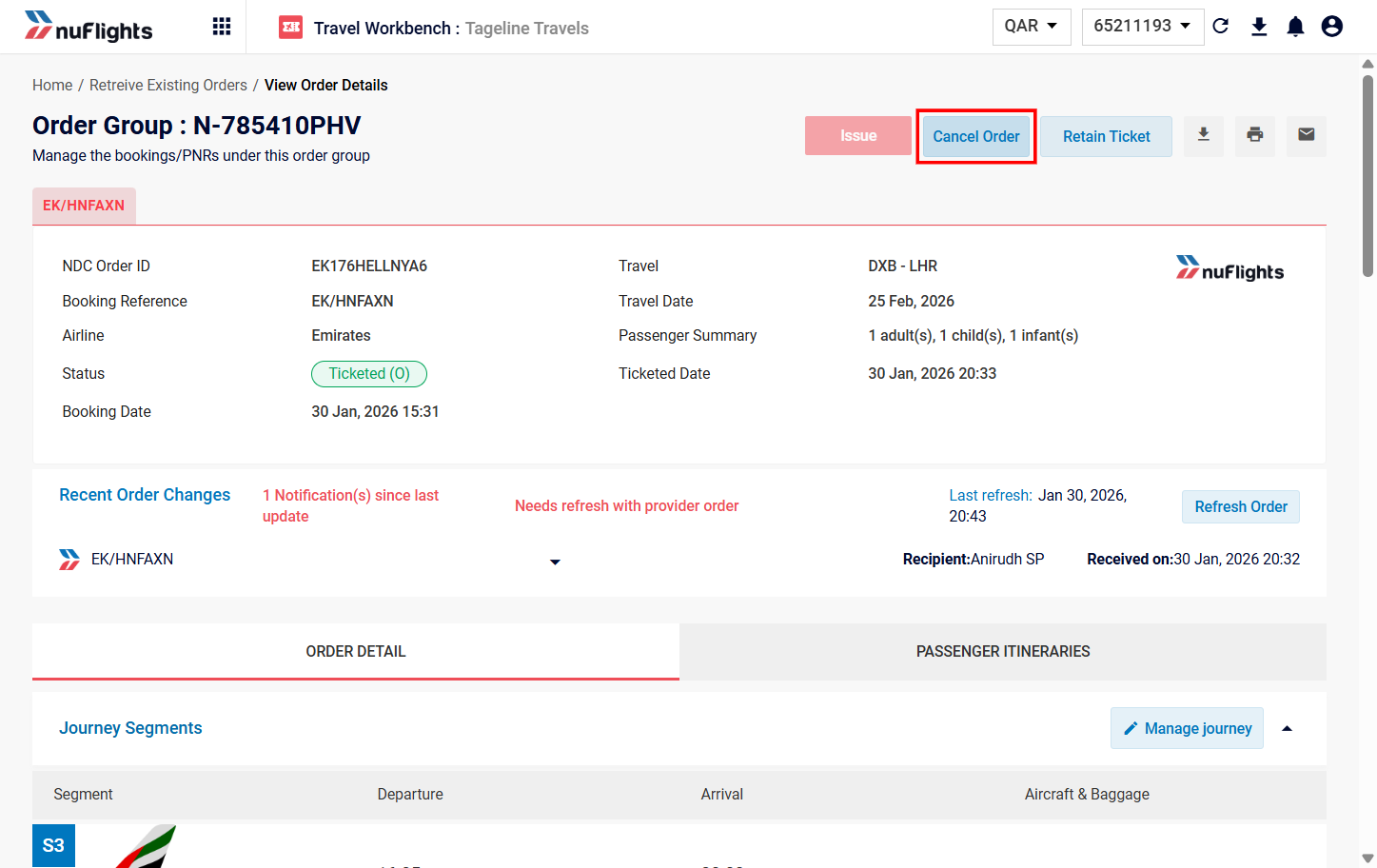
Step 2: Click Cancel Order
Click the Cancel Order button at the top right of the page.
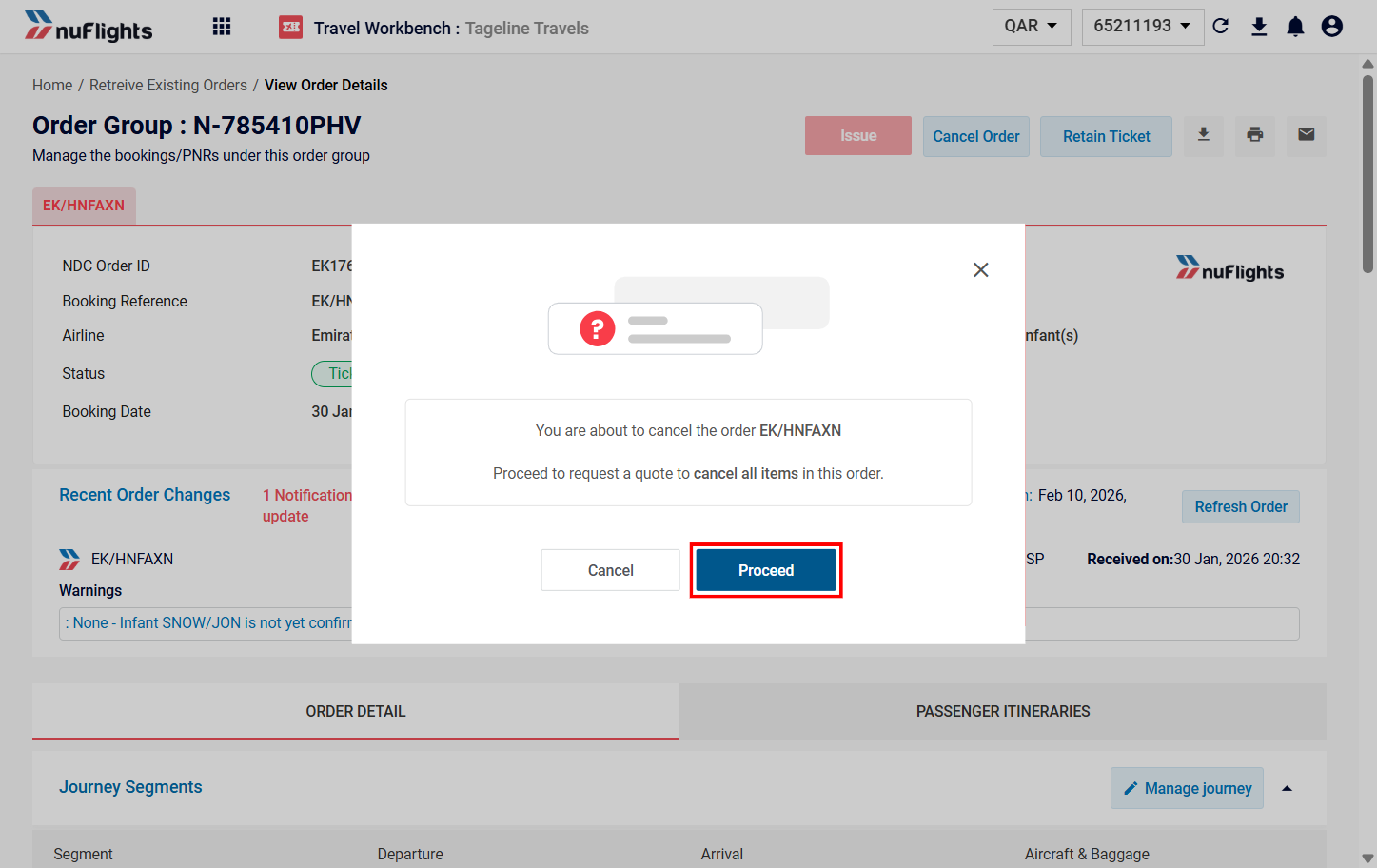
Step 3: Click Proceed
A confirmation message asks if you want to cancel all items in the order. Click Proceed. The cancellation and refund policies page opens.
Step 4: Review the policies and choose Cancel with Refund
- Review the updated fare details and the refund amount that applies.
- Review the cancellation policy rules.
- Under the cancellation type, select Cancel with Refund. This cancels the itinerary and refunds to the original form of payment.
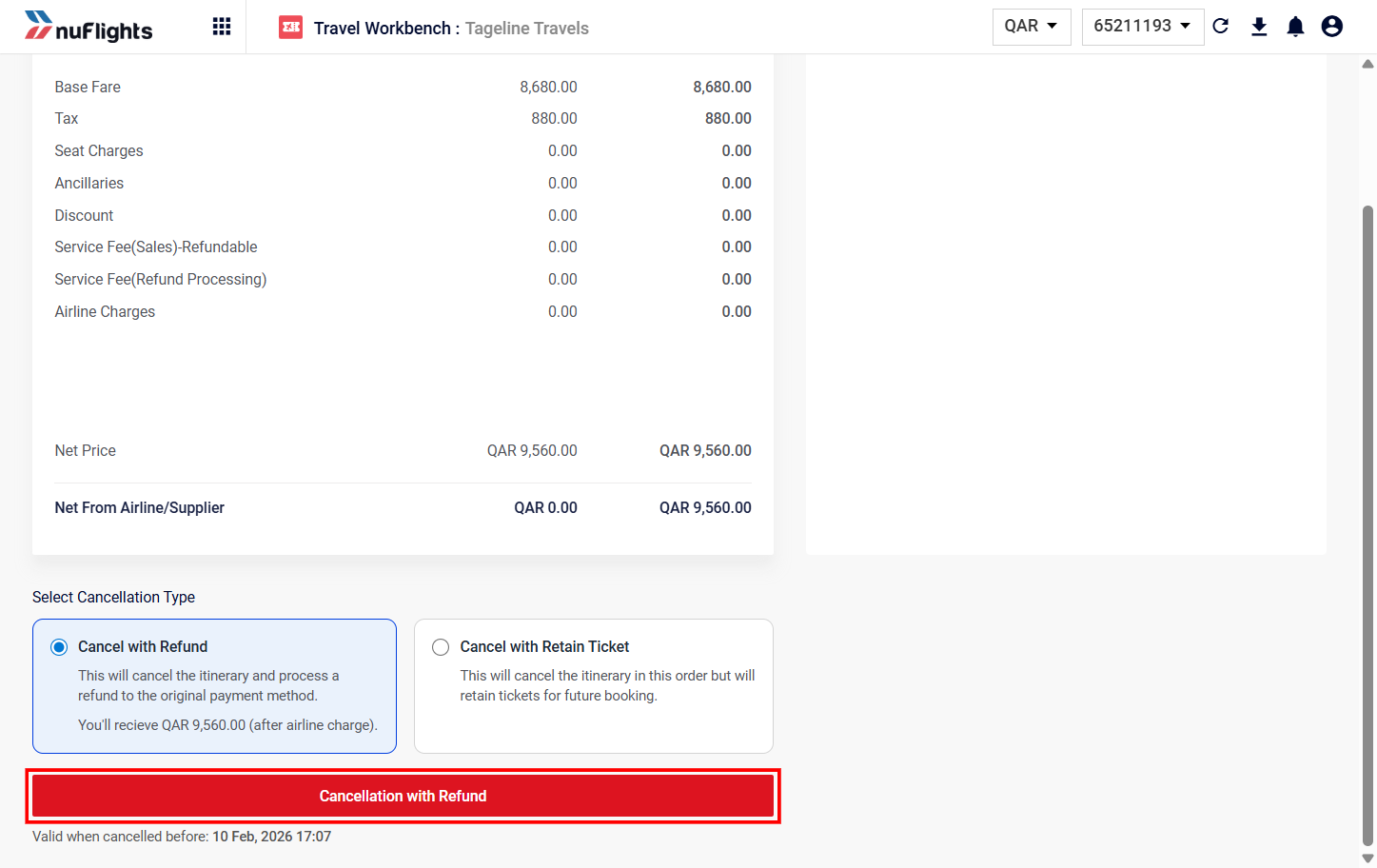
Want to keep the ticket instead? The other option, Cancel with Retain Ticket, cancels the itinerary but keeps the tickets for future use (useful for future credits). See Cancel but keep the ticket.
Step 5: Click Cancellation with Refund
Click the red Cancellation with Refund button at the bottom of the page.
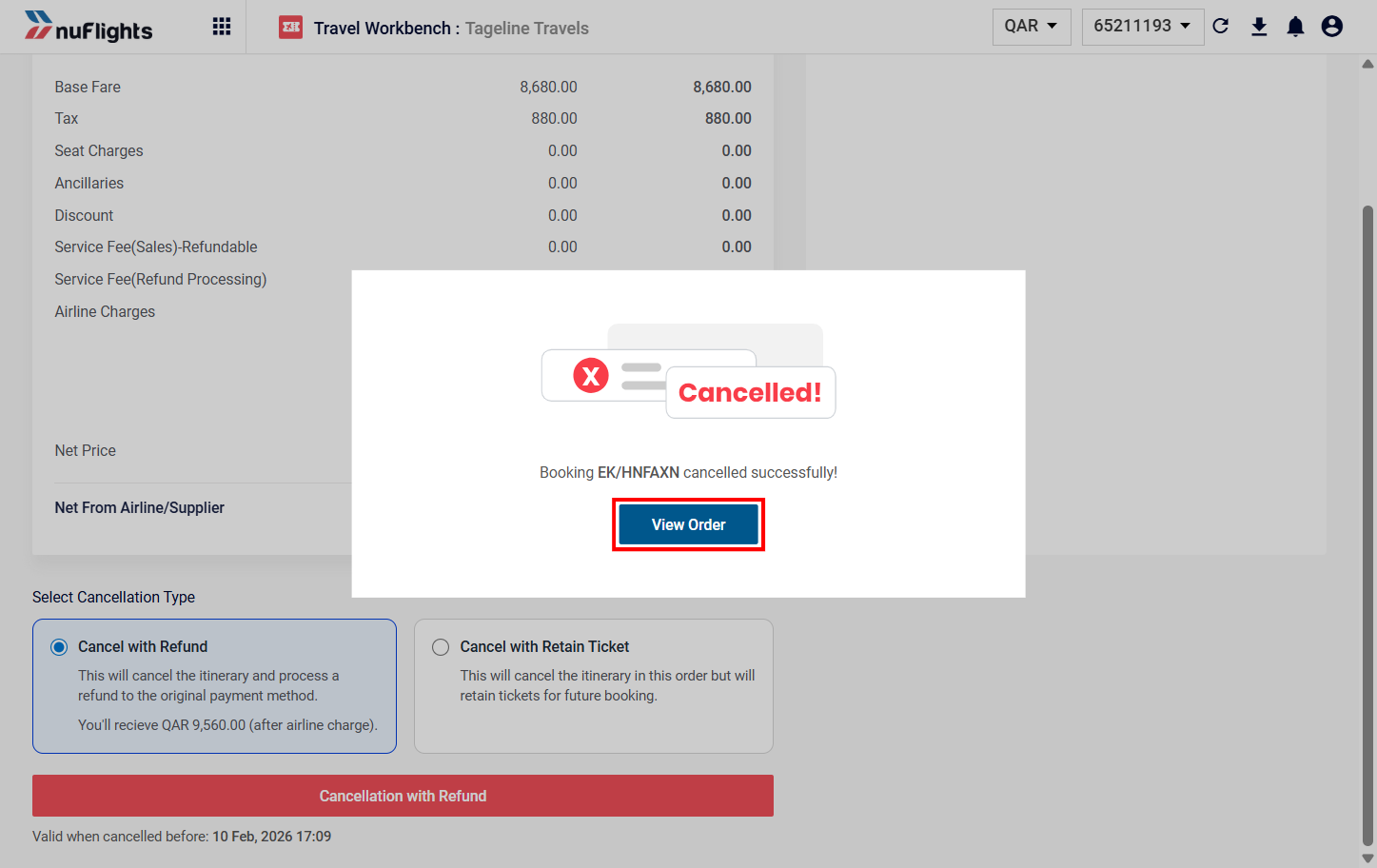
Step 6: Check the order status
A success message says the booking was cancelled.
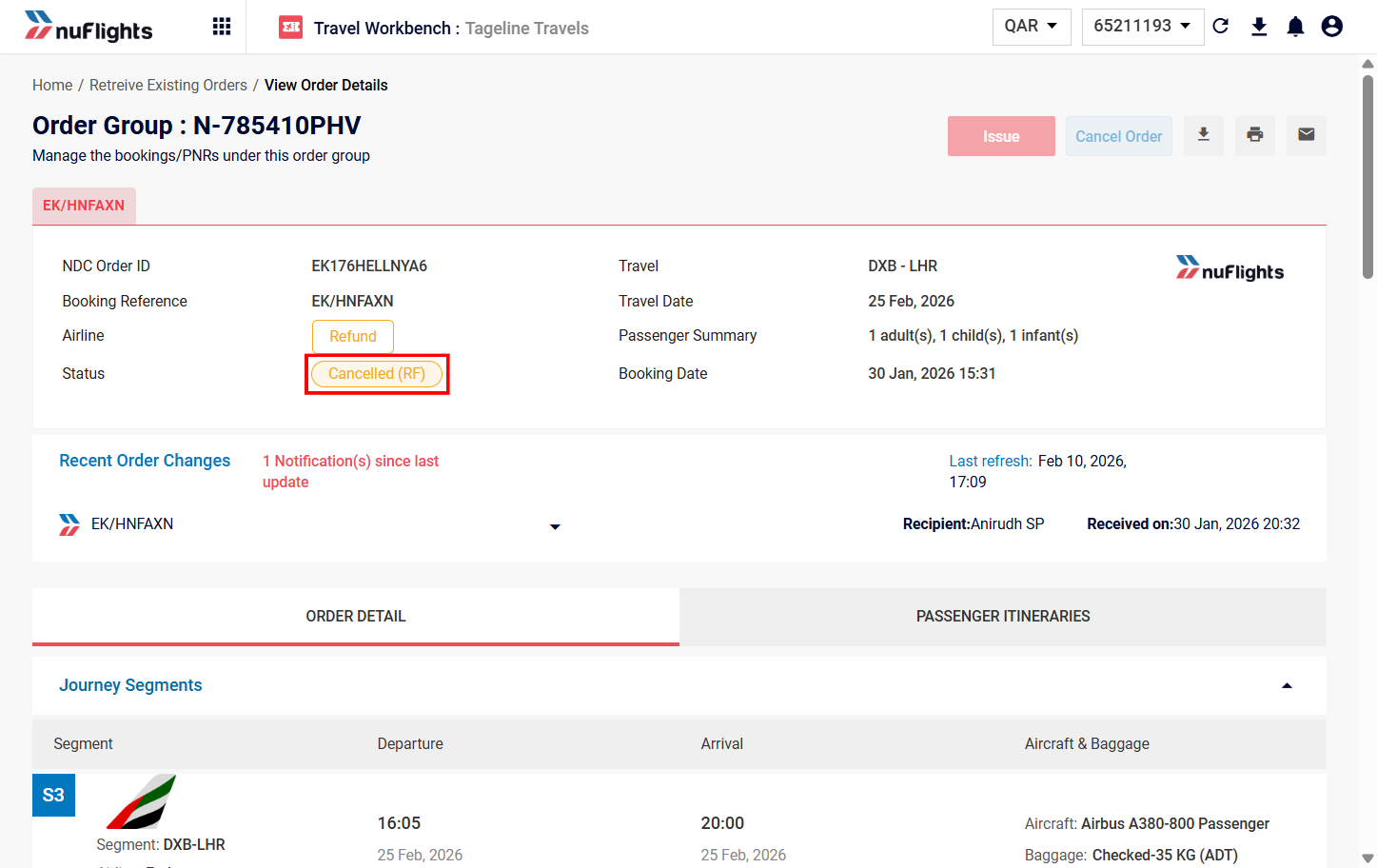
- Click View Order to go back to the order details page.
- Check that the order status shows Cancelled (RF).
Step 7: Check the refund amount
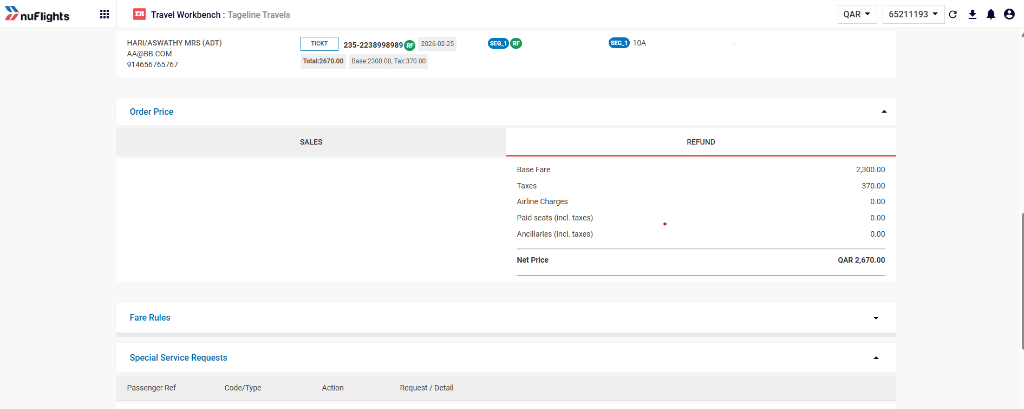
You can see the refunded amount on the Order View page.
- Scroll down to the Order Price section.
- Click the Refund tab (next to the Sales tab).
- Check the refund breakdown:
- Base Fare: the base fare refunded.
- Taxes: the tax refunded.
- Airline Charges: any airline charges that apply.
- Paid Seats (incl. taxes): the refund for paid seats.
- Ancillaries (incl. taxes): the refund for ancillary services.
- Net Price: the total refund processed.
Retain ticket or refund?
- Refund: use this when the passenger wants their money back (airline fees may apply).
- Retain Ticket: use this when the passenger plans to rebook later. It cancels the current segments but keeps the ticket record active in the airline system for a future exchange.
Related guides