

Cancel but keep the ticket
Use this to cancel the itinerary without refunding the ticket value. The ticket stays valid for future use. The quickest way is the Retain Ticket button on the order details page; you can also use Cancel Order (see Another way: use Cancel Order).
Before you start, check that:
- The order is eligible for cancellation with retain ticket.
Step 1: Open the order
Find the order and open it. The action buttons are on the order details page. Not sure how? See Find a booking.
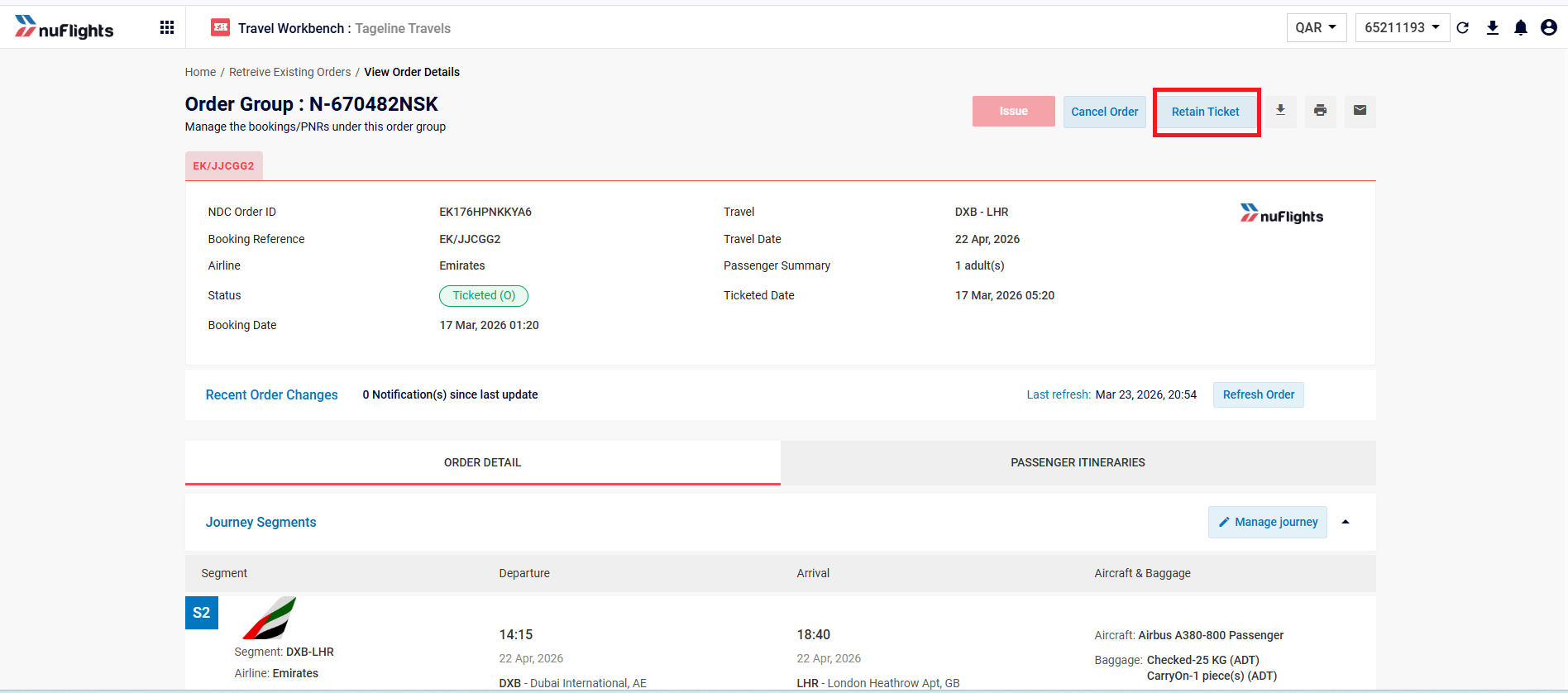
Step 2: Click Retain Ticket
Click the Retain Ticket button.
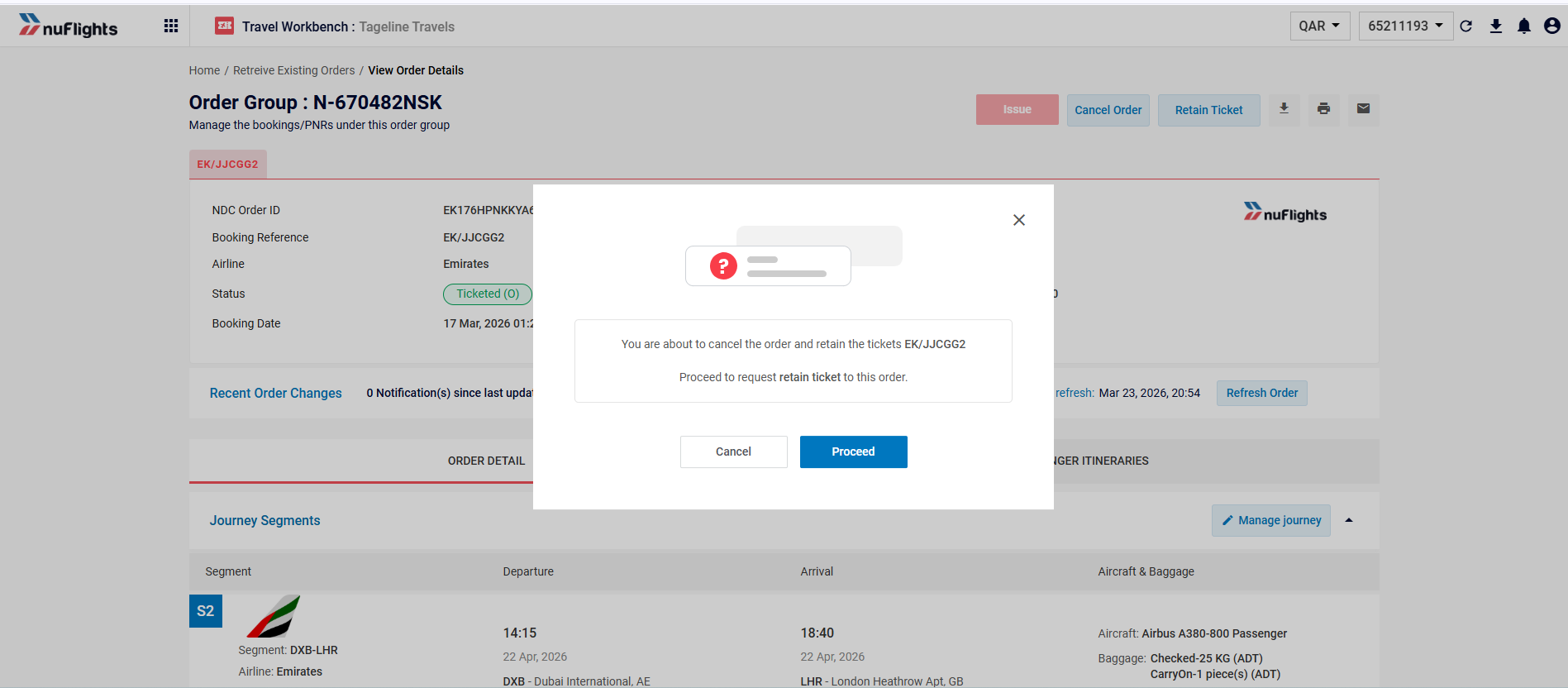
Step 3: Click Proceed
- A prompt says: "You are about to cancel the order and retain the tickets for this PNR. Proceed to request retain ticket to this order." Click Proceed.
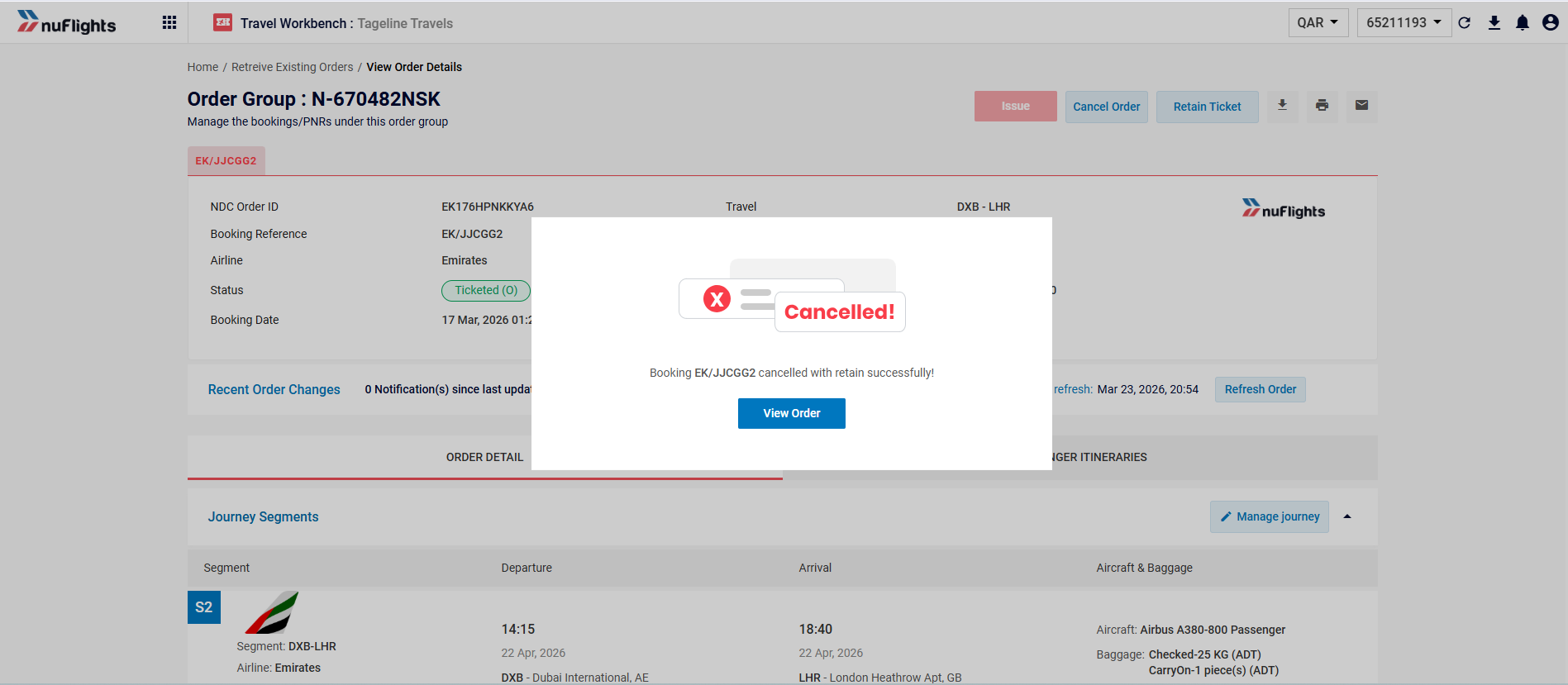
- Wait for the message that says the booking was cancelled and the tickets were retained successfully.
Step 4: Check the order and ticket status
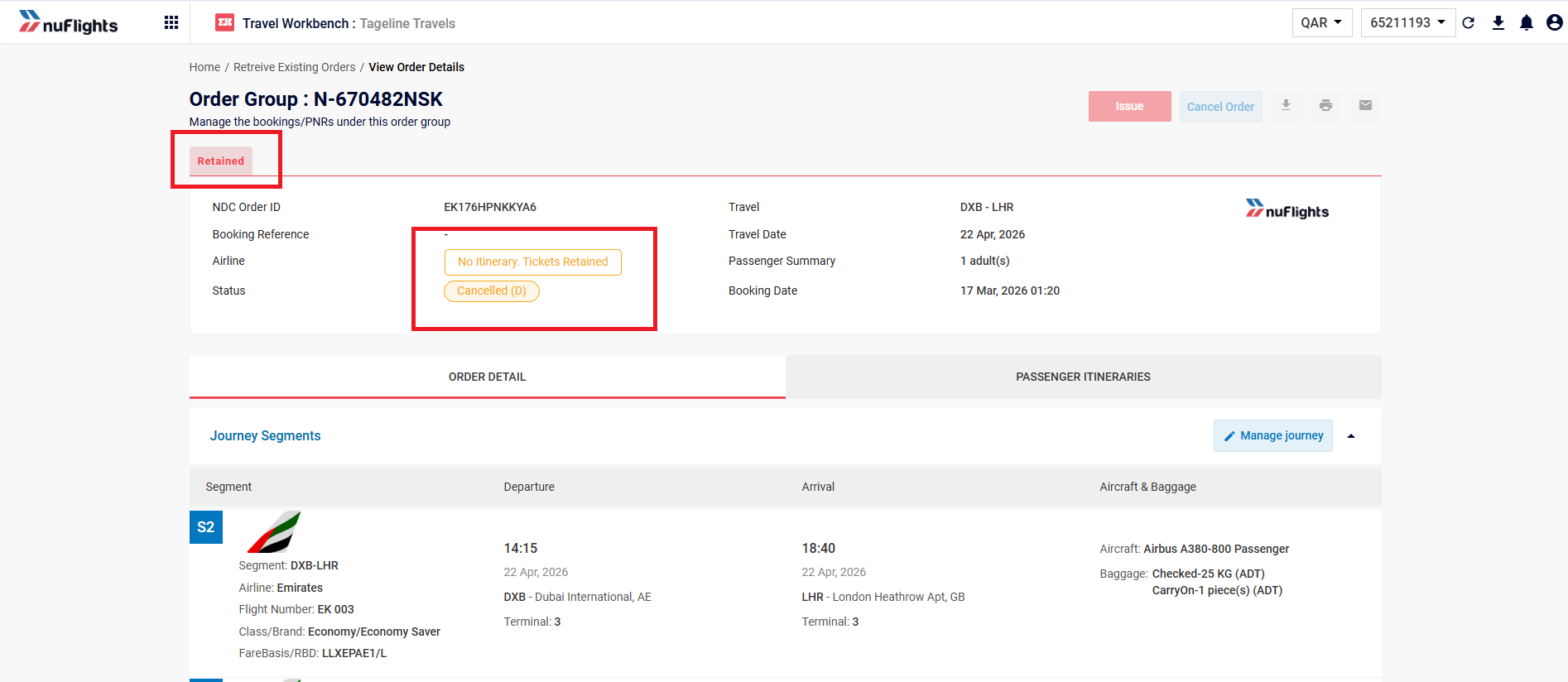
- View the order. The status shows Cancelled (meaning "No Itinerary, Tickets Retained").
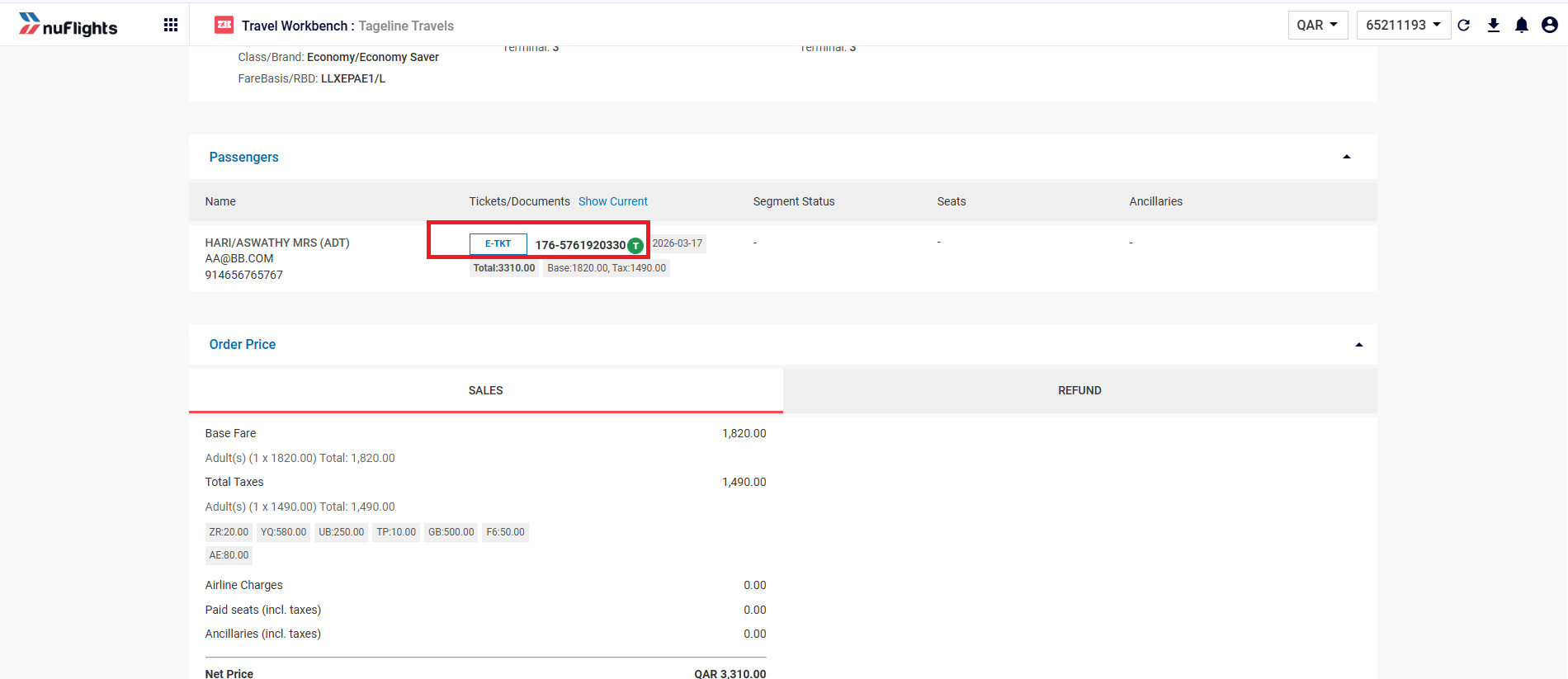
- Check the ticket documents for the order. The originally issued ticket is still in Ticketed status.
Another way: use Cancel Order
You can also cancel and keep the ticket through the standard cancellation flow.
-
On the order details page, click Cancel Order.
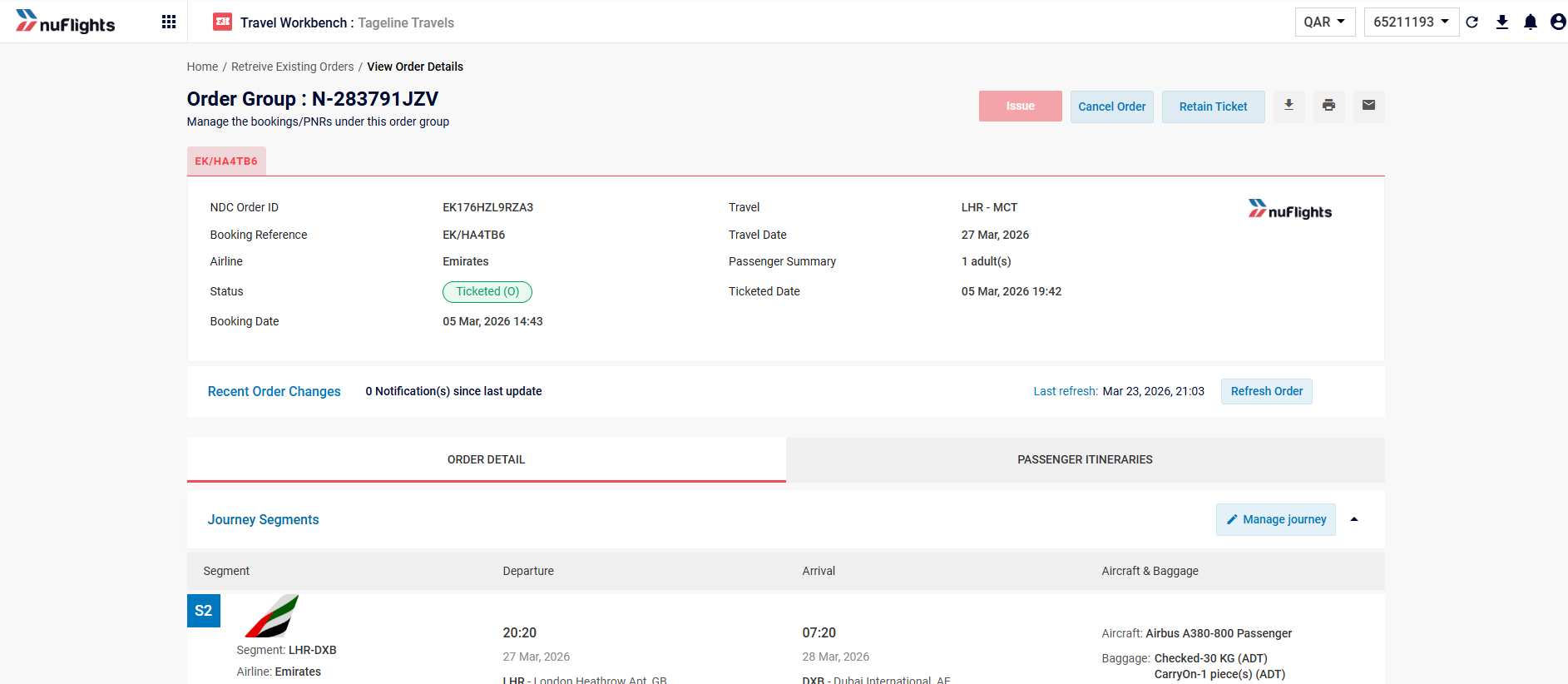
The Cancel Order button on the order details page. -
A prompt says: "You are about to cancel the order. Proceed to request a quote to cancel all items in this order." Click Proceed.
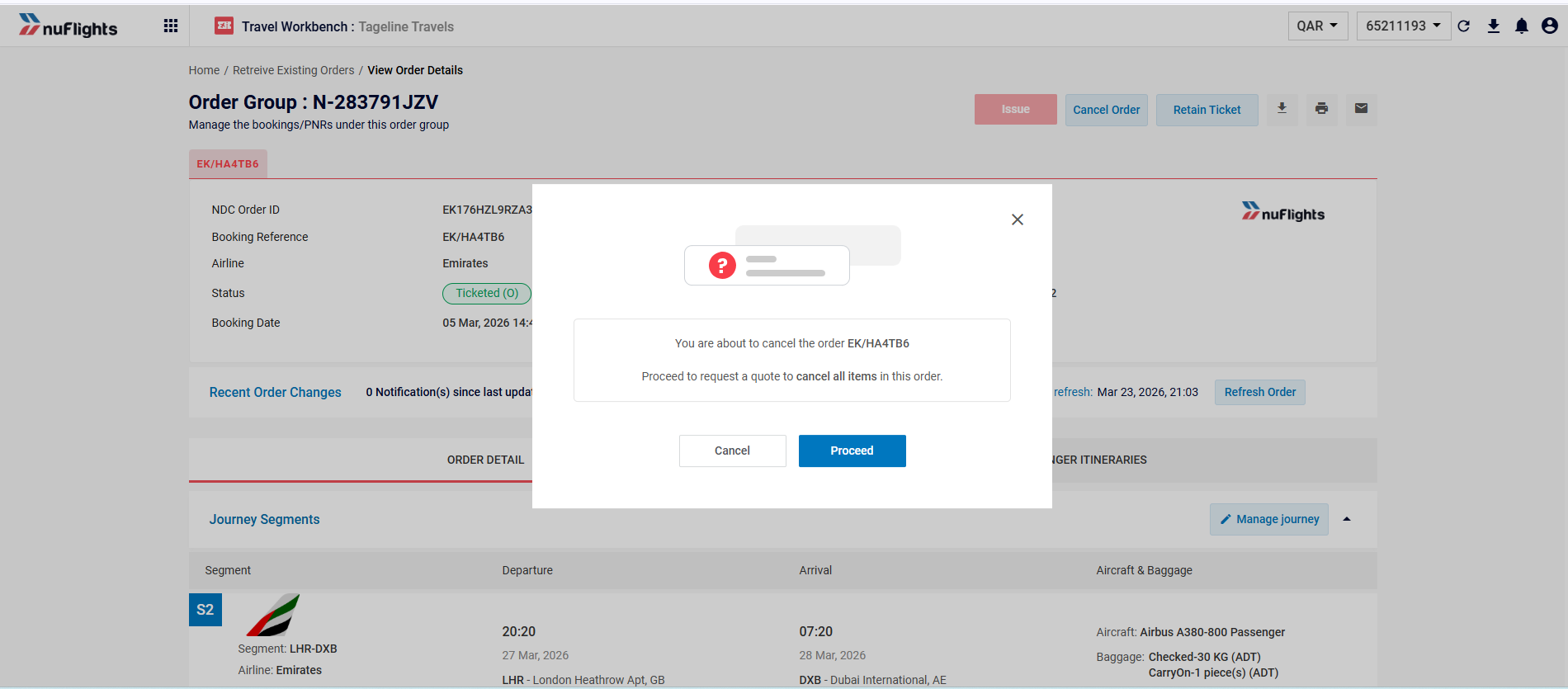
Click Proceed to request a cancellation quote. -
You'll see two cancellation types: Cancel with Refund and Cancel with Retain Ticket. Select Cancel with Retain Ticket.
-
Click the Cancellation with retain ticket button to finish.
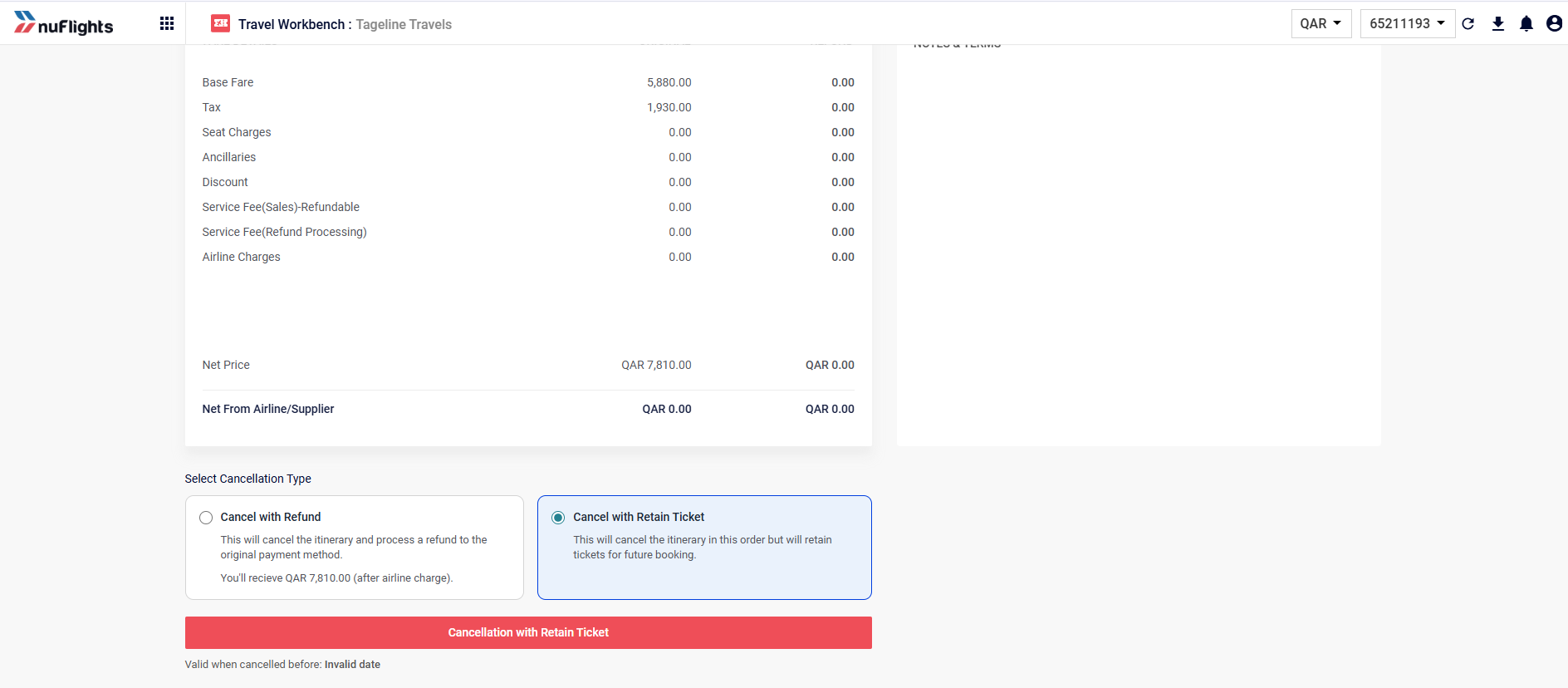
Select Cancel with Retain Ticket. -
Check the status, as in the steps above: the PNR is cancelled (No Itinerary), but the original ticket stays in Ticketed status.
The PNR status shows Cancelled. The ticket document is still Ticketed.
Related guides