

Service fees & discounts
Use this to set up the service fees and discounts agents can add when they issue tickets, and the names those charges show on the booking screen and the customer's invoice.
Step 1: Open Customer Payment
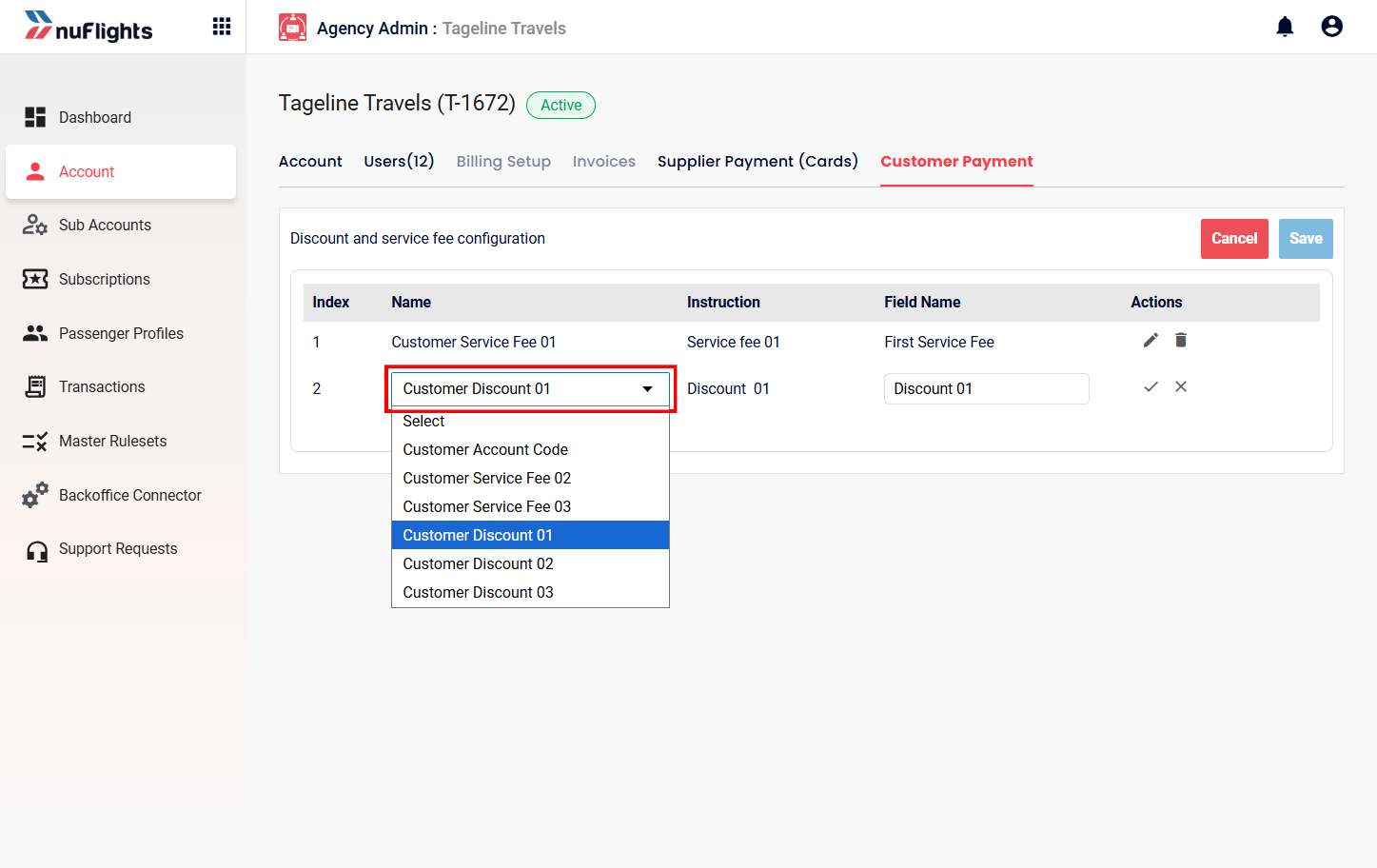
Go to Agency Admin > Customer Payment. You'll see a list of the configured payment fields:
| Column | What it shows |
|---|---|
| Serial Number | The order of configuration. |
| Name | The internal type of charge, for example Customer Service Fee 01 or Customer Discount 01. |
| Field Name | The custom label agents see on the booking screen and customers see on the invoice. |
Step 2: Edit a row
Click the Edit icon (pencil) on the row you want to set up.
Step 3: Choose the type and name
- Record Type: choose Fee or Discount from the dropdown.
- Display Name: enter the text you want agents to see, for example "Corporate Discount".
Step 4: Save the row
Choose an action for the row:
- Save: confirm the changes to that row.
- Cancel: discard your changes.
- Delete: remove the configuration if you no longer need it.
Step 5: Save all changes
When all rows are set up, click the main Save button at the top of the page to apply all changes.
What you can set up
The Customer Payment section controls the extra charges or deductions on a customer's order. You can set up several service fees or discounts and choose the name the booking team sees.
- Service fees: add administrative or service charges.
- Discounts: set up corporate or promotional discounts.
- Custom labels: rename fields (for example "Service Charge" or "Admin Fee") to match your own terms.
- Invoice impact: these settings directly decide the final payable amount calculated when tickets are issued.
How agents use them
When a travel consultant issues a ticket:
- The fields you set up (for example "Admin Fee") show on the payment screen.
- The consultant enters the value of the fee or discount.
- The system updates the Final Payable Amount automatically.
- Your label (for example "Admin Fee") is printed on the customer's invoice.
See it from the agent's side. The Pay and issue tickets guide shows how agents apply these fees when issuing tickets.
Related guides